|
Intro to Physical Computing Syllabus Research & Learning Other Class pages
ITP Help Pages |
Servo Motor Control with an ArduinoLabs.Servo HistoryHide minor edits - Show changes to markup February 22, 2012, at 05:58 PM
by -
Changed lines 5-6 from:
In this lab, you'll control a servomotor's position using the value returned from an analog sensor. Servos are the easiest way to start making motion with a microcontroller. Even though they don't turn 360 degrees, you can use them to create all sorts of periodic or reciprocating motions. Check out some of the Flying Pig mechanisms for ideas on how to make levers, cams, and other simple machines for making motion. to:
In this lab, you'll control a servomotor's position using the value returned from an analog sensor. Servos are the easiest way to start making motion with a microcontroller. Even though they don't turn 360 degrees, you can use them to create all sorts of periodic or reciprocating motions. Check out some of the mechanisms at Rob Ive's site for ideas on how to make levers, cams, and other simple machines for making motion. February 22, 2012, at 04:24 PM
by -
Changed lines 38-39 from:
Not all servos have the same wiring colors. For example, the Hextronik servos that come with Adafruit's ARDX kit use red for +5V,brown for ground, and mustrard yellow for control. to:
Not all servos have the same wiring colors. For example, the Hextronik servos that come with Adafruit's ARDX kit use red for +5V,brown for ground, and mustrard yellow for control. September 28, 2011, at 04:45 PM
by - changed the range in the map() function from 0,255 to 0, 179
Changed line 89 from:
int servoAngle = map(analogValue, 0, 1023, 0, 255); to:
int servoAngle = map(analogValue, 0, 1023, 0, 179); Changed line 117 from:
int servoAngle = map(analogValue, 0, 1023, 0, 255); to:
int servoAngle = map(analogValue, 0, 1023, 0, 179); August 18, 2011, at 12:17 PM
by -
Changed lines 52-53 from:
to:
August 18, 2011, at 12:16 PM
by -
Changed lines 51-53 from:
%lframe alt='Voila, your headers fit better!' hspace=10 width=200% to:
August 18, 2011, at 12:16 PM
by -
Changed lines 51-54 from:
%lframe alt='Voila, your headers fit better!' hspace=10 width=200% to:
August 18, 2011, at 12:01 PM
by -
Added lines 45-54:
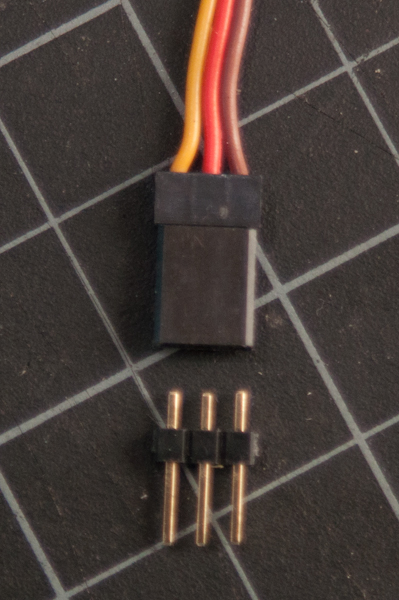
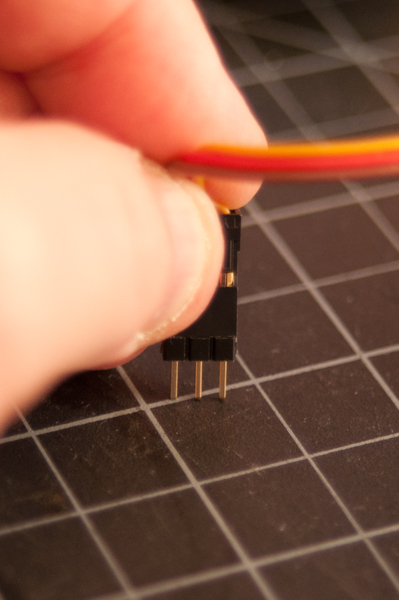
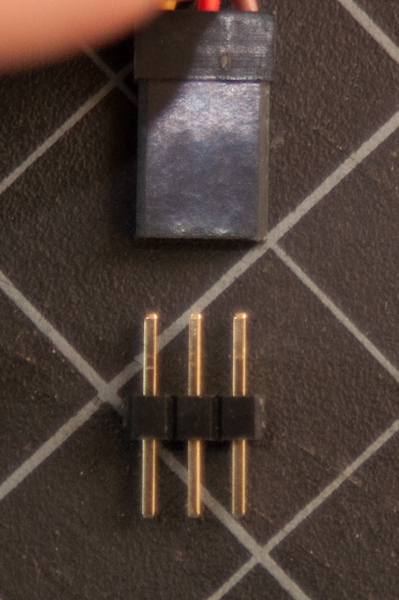
When you attach the servo, you'll need a row of three male headers to attach it to a breadboard. You may find that the pins don't stay in the servo's connector holes. Put the pins in the servo's connector, then push them down on a table gently. They will slide up inside their plastic sheaths, and fit better in your servo's sonnector. %lframe alt='Voila, your headers fit better!' hspace=10 width=200% Deleted line 94:
August 18, 2011, at 11:41 AM
by -
Changed lines 117-118 from:
(:divend:) to:
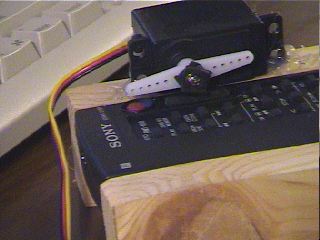
Get CreativeServo motors give you the power to do all kinds of things. They can be used to push a remote contro button, in a pinch: http://tigoe.net/ESBflash/img/remote.jpg (Project: Tom Igoe) You can play drums (Project: Nick Yulman) You can make a rat's tail move (project: Gabriela Gutiérrez) If you've got 800 or so of them and a lot of time, you can build a wooden mirror (project: Daniel Rozin). Come up with a project of your own that needs a little movement, and see if you can solve the problem with a servomotor. August 18, 2011, at 11:26 AM
by -
Changed lines 40-42 from:
to:
Changed lines 44-46 from:
to:
Changed lines 47-55 from:
The following code examples will move the servo as the value of the sensor changes. The first example shows you how to control a servo motor using a method that is traditionally taught at ITP which pulses the servo motor with a digital pin to set the position of the servo. This method is more complex and exposes the math and timing required to control a servo with a microcontroller. The second example shows you how to control a servo motor using the Arduino Servo library. This library is very easy to use and is much easier to follow. However, it obscures all the calculations and handles the dirty work for you. This is useful once you've attempted the pulse method and understand it completely. Using the pulse method(:div class=code :) to:
First, find out the range of your sensor by using analogRead() to read the sensor and printing out the results. (:toggle question1 init=hide show='What does that look like?' hide='Let me figure it out':) (:source lang=arduino tabwidth=4 :) void setup() { Serial.begin(9600); // initialize serial communications } void loop() { int analogValue = analogRead(A0); // read the analog input Serial.println(analogValue); // print it } (:sourceend:) Now, map the result of the analog reading to a range from 0 to 179, which is the range of the sensor in degrees. Store the mapped value in a local variable called servoAngle. (:toggle question2 init=hide show='I give up, how do I do that?' hide='Let me figure it out':) (:source lang=arduino tabwidth=4 :) void setup() { Serial.begin(9600); // initialize serial communications } void loop() { int analogValue = analogRead(A0); // read the analog input Serial.println(analogValue); // print it Changed lines 78-79 from:
/* Servo control from an analog input to:
// if your sensor's range is less than 0 to 1023, you'll need to // modify the map() function to use the values you discovered: int servoAngle = map(analogValue, 0, 1023, 0, 255); } (:sourceend:) Finally, add the servo library at the beginning of your code, then make a variable to hold an instance of the library, and a variable for the servo's output pin. In the setup(), initialize your servo using servo.attach(). Then in your main loop, use servoAngle to set the servo's position. (:toggle question3 init=hide show='I give up, how do I do that?' hide='Let me figure it out':) (:source lang=arduino tabwidth=4 :)
Servo servoMotor; // creates an instance of the servo object to control a servo int servoPin = 2; // Control pin for servo motor void setup() { Serial.begin(9600); // initialize serial communications servoMotor.attach(servoPin); // attaches the servo on pin 2 to the servo object } void loop() { int analogValue = analogRead(A0); // read the analog input Serial.println(analogValue); // print it // if your sensor's range is less than 0 to 1023, you'll need to // modify the map() function to use the values you discovered: int servoAngle = map(analogValue, 0, 1023, 0, 255); // move the servo using the angle from the sensor: servoMotor.write(servoAngle); } (:sourceend:) Deleted lines 117-224:
The minimum (minPulse) and maxiumum (maxPulse) values will be different depending on your specific servo motor. Ideally, it should be between 1 and 2 milliseconds, but in practice, 0.5 - 2.5 milliseconds works well for me. Try different values to see what numbers are best for you. This program uses the millis() function to keep track of when the servo was last pulsed. millis() produces an overflow error (i.e. generates a number that's too big to fit in a long variable) after about 5 days. if you're making a program that has to run for more than 5 days, you may need to account for this. by Tom Igoe additions by Carlyn Maw & Rob Faludi Created 28 Jan. 2006 Updated 10 Jun. 2008 */ int servoPin = 2; // Control pin for servo motor int minPulse = 500; // Minimum servo position int maxPulse = 2500; // Maximum servo position int pulse = 0; // Amount to pulse the servo long lastPulse = 0; // the time in milliseconds of the last pulse int refreshTime = 20; // the time needed in between pulses int analogValue = 0; // the value returned from the analog sensor int analogPin = 0; // the analog pin that the sensor's on void setup() { pinMode(servoPin, OUTPUT); // Set servo pin as an output pin pulse = minPulse; // Set the motor position value to the minimum Serial.begin(9600); } void loop() { analogValue = analogRead(analogPin); // read the analog input pulse = map(analogValue,0,1023,minPulse,maxPulse); // convert the analog value // to a range between minPulse // and maxPulse. // pulse the servo again if rhe refresh time (20 ms) have passed: if (millis() - lastPulse >= refreshTime) { digitalWrite(servoPin, HIGH); // Turn the motor on delayMicroseconds(pulse); // Length of the pulse sets the motor position digitalWrite(servoPin, LOW); // Turn the motor off lastPulse = millis(); // save the time of the last pulse } } (:divend:) This code was written with a potentiometer in mind, so it assumes you're going to get values from 0 to 1023 from the sensor. If you don't, the servo won't move through its whole range. Determine the range of numbers the sensor is giving you and adjust the servo formula to fit. To fix this, use the map() function. You know the input range is the range of the sensor, 0 to 1023. And you know the output range is from minPulse to maxPulse. So do this: (:div class=code :) pulseWidth = map(analogValue, 0, 1023, minPulse, maxPulse);
(:divend:) Using the Arduino Servo Library(:div class=code :) /* Servo control from an analog input using the Arduino Servo library This example code uses the Arduino Servo library which comes packaged with the Arduino software. In order to make this work, you must include the Servo.h library file, create an instance of the Servo object. attach a pin to the Servo object, and then write an analog value to the Servo object to set its position. The difference between using the Servo library and the older method of pulsing a digital pin is that the library handles a lot of the work for you. You no longer need to figure out the translation between pulse length and position. You now can simply specify the angle you'd like your servo to be at and it will turn to that position. Updated 08 Sep 2009 by Rory Nugent Created 20 Jan 2009 by Tom Igoe */ #include <Servo.h> // include the servo library Servo servoMotor; // creates an instance of the servo object to control a servo int analogPin = 0; // the analog pin that the sensor is on int analogValue = 0; // the value returned from the analog sensor int servoPin = 2; // Control pin for servo motor. As of Arduino 0017, can be any pin void setup() { servoMotor.attach(servoPin); // attaches the servo on pin 2 to the servo object } void loop() { analogValue = analogRead(analogPin); // read the analog input (value between 0 and 1023) analogValue = map(analogValue, 0, 1023, 0, 179); // map the analog value (0 - 1023) to the angle of the servo (0 - 179) servoMotor.write(analogValue); // write the new mapped analog value to set the position of the servo delay(15); // waits for the servo to get there } August 18, 2011, at 11:11 AM
by -
Changed lines 36-38 from:
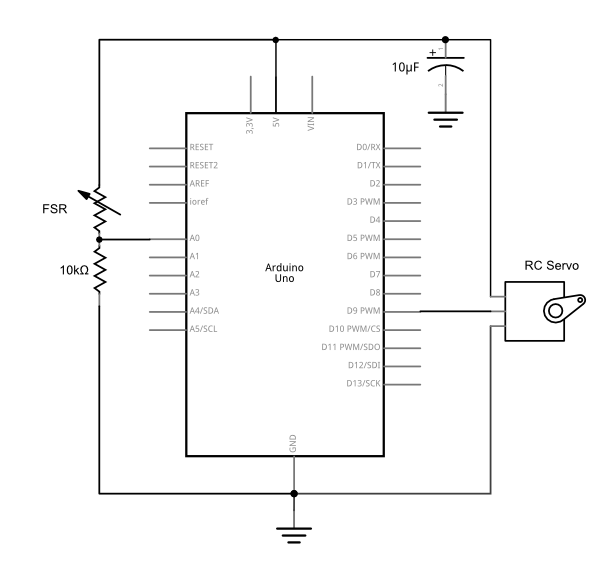
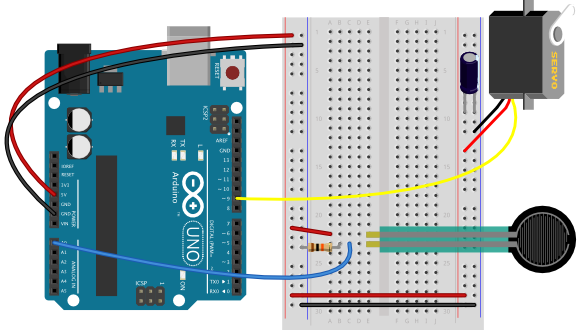
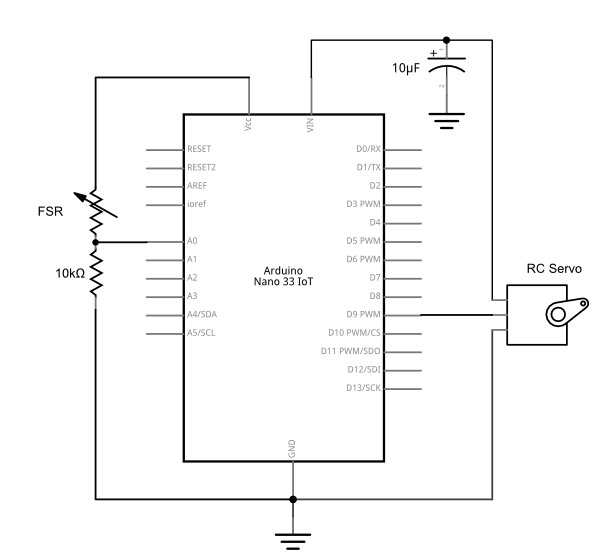
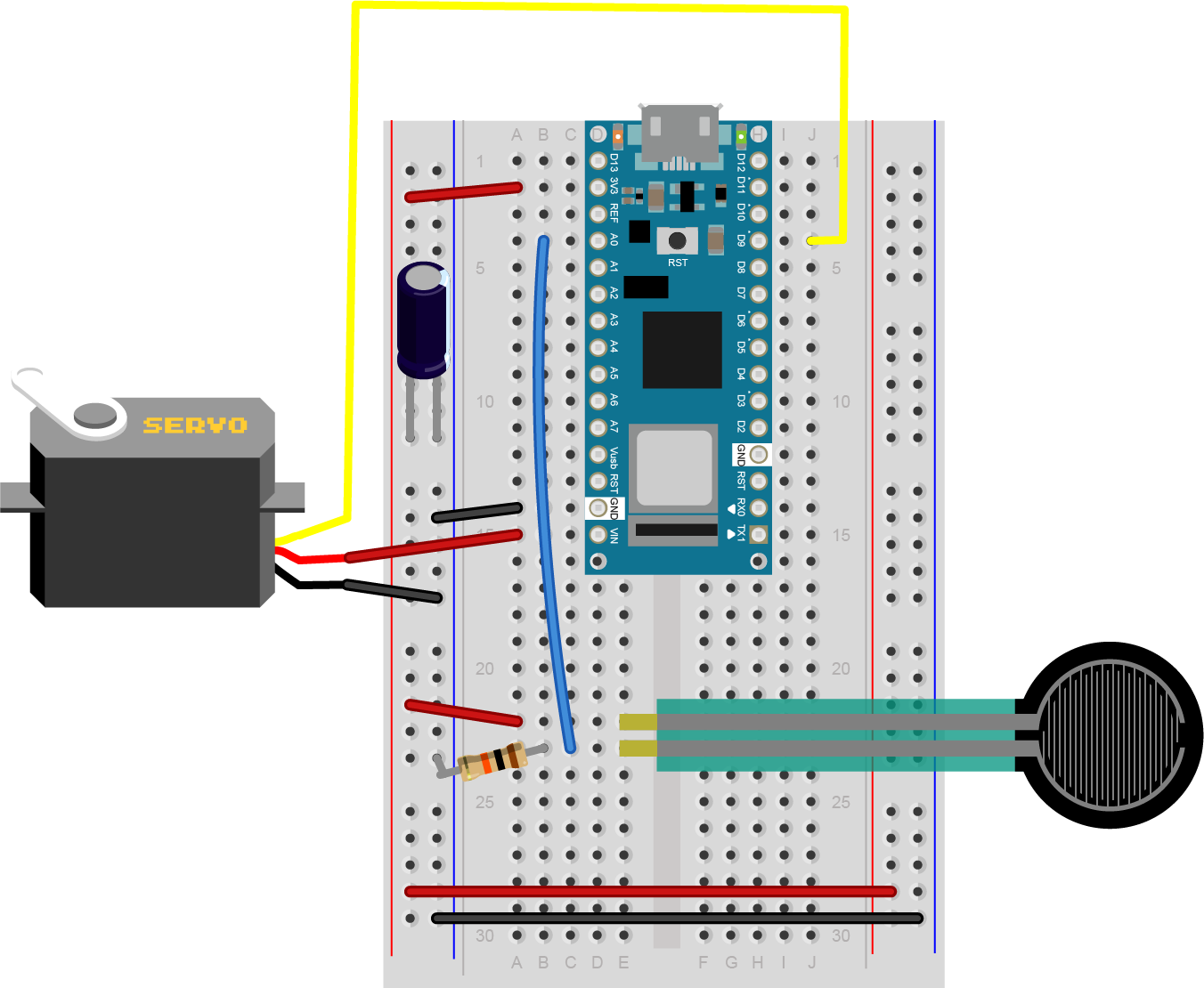
Pick any analog input and connect it to Analog pin 0 as you did in the Analog Input and Output Lab. Then connect an RC servomotor to digital pin 2. The yellow wire of the servo goes to the pin, and the red and black wires go to +5V and ground, respectively. (:table:) to:
Pick any analog input and connect it to Analog pin 0 as you did in the Analog Input and Output Lab. Then connect an RC servomotor to digital pin 2. The yellow wire of the servo goes to the pin, and the red and black wires go to +5V and ground, respectively. Not all servos have the same wiring colors. For example, the Hextronik servos that come with Adafruit's ARDX kit use red for +5V,brown for ground, and mustrard yellow for control. Attach:Attach:servo_control_fsr_bb.png Δ Δ (Diagram made with Fritzing Changed lines 43-48 from:
to:
March 22, 2010, at 10:49 AM
by -
Changed line 153 from:
int servoPin = 2; // Control pin for servo motor, may only be pin 9 or 10 to:
int servoPin = 2; // Control pin for servo motor. As of Arduino 0017, can be any pin February 11, 2010, at 11:26 AM
by -
Changed line 31 from:
to:
(Diagram made with Fritzing - download) Changed lines 42-43 from:
to:
(Diagram made with Fritzing - download) February 10, 2010, at 02:22 PM
by -
Changed line 40 from:
http://itp.nyu.edu/physcomp/images/labs/Attach:servo_motor_control_sch.png to:
February 10, 2010, at 02:20 PM
by -
Changed line 40 from:
http://itp.nyu.edu/physcomp/images/labs/servo_sch.png to:
http://itp.nyu.edu/physcomp/images/labs/Attach:servo_motor_control_sch.png February 09, 2010, at 05:05 PM
by - February 09, 2010, at 05:05 PM
by -
Changed lines 30-31 from:
http://itp.nyu.edu/physcomp/images/labs/arduino_bboard_power.jpg to:
Changed line 42 from:
http://itp.nyu.edu/physcomp/uploads/servo_01.jpg to:
September 29, 2009, at 09:58 PM
by -
Added lines 139-140:
Updated 08 Sep 2009 by Rory Nugent Deleted lines 141-142:
by Rory Nugent updated 8 Sep 2009 September 08, 2009, at 10:59 AM
by -
Changed lines 129-130 from:
In order to make this work, you must include the Servo.h library file, create an instance of the Servo object, attach a digital PWM pin to the Servo object, and then write an analog value to the Servo object to set its to:
In order to make this work, you must include the Servo.h library file, create an instance of the Servo object. attach a pin to the Servo object, and then write an analog value to the Servo object to set its Deleted line 136:
Please note, unlike the older pulsing method you MUST use a digital PWM pin or it will not work.
September 08, 2009, at 10:58 AM
by -
Changed lines 121-144 from:
NOTE: If you've just completed the exercise using the pulse method and wish to experiment with the Arduino Servo library you MUST move your servo control pin from digital pin 2 to digital PWM pin 9. A digital PWM pin is needed for the following code to function as expected. [@ /* Servo control from an analog input using the Arduino Servo library This example code uses the Arduino Servo library which comes packaged with the Arduino software. In order to make this work, you must include the Servo.h library file, create an instance of the Servo object, attach a digital PWM pin to the Servo object, and then write an analog value to the Servo object to set its position. The difference between using the Servo library and the older method of pulsing a digital pin is that the library handles a lot of the work for you. You no longer need to figure out the translation between pulse length and position. You now can simply specify the angle you'd like your servo to be at and it will turn to that position. Please note, unlike the older pulsing method you MUST use a digital PWM pin or it will not work. by Rory Nugent Created 20 Jan. 2009
to:
(:div class=code :) /* Servo control from an analog input using the Arduino Servo library Changed lines 127-132 from:
Servo servoMotor; // creates an instance of the servo object to control a servo int analogPin = 0; // the analog pin that the sensor is on int analogValue = 0; // the value returned from the analog sensor int servoPin = 9; // Control pin for servo motor, may only be pin 9 or 10 to:
This example code uses the Arduino Servo library which comes packaged with the Arduino software.
Changed lines 129-131 from:
void setup() { servoMotor.attach(servoPin); // attaches the servo on pin 2 to the servo object } to:
In order to make this work, you must include the Servo.h library file, create an instance of the Servo object, attach a digital PWM pin to the Servo object, and then write an analog value to the Servo object to set its position. Changed lines 133-141 from:
void loop() { analogValue = analogRead(analogPin); // read the analog input (value between 0 and 1023) analogValue = map(analogValue, 0, 1023, 0, 179); // map the analog value (0 - 1023) to the angle of the servo (0 - 179) servoMotor.write(analogValue); // write the new mapped analog value to set the position of the servo delay(15); // waits for the servo to get there } @] to:
The difference between using the Servo library and the older method of pulsing a digital pin is that the library handles a lot of the work for you. You no longer need to figure out the translation between pulse length and position. You now can simply specify the angle you'd like your servo to be at and it will turn to that position. Please note, unlike the older pulsing method you MUST use a digital PWM pin or it will not work. Created 20 Jan 2009 by Rory Nugent updated 8 Sep 2009 by Tom Igoe */ #include <Servo.h> // include the servo library Servo servoMotor; // creates an instance of the servo object to control a servo int analogPin = 0; // the analog pin that the sensor is on int analogValue = 0; // the value returned from the analog sensor int servoPin = 2; // Control pin for servo motor, may only be pin 9 or 10 void setup() { servoMotor.attach(servoPin); // attaches the servo on pin 2 to the servo object } void loop() { analogValue = analogRead(analogPin); // read the analog input (value between 0 and 1023) analogValue = map(analogValue, 0, 1023, 0, 179); // map the analog value (0 - 1023) to the angle of the servo (0 - 179) servoMotor.write(analogValue); // write the new mapped analog value to set the position of the servo delay(15); // waits for the servo to get there } (:divend:) September 08, 2009, at 10:53 AM
by -
Changed line 116 from:
pulseWidth = map(sensorValue, 0, 1023, minPulse, maxPulse);
to:
pulseWidth = map(analogValue, 0, 1023, minPulse, maxPulse);
September 08, 2009, at 10:52 AM
by -
Added lines 55-122:
(:div class=code :) /* Servo control from an analog input The minimum (minPulse) and maxiumum (maxPulse) values will be different depending on your specific servo motor. Ideally, it should be between 1 and 2 milliseconds, but in practice, 0.5 - 2.5 milliseconds works well for me. Try different values to see what numbers are best for you. This program uses the millis() function to keep track of when the servo was last pulsed. millis() produces an overflow error (i.e. generates a number that's too big to fit in a long variable) after about 5 days. if you're making a program that has to run for more than 5 days, you may need to account for this. by Tom Igoe additions by Carlyn Maw & Rob Faludi Created 28 Jan. 2006 Updated 10 Jun. 2008 */ int servoPin = 2; // Control pin for servo motor int minPulse = 500; // Minimum servo position int maxPulse = 2500; // Maximum servo position int pulse = 0; // Amount to pulse the servo long lastPulse = 0; // the time in milliseconds of the last pulse int refreshTime = 20; // the time needed in between pulses int analogValue = 0; // the value returned from the analog sensor int analogPin = 0; // the analog pin that the sensor's on void setup() { pinMode(servoPin, OUTPUT); // Set servo pin as an output pin pulse = minPulse; // Set the motor position value to the minimum Serial.begin(9600); } void loop() { analogValue = analogRead(analogPin); // read the analog input pulse = map(analogValue,0,1023,minPulse,maxPulse); // convert the analog value // to a range between minPulse // and maxPulse. // pulse the servo again if rhe refresh time (20 ms) have passed: if (millis() - lastPulse >= refreshTime) { digitalWrite(servoPin, HIGH); // Turn the motor on delayMicroseconds(pulse); // Length of the pulse sets the motor position digitalWrite(servoPin, LOW); // Turn the motor off lastPulse = millis(); // save the time of the last pulse } } (:divend:) This code was written with a potentiometer in mind, so it assumes you're going to get values from 0 to 1023 from the sensor. If you don't, the servo won't move through its whole range. Determine the range of numbers the sensor is giving you and adjust the servo formula to fit. To fix this, use the map() function. You know the input range is the range of the sensor, 0 to 1023. And you know the output range is from minPulse to maxPulse. So do this: (:div class=code :) pulseWidth = map(sensorValue, 0, 1023, minPulse, maxPulse);
(:divend:) Using the Arduino Servo LibraryNOTE: If you've just completed the exercise using the pulse method and wish to experiment with the Arduino Servo library you MUST move your servo control pin from digital pin 2 to digital PWM pin 9. A digital PWM pin is needed for the following code to function as expected. Deleted line 124:
Changed lines 126-143 from:
Servo control from an analog input The minimum (minPulse) and maxiumum (maxPulse) values will be different depending on your specific servo motor. Ideally, it should be between 1 and 2 milliseconds, but in practice, 0.5 - 2.5 milliseconds works well for me. Try different values to see what numbers are best for you. This program uses the millis() function to keep track of when the servo was last pulsed. millis() produces an overflow error (i.e. generates a number that's too big to fit in a long variable) after about 5 days. if you're making a program that has to run for more than 5 days, you may need to account for this. by Tom Igoe additions by Carlyn Maw & Rob Faludi Created 28 Jan. 2006 Updated 10 Jun. 2008 to:
Servo control from an analog input using the Arduino Servo library This example code uses the Arduino Servo library which comes packaged with the Arduino software. In order to make this work, you must include the Servo.h library file, create an instance of the Servo object, attach a digital PWM pin to the Servo object, and then write an analog value to the Servo object to set its position. The difference between using the Servo library and the older method of pulsing a digital pin is that the library handles a lot of the work for you. You no longer need to figure out the translation between pulse length and position. You now can simply specify the angle you'd like your servo to be at and it will turn to that position. Please note, unlike the older pulsing method you MUST use a digital PWM pin or it will not work. by Rory Nugent Created 20 Jan. 2009 Changed lines 144-158 from:
int servoPin = 2; // Control pin for servo motor int minPulse = 500; // Minimum servo position int maxPulse = 2500; // Maximum servo position int pulse = 0; // Amount to pulse the servo long lastPulse = 0; // the time in milliseconds of the last pulse int refreshTime = 20; // the time needed in between pulses int analogValue = 0; // the value returned from the analog sensor int analogPin = 0; // the analog pin that the sensor's on void setup() { pinMode(servoPin, OUTPUT); // Set servo pin as an output pin pulse = minPulse; // Set the motor position value to the minimum Serial.begin(9600); to:
Servo servoMotor; // creates an instance of the servo object to control a servo int analogPin = 0; // the analog pin that the sensor is on int analogValue = 0; // the value returned from the analog sensor int servoPin = 9; // Control pin for servo motor, may only be pin 9 or 10 void setup() { servoMotor.attach(servoPin); // attaches the servo on pin 2 to the servo object } void loop() { analogValue = analogRead(analogPin); // read the analog input (value between 0 and 1023) analogValue = map(analogValue, 0, 1023, 0, 179); // map the analog value (0 - 1023) to the angle of the servo (0 - 179) servoMotor.write(analogValue); // write the new mapped analog value to set the position of the servo delay(15); // waits for the servo to get there Deleted lines 164-244:
void loop() { analogValue = analogRead(analogPin); // read the analog input
pulse = map(analogValue,0,1023,minPulse,maxPulse); // convert the analog value
// to a range between minPulse
// and maxPulse.
// pulse the servo again if rhe refresh time (20 ms) have passed:
if (millis() - lastPulse >= refreshTime) {
digitalWrite(servoPin, HIGH); // Turn the motor on
delayMicroseconds(pulse); // Length of the pulse sets the motor position
digitalWrite(servoPin, LOW); // Turn the motor off
lastPulse = millis(); // save the time of the last pulse
}
} @] This code was written with a potentiometer in mind, so it assumes you're going to get values from 0 to 1023 from the sensor. If you don't, the servo won't move through its whole range. Determine the range of numbers the sensor is giving you and adjust the servo formula to fit. Here's a a scaling formula that will make the adjustment:
Multiply both sides by pulseRange, and you get:
Add the minimum pulse to both sides and you get:
That's the full ranging formula. However, because there are no floating-point variables (i.e. fractions) in the Arduino language (and in most microcontroller languages), you have to fudge the formula a bit. For example, if you have a sensor range from 0 to 512, and a servo range from 500 to 2500 (i.e. a 2000-point range), you know that you can just multiply the servo by 4 and add 500. You'll lose a little detail, but not enough to make a difference to the end user. When you're making approximations like this, you have to test the approximation at the extremes of both the sensor and the output to make sure it does the job. Using the Arduino Servo LibraryNOTE: If you've just completed the exercise using the pulse method and wish to experiment with the Arduino Servo library you MUST move your servo control pin from digital pin 2 to digital PWM pin 9. A digital PWM pin is needed for the following code to function as expected. [@ /* Servo control from an analog input using the Arduino Servo library This example code uses the Arduino Servo library which comes packaged with the Arduino software. In order to make this work, you must include the Servo.h library file, create an instance of the Servo object, attach a digital PWM pin to the Servo object, and then write an analog value to the Servo object to set its position. The difference between using the Servo library and the older method of pulsing a digital pin is that the library handles a lot of the work for you. You no longer need to figure out the translation between pulse length and position. You now can simply specify the angle you'd like your servo to be at and it will turn to that position. Please note, unlike the older pulsing method you MUST use a digital PWM pin or it will not work. by Rory Nugent Created 20 Jan. 2009
Servo servoMotor; // creates an instance of the servo object to control a servo int analogPin = 0; // the analog pin that the sensor is on int analogValue = 0; // the value returned from the analog sensor int servoPin = 9; // Control pin for servo motor, may only be pin 9 or 10 void setup() { servoMotor.attach(servoPin); // attaches the servo on pin 2 to the servo object } void loop() { analogValue = analogRead(analogPin); // read the analog input (value between 0 and 1023) analogValue = map(analogValue, 0, 1023, 0, 179); // map the analog value (0 - 1023) to the angle of the servo (0 - 179) servoMotor.write(analogValue); // write the new mapped analog value to set the position of the servo delay(15); // waits for the servo to get there } May 27, 2009, at 06:15 PM
by -
Changed lines 133-134 from:
NOTE: If you've just completely the exercise using the pulse method and wish to experiment with the Arduino Servo library you MUST move your servo control pin from digital pin 2 to digital PWM pin 9. A digital PWM pin is needed for the following code to function as expected. to:
NOTE: If you've just completed the exercise using the pulse method and wish to experiment with the Arduino Servo library you MUST move your servo control pin from digital pin 2 to digital PWM pin 9. A digital PWM pin is needed for the following code to function as expected. May 27, 2009, at 06:13 PM
by -
Changed lines 49-50 from:
The first example shows you how to control a servo motor using a method that is traditionally taught at ITP which pulsed the servo motor with a digital pin to set the position of the servo. This method is more complex and exposes the math and timing required to control a servo with a microcontroller. to:
The first example shows you how to control a servo motor using a method that is traditionally taught at ITP which pulses the servo motor with a digital pin to set the position of the servo. This method is more complex and exposes the math and timing required to control a servo with a microcontroller. May 27, 2009, at 06:11 PM
by -
Changed lines 117-118 from:
to:
Changed lines 121-122 from:
to:
March 06, 2009, at 06:35 PM
by -
Changed line 163 from:
int servoPin = 9; // Control pin for servo motor, must be a PWM pin to:
int servoPin = 9; // Control pin for servo motor, may only be pin 9 or 10 February 19, 2009, at 03:11 PM
by -
Added lines 3-4:
OverviewFebruary 19, 2009, at 02:13 PM
by -
Changed lines 1-3 from:
In this lab, you'll control a servomotor's position using the value returned from an analog sensor. Servos are the easiest way to start making motion with a microcontroller. Even though they don't turn 360 degrees, you can use them to create all sorts of periodic or reciprocating motions. Check out some of the Flying Pig mechanisms for ideas on how to make levers, cams, and other simple machines for making motion. to:
(:title Servo Motor Control with an Arduino:) In this lab, you'll control a servomotor's position using the value returned from an analog sensor. Servos are the easiest way to start making motion with a microcontroller. Even though they don't turn 360 degrees, you can use them to create all sorts of periodic or reciprocating motions. Check out some of the Flying Pig mechanisms for ideas on how to make levers, cams, and other simple machines for making motion. (:toc Table of Contents:) PartsJanuary 30, 2009, at 04:26 PM
by -
Deleted lines 24-27:
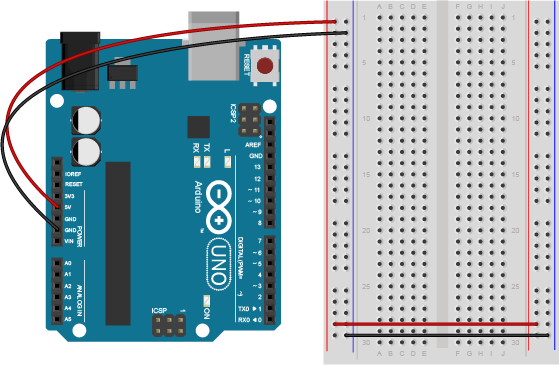
If you're using an Arduino breadboard shield, there is a row of sockets connected to 5V on the analog in side of the breadboard, and a row connected to ground on the digital in side of the board: http://itp.nyu.edu/physcomp/images/labs/breadboard_shield.jpg Deleted lines 31-35:
(:cellnr colspan=2:) Schematic: http://itp.nyu.edu/physcomp/images/labs/servo_sch.png (:cellnr:) http://itp.nyu.edu/physcomp/uploads/servo_01.jpg | Breadboard version: Arduino connected to a servomotor Changed lines 33-34 from:
Breadboard Shield version: http://itp.nyu.edu/physcomp/images/labs/bboard_shield_servo.JPG to:
http://itp.nyu.edu/physcomp/images/labs/servo_sch.png (:cell:) http://itp.nyu.edu/physcomp/uploads/servo_01.jpg January 26, 2009, at 04:10 PM
by -
Changed line 40 from:
http://itp.nyu.edu/physcomp/uploads/servo_01.jpg | Breadboard version: Arduino connected to a servomotor to:
http://itp.nyu.edu/physcomp/uploads/servo_01.jpg | Breadboard version: Arduino connected to a servomotor January 26, 2009, at 04:10 PM
by -
Changed lines 40-41 from:
http://itp.nyu.edu/physcomp/uploads/servo_01.jpg | Breadboard version: Arduino connected to a servomotor to:
http://itp.nyu.edu/physcomp/uploads/servo_01.jpg | Breadboard version: Arduino connected to a servomotor January 26, 2009, at 04:09 PM
by -
Changed lines 40-41 from:
Breadboard version: http://itp.nyu.edu/physcomp/images/labs/bboard_servo.JPG to:
http://itp.nyu.edu/physcomp/uploads/servo_01.jpg | Breadboard version: Arduino connected to a servomotor January 22, 2009, at 03:07 PM
by -
Changed lines 135-136 from:
NOTE: If you've just completely the exercise using the pulse method and wish to experiment with the Arduino Servo library you MUST move your servo control pin from digital pin 2 to digital PWM pin 9. A digital PWM pin is needed for the servo library to function. to:
NOTE: If you've just completely the exercise using the pulse method and wish to experiment with the Arduino Servo library you MUST move your servo control pin from digital pin 2 to digital PWM pin 9. A digital PWM pin is needed for the following code to function as expected. January 22, 2009, at 03:06 PM
by -
Added lines 135-136:
NOTE: If you've just completely the exercise using the pulse method and wish to experiment with the Arduino Servo library you MUST move your servo control pin from digital pin 2 to digital PWM pin 9. A digital PWM pin is needed for the servo library to function. January 20, 2009, at 01:05 PM
by -
Changed lines 55-56 from:
Using the pulse method (without the Arduino Servo library)to:
Using the pulse methodJanuary 20, 2009, at 01:04 PM
by -
Changed lines 55-56 from:
Using the pulse methodto:
Using the pulse method (without the Arduino Servo library)January 20, 2009, at 01:03 PM
by -
Changed lines 158-159 from:
Servo servoMotor; // create servo object to control a servo to:
Servo servoMotor; // creates an instance of the servo object to control a servo Changed line 173 from:
servoMotor.write(analogValue); // sets the servo position with the new mapped value to:
servoMotor.write(analogValue); // write the new mapped analog value to set the position of the servo January 20, 2009, at 01:01 PM
by -
Changed lines 115-116 from:
This code was written with a potentiometer in mind, so it assumes you're going to get values from 0 to 1023 from the sensor. If you don't, the servo won't move through its whole range. Determine the range of numbers the sensor is giving youm and adjust the servo formula to fit. to:
This code was written with a potentiometer in mind, so it assumes you're going to get values from 0 to 1023 from the sensor. If you don't, the servo won't move through its whole range. Determine the range of numbers the sensor is giving you and adjust the servo formula to fit. January 20, 2009, at 12:59 PM
by -
Added lines 51-54:
The first example shows you how to control a servo motor using a method that is traditionally taught at ITP which pulsed the servo motor with a digital pin to set the position of the servo. This method is more complex and exposes the math and timing required to control a servo with a microcontroller. The second example shows you how to control a servo motor using the Arduino Servo library. This library is very easy to use and is much easier to follow. However, it obscures all the calculations and handles the dirty work for you. This is useful once you've attempted the pulse method and understand it completely. January 20, 2009, at 12:55 PM
by -
Changed lines 49-50 from:
The following code will move the servo as the value of the sensor changes. to:
The following code examples will move the servo as the value of the sensor changes. Using the pulse methodChanged line 59 from:
The minimum (minPulse) and maxiumum (maxPuluse) values to:
The minimum (minPulse) and maxiumum (maxPulse) values January 20, 2009, at 12:53 PM
by -
Added lines 127-171:
Using the Arduino Servo Library
/*
Servo control from an analog input using the Arduino Servo library
This example code uses the Arduino Servo library which comes packaged with the Arduino software.
In order to make this work, you must include the Servo.h library file, create an instance of the Servo object,
attach a digital PWM pin to the Servo object, and then write an analog value to the Servo object to set its
position.
The difference between using the Servo library and the older method of pulsing a digital pin is that the library
handles a lot of the work for you. You no longer need to figure out the translation between pulse length and position.
You now can simply specify the angle you'd like your servo to be at and it will turn to that position.
Please note, unlike the older pulsing method you MUST use a digital PWM pin or it will not work.
by Rory Nugent
Created 20 Jan. 2009
*/
#include <Servo.h> // include the servo library
Servo servoMotor; // create servo object to control a servo
int analogPin = 0; // the analog pin that the sensor is on
int analogValue = 0; // the value returned from the analog sensor
int servoPin = 9; // Control pin for servo motor, must be a PWM pin
void setup() {
servoMotor.attach(servoPin); // attaches the servo on pin 2 to the servo object
}
void loop()
{
analogValue = analogRead(analogPin); // read the analog input (value between 0 and 1023)
analogValue = map(analogValue, 0, 1023, 0, 179); // map the analog value (0 - 1023) to the angle of the servo (0 - 179)
servoMotor.write(analogValue); // sets the servo position with the new mapped value
delay(15); // waits for the servo to get there
}
June 17, 2008, at 04:52 PM
by -
Added line 53:
Changed lines 55-74 from:
Servo control from an analog input The minimum (minPulse) and maxiumum (maxPuluse) values will be different depending on your specific servo motor. Ideally, it should be between 1 and 2 milliseconds, but in practice, 0.5 - 2.5 milliseconds works well for me. Try different values to see what numbers are best for you. This program uses the millis() function to keep track of when the servo was last pulsed. millis() produces an overflow error (i.e. generates a number that's too big to fit in a long variable) after about 5 days. if you're making a program that has to run for more than 5 days, you may need to account for this. by Tom Igoe additions by Carlyn Maw Created 28 Jan. 2006 Updated 7 Jun. 2006 */ to:
Servo control from an analog input The minimum (minPulse) and maxiumum (maxPuluse) values will be different depending on your specific servo motor. Ideally, it should be between 1 and 2 milliseconds, but in practice, 0.5 - 2.5 milliseconds works well for me. Try different values to see what numbers are best for you. This program uses the millis() function to keep track of when the servo was last pulsed. millis() produces an overflow error (i.e. generates a number that's too big to fit in a long variable) after about 5 days. if you're making a program that has to run for more than 5 days, you may need to account for this. by Tom Igoe additions by Carlyn Maw & Rob Faludi Created 28 Jan. 2006 Updated 10 Jun. 2008
Changed lines 87-89 from:
pinMode(servoPin, OUTPUT); // Set servo pin as an output pin pulse = minPulse; // Set the motor position value to the minimum Serial.begin(9600); to:
pinMode(servoPin, OUTPUT); // Set servo pin as an output pin pulse = minPulse; // Set the motor position value to the minimum Serial.begin(9600); Changed lines 93-104 from:
analogValue = analogRead(analogPin); // read the analog input
pulse = (analogValue * 19) / 10 + minPulse; // convert the analog value
// to a range between minPulse
// and maxPulse.
// pulse the servo again if rhe refresh time (20 ms) have passed:
if (millis() - lastPulse >= refreshTime) {
digitalWrite(servoPin, HIGH); // Turn the motor on
delayMicroseconds(pulse); // Length of the pulse sets the motor position
digitalWrite(servoPin, LOW); // Turn the motor off
lastPulse = millis(); // save the time of the last pulse
}
to:
analogValue = analogRead(analogPin); // read the analog input
pulse = map(analogValue,0,1023,minPulse,maxPulse); // convert the analog value
// to a range between minPulse
// and maxPulse.
// pulse the servo again if rhe refresh time (20 ms) have passed:
if (millis() - lastPulse >= refreshTime) {
digitalWrite(servoPin, HIGH); // Turn the motor on
delayMicroseconds(pulse); // Length of the pulse sets the motor position
digitalWrite(servoPin, LOW); // Turn the motor off
lastPulse = millis(); // save the time of the last pulse
}
October 04, 2006, at 09:34 AM
by -
Changed line 93 from:
pulse = (analogValue / 10) * 19 + 500; // convert the analog value to:
pulse = (analogValue * 19) / 10 + minPulse; // convert the analog value October 01, 2006, at 10:19 AM
by -
Changed line 79 from:
int lastPulse = 0; // the time in milliseconds of the last pulse to:
long lastPulse = 0; // the time in milliseconds of the last pulse June 07, 2006, at 11:17 AM
by -
Added lines 62-71:
This program uses the millis() function to keep track of when the servo was last pulsed. millis() produces an overflow error (i.e. generates a number that's too big to fit in a long variable) after about 5 days. if you're making a program that has to run for more than 5 days, you may need to account for this. by Tom Igoe additions by Carlyn Maw Created 28 Jan. 2006 Updated 7 Jun. 2006 Added lines 79-81:
int lastPulse = 0; // the time in milliseconds of the last pulse int refreshTime = 20; // the time needed in between pulses Changed lines 97-103 from:
Serial.println(pulse, DEC); // print it out for reference
digitalWrite(servoPin, HIGH); // Turn the motor on
delayMicroseconds(pulse); // Length of the pulse sets the motor position
digitalWrite(servoPin, LOW); // Turn the motor off
delay(20); // 20 millisecond delay is needed between pulses
// to keep the servo in sync
to:
// pulse the servo again if rhe refresh time (20 ms) have passed:
if (millis() - lastPulse >= refreshTime) {
digitalWrite(servoPin, HIGH); // Turn the motor on
delayMicroseconds(pulse); // Length of the pulse sets the motor position
digitalWrite(servoPin, LOW); // Turn the motor off
lastPulse = millis(); // save the time of the last pulse
}
May 25, 2006, at 04:17 PM
by -
Changed lines 21-22 from:
Conect power and ground on the breadboard to power and ground from the microcontroller. On the Arduino module, use the 5V and any of the ground connections: to:
Connect power and ground on the breadboard to power and ground from the microcontroller. On the Arduino module, use the 5V and any of the ground connections: May 25, 2006, at 04:16 PM
by -
Changed lines 1-2 from:
In this lab, you'll control a servomotor's position using the value returned from an analog sensor. to:
In this lab, you'll control a servomotor's position using the value returned from an analog sensor. Servos are the easiest way to start making motion with a microcontroller. Even though they don't turn 360 degrees, you can use them to create all sorts of periodic or reciprocating motions. Check out some of the Flying Pig mechanisms for ideas on how to make levers, cams, and other simple machines for making motion. Changed lines 109-110 from:
That's the full ranging formula. However, because there are no floating-point variables (i.e. fractions) in the Arduino language (and in most microcontroller languages), you have to fudge the formula a bit. For example, if you have a sensor range from 0 to 750, and a servo range from 500 to 2500 (i.e. a 2000-point range), you know that to:
That's the full ranging formula. However, because there are no floating-point variables (i.e. fractions) in the Arduino language (and in most microcontroller languages), you have to fudge the formula a bit. For example, if you have a sensor range from 0 to 512, and a servo range from 500 to 2500 (i.e. a 2000-point range), you know that you can just multiply the servo by 4 and add 500. You'll lose a little detail, but not enough to make a difference to the end user. When you're making approximations like this, you have to test the approximation at the extremes of both the sensor and the output to make sure it does the job. May 25, 2006, at 03:44 PM
by -
Changed lines 108-109 from:
to:
That's the full ranging formula. However, because there are no floating-point variables (i.e. fractions) in the Arduino language (and in most microcontroller languages), you have to fudge the formula a bit. For example, if you have a sensor range from 0 to 750, and a servo range from 500 to 2500 (i.e. a 2000-point range), you know that May 25, 2006, at 03:09 PM
by -
Changed lines 98-99 from:
(pulseWidth - minPulse) / pulseRange = (sensorValue - minSensorValue) /sensorRange to:
Changed lines 102-103 from:
(pulseWidth - minPulse) = (sensorValue - minsensorValue * pulseRange /sensorRange to:
Changed lines 106-109 from:
pulseWidth = ((sensorValue - minSensorValue) * pulseRange / sensorRange) + minPulse to:
May 25, 2006, at 03:08 PM
by -
Changed lines 98-99 from:
(pulseWidth - minPulse) / pulseRange = (sensorValue - minSensorValue) /sensorRange to:
(pulseWidth - minPulse) / pulseRange = (sensorValue - minSensorValue) /sensorRange Changed lines 102-103 from:
(pulseWidth - minPulse) = (sensorValue - minsensorValue * pulseRange /sensorRange to:
(pulseWidth - minPulse) = (sensorValue - minsensorValue * pulseRange /sensorRange Changed lines 106-109 from:
pulseWidth = ((sensorValue - minSensorValue) * pulseRange / sensorRange) + minPulse to:
pulseWidth = ((sensorValue - minSensorValue) * pulseRange / sensorRange) + minPulse May 25, 2006, at 03:08 PM
by -
Added lines 96-109:
Here's a a scaling formula that will make the adjustment: (pulseWidth - minPulse) / pulseRange = (sensorValue - minSensorValue) /sensorRange Multiply both sides by pulseRange, and you get: (pulseWidth - minPulse) = (sensorValue - minsensorValue * pulseRange /sensorRange Add the minimum pulse to both sides and you get: pulseWidth = ((sensorValue - minSensorValue) * pulseRange / sensorRange) + minPulse May 25, 2006, at 02:57 PM
by -
Changed lines 44-45 from:
to:
(:tableend:) May 25, 2006, at 02:57 PM
by -
Added line 50:
May 25, 2006, at 02:57 PM
by -
Added lines 45-93:
Program the MicrocontrollerThe following code will move the servo as the value of the sensor changes.
/*
Servo control from an analog input
The minimum (minPulse) and maxiumum (maxPuluse) values
will be different depending on your specific servo motor.
Ideally, it should be between 1 and 2 milliseconds, but in practice,
0.5 - 2.5 milliseconds works well for me.
Try different values to see what numbers are best for you.
*/
int servoPin = 2; // Control pin for servo motor
int minPulse = 500; // Minimum servo position
int maxPulse = 2500; // Maximum servo position
int pulse = 0; // Amount to pulse the servo
int analogValue = 0; // the value returned from the analog sensor
int analogPin = 0; // the analog pin that the sensor's on
void setup() {
pinMode(servoPin, OUTPUT); // Set servo pin as an output pin
pulse = minPulse; // Set the motor position value to the minimum
Serial.begin(9600);
}
void loop() {
analogValue = analogRead(analogPin); // read the analog input
pulse = (analogValue / 10) * 19 + 500; // convert the analog value
// to a range between minPulse
// and maxPulse.
Serial.println(pulse, DEC); // print it out for reference
digitalWrite(servoPin, HIGH); // Turn the motor on
delayMicroseconds(pulse); // Length of the pulse sets the motor position
digitalWrite(servoPin, LOW); // Turn the motor off
delay(20); // 20 millisecond delay is needed between pulses
// to keep the servo in sync
}
This code was written with a potentiometer in mind, so it assumes you're going to get values from 0 to 1023 from the sensor. If you don't, the servo won't move through its whole range. Determine the range of numbers the sensor is giving youm and adjust the servo formula to fit. May 25, 2006, at 02:54 PM
by -
Changed line 37 from:
http://itp.nyu.edu/physcomp/images/labs/servo_sch.PNG to:
http://itp.nyu.edu/physcomp/images/labs/servo_sch.png May 25, 2006, at 02:54 PM
by -
Changed lines 36-37 from:
schematic to:
Schematic: http://itp.nyu.edu/physcomp/images/labs/servo_sch.PNG May 25, 2006, at 02:37 PM
by -
Changed line 39 from:
http://itp.nyu.edu/physcomp/images/labs/bboard_servo.jpg to:
http://itp.nyu.edu/physcomp/images/labs/bboard_servo.JPG Changed lines 42-43 from:
http://itp.nyu.edu/physcomp/images/labs/bboard_shield_servo.jpg to:
http://itp.nyu.edu/physcomp/images/labs/bboard_shield_servo.JPG May 25, 2006, at 02:37 PM
by -
Changed lines 28-43 from:
to:
Connect an analog input sensor and a servoPick any analog input and connect it to Analog pin 0 as you did in the Analog Input and Output Lab. Then connect an RC servomotor to digital pin 2. The yellow wire of the servo goes to the pin, and the red and black wires go to +5V and ground, respectively. (:table:) (:cellnr colspan=2:) schematic (:cellnr:) Breadboard version: http://itp.nyu.edu/physcomp/images/labs/bboard_servo.jpg (:cell:) Breadboard Shield version: http://itp.nyu.edu/physcomp/images/labs/bboard_shield_servo.jpg May 25, 2006, at 02:29 PM
by -
Changed line 16 from:
http://itp.nyu.edu/physcomp/images/labs/servo.jpg | RC Servomotor to:
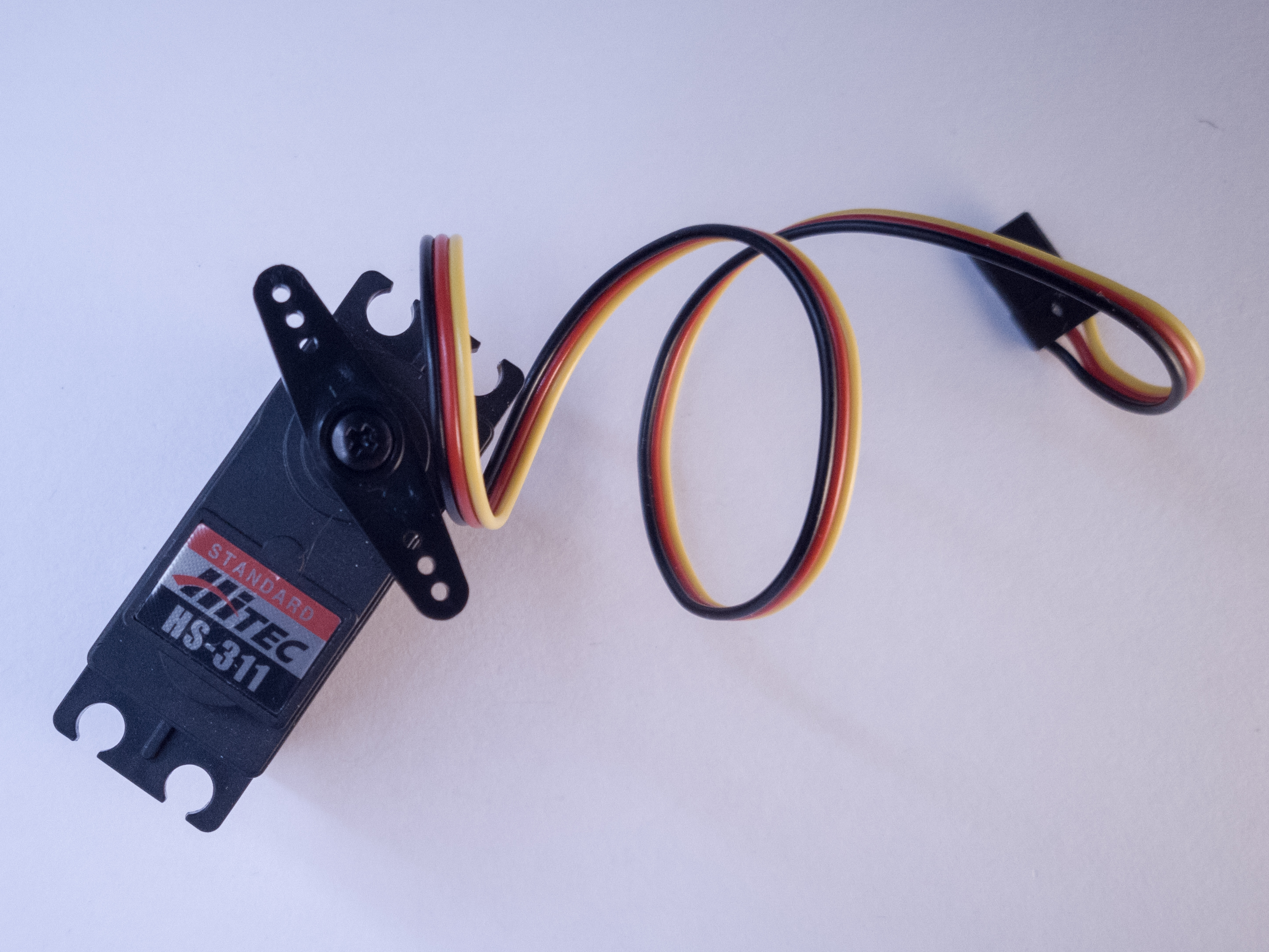
http://itp.nyu.edu/physcomp/images/labs/servo.JPG | RC Servomotor May 25, 2006, at 02:28 PM
by -
Changed line 16 from:
http://itp.nyu.edu/physcomp/images/labs/flex_sensors.jpg | RC Servomotor to:
http://itp.nyu.edu/physcomp/images/labs/servo.jpg | RC Servomotor May 25, 2006, at 02:22 PM
by -
Changed lines 12-13 from:
http://itp.nyu.edu/physcomp/images/labs/potentiometer.jpg | 10Kohm potentiometer Variable resistors to:
May 25, 2006, at 02:21 PM
by -
Changed line 14 from:
http://itp.nyu.edu/physcomp/images/labs/flex_sensors.jpg | [-Flex sensors\\ to:
http://itp.nyu.edu/physcomp/images/labs/flex_sensors.jpg | [-Flex sensors\\ Added line 17:
http://itp.nyu.edu/physcomp/images/labs/flex_sensors.jpg | RC Servomotor May 25, 2006, at 02:20 PM
by -
Changed lines 1-28 from:
In this lab, you'll control a servomotor's position using the value returned from an analog sensor. to:
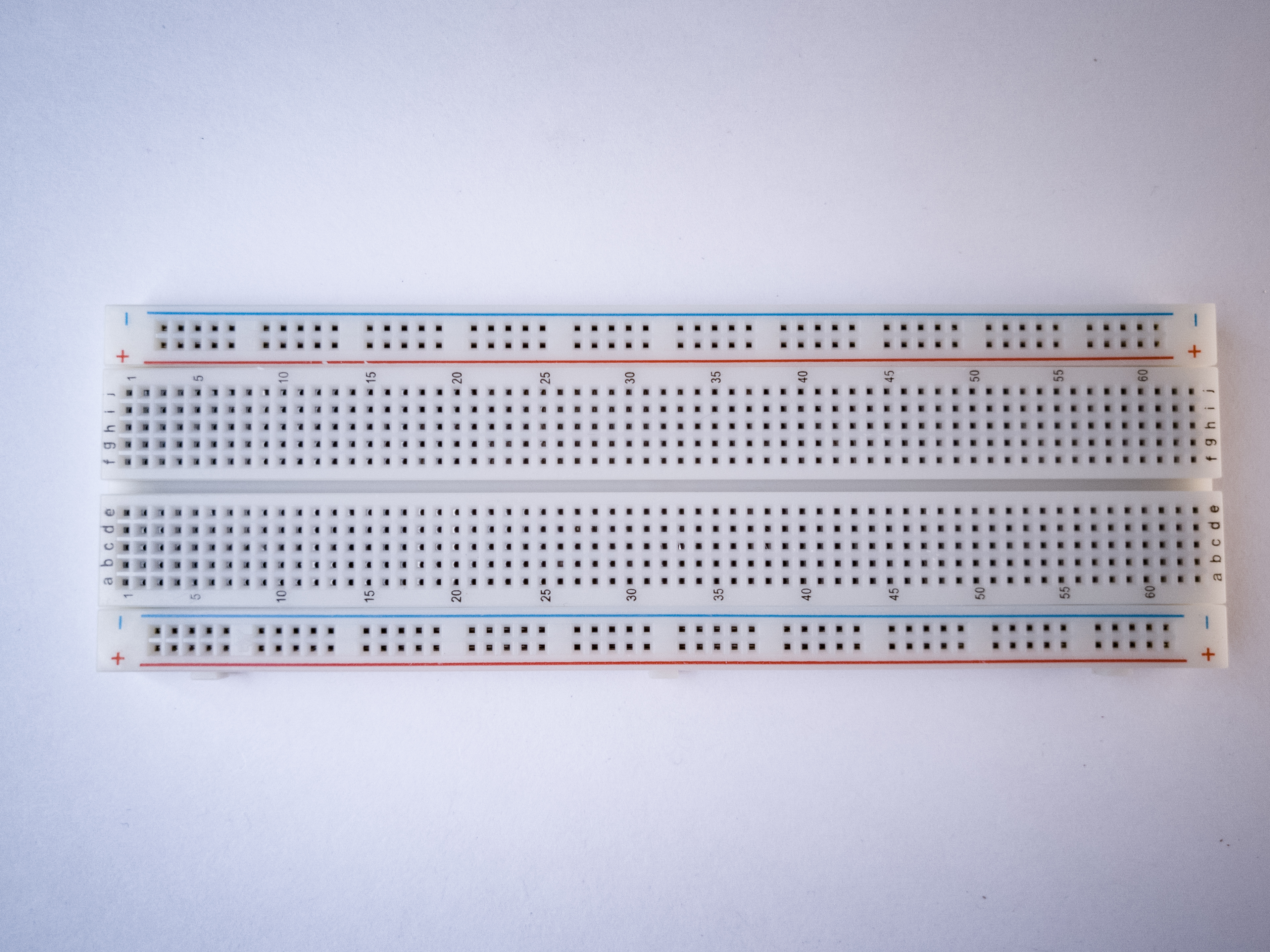
In this lab, you'll control a servomotor's position using the value returned from an analog sensor. For this lab you'll need: http://itp.nyu.edu/physcomp/images/labs/breadboard.jpg | Solderless breadboard
http://itp.nyu.edu/physcomp/images/labs/hookup_wire.jpg | 22-AWG hookup wire
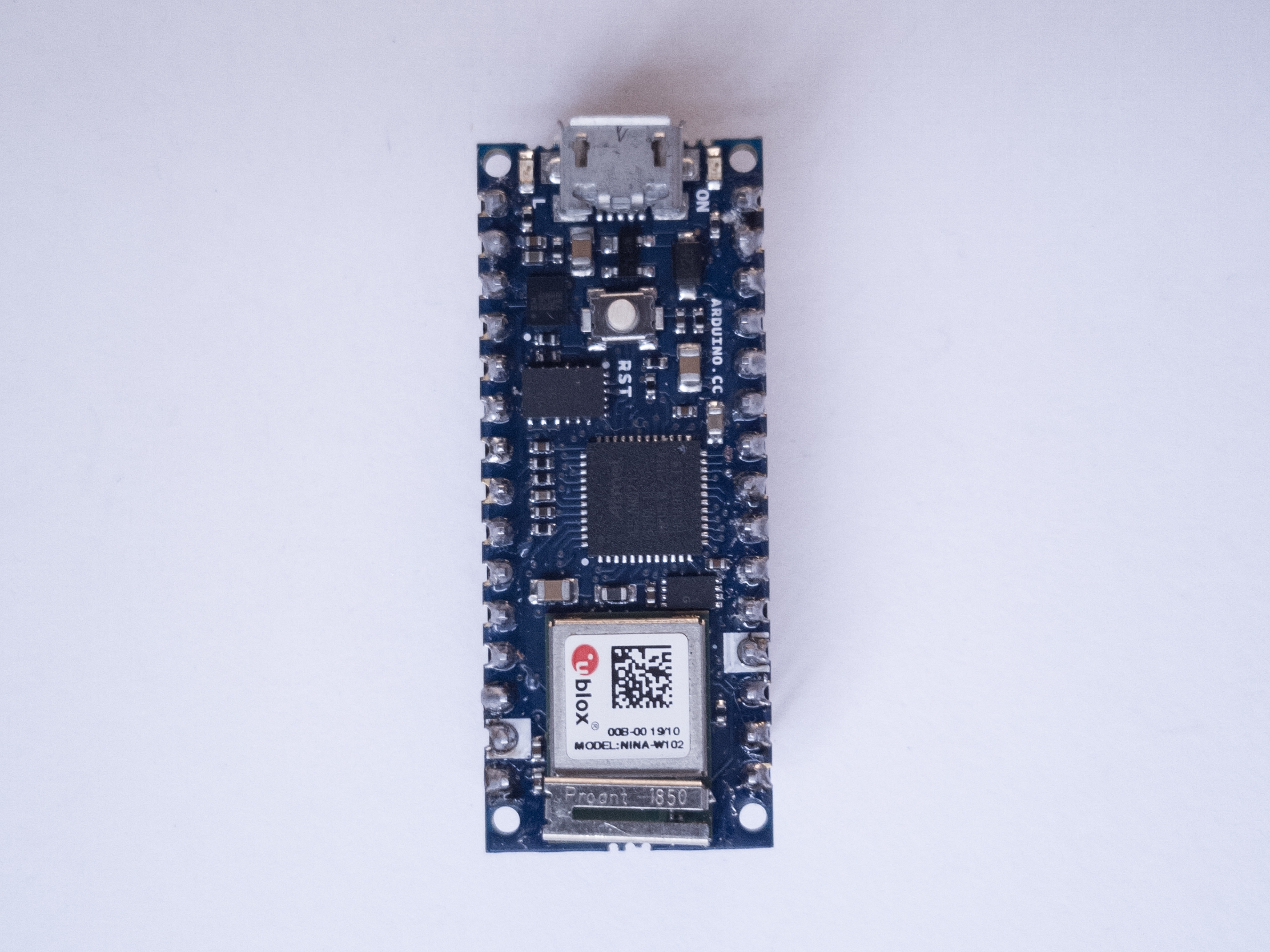
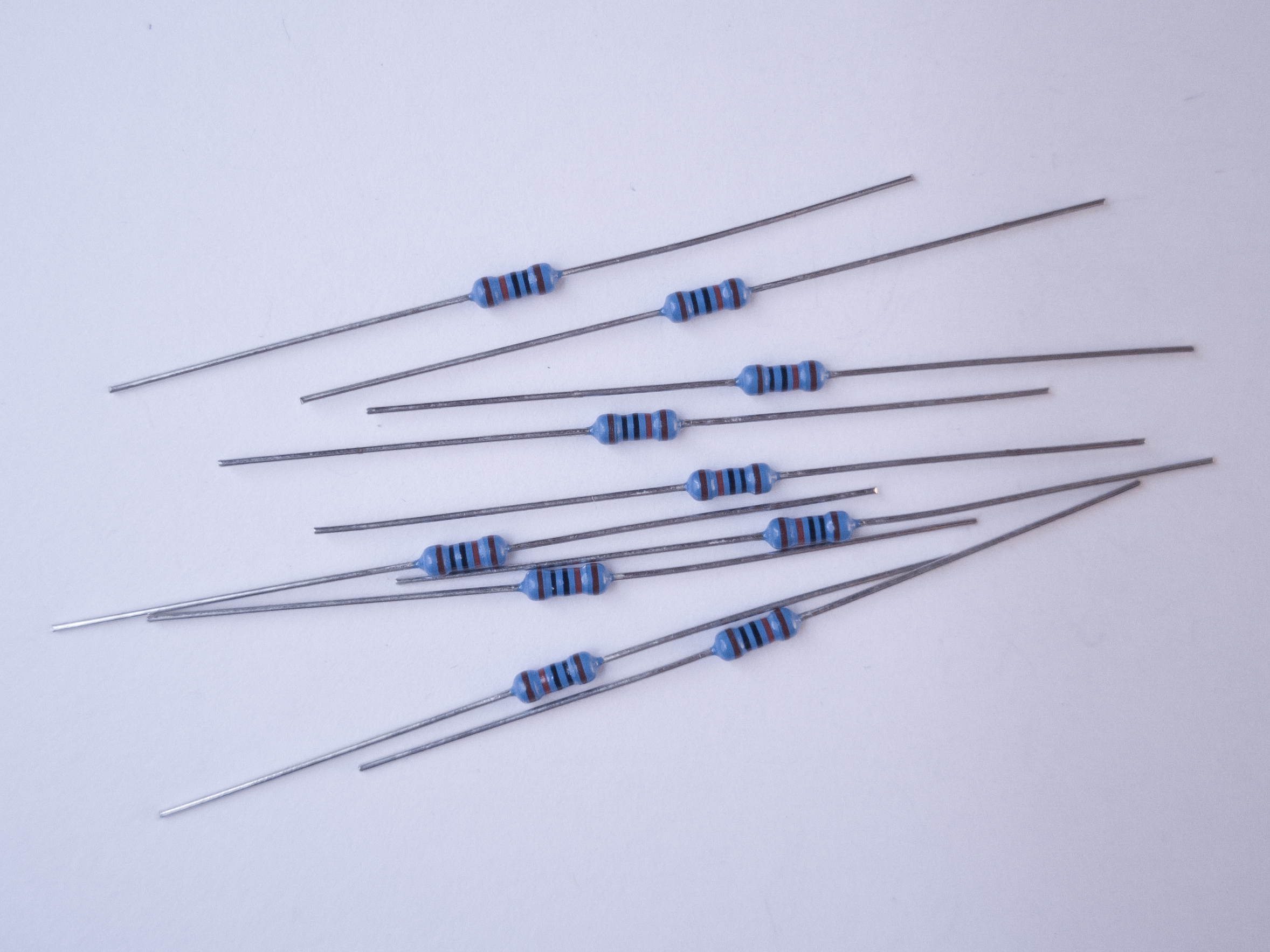
http://itp.nyu.edu/physcomp/images/labs/arduino.jpg | Arduino Microcontroller http://itp.nyu.edu/physcomp/images/labs/resistors.jpg | 10Kohm resistors
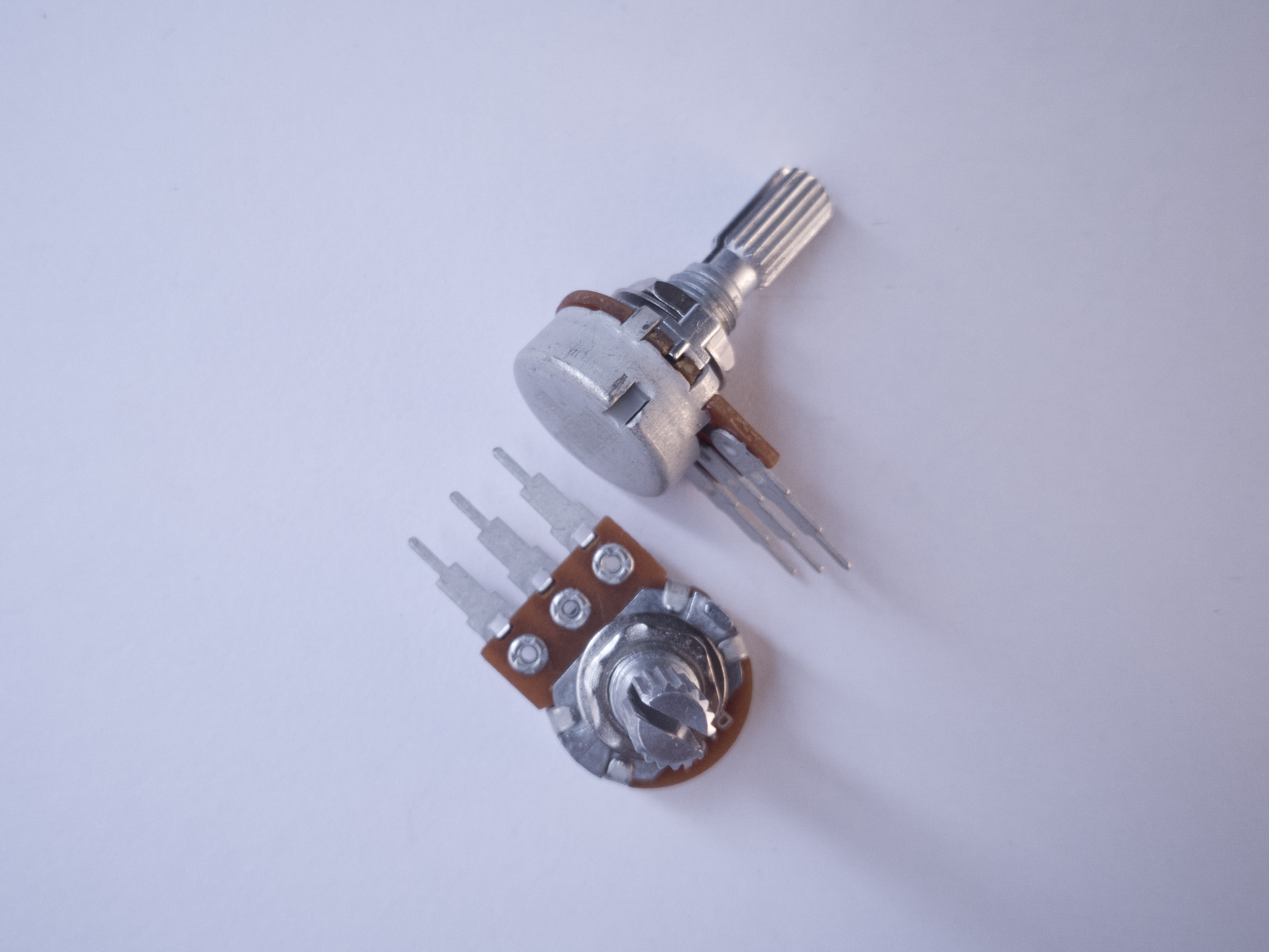
http://itp.nyu.edu/physcomp/images/labs/potentiometer.jpg | 10Kohm potentiometer
Variable resistors
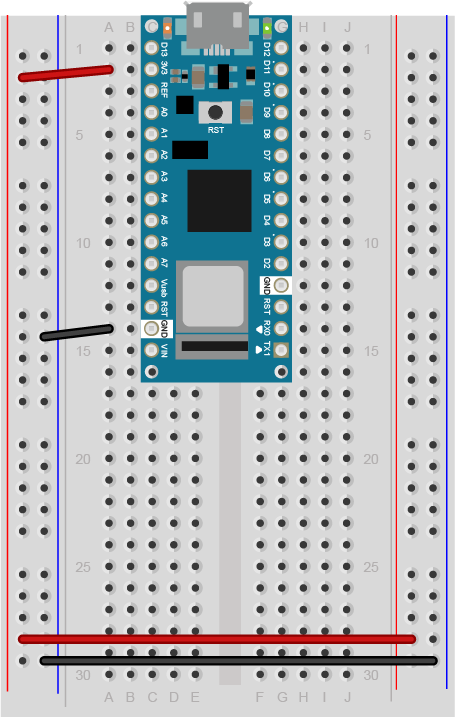
http://itp.nyu.edu/physcomp/images/labs/flex_sensors.jpg | Flex sensors Prepare the breadboardConect power and ground on the breadboard to power and ground from the microcontroller. On the Arduino module, use the 5V and any of the ground connections: http://itp.nyu.edu/physcomp/images/labs/arduino_bboard_power.jpg If you're using an Arduino breadboard shield, there is a row of sockets connected to 5V on the analog in side of the breadboard, and a row connected to ground on the digital in side of the board: http://itp.nyu.edu/physcomp/images/labs/breadboard_shield.jpg
May 25, 2006, at 02:18 PM
by -
Added line 1:
In this lab, you'll control a servomotor's position using the value returned from an analog sensor. |