|
Intro to Physical Computing Syllabus Research & Learning Other Class pages
ITP Help Pages |
Serial Duplex using an ArduinoLabs.SerialDuplex HistoryHide minor edits - Show changes to markup October 01, 2012, at 11:56 AM
by -
Added lines 246-248:
Note: you might get an error message when trying to use the Processing Serial Library for the first time. Here are instructions on what to do if this happens. August 21, 2011, at 05:00 PM
by -
Deleted lines 454-459:
Then modify the Added lines 456-463:
boolean firstContact = false; // Whether we've heard from the microcontroller (:sourceend:) Then modify the (:source lang=processing tabwidth=4 :) August 21, 2011, at 04:59 PM
by -
Added lines 389-399:
(:source lang=arduino tabwidth=4 :) void establishContact() { while (Serial.available() <= 0) {
Serial.println("hello"); // send a starting message
delay(300);
}
}
(:sourceend:) To call this, add a line at the end of the Changed lines 401-408 from:
void establishContact() { while (Serial.available() <= 0) { Serial.println("hello"); // send a starting message delay(300); } } to:
establishContact(); Changed lines 404-409 from:
To call this, add a line at the end of the
Now, modify the to:
Now, modify the (:toggle question12 init=hide show='I give up, how do I do that?' hide='Let me figure it out':) Changed lines 409-418 from:
void loop() { if (Serial.available() > 0) { // read the incoming byte: int inByte = Serial.read(); // read the sensor: sensorValue = analogRead(analogOne); // print the results: Serial.print(sensorValue, DEC); Serial.print(","); to:
void loop() { if (Serial.available() > 0) {
// read the incoming byte:
int inByte =Serial.read();
// read the sensor:
sensorValue =analogRead(analogOne);
// print the results:
Serial.print(sensorValue, DEC);
Serial.print(",");
Changed lines 419-423 from:
// read the sensor: sensorValue = analogRead(analogTwo); // print the results: Serial.print(sensorValue, DEC); Serial.print(","); to:
// read the sensor:
sensorValue =analogRead(analogTwo);
// print the results:
Serial.print(sensorValue, DEC);
Serial.print(",");
Changed lines 425-429 from:
// read the sensor: sensorValue = digitalRead(digitalOne); // print the last sensor value with a println() so that // each set of four readings prints on a line by itself: Serial.println(sensorValue, DEC); to:
// read the sensor: sensorValue =digitalRead(digitalOne); // print the last sensor value with a println() so that // each set of four readings prints on a line by itself: Serial.println(sensorValue, DEC); Deleted line 431:
Changed lines 433-434 from:
to:
Changed lines 453-456 from:
Next modify the Processing program. You'll add a new global variable called Add the following global variable before the to:
Next modify the Processing program. Add a new global variable called Changed lines 457-458 from:
Then modify the to:
Then modify the August 21, 2011, at 04:51 PM
by -
Changed lines 294-295 from:
to:
August 21, 2011, at 04:49 PM
by - August 21, 2011, at 04:47 PM
by -
Changed line 213 from:
>><< to:
August 21, 2011, at 04:45 PM
by -
Changed line 66 from:
(:toggle question2 init=hide show='I don\'t know, what is going on?' hide='Let me figure it out':) to:
(:toggle question2 init=hide show='I give up, what is going on?' hide='Let me figure it out':) August 21, 2011, at 04:44 PM
by -
Changed line 66 from:
(:toggle question2 init=hide show='I don't know, what is going on?' hide='Let me figure it out':) to:
(:toggle question2 init=hide show='I don\'t know, what is going on?' hide='Let me figure it out':) August 21, 2011, at 04:43 PM
by -
Changed lines 55-57 from:
to:
August 21, 2011, at 04:43 PM
by -
Changed line 240 from:
>><< to:
August 21, 2011, at 04:41 PM
by -
Changed line 41 from:
(:source lang=processing tabwidth=4 :) to:
(:source lang=arduino tabwidth=4 :) Changed line 60 from:
(:source lang=processing tabwidth=4 :) to:
(:source lang=arduino tabwidth=4 :) Changed lines 87-96 from:
(:div class=code :) int analogPin = 0; int analogValue = 0; // integer to print void setup() { // open serial communications at 9600 bps Serial.begin(9600); to:
(:source lang=arduino tabwidth=4 :) void setup() {
// open serial communications at 9600 bps
Serial.begin(9600);
Changed lines 92-109 from:
void loop() { // read the analog input, divide by 4: analogValue = analogRead(analogPin) /4; // print in many formats: Serial.print(analogValue, BYTE); // Print the raw binary value analogValue Serial.print('\t'); // print a tab Serial.print(analogValue, BIN); // print the ASCII encoded binary analogValue Serial.print('\t'); // print a tab Serial.print(analogValue, DEC); // print the ASCII encoded decimal analogValue Serial.print('\t'); // print a tab Serial.print(analogValue, HEX); // print the ASCII encoded hexadecimal analogValue Serial.print('\t'); // print a tab Serial.print(analogValue, OCT); // print the ASCII encoded octal analogValue Serial.println(); // print a linefeed and carriage return delay(10); to:
void loop() {
// read the analog input, divide by 4:
int analogValue = analogRead(A0) /4;
// print in many formats:
Serial.write(analogValue); // Print the raw binary value analogValue
Serial.print('\t'); // print a tab
Serial.print(analogValue, BIN); // print the ASCII encoded binary analogValue
Serial.print('\t'); // print a tab
Serial.print(analogValue, DEC); // print the ASCII encoded decimal analogValue
Serial.print('\t'); // print a tab
Serial.print(analogValue, HEX); // print the ASCII encoded hexadecimal analogValue
Serial.print('\t'); // print a tab
Serial.print(analogValue, OCT); // print the ASCII encoded octal analogValue
Serial.println(); // print a linefeed and carriage return
Changed lines 109-111 from:
(:divend:) to:
(:sourceend:) Changed line 115 from:
(:source lang=processing tabwidth=4 :) to:
[@ Changed lines 125-126 from:
(:sourceend:) to:
@] Changed lines 134-140 from:
(:div class=code :) void loop() { for (int thisSensor = 0; thisSensor < 3; thisSensor++) { int sensorValue = analogRead(thisSensor); Serial.print(sensorValue, DEC); Serial.print(","); to:
(:source lang=arduino tabwidth=4 :) void loop() { for (int thisSensor = 0; thisSensor < 3; thisSensor++) {
int sensorValue = analogRead(thisSensor);
Serial.print(sensorValue);
Serial.print(",");
Changed lines 141-145 from:
} (:divend:) to:
} (:sourceend:) Changed lines 149-150 from:
You don't know which sensor is which. You could assume that if you start listening when the microcontroller starts sending that the first reading corresponds to the first sensor, but you can't know that for sure. There are two ways to address this. You can use punctuation or you can use a call-and-response or handshaking method. Use whichever makes the most sense to you. to:
(:toggle question4 init=hide show='How can you tell which value corresponds to which sensor?' hide='Let me figure it out':) You don't know which sensor is which. You could assume that if you start listening when the microcontroller starts sending that the first reading corresponds to the first sensor, but you can't know that for sure. There are two ways to get your sensor values in order. You can use punctuation or you can use a call-and-response or handshaking method. Use whichever makes the most sense to you. Changed lines 158-173 from:
One way to send the data such that it can be interpreted clearly is to punctuate each set of data uniquely. Just as a sentence ends with a period, you can end your data with a carriage return and a newline. Here's a modification of the code above that does that: (:div class=code :) void loop() { for (int thisSensor = 0; thisSensor < 3; thisSensor++) { int sensorValue = analogRead(thisSensor); Serial.print(sensorValue, DEC); // if this is the last sensor value, end the line. // otherwise, print a comma: if (thisSensor == 2) { Serial.println(); } else { Serial.print(","); to:
One way to send the data such that it can be interpreted clearly is to punctuate each set of data uniquely. Just as a sentence ends with a period, you can end your data with a carriage return and a newline. Change the for loop above so that a carriage return and newline are printed at the end of each string of three values. (:toggle question5 init=hide show='I give up, how do I do that?' hide='Let me figure it out':) (:source lang=arduino tabwidth=4 :) void loop() {
for (int thisSensor = 0; thisSensor < 3; thisSensor++) {
int sensorValue = analogRead(thisSensor);
Serial.print(sensorValue, DEC);
// if this is the last sensor value, end with a println().
// otherwise, print a comma:
if (thisSensor == 2) {
Serial.println();
} else {
Serial.print(",");
Changed lines 177-180 from:
(:divend:) to:
(:sourceend:) Changed line 182 from:
(:source lang=processing tabwidth=4 :) to:
[@ Changed lines 186-201 from:
(:sourceend:) This is much better. Whenever you get a newline, you know that the next value is the first sensor. Here's a program that reads the two analog sensors on your board and the one digital switch, and prints them out in this format: (:div class=code :) /* Sensor Reader Language: Wiring/Arduino Reads two analog inputs and one digital input and outputs their values. Connections: analog sensors on analog input pins 0 and 1 switch on digital I/O pin 2 */ to:
@] This is much better. Whenever you get a newline, you know that the next value is the first sensor. Write a program that reads the two analog sensors on your board and the one digital switch, and prints them out in this format: analog1, analog2, switch analog1, analog2, switch analog1, analog2, switch Start by setting up a constant for the switch pin's number. Then in the setup, initialize serial communications at 9600bps, and declare the switch pin as an input. (:toggle question6 init=hide show='I give up, how do I do that?' hide='Let me figure it out':) (:source lang=arduino tabwidth=4 :) const int switchPin = 2; // digital input void setup() {
// configure the serial connection:
Serial.begin(9600);
// configure the digital input:
pinMode(switchPin, INPUT);
}
(:sourceend:)
>><<
Changed lines 215-217 from:
int analogOne = 0; // analog input int analogTwo = 1; // analog input int digitalOne = 2; // digital input to:
In the main loop, use a local variable called sensorValue to read each input. Read the two analog inputs first, and print them with a comma after each one. Then read the digital input, and print it with a carriage return and linefeed at the end. (:toggle question7 init=hide show='I give up, how do I do that?' hide='Let me figure it out':) (:source lang=arduino tabwidth=4 :) void loop() {
// read the sensor:
int sensorValue = analogRead(A0);
// print the results:
Serial.print(sensorValue);
Serial.print(",");
// read the sensor:
sensorValue = analogRead(A1);
// print the results:
Serial.print(sensorValue);
Serial.print(",");
// read the sensor:
sensorValue = digitalRead(switchPin);
// print the last reading with a println() so that
// each set of three readings prints on a line by itself:
Serial.println(sensorValue);
}
(:sourceend:) >><< Changed lines 242-275 from:
int sensorValue = 0; // reading from the sensor void setup() { // configure the serial connection: Serial.begin(9600); // configure the digital input: pinMode(digitalOne, INPUT); } void loop() { // read the sensor: sensorValue = analogRead(analogOne); // print the results: Serial.print(sensorValue, DEC); Serial.print(","); // read the sensor: sensorValue = analogRead(analogTwo); // print the results: Serial.print(sensorValue, DEC); Serial.print(","); // read the sensor: sensorValue = digitalRead(digitalOne); // print the last sensor value with a println() so that // each set of four readings prints on a line by itself: Serial.println(sensorValue, DEC); } (:divend:) Once you've got a data format, all you have to do is read it in the receiving program. Here's a Processing sketch that reads the data as formatted by the Arduino program above. First, set up the beginning of your program as you did in the first serial lab: to:
Once you've got a data format, all you have to do is read it in the receiving program. Now write a Processing sketch that reads the data as formatted by the Arduino program above. First, set up the beginning of your program as you did in the first serial lab, to import the serial library and make a global variable to hold an instance of it. Then in the setup(), print out a list of serial ports, and put the one you want in a string. Then instantiate the serial library in the global variable you made. (:toggle question8 init=hide show='I give up, how do I do that?' hide='Let me figure it out':) Changed lines 261-262 from:
myPort = new Serial(this, Serial.list()[0], 9600); to:
String portName = Serial.list()[0]; myPort = new Serial(this, portName, 9600); Changed lines 265-266 from:
to:
Changed lines 281-282 from:
The to:
Now your (:toggle question9 init=hide show='I give up, how do I do that?' hide='Let me figure it out':) Changed lines 289-292 from:
println(myString); to:
if (myString != null) {
println(myString);
}
} Changed lines 295-296 from:
If you run this, you'll see the serial data print out just like it did in the arduino serial monitor. You'll also see a lot of null values. To clear those out, add an if statement around the println(): to:
The Changed lines 299-301 from:
if (myString != null) { println(myString); } to:
myString = trim(myString);
// split the string at the commas
// and convert the sections into integers:
int sensors[] = int(split(myString, ','));
Changed lines 306-309 from:
That makes sure you've got a full string before you do anything with it. The to:
Next, print out those three integers using a for() loop, like so: Deleted lines 308-317:
myString = trim(myString);
// split the string at the commas
// and convert the sections into integers:
int sensors[] = int(split(myString, ','));
(:sourceend:) Next, print out those three integers using a for() loop, like so: (:source lang=processing tabwidth=4 :) Changed lines 340-343 from:
Put the following lines in the draw method. These will draw the circle using the variables you just declared: to:
(:toggle question10 init=hide show='I give up, how do I do that?' hide='Let me figure it out':) Changed lines 343-346 from:
background(bgcolor); fill(fgcolor); // Draw the shape ellipse(xpos, ypos, 20, 20); to:
size(800, 600); Changed lines 345-347 from:
In order to see anything happen, you need to assign the sensor values to these variables. Do this at the end of the serialEvent(): to:
Put the following lines in the draw method. These will draw the circle using the variables you just declared: Added lines 350-358:
background(bgcolor); fill(fgcolor); // Draw the shape ellipse(xpos, ypos, 20, 20); (:sourceend:) In order to see anything happen, you need to assign the sensor values to these variables. Do this at the end of the serialEvent(): (:source lang=processing tabwidth=4 :) Changed lines 370-373 from:
If your analog values are greater than 640 or 480, the ball will be offscreen, so you may have to map your sensor range to the screen size. For example, the accelerometer sensor ranges are approximately 430 to 580. Since the screen is 0 to 640 (horizontal) and o tp 480 (vertical), you'd map the ranges like this: to:
If your analog values are greater than 800 or 600, the ball will be offscreen, so you may have to map your sensor range to the screen size. For example, the accelerometer sensor ranges are approximately 430 to 580. Since the screen is 0 to 800 (horizontal) and 0 to 600 (vertical), map the ranges of the sensors to fill the screeen. (:toggle question11 init=hide show='I give up, how do I do that?' hide='Let me figure it out':) Changed lines 378-384 from:
Here's the Processing sketch in its entirety: (:source lang=processing tabwidth=4 :) /* Serial String Reader Language: Processing to:
Call and Response (Handshaking) MethodAnother way to keep multiple bytes of serial data in order is to send one set of values at a time, rather than sending repeatedly. If you use this method, the receiving program has to request new data every time it finishes reading what it's got. You can convert the punctuation method shown above to a call-and-response method fairly simply. First, modify the Arduino code. Add a new method at the end of the sketch called (:source lang=arduino tabwidth=4 :) void establishContact() { while (Serial.available() <= 0) { Serial.println("hello"); // send a starting message delay(300); } } Changed lines 398-401 from:
Reads in a string of characters from a serial port until it gets a linefeed (ASCII 10). Then splits the string into sections separated by commas. Then converts the sections to ints, and prints them out. to:
(:sourceend:) To call this, add a line at the end of the
Now, modify the (:source lang=arduino tabwidth=4 :) void loop() { if (Serial.available() > 0) { // read the incoming byte: int inByte = Serial.read(); // read the sensor: sensorValue = analogRead(analogOne); // print the results: Serial.print(sensorValue, DEC); Serial.print(","); Changed lines 418-482 from:
created 2 Jun 2005 modified 6 Aug 2008 by Tom Igoe */ import processing.serial.*; // import the Processing serial library Serial myPort; // The serial port float bgcolor; // Background color float fgcolor; // Fill color float xpos, ypos; // Starting position of the ball void setup() { size(640,480);
// List all the available serial ports
println(Serial.list());
// I know that the first port in the serial list on my mac
// is always my Arduino module, so I open Serial.list()[0].
// Change the 0 to the appropriate number of the serial port
// that your microcontroller is attached to.
myPort = new Serial(this, Serial.list()[0], 9600);
// read bytes into a buffer until you get a linefeed (ASCII 10):
myPort.bufferUntil('\n');
} void draw() { background(bgcolor); fill(fgcolor); // Draw the shape ellipse(xpos, ypos, 20, 20); } // serialEvent method is run automatically by the Processing applet // whenever the buffer reaches the byte value set in the bufferUntil() // method in the setup(): void serialEvent(Serial myPort) { // read the serial buffer:
String myString = myPort.readStringUntil('\n');
// if you got any bytes other than the linefeed:
if (myString != null) {
myString = trim(myString);
// split the string at the commas
// and convert the sections into integers:
int sensors[] = int(split(myString, ','));
// print out the values you got:
for (int sensorNum = 0; sensorNum < sensors.length; sensorNum++) {
print("Sensor " + sensorNum + ": " + sensors[sensorNum] + "\t");
}
// add a linefeed after all the sensor values are printed:
println();
if (sensors.length > 1) {
xpos = map(sensors[0], 430,580,0,width);
ypos = map(sensors[1], 430,580,0,height);
fgcolor = sensors[2] * 255;
}
}
} to:
// read the sensor: sensorValue = analogRead(analogTwo); // print the results: Serial.print(sensorValue, DEC); Serial.print(","); // read the sensor: sensorValue = digitalRead(digitalOne); // print the last sensor value with a println() so that // each set of four readings prints on a line by itself: Serial.println(sensorValue, DEC); } } Changed lines 433-486 from:
Call and Response (Handshaking) MethodAnother way to keep multiple bytes of serial data in order is to send one set of values at a time, rather than sending repeatedly. If you use this method, the receiving program has to request new data every time it finishes reading what it's got. You can convert the punctuation method shown above to a call-and-response method fairly simply. First, modify the Arduino code. Add a new method at the end of the sketch called (:div class=code :) void establishContact() { while (Serial.available() <= 0) { Serial.println("hello"); // send a starting message delay(300); } } (:divend:) To call this, add a line at the end of the
Now, modify the (:div class=code :) void loop() { if (Serial.available() > 0) { // read the incoming byte: int inByte = Serial.read(); // read the sensor: sensorValue = analogRead(analogOne); // print the results: Serial.print(sensorValue, DEC); Serial.print(","); // read the sensor: sensorValue = analogRead(analogTwo); // print the results: Serial.print(sensorValue, DEC); Serial.print(","); // read the sensor: sensorValue = digitalRead(digitalOne); // print the last sensor value with a println() so that // each set of four readings prints on a line by itself: Serial.println(sensorValue, DEC); } } (:divend:) to:
August 21, 2011, at 04:10 PM
by -
Changed lines 79-80 from:
Here's the tricky part: to:
(:toggle question3 init=hide show='How many bytes does Serial.println(analogValue) send when analogValue = 32?' hide='Let me figure it out':)
August 21, 2011, at 04:07 PM
by -
Changed line 31 from:
to:
Changed lines 33-34 from:
[--(Diagram made with Fritzing to:
(Diagram made with Fritzing August 21, 2011, at 04:03 PM
by - August 21, 2011, at 04:02 PM
by -
Changed line 75 from:
to:
August 21, 2011, at 04:01 PM
by -
Changed line 75 from:
to:
August 21, 2011, at 04:00 PM
by -
Changed line 30 from:
to:
Changed lines 76-78 from:
to:
August 21, 2011, at 03:59 PM
by -
Changed lines 30-38 from:
to:
Changed lines 37-44 from:
To begin with, just send the value from one sensor, the first analog sensor (the first axis of the accelerometer in the photos): (:div class=code :) int analogPin = 0; int analogValue = 0; // outgoing ADC value void setup() to:
To begin with, just send the value from one sensor, the first analog sensor (the first axis of the accelerometer in the photos) and divide the output to give a maximum value of 255: (:toggle question1 init=hide show='I give up, how do I do that?' hide='Let me figure it out':) (:source lang=processing tabwidth=4 :) void setup() Changed lines 44-45 from:
// start serial port at 9600 bps: Serial.begin(9600); to:
// start serial port at 9600 bps: Serial.begin(9600); Changed line 48 from:
void loop() to:
void loop() Changed lines 50-54 from:
// read analog input, divide by 4 to make the range 0-255: analogValue = analogRead(analogPin); Serial.println(analogValue, DEC); // pause for 10 milliseconds: delay(10); to:
// read analog input, divide by 4 to make the range 0-255: int analogValue = analogRead(A0)/4; Serial.println(analogValue); Added lines 54-86:
(:sourceend:) When you open the serial monitor, you should see a number between 0 and 255 scrolling down the window. That's because (:source lang=processing tabwidth=4 :) Serial.write(analogValue); (:sourceend:) Now you get a range of garbage characters. What's going on? (:toggle question2 init=hide show='I don't know, what is going on?' hide='Let me figure it out':) The write() command doesn't format the bytes as ASCII. It sends out the raw binary value of the byte. The Serial Monitor receives that binary value and assumes it should show you the ASCII character corresponding to that value again. The garbage characters are characters corresponding to the ASCII values the Monitor is receiving. But you already knew that from the first serial lab, didn't you? For example, imagine that analogValue = 32:
Here's the tricky part: Send the data in many formatsTry this program and view the results in the Serial Monitor: (:div class=code :) Deleted lines 87-108:
(:divend:) When you open the serial monitor, you should see a number between 0 and 1023 scrolling down the debugger pane. That's because the DEC modifier to (:div class=code :) Serial.println(analogValue, BYTE); (:divend:) Now you get a range of garbage characters. What's going on? The BYTE modifier doesn't format the bytes. It sends out the raw binary value of the byte. The Serial Monitor receives that binary value and assumes it should show you the ASCII character corresponding to that value again. The garbage characters are characters corresponding to the ASCII values the Monitor is receiving.
Here's the tricky part: Send the data in many formatsTry this program and view the results in the Serial Monitor: (:div class=code :) Changed line 118 from:
[@ to:
(:source lang=processing tabwidth=4 :) Changed lines 128-129 from:
@] to:
(:sourceend:) Changed line 183 from:
[@ to:
(:source lang=processing tabwidth=4 :) Changed lines 187-188 from:
@] to:
(:sourceend:) Changed lines 242-243 from:
[@ to:
(:source lang=processing tabwidth=4 :) Changed lines 257-258 from:
@] to:
(:sourceend:) Changed line 261 from:
[@ to:
(:source lang=processing tabwidth=4 :) Changed lines 264-265 from:
@] to:
(:sourceend:) Changed line 267 from:
[@ to:
(:source lang=processing tabwidth=4 :) Changed lines 271-272 from:
@] to:
(:sourceend:) Changed line 275 from:
[@ to:
(:source lang=processing tabwidth=4 :) Changed lines 280-281 from:
@] to:
(:sourceend:) Changed line 284 from:
[@ to:
(:source lang=processing tabwidth=4 :) Changed lines 288-289 from:
@] to:
(:sourceend:) Changed line 294 from:
[@ to:
(:source lang=processing tabwidth=4 :) Changed lines 300-301 from:
@] to:
(:sourceend:) Changed line 304 from:
[@ to:
(:source lang=processing tabwidth=4 :) Changed lines 311-312 from:
@] to:
(:sourceend:) Changed line 315 from:
[@ to:
(:source lang=processing tabwidth=4 :) Changed lines 322-323 from:
@] to:
(:sourceend:) Changed line 328 from:
[@ to:
(:source lang=processing tabwidth=4 :) Changed lines 332-333 from:
@] to:
(:sourceend:) Changed line 340 from:
[@ to:
(:source lang=processing tabwidth=4 :) Changed lines 345-346 from:
@] to:
(:sourceend:) Changed line 349 from:
[@ to:
(:source lang=processing tabwidth=4 :) Changed lines 357-358 from:
@] to:
(:sourceend:) Changed line 362 from:
[@ to:
(:source lang=processing tabwidth=4 :) Changed lines 365-366 from:
@] to:
(:sourceend:) Changed line 369 from:
[@ to:
(:source lang=processing tabwidth=4 :) Changed line 444 from:
@] to:
(:sourceend:) Changed line 501 from:
[@ to:
(:source lang=processing tabwidth=4 :) Changed lines 506-507 from:
@] to:
(:sourceend:) Changed line 510 from:
[@ to:
(:source lang=processing tabwidth=4 :) Changed lines 512-513 from:
@] to:
(:sourceend:) Changed line 525 from:
[@ to:
(:source lang=processing tabwidth=4 :) Changed lines 565-566 from:
@] to:
(:sourceend:) February 11, 2010, at 11:31 AM
by -
Added lines 32-34:
(Diagram made with Fritzing - download) (:cell:) Changed lines 36-38 from:
to:
October 21, 2009, at 02:48 PM
by -
Changed lines 578-579 from:
This is a suggestion for the Stupid Pet Trick assignment. You can do any project you wish as long as it demonstrates your mastery of the lab exercises and good physical interaction. This is just one suggestion. to:
This is just a suggestion for a short project. Apply these principles to your media controller or final project, you don't have to do this exact application. September 15, 2009, at 01:58 PM
by -
Added lines 577-579:
This is a suggestion for the Stupid Pet Trick assignment. You can do any project you wish as long as it demonstrates your mastery of the lab exercises and good physical interaction. This is just one suggestion. September 08, 2009, at 11:17 AM
by -
Changed line 457 from:
}C
to:
} September 08, 2009, at 11:16 AM
by - September 08, 2009, at 11:14 AM
by -
Changed lines 73-76 from:
Here's the tricky part: to:
Here's the tricky part: Added lines 81-113:
(:div class=code :) int analogPin = 0; int analogValue = 0; // integer to print void setup() { // open serial communications at 9600 bps Serial.begin(9600); } void loop() { // read the analog input, divide by 4: analogValue = analogRead(analogPin) /4; // print in many formats: Serial.print(analogValue, BYTE); // Print the raw binary value analogValue Serial.print('\t'); // print a tab Serial.print(analogValue, BIN); // print the ASCII encoded binary analogValue Serial.print('\t'); // print a tab Serial.print(analogValue, DEC); // print the ASCII encoded decimal analogValue Serial.print('\t'); // print a tab Serial.print(analogValue, HEX); // print the ASCII encoded hexadecimal analogValue Serial.print('\t'); // print a tab Serial.print(analogValue, OCT); // print the ASCII encoded octal analogValue Serial.println(); // print a linefeed and carriage return delay(10); } (:divend:) You should get output like this: Deleted lines 114-144:
int analogPin = 0; int analogValue = 0; // integer to print void setup() { // open serial communications at 9600 bps Serial.begin(9600); } void loop() { // read the analog input, divide by 4:
analogValue = analogRead(analogPin) /4;
// print in many formats:
Serial.print(analogValue, BYTE); // Print the raw binary value analogValue
Serial.print('\t'); // print a tab
Serial.print(analogValue, BIN); // print the ASCII encoded binary analogValue
Serial.print('\t'); // print a tab
Serial.print(analogValue, DEC); // print the ASCII encoded decimal analogValue
Serial.print('\t'); // print a tab
Serial.print(analogValue, HEX); // print the ASCII encoded hexadecimal analogValue
Serial.print('\t'); // print a tab
Serial.print(analogValue, OCT); // print the ASCII encoded octal analogValue
Serial.println(); // print a linefeed and carriage return
delay(10);
} @] You should get output like this: [@ Changed lines 132-141 from:
void loop() {
for (int thisSensor = 0; thisSensor < 3; thisSensor++) {
int sensorValue = analogRead(thisSensor);
Serial.print(sensorValue, DEC);
Serial.print(",");
}
}
to:
(:div class=code :) void loop() { for (int thisSensor = 0; thisSensor < 3; thisSensor++) { int sensorValue = analogRead(thisSensor); Serial.print(sensorValue, DEC); Serial.print(","); } } (:divend:) Added lines 156-178:
(:div class=code :) void loop() { for (int thisSensor = 0; thisSensor < 3; thisSensor++) { int sensorValue = analogRead(thisSensor); Serial.print(sensorValue, DEC); // if this is the last sensor value, end the line. // otherwise, print a comma: if (thisSensor == 2) { Serial.println(); } else { Serial.print(","); } } } (:divend:) From this loop, you'd get output like this: Changed lines 180-193 from:
void loop() { for (int thisSensor = 0; thisSensor < 3; thisSensor++) {
int sensorValue = analogRead(thisSensor);
Serial.print(sensorValue, DEC);
// if this is the last sensor value, end the line.
// otherwise, print a comma:
if (thisSensor == 2) {
Serial.println();
} else {
Serial.print(",");
}
}
} to:
452,345,416 234,534,417 325,452,231 Deleted lines 184-191:
From this loop, you'd get output like this: 452,345,416 234,534,417 325,452,231 Changed lines 187-190 from:
[@ /* Sensor Reader Language: Wiring/Arduino to:
(:div class=code :) /* Sensor Reader Language: Wiring/Arduino Reads two analog inputs and one digital input and outputs their values. Connections: analog sensors on analog input pins 0 and 1 switch on digital I/O pin 2 */ Changed lines 200-212 from:
Reads two analog inputs and one digital input and outputs their values. Connections: analog sensors on analog input pins 0 and 1 switch on digital I/O pin 2
int analogOne = 0; // analog input int analogTwo = 1; // analog input int digitalOne = 2; // digital input int sensorValue = 0; // reading from the sensor to:
int analogOne = 0; // analog input int analogTwo = 1; // analog input int digitalOne = 2; // digital input int sensorValue = 0; // reading from the sensor void setup() { // configure the serial connection: Serial.begin(9600); // configure the digital input: pinMode(digitalOne, INPUT); } void loop() { // read the sensor: sensorValue = analogRead(analogOne); // print the results: Serial.print(sensorValue, DEC); Serial.print(","); // read the sensor: sensorValue = analogRead(analogTwo); // print the results: Serial.print(sensorValue, DEC); Serial.print(","); // read the sensor: sensorValue = digitalRead(digitalOne); // print the last sensor value with a println() so that // each set of four readings prints on a line by itself: Serial.println(sensorValue, DEC); } (:divend:) Once you've got a data format, all you have to do is read it in the receiving program. Here's a Processing sketch that reads the data as formatted by the Arduino program above. First, set up the beginning of your program as you did in the first serial lab: [@ import processing.serial.*; // import the Processing serial library Serial myPort; // The serial port Changed lines 244-247 from:
// configure the serial connection: Serial.begin(9600); // configure the digital input: pinMode(digitalOne, INPUT); to:
// List all the available serial ports println(Serial.list()); // I know that the first port in the serial list on my mac // is always my Arduino module, so I open Serial.list()[0]. // Change the 0 to the appropriate number of the serial port // that your microcontroller is attached to. myPort = new Serial(this, Serial.list()[0], 9600); Deleted lines 252-272:
void loop() { // read the sensor:
sensorValue = analogRead(analogOne);
// print the results:
Serial.print(sensorValue, DEC);
Serial.print(",");
// read the sensor:
sensorValue = analogRead(analogTwo);
// print the results:
Serial.print(sensorValue, DEC);
Serial.print(",");
// read the sensor:
sensorValue = digitalRead(digitalOne);
// print the last sensor value with a println() so that
// each set of four readings prints on a line by itself:
Serial.println(sensorValue, DEC);
} Changed lines 255-256 from:
Once you've got a data format, all you have to do is read it in the receiving program. Here's a Processing sketch that reads the data as formatted by the Arduino program above. First, set up the beginning of your program as you did in the first serial lab: to:
Add one extra line at the end of the Changed lines 258-271 from:
import processing.serial.*; // import the Processing serial library Serial myPort; // The serial port void setup() { // List all the available serial ports println(Serial.list()); // I know that the first port in the serial list on my mac // is always my Arduino module, so I open Serial.list()[0]. // Change the 0 to the appropriate number of the serial port // that your microcontroller is attached to. myPort = new Serial(this, Serial.list()[0], 9600); } to:
// read bytes into a buffer until you get a linefeed (ASCII 10): myPort.bufferUntil('\n');
Changed lines 262-263 from:
Add one extra line at the end of the to:
The Changed lines 264-265 from:
// read bytes into a buffer until you get a linefeed (ASCII 10): myPort.bufferUntil('\n');
to:
void draw() { // twiddle your thumbs } Changed lines 269-270 from:
The to:
The Changed lines 272-274 from:
void draw() { // twiddle your thumbs } to:
void serialEvent(Serial myPort) { // read the serial buffer:
String myString = myPort.readStringUntil('\n');
println(myString);
Changed lines 278-279 from:
The to:
If you run this, you'll see the serial data print out just like it did in the arduino serial monitor. You'll also see a lot of null values. To clear those out, add an if statement around the println(): Changed lines 281-284 from:
void serialEvent(Serial myPort) { // read the serial buffer:
String myString = myPort.readStringUntil('\n');
println(myString);
to:
if (myString != null) { println(myString); } Changed lines 286-287 from:
If you run this, you'll see the serial data print out just like it did in the arduino serial monitor. You'll also see a lot of null values. To clear those out, add an if statement around the println(): to:
That makes sure you've got a full string before you do anything with it. The Changed lines 291-293 from:
if (myString != null) { println(myString); } to:
myString = trim(myString);
// split the string at the commas
// and convert the sections into integers:
int sensors[] = int(split(myString, ','));
Changed lines 298-301 from:
That makes sure you've got a full string before you do anything with it. The to:
Next, print out those three integers using a for() loop, like so: Deleted lines 300-309:
myString = trim(myString);
// split the string at the commas
// and convert the sections into integers:
int sensors[] = int(split(myString, ','));
@] Next, print out those three integers using a for() loop, like so: [@ Changed lines 449-458 from:
void establishContact() {
while (Serial.available() <= 0) {
Serial.println("hello"); // send a starting message
delay(300);
}
}
to:
(:div class=code :) void establishContact() { while (Serial.available() <= 0) { Serial.println("hello"); // send a starting message delay(300); } }C (:divend:) Added lines 467-496:
(:div class=code :) void loop() { if (Serial.available() > 0) { // read the incoming byte: int inByte = Serial.read(); // read the sensor: sensorValue = analogRead(analogOne); // print the results: Serial.print(sensorValue, DEC); Serial.print(","); // read the sensor: sensorValue = analogRead(analogTwo); // print the results: Serial.print(sensorValue, DEC); Serial.print(","); // read the sensor: sensorValue = digitalRead(digitalOne); // print the last sensor value with a println() so that // each set of four readings prints on a line by itself: Serial.println(sensorValue, DEC); } } (:divend:) The rest of the Arduino sketch remains the same. When you run this and open the serial monitor, you'll see: Changed lines 498-520 from:
void loop() { if (Serial.available() > 0) {
// read the incoming byte:
int inByte = Serial.read();
// read the sensor:
sensorValue = analogRead(analogOne);
// print the results:
Serial.print(sensorValue, DEC);
Serial.print(",");
// read the sensor:
sensorValue = analogRead(analogTwo);
// print the results:
Serial.print(sensorValue, DEC);
Serial.print(",");
// read the sensor:
sensorValue = digitalRead(digitalOne);
// print the last sensor value with a println() so that
// each set of four readings prints on a line by itself:
Serial.println(sensorValue, DEC);
}
} to:
hello hello hello hello Changed lines 504-505 from:
The rest of the Arduino sketch remains the same. When you run this and open the serial monitor, you'll see: to:
Type any character in the output box and click Send. You'll get a string of sensor values at the end of your hellos: Changed lines 507-510 from:
hello hello hello hello to:
510,497,0 Deleted lines 509-514:
Type any character in the output box and click Send. You'll get a string of sensor values at the end of your hellos: 510,497,0 September 08, 2009, at 11:09 AM
by -
Changed line 72 from:
to:
September 08, 2009, at 11:08 AM
by -
Changed lines 72-74 from:
to:
September 08, 2009, at 11:07 AM
by -
Added lines 42-80:
(:div class=code :) int analogPin = 0; int analogValue = 0; // outgoing ADC value void setup() { // start serial port at 9600 bps: Serial.begin(9600); } void loop() { // read analog input, divide by 4 to make the range 0-255: analogValue = analogRead(analogPin); Serial.println(analogValue, DEC); // pause for 10 milliseconds: delay(10); } (:divend:) When you open the serial monitor, you should see a number between 0 and 1023 scrolling down the debugger pane. That's because the DEC modifier to (:div class=code :) Serial.println(analogValue, BYTE); (:divend:) Now you get a range of garbage characters. What's going on? The BYTE modifier doesn't format the bytes. It sends out the raw binary value of the byte. The Serial Monitor receives that binary value and assumes it should show you the ASCII character corresponding to that value again. The garbage characters are characters corresponding to the ASCII values the Monitor is receiving.
Here's the tricky part: Send the data in many formatsTry this program and view the results in the Serial Monitor: Added line 82:
Changed lines 84-88 from:
int analogValue = 0; // outgoing ADC value void setup() { // start serial port at 9600 bps: to:
int analogValue = 0; // integer to print void setup() { // open serial communications at 9600 bps Changed lines 91-97 from:
void loop() { // read analog input, divide by 4 to make the range 0-255: analogValue = analogRead(analogPin); Serial.println(analogValue, DEC); // pause for 10 milliseconds: delay(10); to:
void loop() { // read the analog input, divide by 4:
analogValue = analogRead(analogPin) /4;
// print in many formats:
Serial.print(analogValue, BYTE); // Print the raw binary value analogValue
Serial.print('\t'); // print a tab
Serial.print(analogValue, BIN); // print the ASCII encoded binary analogValue
Serial.print('\t'); // print a tab
Serial.print(analogValue, DEC); // print the ASCII encoded decimal analogValue
Serial.print('\t'); // print a tab
Serial.print(analogValue, HEX); // print the ASCII encoded hexadecimal analogValue
Serial.print('\t'); // print a tab
Serial.print(analogValue, OCT); // print the ASCII encoded octal analogValue
Serial.println(); // print a linefeed and carriage return
delay(10);
Changed lines 111-125 from:
When you open the serial monitor, you should see a number between 0 and 1023 scrolling down the debugger pane. That's because the DEC modifier to
Now you get a range of garbage characters. What's going on? The BYTE modifier doesn't format the bytes. It sends out the raw binary value of the byte. The Serial Monitor receives that binary value and assumes it should show you the ASCII character corresponding to that value again. The garbage characters are characters corresponding to the ASCII values the Monitor is receiving.
Here's the tricky part: Send the data in many formatsTry this program and view the results in the Serial Monitor: to:
You should get output like this: Changed lines 113-121 from:
int analogPin = 0; int analogValue = 0; // integer to print void setup() { // open serial communications at 9600 bps Serial.begin(9600); } to:
â 11100010 226 E2 342 á 11100001 225 E1 341 á 11100001 225 E1 341 á 11100001 225 E1 341 à 11100000 224 E0 340 à 11100000 224 E0 340 ß 11011111 223 DF 337 ß 11011111 223 DF 337 ß 11011111 223 DF 337 @] It's printing the raw binary value, then the ASCII-encoded binary value, then the ASCII-encoded decimal, hexadecimal, and octal values. You may never need all of these differnt formats, but you'll likely need at least the decimal and the raw binary versions at some point. Send the values for all three sensorsIn the first serial lab, you sent one byte representing one sensor's value, over and over. When you're sending multiple sensor values, it gets a little more complicated. You need to a way to know which value represents which sensor. For example, imagine if you used the following loop to send your sensor values: [@ Changed lines 132-147 from:
// read the analog input, divide by 4:
analogValue = analogRead(analogPin) /4;
// print in many formats:
Serial.print(analogValue, BYTE); // Print the raw binary value analogValue
Serial.print('\t'); // print a tab
Serial.print(analogValue, BIN); // print the ASCII encoded binary analogValue
Serial.print('\t'); // print a tab
Serial.print(analogValue, DEC); // print the ASCII encoded decimal analogValue
Serial.print('\t'); // print a tab
Serial.print(analogValue, HEX); // print the ASCII encoded hexadecimal analogValue
Serial.print('\t'); // print a tab
Serial.print(analogValue, OCT); // print the ASCII encoded octal analogValue
Serial.println(); // print a linefeed and carriage return
delay(10);
to:
for (int thisSensor = 0; thisSensor < 3; thisSensor++) {
int sensorValue = analogRead(thisSensor);
Serial.print(sensorValue, DEC);
Serial.print(",");
}
Changed lines 140-149 from:
You should get output like this: to:
you'd get a string like this:
You don't know which sensor is which. You could assume that if you start listening when the microcontroller starts sending that the first reading corresponds to the first sensor, but you can't know that for sure. There are two ways to address this. You can use punctuation or you can use a call-and-response or handshaking method. Use whichever makes the most sense to you. Punctuation MethodOne way to send the data such that it can be interpreted clearly is to punctuate each set of data uniquely. Just as a sentence ends with a period, you can end your data with a carriage return and a newline. Here's a modification of the code above that does that: Deleted lines 150-167:
â 11100010 226 E2 342 á 11100001 225 E1 341 á 11100001 225 E1 341 á 11100001 225 E1 341 à 11100000 224 E0 340 à 11100000 224 E0 340 ß 11011111 223 DF 337 ß 11011111 223 DF 337 ß 11011111 223 DF 337 @] It's printing the raw binary value, then the ASCII-encoded binary value, then the ASCII-encoded decimal, hexadecimal, and octal values. You may never need all of these differnt formats, but you'll likely need at least the decimal and the raw binary versions at some point. Send the values for all three sensorsIn the first serial lab, you sent one byte representing one sensor's value, over and over. When you're sending multiple sensor values, it gets a little more complicated. You need to a way to know which value represents which sensor. For example, imagine if you used the following loop to send your sensor values: [@ Changed lines 155-162 from:
Serial.print(",");
to:
// if this is the last sensor value, end the line.
// otherwise, print a comma:
if (thisSensor == 2) {
Serial.println();
} else {
Serial.print(",");
}
Changed lines 167-176 from:
you'd get a string like this:
You don't know which sensor is which. You could assume that if you start listening when the microcontroller starts sending that the first reading corresponds to the first sensor, but you can't know that for sure. There are two ways to address this. You can use punctuation or you can use a call-and-response or handshaking method. Use whichever makes the most sense to you. Punctuation MethodOne way to send the data such that it can be interpreted clearly is to punctuate each set of data uniquely. Just as a sentence ends with a period, you can end your data with a carriage return and a newline. Here's a modification of the code above that does that: to:
From this loop, you'd get output like this: Changed lines 170-183 from:
void loop() { for (int thisSensor = 0; thisSensor < 3; thisSensor++) {
int sensorValue = analogRead(thisSensor);
Serial.print(sensorValue, DEC);
// if this is the last sensor value, end the line.
// otherwise, print a comma:
if (thisSensor == 2) {
Serial.println();
} else {
Serial.print(",");
}
}
} to:
452,345,416 234,534,417 325,452,231 Changed lines 175-176 from:
From this loop, you'd get output like this: to:
This is much better. Whenever you get a newline, you know that the next value is the first sensor. Here's a program that reads the two analog sensors on your board and the one digital switch, and prints them out in this format: Deleted lines 177-184:
452,345,416 234,534,417 325,452,231 @] This is much better. Whenever you get a newline, you know that the next value is the first sensor. Here's a program that reads the two analog sensors on your board and the one digital switch, and prints them out in this format: [@ February 19, 2009, at 03:11 PM
by -
Added lines 3-4:
OverviewFebruary 19, 2009, at 02:23 PM
by -
Added lines 1-2:
(:title Serial Duplex using an Arduino:) Changed lines 5-8 from:
to:
(:toc Table of Contents:) PartsAugust 08, 2008, at 04:48 PM
by - August 08, 2008, at 04:46 PM
by -
Changed line 12 from:
(or two other analog sensors-] to:
(or two other analog sensors)-] Changed lines 27-28 from:
to:
August 08, 2008, at 04:45 PM
by -
Changed lines 11-12 from:
to:
Changed line 25 from:
![]() to:
Changed lines 27-28 from:
![]() to:
August 08, 2008, at 04:31 PM
by -
Changed lines 6-8 from:
http://itp.nyu.edu/physcomp/images/labs/breadboard.jpg | Solderless breadboard http://itp.nyu.edu/physcomp/images/labs/hookup_wire.jpg | 22-AWG hookup wire http://itp.nyu.edu/physcomp/images/labs/arduino.jpg | [-Arduino Microcontroller \\ to:
Changed lines 11-12 from:
http://itp.nyu.edu/physcomp/images/labs/accelerometer.jpg | accelerometer (or two other analog sensors http://itp.nyu.edu/physcomp/images/labs/switch.jpg | switch to:
August 07, 2008, at 04:05 PM
by -
Changed line 24 from:
![]() to:
![]() Changed lines 26-27 from:
to:
![]() August 07, 2008, at 11:40 AM
by -
Changed lines 548-550 from:
You just duplicated the basic functionality of a mouse; that is, a device with two analog sensors that affect X and Y, and a digital sensor (mouse button). What applications can you think of that could use a better physical interface for a mouse? Create a prototype in Arduino and Processing, or whatever programming environment you choose. Come up with a physical interface that makes it clear what actions map to what movements and actions. Figure out which actions can and should be possible at the same time (e.g. moving x and y to make a diagonal path). Think about what actions should be exclusive, if any (e.g. pressing two mouse buttons at once?). Present a working software and hardware model of your idea. to:
You just duplicated the basic functionality of a mouse; that is, a device with two analog sensors that affect X and Y, and a digital sensor (mouse button). What applications can you think of that could use a better physical interface for a mouse? A video editor that scrubs forward and back when you tilt a wand? An action game that reacts to how hard you hit a punching bag? An instructional presentation that speeds up if you shift in your chair too much? A music program driven by a custom musical instrument that you design? Create a prototype in Arduino and Processing, or whatever programming environment you choose. Come up with a physical interface that makes it clear what actions map to what movements and actions. Figure out which actions can and should be possible at the same time. Present a working software and hardware model of your idea. August 07, 2008, at 11:34 AM
by -
Changed lines 490-491 from:
Then modify the @@serialEvent() as follows: to:
Then modify the August 07, 2008, at 11:30 AM
by -
Changed lines 266-267 from:
myString = trim(myString); to:
myString = trim(myString); August 07, 2008, at 11:29 AM
by -
Changed lines 261-262 from:
That makes sure you've got a full string before you do anything with it. The to:
That makes sure you've got a full string before you do anything with it. The August 07, 2008, at 11:28 AM
by -
Changed lines 211-212 from:
Once you've got a data format, all you have to do is read it in the receiving program. Here's a Processing sketch that reads the data as formatted by the Arduino program above. First, set things up as you did in the first serial lab: to:
Once you've got a data format, all you have to do is read it in the receiving program. Here's a Processing sketch that reads the data as formatted by the Arduino program above. First, set up the beginning of your program as you did in the first serial lab: August 07, 2008, at 11:25 AM
by -
Added line 32:
August 07, 2008, at 11:24 AM
by -
Changed line 11 from:
http://itp.nyu.edu/physcomp/images/labs/accelerometer.jpg | accelerometer to:
http://itp.nyu.edu/physcomp/images/labs/accelerometer.jpg | accelerometer (or two other analog sensors Changed lines 15-21 from:
Prepare the breadboardConnect power and ground on the breadboard to power and ground from the microcontroller. On the Arduino module, use the 5V and any of the ground connections: http://itp.nyu.edu/physcomp/images/labs/arduino_bboard_power.jpg
to:
August 06, 2008, at 05:21 PM
by -
Added lines 539-542:
Advantages of Raw Binary vs. ASCIIAll the examples shown here sent the sensor values as ASCII-encoded strings. As mentioned above, that means you sent three bytes to send a three-digit value. If that same value was less than 255, you could send it in one raw binary byte. So ASCII is definitely less efficient. However, it's more readable for debugging purposes, and if the receiving program is well-suited to convert strings to numbers, then ASCII is a good way to go. If the receiver's not so good at converting strings to numbers (for example, it's more challenging to read a multiple byte string in Arduino than in Processing) then you may want to send your data as binary values. Added lines 545-548:
The punctuation method for sending multiple serial values may seem simpler, but it has its limitations. You can't easily use it to send binary values, because you need to have a byte with a unique value for the punctuation. In the example above, you're using the value 10 (ASCII newline) as punctuation, so if you were sending your sensor values as raw bytes, you'd be in trouble when the sensor's value is 10. The receiver would interpret the 10 as punctuation, not as a sensor value. In contrast, call-and-response can be used whether you're sending data as raw binary values or as ASCII-encoded values. Sometimes the receiver reads serial data slower than the sender sends it. For example, if you have a program that does a lot of graphic work, it may only read serial data every few milliseconds. The serial buffer will get full in that case, you'll notice a lag in response time. This is when it's good to switch to a call-and-response method. August 06, 2008, at 05:01 PM
by -
Changed lines 486-499 from:
Next, modify the Processing This program will send a single character, "A", then it'll do nothing, because it's then waiting for data to arrive in the serial port before it sends. To make this work, you'll need to type characters back to the Arduino in the serial monitor. For every character you type, it'll send you three sensor readings. Once you've got the serial port open in your terminal program, type any character. You should get three bytes back, representing the three bytes sent out by the microcontroller. They won't be readable as numbers, though. If you want to see them as numbers, change BYTE above to DEC in each print statement. What's happening here is that the computer is calling for a set of sensor readings by sending out a byte. The Arduino doesn't do anything unless it's received a byte ( Write a program to read those bytesFor this step, you'll need a programming environment that runs on the personal computer itslf, not on the microcontroller. Any environment that can open and close a serial port will do. For example, Java, Processing, Director, RealBASIC, Visual BASIC, and Max/MSP can all access the serial ports. JavaScript and Flash/Actionscript cannot, as of this writing. The example below is in Processing. It listens for incoming serial bytes. IF it hasn't gotten any bytes, it looks for "A", which is the first thing that the Arduino sends. If it's gotten an A, it reads bytes until it gets three of them. Then it sets the foreground color, x position, and y position of a ball on the screen using those values. When there's no incoming bytes available, it sends a byte out to call for more bytes. Read through it line by line, including comments, for the details. Then run it with your Arduino module attached to the serial port it's listening to. to:
Next modify the Processing program. You'll add a new global variable called Add the following global variable before the
Then modify the @@serialEvent() as follows: Changed lines 496-541 from:
import processing.serial.*; int bgcolor; // Background color int fgcolor; // Fill color Serial port; // The serial port int[] serialInArray = new int[3]; // Where we'll put what we receive int serialCount = 0; // A count of how many bytes we receive int xpos, ypos; // Starting position of the ball boolean firstContact = false; // Whether we've heard from the microcontroller void setup() { size(256, 256); // Stage size
noStroke(); // No border on the next thing drawn
// Set the starting position of the ball (middle of the stage)
xpos = width/2;
ypos = height/2;
// Print a list of the serial ports, for debugging purposes:
println(Serial.list());
// I know that the first port in the serial list on my mac
// is always my Keyspan adaptor, so I open Serial.list()[0].
// On Windows machines, this generally opens COM1.
// Open whatever port is the one you're using.
port = new Serial(this, Serial.list()[0], 9600);
} void draw() { background(bgcolor); fill(fgcolor); // Draw the shape ellipse(xpos, ypos, 20, 20); } void serialEvent(Serial port) { // read a byte from the serial port:
int inByte = port.read();
// if this is the first byte received,
// take note of that fact. Otherwise, add it to the array:
if (firstContact == false) {
if (inByte == 'A') {
port.clear(); // clear the serial port buffer
firstContact = true;
port.write('A');
to:
void serialEvent(Serial myPort) { // read the serial buffer:
String myString = myPort.readStringUntil('\n');
// if you got any bytes other than the linefeed:
if (myString != null) {
myString = trim(myString);
// if you haven't heard from the microncontroller yet, listen:
if (firstContact == false) {
if (myString.equals("hello")) {
myPort.clear(); // clear the serial port buffer
firstContact = true; // you've had first contact from the microcontroller
myPort.write('A'); // ask for more
}
Changed lines 512-530 from:
}
else {
// Add the latest byte from the serial port to array:
serialInArray[serialCount] = inByte;
serialCount++;
// If we have 3 bytes:
if (serialCount > 2 ) {
xpos = serialInArray[0];
ypos = serialInArray[1];
fgcolor = serialInArray[2];
// print the values (for debugging purposes only):
println(xpos + "\t" + ypos + "\t" + fgcolor);
// Send a capital A to request new sensor readings:
port.write('A');
// Reset serialCount:
serialCount = 0;
to:
// if you have heard from the microcontroller, proceed:
else {
// split the string at the commas
// and convert the sections into integers:
int sensors[] = int(split(myString, ','));
// print out the values you got:
for (int sensorNum = 0; sensorNum < sensors.length; sensorNum++) {
print("Sensor " + sensorNum + ": " + sensors[sensorNum] + "\t");
}
// add a linefeed after all the sensor values are printed:
println();
if (sensors.length > 1) {
xpos = map(sensors[0], 430,580,0,width);
ypos = map(sensors[1], 430,580,0,height);
fgcolor = sensors[2] * 255;
}
Added lines 530-531:
// when you've parsed the data you have, ask for more:
myPort.write("A");
Deleted line 534:
August 06, 2008, at 04:46 PM
by -
Added lines 490-493:
Once you've got the serial port open in your terminal program, type any character. You should get three bytes back, representing the three bytes sent out by the microcontroller. They won't be readable as numbers, though. If you want to see them as numbers, change BYTE above to DEC in each print statement. What's happening here is that the computer is calling for a set of sensor readings by sending out a byte. The Arduino doesn't do anything unless it's received a byte ( August 06, 2008, at 04:41 PM
by -
Deleted lines 489-502:
You can use other programs besides serial monitor to see the serial communication, as described below: Windows: Hyperterminal can be found in the Start Menu, under All Programs, Accessories, Communications, Hyperterminal. To configure Hyperterminal for serial communication, open the program and click on the File, Properties menu item. Choose the serial port you want to open from the popup menu in the Configuration tab. Click on Configure to bring up the Port Settings tab. Set the properties as needed for the device you’re talking to. For many of the projects that follow, you’ll set the port settings to 9600 bits per second, 8 data bits, no parity, one stop bit, and no hardware flow control. Once you’ve applied those settings, click the Call button on the toolbar to open the serial port. Any bytes you type in the window will be sent out the serial port you opened. They won't show up on the screen, however. Any bytes received in the serial port will be displayed in the window. Click the Disconnect button to close the serial port. OSX:
To configure Terminal for serial communication in OSX, open the program and type NOTE: only one program can control a serial port at a time. When you're not using a given program, remember to close the serial port. You won't be able to re-program the Arduino module if you don't, because the serial terminal program will have control of the serial port. Once you've got the serial port open in your terminal program, type any character. You should get three bytes back, representing the three bytes sent out by the microcontroller. They won't be readable as numbers, though. If you want to see them as numbers, change BYTE above to DEC in each print statement. What's happening here is that the computer is calling for a set of sensor readings by sending out a byte. The Arduino doesn't do anything unless it's received a byte ( August 06, 2008, at 04:37 PM
by -
Changed line 445 from:
'''if (Serial.available() > 0) {
to:
if (Serial.available() > 0) {
Changed line 447 from:
int inByte = Serial.read();''' to:
int inByte = Serial.read(); Changed line 465 from:
} to:
} Changed lines 469-470 from:
This program will send a single character, "A", then it'll do nothing, because it's then waiting for data to arrive in the serial port before it sends. To make this work, you'll needto type characters back to the Arduino in the serial monitor. For every character you type, it'll send you three sensor readings. to:
The rest of the Arduino sketch remains the same. When you run this and open the serial monitor, you'll see: hello hello hello hello Type any character in the output box and click Send. You'll get a string of sensor values at the end of your hellos: 510,497,0 Type another character and click Send. It doesn't matter what character you send, but the loop will always wait for an incoming byte before sending a new set of sensor values. Next, modify the Processing This program will send a single character, "A", then it'll do nothing, because it's then waiting for data to arrive in the serial port before it sends. To make this work, you'll need to type characters back to the Arduino in the serial monitor. For every character you type, it'll send you three sensor readings. August 06, 2008, at 04:32 PM
by -
Changed lines 216-217 from:
Once you've got a data format, all you have to do is read it in the receiving program. Here's a Processing sketch that reads the data as formatted by the Arduino program above. First things up as you did in the first serial lab: to:
Once you've got a data format, all you have to do is read it in the receiving program. Here's a Processing sketch that reads the data as formatted by the Arduino program above. First, set things up as you did in the first serial lab: Changed lines 423-424 from:
Now send the values for all three sensors as binary values, like so: to:
Another way to keep multiple bytes of serial data in order is to send one set of values at a time, rather than sending repeatedly. If you use this method, the receiving program has to request new data every time it finishes reading what it's got. You can convert the punctuation method shown above to a call-and-response method fairly simply. First, modify the Arduino code. Add a new method at the end of the sketch called Changed lines 428-438 from:
int firstSensor = 0; // first analog sensor int secondSensor = 0; // second analog sensor int thirdSensor = 0; // digital sensor int inByte = 0; // incoming serial byte void setup() { // start serial port at 9600 bps: Serial.begin(9600); pinMode(2, INPUT); // digital sensor is on digital pin 2 establishContact(); // send a byte to establish contact until Processing responds to:
void establishContact() { while (Serial.available() <= 0) {
Serial.println("hello"); // send a starting message
delay(300);
}
Deleted lines 434-464:
void loop() { // if we get a valid byte, read analog ins:
if (Serial.available() > 0) {
// get incoming byte:
inByte = Serial.read();
// read first analog input, divide by 4 to make the range 0-255:
firstSensor = analogRead(0)/4;
// delay 10ms to let the ADC recover:
delay(10);
// read second analog input, divide by 4 to make the range 0-255:
secondSensor = analogRead(1)/4;
// read switch, multiply by 255
// so that you're sending 100 or 255:
thirdSensor = 100 + (155 * digitalRead(2));
// send sensor values:
Serial.print(firstSensor, BYTE);
Serial.print(secondSensor, BYTE);
Serial.print(thirdSensor, BYTE);
}
} void establishContact() { while (Serial.available() <= 0) {
Serial.print('A', BYTE); // send a capital A
delay(300);
}
} Changed lines 437-458 from:
This program will send a single character, "A", then it'll do nothing, because it's then waiting for data to arrive in the serial port before it sends. To make this work, you'll needto type characters back to the Arduino in the serial monitor. For every character you type, it'll send you three sensor readings. You can use other programs besides serial monitor to see the serial communication, as described below: Windows: Hyperterminal can be found in the Start Menu, under All Programs, Accessories, Communications, Hyperterminal. To configure Hyperterminal for serial communication, open the program and click on the File, Properties menu item. Choose the serial port you want to open from the popup menu in the Configuration tab. Click on Configure to bring up the Port Settings tab. Set the properties as needed for the device you’re talking to. For many of the projects that follow, you’ll set the port settings to 9600 bits per second, 8 data bits, no parity, one stop bit, and no hardware flow control. Once you’ve applied those settings, click the Call button on the toolbar to open the serial port. Any bytes you type in the window will be sent out the serial port you opened. They won't show up on the screen, however. Any bytes received in the serial port will be displayed in the window. Click the Disconnect button to close the serial port. OSX:
To configure Terminal for serial communication in OSX, open the program and type NOTE: only one program can control a serial port at a time. When you're not using a given program, remember to close the serial port. You won't be able to re-program the Arduino module if you don't, because the serial terminal program will have control of the serial port. Once you've got the serial port open in your terminal program, type any character. You should get three bytes back, representing the three bytes sent out by the microcontroller. They won't be readable as numbers, though. If you want to see them as numbers, change BYTE above to DEC in each print statement. What's happening here is that the computer is calling for a set of sensor readings by sending out a byte. The Arduino doesn't do anything unless it's received a byte ( Write a program to read those bytesFor this step, you'll need a programming environment that runs on the personal computer itslf, not on the microcontroller. Any environment that can open and close a serial port will do. For example, Java, Processing, Director, RealBASIC, Visual BASIC, and Max/MSP can all access the serial ports. JavaScript and Flash/Actionscript cannot, as of this writing. The example below is in Processing. It listens for incoming serial bytes. IF it hasn't gotten any bytes, it looks for "A", which is the first thing that the Arduino sends. If it's gotten an A, it reads bytes until it gets three of them. Then it sets the foreground color, x position, and y position of a ball on the screen using those values. When there's no incoming bytes available, it sends a byte out to call for more bytes. Read through it line by line, including comments, for the details. Then run it with your Arduino module attached to the serial port it's listening to. to:
To call this, add a line at the end of the
Now, modify the Changed lines 444-470 from:
import processing.serial.*; int bgcolor; // Background color int fgcolor; // Fill color Serial port; // The serial port int[] serialInArray = new int[3]; // Where we'll put what we receive int serialCount = 0; // A count of how many bytes we receive int xpos, ypos; // Starting position of the ball boolean firstContact = false; // Whether we've heard from the microcontroller void setup() { size(256, 256); // Stage size
noStroke(); // No border on the next thing drawn
// Set the starting position of the ball (middle of the stage)
xpos = width/2;
ypos = height/2;
// Print a list of the serial ports, for debugging purposes:
println(Serial.list());
// I know that the first port in the serial list on my mac
// is always my Keyspan adaptor, so I open Serial.list()[0].
// On Windows machines, this generally opens COM1.
// Open whatever port is the one you're using.
port = new Serial(this, Serial.list()[0], 9600);
to:
void loop() { '''if (Serial.available() > 0) {
// read the incoming byte:
int inByte = Serial.read();'''
// read the sensor:
sensorValue = analogRead(analogOne);
// print the results:
Serial.print(sensorValue, DEC);
Serial.print(",");
// read the sensor:
sensorValue = analogRead(analogTwo);
// print the results:
Serial.print(sensorValue, DEC);
Serial.print(",");
// read the sensor:
sensorValue = digitalRead(digitalOne);
// print the last sensor value with a println() so that
// each set of four readings prints on a line by itself:
Serial.println(sensorValue, DEC);
}
Deleted lines 466-508:
void draw() { background(bgcolor); fill(fgcolor); // Draw the shape ellipse(xpos, ypos, 20, 20); } void serialEvent(Serial port) { // read a byte from the serial port:
int inByte = port.read();
// if this is the first byte received,
// take note of that fact. Otherwise, add it to the array:
if (firstContact == false) {
if (inByte == 'A') {
port.clear(); // clear the serial port buffer
firstContact = true;
port.write('A');
}
}
else {
// Add the latest byte from the serial port to array:
serialInArray[serialCount] = inByte;
serialCount++;
// If we have 3 bytes:
if (serialCount > 2 ) {
xpos = serialInArray[0];
ypos = serialInArray[1];
fgcolor = serialInArray[2];
// print the values (for debugging purposes only):
println(xpos + "\t" + ypos + "\t" + fgcolor);
// Send a capital A to request new sensor readings:
port.write('A');
// Reset serialCount:
serialCount = 0;
}
}
} Added lines 469-564:
This program will send a single character, "A", then it'll do nothing, because it's then waiting for data to arrive in the serial port before it sends. To make this work, you'll needto type characters back to the Arduino in the serial monitor. For every character you type, it'll send you three sensor readings. You can use other programs besides serial monitor to see the serial communication, as described below: Windows: Hyperterminal can be found in the Start Menu, under All Programs, Accessories, Communications, Hyperterminal. To configure Hyperterminal for serial communication, open the program and click on the File, Properties menu item. Choose the serial port you want to open from the popup menu in the Configuration tab. Click on Configure to bring up the Port Settings tab. Set the properties as needed for the device you’re talking to. For many of the projects that follow, you’ll set the port settings to 9600 bits per second, 8 data bits, no parity, one stop bit, and no hardware flow control. Once you’ve applied those settings, click the Call button on the toolbar to open the serial port. Any bytes you type in the window will be sent out the serial port you opened. They won't show up on the screen, however. Any bytes received in the serial port will be displayed in the window. Click the Disconnect button to close the serial port. OSX:
To configure Terminal for serial communication in OSX, open the program and type NOTE: only one program can control a serial port at a time. When you're not using a given program, remember to close the serial port. You won't be able to re-program the Arduino module if you don't, because the serial terminal program will have control of the serial port. Once you've got the serial port open in your terminal program, type any character. You should get three bytes back, representing the three bytes sent out by the microcontroller. They won't be readable as numbers, though. If you want to see them as numbers, change BYTE above to DEC in each print statement. What's happening here is that the computer is calling for a set of sensor readings by sending out a byte. The Arduino doesn't do anything unless it's received a byte ( Write a program to read those bytesFor this step, you'll need a programming environment that runs on the personal computer itslf, not on the microcontroller. Any environment that can open and close a serial port will do. For example, Java, Processing, Director, RealBASIC, Visual BASIC, and Max/MSP can all access the serial ports. JavaScript and Flash/Actionscript cannot, as of this writing. The example below is in Processing. It listens for incoming serial bytes. IF it hasn't gotten any bytes, it looks for "A", which is the first thing that the Arduino sends. If it's gotten an A, it reads bytes until it gets three of them. Then it sets the foreground color, x position, and y position of a ball on the screen using those values. When there's no incoming bytes available, it sends a byte out to call for more bytes. Read through it line by line, including comments, for the details. Then run it with your Arduino module attached to the serial port it's listening to.
import processing.serial.*;
int bgcolor; // Background color
int fgcolor; // Fill color
Serial port; // The serial port
int[] serialInArray = new int[3]; // Where we'll put what we receive
int serialCount = 0; // A count of how many bytes we receive
int xpos, ypos; // Starting position of the ball
boolean firstContact = false; // Whether we've heard from the microcontroller
void setup() {
size(256, 256); // Stage size
noStroke(); // No border on the next thing drawn
// Set the starting position of the ball (middle of the stage)
xpos = width/2;
ypos = height/2;
// Print a list of the serial ports, for debugging purposes:
println(Serial.list());
// I know that the first port in the serial list on my mac
// is always my Keyspan adaptor, so I open Serial.list()[0].
// On Windows machines, this generally opens COM1.
// Open whatever port is the one you're using.
port = new Serial(this, Serial.list()[0], 9600);
}
void draw() {
background(bgcolor);
fill(fgcolor);
// Draw the shape
ellipse(xpos, ypos, 20, 20);
}
void serialEvent(Serial port) {
// read a byte from the serial port:
int inByte = port.read();
// if this is the first byte received,
// take note of that fact. Otherwise, add it to the array:
if (firstContact == false) {
if (inByte == 'A') {
port.clear(); // clear the serial port buffer
firstContact = true;
port.write('A');
}
}
else {
// Add the latest byte from the serial port to array:
serialInArray[serialCount] = inByte;
serialCount++;
// If we have 3 bytes:
if (serialCount > 2 ) {
xpos = serialInArray[0];
ypos = serialInArray[1];
fgcolor = serialInArray[2];
// print the values (for debugging purposes only):
println(xpos + "\t" + ypos + "\t" + fgcolor);
// Send a capital A to request new sensor readings:
port.write('A');
// Reset serialCount:
serialCount = 0;
}
}
}
Added lines 567-568:
Advantages of Punctuation or Call-and-ResponseAugust 06, 2008, at 03:58 PM
by -
Changed lines 134-135 from:
to:
Changed lines 216-217 from:
Once you've got a data format, all you have to do is read it in the receiving program. Here's a Processing sketch that reads the data as formatted by the Arduino program above. First things up as you did in the first serial lab?: to:
Once you've got a data format, all you have to do is read it in the receiving program. Here's a Processing sketch that reads the data as formatted by the Arduino program above. First things up as you did in the first serial lab: August 06, 2008, at 03:56 PM
by -
Changed lines 136-137 from:
You don't know which sensor is which. You could assume that if you start listening when the microcontroller starts sending that the first reading corresponds to the first sensor, but you can't know that for sure. There are two ways to address this. You can use punctuation or you can use a call-and-response or handshaking method. to:
You don't know which sensor is which. You could assume that if you start listening when the microcontroller starts sending that the first reading corresponds to the first sensor, but you can't know that for sure. There are two ways to address this. You can use punctuation or you can use a call-and-response or handshaking method. Use whichever makes the most sense to you. Changed line 335 from:
If your analog values are greater than 640 or 480, the ball will be offscreen, so you may have to map your sensor range to the screen size. For example, the accelerometer sensor ranges are approximately 430 to 580. Since the screen is 0 to 640 (horizontal) and o tp 480 (vertical), you' map the ranges like this: to:
If your analog values are greater than 640 or 480, the ball will be offscreen, so you may have to map your sensor range to the screen size. For example, the accelerometer sensor ranges are approximately 430 to 580. Since the screen is 0 to 640 (horizontal) and o tp 480 (vertical), you'd map the ranges like this: Changed lines 341-345 from:
Now send the values for all three sensors as binary values, like so: to:
Here's the Processing sketch in its entirety: Changed lines 344-354 from:
int firstSensor = 0; // first analog sensor int secondSensor = 0; // second analog sensor int thirdSensor = 0; // digital sensor int inByte = 0; // incoming serial byte void setup() { // start serial port at 9600 bps: Serial.begin(9600); pinMode(2, INPUT); // digital sensor is on digital pin 2 establishContact(); // send a byte to establish contact until Processing responds to:
/* Serial String Reader Language: Processing Reads in a string of characters from a serial port until it gets a linefeed (ASCII 10). Then splits the string into sections separated by commas. Then converts the sections to ints, and prints them out. created 2 Jun 2005 modified 6 Aug 2008 by Tom Igoe */ import processing.serial.*; // import the Processing serial library Serial myPort; // The serial port float bgcolor; // Background color float fgcolor; // Fill color float xpos, ypos; // Starting position of the ball void setup() { size(640,480);
// List all the available serial ports
println(Serial.list());
// I know that the first port in the serial list on my mac
// is always my Arduino module, so I open Serial.list()[0].
// Change the 0 to the appropriate number of the serial port
// that your microcontroller is attached to.
myPort = new Serial(this, Serial.list()[0], 9600);
// read bytes into a buffer until you get a linefeed (ASCII 10):
myPort.bufferUntil('\n');
Changed lines 381-400 from:
void loop() { // if we get a valid byte, read analog ins:
if (Serial.available() > 0) {
// get incoming byte:
inByte = Serial.read();
// read first analog input, divide by 4 to make the range 0-255:
firstSensor = analogRead(0)/4;
// delay 10ms to let the ADC recover:
delay(10);
// read second analog input, divide by 4 to make the range 0-255:
secondSensor = analogRead(1)/4;
// read switch, multiply by 255
// so that you're sending 100 or 255:
thirdSensor = 100 + (155 * digitalRead(2));
// send sensor values:
Serial.print(firstSensor, BYTE);
Serial.print(secondSensor, BYTE);
Serial.print(thirdSensor, BYTE);
}
to:
void draw() { background(bgcolor); fill(fgcolor); // Draw the shape ellipse(xpos, ypos, 20, 20); Changed lines 388-391 from:
void establishContact() { while (Serial.available() <= 0) {
Serial.print('A', BYTE); // send a capital A
delay(300);
to:
// serialEvent method is run automatically by the Processing applet // whenever the buffer reaches the byte value set in the bufferUntil() // method in the setup(): void serialEvent(Serial myPort) { // read the serial buffer:
String myString = myPort.readStringUntil('\n');
// if you got any bytes other than the linefeed:
if (myString != null) {
myString = trim(myString);
// split the string at the commas
// and convert the sections into integers:
int sensors[] = int(split(myString, ','));
// print out the values you got:
for (int sensorNum = 0; sensorNum < sensors.length; sensorNum++) {
print("Sensor " + sensorNum + ": " + sensors[sensorNum] + "\t");
}
// add a linefeed after all the sensor values are printed:
println();
if (sensors.length > 1) {
xpos = map(sensors[0], 430,580,0,width);
ypos = map(sensors[1], 430,580,0,height);
fgcolor = sensors[2] * 255;
}
Deleted line 417:
Changed lines 419-441 from:
This program will send a single character, "A", then it'll do nothing, because it's then waiting for data to arrive in the serial port before it sends. To make this work, you'll needto type characters back to the Arduino in the serial monitor. For every character you type, it'll send you three sensor readings. You can use other programs besides serial monitor to see the serial communication, as described below: Windows: Hyperterminal can be found in the Start Menu, under All Programs, Accessories, Communications, Hyperterminal. To configure Hyperterminal for serial communication, open the program and click on the File, Properties menu item. Choose the serial port you want to open from the popup menu in the Configuration tab. Click on Configure to bring up the Port Settings tab. Set the properties as needed for the device you’re talking to. For many of the projects that follow, you’ll set the port settings to 9600 bits per second, 8 data bits, no parity, one stop bit, and no hardware flow control. Once you’ve applied those settings, click the Call button on the toolbar to open the serial port. Any bytes you type in the window will be sent out the serial port you opened. They won't show up on the screen, however. Any bytes received in the serial port will be displayed in the window. Click the Disconnect button to close the serial port. OSX:
To configure Terminal for serial communication in OSX, open the program and type NOTE: only one program can control a serial port at a time. When you're not using a given program, remember to close the serial port. You won't be able to re-program the Arduino module if you don't, because the serial terminal program will have control of the serial port. Once you've got the serial port open in your terminal program, type any character. You should get three bytes back, representing the three bytes sent out by the microcontroller. They won't be readable as numbers, though. If you want to see them as numbers, change BYTE above to DEC in each print statement. What's happening here is that the computer is calling for a set of sensor readings by sending out a byte. The Arduino doesn't do anything unless it's received a byte ( Write a program to read those bytesFor this step, you'll need a programming environment that runs on the personal computer itslf, not on the microcontroller. Any environment that can open and close a serial port will do. For example, Java, Processing, Director, RealBASIC, Visual BASIC, and Max/MSP can all access the serial ports. JavaScript and Flash/Actionscript cannot, as of this writing. The example below is in Processing. It listens for incoming serial bytes. IF it hasn't gotten any bytes, it looks for "A", which is the first thing that the Arduino sends. If it's gotten an A, it reads bytes until it gets three of them. Then it sets the foreground color, x position, and y position of a ball on the screen using those values. When there's no incoming bytes available, it sends a byte out to call for more bytes. Read through it line by line, including comments, for the details. Then run it with your Arduino module attached to the serial port it's listening to. to:
Call and Response (Handshaking) MethodNow send the values for all three sensors as binary values, like so: Changed lines 426-452 from:
import processing.serial.*; int bgcolor; // Background color int fgcolor; // Fill color Serial port; // The serial port int[] serialInArray = new int[3]; // Where we'll put what we receive int serialCount = 0; // A count of how many bytes we receive int xpos, ypos; // Starting position of the ball boolean firstContact = false; // Whether we've heard from the microcontroller void setup() { size(256, 256); // Stage size
noStroke(); // No border on the next thing drawn
// Set the starting position of the ball (middle of the stage)
xpos = width/2;
ypos = height/2;
// Print a list of the serial ports, for debugging purposes:
println(Serial.list());
// I know that the first port in the serial list on my mac
// is always my Keyspan adaptor, so I open Serial.list()[0].
// On Windows machines, this generally opens COM1.
// Open whatever port is the one you're using.
port = new Serial(this, Serial.list()[0], 9600);
to:
int firstSensor = 0; // first analog sensor int secondSensor = 0; // second analog sensor int thirdSensor = 0; // digital sensor int inByte = 0; // incoming serial byte void setup() { // start serial port at 9600 bps: Serial.begin(9600); pinMode(2, INPUT); // digital sensor is on digital pin 2 establishContact(); // send a byte to establish contact until Processing responds Changed lines 439-443 from:
void draw() { background(bgcolor); fill(fgcolor); // Draw the shape ellipse(xpos, ypos, 20, 20); to:
void loop() { // if we get a valid byte, read analog ins:
if (Serial.available() > 0) {
// get incoming byte:
inByte = Serial.read();
// read first analog input, divide by 4 to make the range 0-255:
firstSensor = analogRead(0)/4;
// delay 10ms to let the ADC recover:
delay(10);
// read second analog input, divide by 4 to make the range 0-255:
secondSensor = analogRead(1)/4;
// read switch, multiply by 255
// so that you're sending 100 or 255:
thirdSensor = 100 + (155 * digitalRead(2));
// send sensor values:
Serial.print(firstSensor, BYTE);
Serial.print(secondSensor, BYTE);
Serial.print(thirdSensor, BYTE);
}
Changed lines 461-491 from:
void serialEvent(Serial port) { // read a byte from the serial port:
int inByte = port.read();
// if this is the first byte received,
// take note of that fact. Otherwise, add it to the array:
if (firstContact == false) {
if (inByte == 'A') {
port.clear(); // clear the serial port buffer
firstContact = true;
port.write('A');
}
}
else {
// Add the latest byte from the serial port to array:
serialInArray[serialCount] = inByte;
serialCount++;
// If we have 3 bytes:
if (serialCount > 2 ) {
xpos = serialInArray[0];
ypos = serialInArray[1];
fgcolor = serialInArray[2];
// print the values (for debugging purposes only):
println(xpos + "\t" + ypos + "\t" + fgcolor);
// Send a capital A to request new sensor readings:
port.write('A');
// Reset serialCount:
serialCount = 0;
}
to:
void establishContact() { while (Serial.available() <= 0) {
Serial.print('A', BYTE); // send a capital A
delay(300);
Added lines 471-566:
This program will send a single character, "A", then it'll do nothing, because it's then waiting for data to arrive in the serial port before it sends. To make this work, you'll needto type characters back to the Arduino in the serial monitor. For every character you type, it'll send you three sensor readings. You can use other programs besides serial monitor to see the serial communication, as described below: Windows: Hyperterminal can be found in the Start Menu, under All Programs, Accessories, Communications, Hyperterminal. To configure Hyperterminal for serial communication, open the program and click on the File, Properties menu item. Choose the serial port you want to open from the popup menu in the Configuration tab. Click on Configure to bring up the Port Settings tab. Set the properties as needed for the device you’re talking to. For many of the projects that follow, you’ll set the port settings to 9600 bits per second, 8 data bits, no parity, one stop bit, and no hardware flow control. Once you’ve applied those settings, click the Call button on the toolbar to open the serial port. Any bytes you type in the window will be sent out the serial port you opened. They won't show up on the screen, however. Any bytes received in the serial port will be displayed in the window. Click the Disconnect button to close the serial port. OSX:
To configure Terminal for serial communication in OSX, open the program and type NOTE: only one program can control a serial port at a time. When you're not using a given program, remember to close the serial port. You won't be able to re-program the Arduino module if you don't, because the serial terminal program will have control of the serial port. Once you've got the serial port open in your terminal program, type any character. You should get three bytes back, representing the three bytes sent out by the microcontroller. They won't be readable as numbers, though. If you want to see them as numbers, change BYTE above to DEC in each print statement. What's happening here is that the computer is calling for a set of sensor readings by sending out a byte. The Arduino doesn't do anything unless it's received a byte ( Write a program to read those bytesFor this step, you'll need a programming environment that runs on the personal computer itslf, not on the microcontroller. Any environment that can open and close a serial port will do. For example, Java, Processing, Director, RealBASIC, Visual BASIC, and Max/MSP can all access the serial ports. JavaScript and Flash/Actionscript cannot, as of this writing. The example below is in Processing. It listens for incoming serial bytes. IF it hasn't gotten any bytes, it looks for "A", which is the first thing that the Arduino sends. If it's gotten an A, it reads bytes until it gets three of them. Then it sets the foreground color, x position, and y position of a ball on the screen using those values. When there's no incoming bytes available, it sends a byte out to call for more bytes. Read through it line by line, including comments, for the details. Then run it with your Arduino module attached to the serial port it's listening to.
import processing.serial.*;
int bgcolor; // Background color
int fgcolor; // Fill color
Serial port; // The serial port
int[] serialInArray = new int[3]; // Where we'll put what we receive
int serialCount = 0; // A count of how many bytes we receive
int xpos, ypos; // Starting position of the ball
boolean firstContact = false; // Whether we've heard from the microcontroller
void setup() {
size(256, 256); // Stage size
noStroke(); // No border on the next thing drawn
// Set the starting position of the ball (middle of the stage)
xpos = width/2;
ypos = height/2;
// Print a list of the serial ports, for debugging purposes:
println(Serial.list());
// I know that the first port in the serial list on my mac
// is always my Keyspan adaptor, so I open Serial.list()[0].
// On Windows machines, this generally opens COM1.
// Open whatever port is the one you're using.
port = new Serial(this, Serial.list()[0], 9600);
}
void draw() {
background(bgcolor);
fill(fgcolor);
// Draw the shape
ellipse(xpos, ypos, 20, 20);
}
void serialEvent(Serial port) {
// read a byte from the serial port:
int inByte = port.read();
// if this is the first byte received,
// take note of that fact. Otherwise, add it to the array:
if (firstContact == false) {
if (inByte == 'A') {
port.clear(); // clear the serial port buffer
firstContact = true;
port.write('A');
}
}
else {
// Add the latest byte from the serial port to array:
serialInArray[serialCount] = inByte;
serialCount++;
// If we have 3 bytes:
if (serialCount > 2 ) {
xpos = serialInArray[0];
ypos = serialInArray[1];
fgcolor = serialInArray[2];
// print the values (for debugging purposes only):
println(xpos + "\t" + ypos + "\t" + fgcolor);
// Send a capital A to request new sensor readings:
port.write('A');
// Reset serialCount:
serialCount = 0;
}
}
}
August 06, 2008, at 03:45 PM
by -
Changed lines 258-261 from:
If you run this, you'll see the serial data print out just like it did in the arduino serial monitor. Now send the values for all three sensors as binary values, like so: to:
If you run this, you'll see the serial data print out just like it did in the arduino serial monitor. You'll also see a lot of null values. To clear those out, add an if statement around the println(): Changed lines 261-271 from:
int firstSensor = 0; // first analog sensor int secondSensor = 0; // second analog sensor int thirdSensor = 0; // digital sensor int inByte = 0; // incoming serial byte void setup() { // start serial port at 9600 bps: Serial.begin(9600); pinMode(2, INPUT); // digital sensor is on digital pin 2 establishContact(); // send a byte to establish contact until Processing responds to:
if (myString != null) { println(myString); Deleted lines 263-293:
void loop() { // if we get a valid byte, read analog ins:
if (Serial.available() > 0) {
// get incoming byte:
inByte = Serial.read();
// read first analog input, divide by 4 to make the range 0-255:
firstSensor = analogRead(0)/4;
// delay 10ms to let the ADC recover:
delay(10);
// read second analog input, divide by 4 to make the range 0-255:
secondSensor = analogRead(1)/4;
// read switch, multiply by 255
// so that you're sending 100 or 255:
thirdSensor = 100 + (155 * digitalRead(2));
// send sensor values:
Serial.print(firstSensor, BYTE);
Serial.print(secondSensor, BYTE);
Serial.print(thirdSensor, BYTE);
}
} void establishContact() { while (Serial.available() <= 0) {
Serial.print('A', BYTE); // send a capital A
delay(300);
}
} Changed lines 266-287 from:
This program will send a single character, "A", then it'll do nothing, because it's then waiting for data to arrive in the serial port before it sends. To make this work, you'll needto type characters back to the Arduino in the serial monitor. For every character you type, it'll send you three sensor readings. You can use other programs besides serial monitor to see the serial communication, as described below: Windows: Hyperterminal can be found in the Start Menu, under All Programs, Accessories, Communications, Hyperterminal. To configure Hyperterminal for serial communication, open the program and click on the File, Properties menu item. Choose the serial port you want to open from the popup menu in the Configuration tab. Click on Configure to bring up the Port Settings tab. Set the properties as needed for the device you’re talking to. For many of the projects that follow, you’ll set the port settings to 9600 bits per second, 8 data bits, no parity, one stop bit, and no hardware flow control. Once you’ve applied those settings, click the Call button on the toolbar to open the serial port. Any bytes you type in the window will be sent out the serial port you opened. They won't show up on the screen, however. Any bytes received in the serial port will be displayed in the window. Click the Disconnect button to close the serial port. OSX:
To configure Terminal for serial communication in OSX, open the program and type NOTE: only one program can control a serial port at a time. When you're not using a given program, remember to close the serial port. You won't be able to re-program the Arduino module if you don't, because the serial terminal program will have control of the serial port. Once you've got the serial port open in your terminal program, type any character. You should get three bytes back, representing the three bytes sent out by the microcontroller. They won't be readable as numbers, though. If you want to see them as numbers, change BYTE above to DEC in each print statement. What's happening here is that the computer is calling for a set of sensor readings by sending out a byte. The Arduino doesn't do anything unless it's received a byte ( Write a program to read those bytesFor this step, you'll need a programming environment that runs on the personal computer itslf, not on the microcontroller. Any environment that can open and close a serial port will do. For example, Java, Processing, Director, RealBASIC, Visual BASIC, and Max/MSP can all access the serial ports. JavaScript and Flash/Actionscript cannot, as of this writing. The example below is in Processing. It listens for incoming serial bytes. IF it hasn't gotten any bytes, it looks for "A", which is the first thing that the Arduino sends. If it's gotten an A, it reads bytes until it gets three of them. Then it sets the foreground color, x position, and y position of a ball on the screen using those values. When there's no incoming bytes available, it sends a byte out to call for more bytes. Read through it line by line, including comments, for the details. Then run it with your Arduino module attached to the serial port it's listening to. to:
That makes sure you've got a full string before you do anything with it. The Changed lines 269-339 from:
import processing.serial.*; int bgcolor; // Background color int fgcolor; // Fill color Serial port; // The serial port int[] serialInArray = new int[3]; // Where we'll put what we receive int serialCount = 0; // A count of how many bytes we receive int xpos, ypos; // Starting position of the ball boolean firstContact = false; // Whether we've heard from the microcontroller void setup() { size(256, 256); // Stage size
noStroke(); // No border on the next thing drawn
// Set the starting position of the ball (middle of the stage)
xpos = width/2;
ypos = height/2;
// Print a list of the serial ports, for debugging purposes:
println(Serial.list());
// I know that the first port in the serial list on my mac
// is always my Keyspan adaptor, so I open Serial.list()[0].
// On Windows machines, this generally opens COM1.
// Open whatever port is the one you're using.
port = new Serial(this, Serial.list()[0], 9600);
} void draw() { background(bgcolor); fill(fgcolor); // Draw the shape ellipse(xpos, ypos, 20, 20); } void serialEvent(Serial port) { // read a byte from the serial port:
int inByte = port.read();
// if this is the first byte received,
// take note of that fact. Otherwise, add it to the array:
if (firstContact == false) {
if (inByte == 'A') {
port.clear(); // clear the serial port buffer
firstContact = true;
port.write('A');
}
}
else {
// Add the latest byte from the serial port to array:
serialInArray[serialCount] = inByte;
serialCount++;
// If we have 3 bytes:
if (serialCount > 2 ) {
xpos = serialInArray[0];
ypos = serialInArray[1];
fgcolor = serialInArray[2];
// print the values (for debugging purposes only):
println(xpos + "\t" + ypos + "\t" + fgcolor);
// Send a capital A to request new sensor readings:
port.write('A');
// Reset serialCount:
serialCount = 0;
}
}
} to:
myString = trim(myString);
// split the string at the commas
// and convert the sections into integers:
int sensors[] = int(split(myString, ','));
Added lines 276-487:
Next, print out those three integers using a for() loop, like so:
// print out the values you got:
for (int sensorNum = 0; sensorNum < sensors.length; sensorNum++) {
print("Sensor " + sensorNum + ": " + sensors[sensorNum] + "\t");
}
// add a linefeed after all the sensor values are printed:
println();
Run the sketch now and you should get output like this: Sensor 0: 510 Sensor 1: 499 Sensor 2: 0 Sensor 0: 510 Sensor 1: 498 Sensor 2: 0 Sensor 0: 510 Sensor 1: 498 Sensor 2: 0 Sensor 0: 510 Sensor 1: 497 Sensor 2: 0 Sensor 0: 509 Sensor 1: 498 Sensor 2: 0 Sensor 0: 510 Sensor 1: 497 Sensor 2: 0 Now you've got all the sensor values as integers, and you can do whatever you want with them. Use them to move a circle on the screen. To do that, you'll need a few global variables at the beginning of the sketch: float bgcolor; // Background color float fgcolor; // Fill color float xpos, ypos; // Starting position of the ball Add a line at the beginning of the setup() to set the window size:
Put the following lines in the draw method. These will draw the circle using the variables you just declared: background(bgcolor); fill(fgcolor); // Draw the shape ellipse(xpos, ypos, 20, 20); In order to see anything happen, you need to assign the sensor values to these variables. Do this at the end of the serialEvent():
// make sure there are three values before you use them:
if (sensors.length > 1) {
xpos = sensors[0];
ypos = sensors[1];
// the switch values are 0 and 1. This makes them 0 and 255:
fgcolor = sensors[2] * 255;
}
If you run this, you should see the ball moving onscreen whenever you press the switch and move the analog sensors. If your analog values are greater than 640 or 480, the ball will be offscreen, so you may have to map your sensor range to the screen size. For example, the accelerometer sensor ranges are approximately 430 to 580. Since the screen is 0 to 640 (horizontal) and o tp 480 (vertical), you' map the ranges like this: xpos = map(sensors[0], 430,580,0,width); ypos = map(sensors[1], 430,580,0,height); Now send the values for all three sensors as binary values, like so:
int firstSensor = 0; // first analog sensor
int secondSensor = 0; // second analog sensor
int thirdSensor = 0; // digital sensor
int inByte = 0; // incoming serial byte
void setup()
{
// start serial port at 9600 bps:
Serial.begin(9600);
pinMode(2, INPUT); // digital sensor is on digital pin 2
establishContact(); // send a byte to establish contact until Processing responds
}
void loop()
{
// if we get a valid byte, read analog ins:
if (Serial.available() > 0) {
// get incoming byte:
inByte = Serial.read();
// read first analog input, divide by 4 to make the range 0-255:
firstSensor = analogRead(0)/4;
// delay 10ms to let the ADC recover:
delay(10);
// read second analog input, divide by 4 to make the range 0-255:
secondSensor = analogRead(1)/4;
// read switch, multiply by 255
// so that you're sending 100 or 255:
thirdSensor = 100 + (155 * digitalRead(2));
// send sensor values:
Serial.print(firstSensor, BYTE);
Serial.print(secondSensor, BYTE);
Serial.print(thirdSensor, BYTE);
}
}
void establishContact() {
while (Serial.available() <= 0) {
Serial.print('A', BYTE); // send a capital A
delay(300);
}
}
This program will send a single character, "A", then it'll do nothing, because it's then waiting for data to arrive in the serial port before it sends. To make this work, you'll needto type characters back to the Arduino in the serial monitor. For every character you type, it'll send you three sensor readings. You can use other programs besides serial monitor to see the serial communication, as described below: Windows: Hyperterminal can be found in the Start Menu, under All Programs, Accessories, Communications, Hyperterminal. To configure Hyperterminal for serial communication, open the program and click on the File, Properties menu item. Choose the serial port you want to open from the popup menu in the Configuration tab. Click on Configure to bring up the Port Settings tab. Set the properties as needed for the device you’re talking to. For many of the projects that follow, you’ll set the port settings to 9600 bits per second, 8 data bits, no parity, one stop bit, and no hardware flow control. Once you’ve applied those settings, click the Call button on the toolbar to open the serial port. Any bytes you type in the window will be sent out the serial port you opened. They won't show up on the screen, however. Any bytes received in the serial port will be displayed in the window. Click the Disconnect button to close the serial port. OSX:
To configure Terminal for serial communication in OSX, open the program and type NOTE: only one program can control a serial port at a time. When you're not using a given program, remember to close the serial port. You won't be able to re-program the Arduino module if you don't, because the serial terminal program will have control of the serial port. Once you've got the serial port open in your terminal program, type any character. You should get three bytes back, representing the three bytes sent out by the microcontroller. They won't be readable as numbers, though. If you want to see them as numbers, change BYTE above to DEC in each print statement. What's happening here is that the computer is calling for a set of sensor readings by sending out a byte. The Arduino doesn't do anything unless it's received a byte ( Write a program to read those bytesFor this step, you'll need a programming environment that runs on the personal computer itslf, not on the microcontroller. Any environment that can open and close a serial port will do. For example, Java, Processing, Director, RealBASIC, Visual BASIC, and Max/MSP can all access the serial ports. JavaScript and Flash/Actionscript cannot, as of this writing. The example below is in Processing. It listens for incoming serial bytes. IF it hasn't gotten any bytes, it looks for "A", which is the first thing that the Arduino sends. If it's gotten an A, it reads bytes until it gets three of them. Then it sets the foreground color, x position, and y position of a ball on the screen using those values. When there's no incoming bytes available, it sends a byte out to call for more bytes. Read through it line by line, including comments, for the details. Then run it with your Arduino module attached to the serial port it's listening to.
import processing.serial.*;
int bgcolor; // Background color
int fgcolor; // Fill color
Serial port; // The serial port
int[] serialInArray = new int[3]; // Where we'll put what we receive
int serialCount = 0; // A count of how many bytes we receive
int xpos, ypos; // Starting position of the ball
boolean firstContact = false; // Whether we've heard from the microcontroller
void setup() {
size(256, 256); // Stage size
noStroke(); // No border on the next thing drawn
// Set the starting position of the ball (middle of the stage)
xpos = width/2;
ypos = height/2;
// Print a list of the serial ports, for debugging purposes:
println(Serial.list());
// I know that the first port in the serial list on my mac
// is always my Keyspan adaptor, so I open Serial.list()[0].
// On Windows machines, this generally opens COM1.
// Open whatever port is the one you're using.
port = new Serial(this, Serial.list()[0], 9600);
}
void draw() {
background(bgcolor);
fill(fgcolor);
// Draw the shape
ellipse(xpos, ypos, 20, 20);
}
void serialEvent(Serial port) {
// read a byte from the serial port:
int inByte = port.read();
// if this is the first byte received,
// take note of that fact. Otherwise, add it to the array:
if (firstContact == false) {
if (inByte == 'A') {
port.clear(); // clear the serial port buffer
firstContact = true;
port.write('A');
}
}
else {
// Add the latest byte from the serial port to array:
serialInArray[serialCount] = inByte;
serialCount++;
// If we have 3 bytes:
if (serialCount > 2 ) {
xpos = serialInArray[0];
ypos = serialInArray[1];
fgcolor = serialInArray[2];
// print the values (for debugging purposes only):
println(xpos + "\t" + ypos + "\t" + fgcolor);
// Send a capital A to request new sensor readings:
port.write('A');
// Reset serialCount:
serialCount = 0;
}
}
}
August 06, 2008, at 03:17 PM
by -
Changed lines 235-236 from:
Add one extra line at the end of the to:
Add one extra line at the end of the Changed lines 242-245 from:
Now send the values for all three sensors as binary values, like so: to:
The Changed lines 244-254 from:
int firstSensor = 0; // first analog sensor int secondSensor = 0; // second analog sensor int thirdSensor = 0; // digital sensor int inByte = 0; // incoming serial byte void setup() { // start serial port at 9600 bps: Serial.begin(9600); pinMode(2, INPUT); // digital sensor is on digital pin 2 establishContact(); // send a byte to establish contact until Processing responds to:
void draw() { // twiddle your thumbs Changed lines 247-248 from:
void loop() to:
@] The
void serialEvent(Serial myPort) {
// read the serial buffer:
String myString = myPort.readStringUntil('\n');
println(myString);
If you run this, you'll see the serial data print out just like it did in the arduino serial monitor. Now send the values for all three sensors as binary values, like so: [@ int firstSensor = 0; // first analog sensor int secondSensor = 0; // second analog sensor int thirdSensor = 0; // digital sensor int inByte = 0; // incoming serial byte void setup() Added lines 270-277:
// start serial port at 9600 bps: Serial.begin(9600); pinMode(2, INPUT); // digital sensor is on digital pin 2 establishContact(); // send a byte to establish contact until Processing responds } void loop() { August 06, 2008, at 03:07 PM
by -
Changed lines 216-217 from:
Once you've got a data format, all you have to do is read it in the receiving program. Here's a Processing sketch that reads the data as formatted by the Arduino program above: to:
Once you've got a data format, all you have to do is read it in the receiving program. Here's a Processing sketch that reads the data as formatted by the Arduino program above. First things up as you did in the first serial lab?: Added lines 220-232:
import processing.serial.*; // import the Processing serial library Serial myPort; // The serial port void setup() { // List all the available serial ports println(Serial.list()); // I know that the first port in the serial list on my mac // is always my Arduino module, so I open Serial.list()[0]. // Change the 0 to the appropriate number of the serial port // that your microcontroller is attached to. myPort = new Serial(this, Serial.list()[0], 9600); } Changed lines 235-236 from:
Now send the values for all three sensors as binary values, like so: to:
Add one extra line at the end of the Added lines 238-246:
// read bytes into a buffer until you get a linefeed (ASCII 10): myPort.bufferUntil('\n');
@] Now send the values for all three sensors as binary values, like so: [@ August 06, 2008, at 03:02 PM
by -
Changed lines 67-68 from:
Here's the tricky part: to:
Here's the tricky part: Changed line 84 from:
// read the analog inoput, divide by 4: to:
// read the analog input, divide by 4: Deleted line 119:
Changed lines 134-140 from:
452,345,416,234,534,417,325,452, The problem is that you don't know which sensor is which. You could assume that if you start listening when the microcontroller starts sending that the first reading corresponds to the first sensor, but you can't know that for sure. There are two ways to address this. You can use punctuation or you can use a call-and-response or handshaking method. Now send the values for all three sensors as binary values, like so: to:
You don't know which sensor is which. You could assume that if you start listening when the microcontroller starts sending that the first reading corresponds to the first sensor, but you can't know that for sure. There are two ways to address this. You can use punctuation or you can use a call-and-response or handshaking method. Punctuation MethodOne way to send the data such that it can be interpreted clearly is to punctuate each set of data uniquely. Just as a sentence ends with a period, you can end your data with a carriage return and a newline. Here's a modification of the code above that does that: Changed lines 143-153 from:
int firstSensor = 0; // first analog sensor int secondSensor = 0; // second analog sensor int thirdSensor = 0; // digital sensor int inByte = 0; // incoming serial byte void setup() { // start serial port at 9600 bps: Serial.begin(9600); pinMode(2, INPUT); // digital sensor is on digital pin 2 establishContact(); // send a byte to establish contact until Processing responds to:
void loop() { for (int thisSensor = 0; thisSensor < 3; thisSensor++) {
int sensorValue = analogRead(thisSensor);
Serial.print(sensorValue, DEC);
// if this is the last sensor value, end the line.
// otherwise, print a comma:
if (thisSensor == 2) {
Serial.println();
} else {
Serial.print(",");
}
}
Deleted lines 156-186:
void loop() { // if we get a valid byte, read analog ins:
if (Serial.available() > 0) {
// get incoming byte:
inByte = Serial.read();
// read first analog input, divide by 4 to make the range 0-255:
firstSensor = analogRead(0)/4;
// delay 10ms to let the ADC recover:
delay(10);
// read second analog input, divide by 4 to make the range 0-255:
secondSensor = analogRead(1)/4;
// read switch, multiply by 255
// so that you're sending 100 or 255:
thirdSensor = 100 + (155 * digitalRead(2));
// send sensor values:
Serial.print(firstSensor, BYTE);
Serial.print(secondSensor, BYTE);
Serial.print(thirdSensor, BYTE);
}
} void establishContact() { while (Serial.available() <= 0) {
Serial.print('A', BYTE); // send a capital A
delay(300);
}
} Changed lines 159-180 from:
This program will send a single character, "A", then it'll do nothing, because it's then waiting for data to arrive in the serial port before it sends. To make this work, you'll needto type characters back to the Arduino in the serial monitor. For every character you type, it'll send you three sensor readings. You can use other programs besides serial monitor to see the serial communication, as described below: Windows: Hyperterminal can be found in the Start Menu, under All Programs, Accessories, Communications, Hyperterminal. To configure Hyperterminal for serial communication, open the program and click on the File, Properties menu item. Choose the serial port you want to open from the popup menu in the Configuration tab. Click on Configure to bring up the Port Settings tab. Set the properties as needed for the device you’re talking to. For many of the projects that follow, you’ll set the port settings to 9600 bits per second, 8 data bits, no parity, one stop bit, and no hardware flow control. Once you’ve applied those settings, click the Call button on the toolbar to open the serial port. Any bytes you type in the window will be sent out the serial port you opened. They won't show up on the screen, however. Any bytes received in the serial port will be displayed in the window. Click the Disconnect button to close the serial port. OSX:
To configure Terminal for serial communication in OSX, open the program and type NOTE: only one program can control a serial port at a time. When you're not using a given program, remember to close the serial port. You won't be able to re-program the Arduino module if you don't, because the serial terminal program will have control of the serial port. Once you've got the serial port open in your terminal program, type any character. You should get three bytes back, representing the three bytes sent out by the microcontroller. They won't be readable as numbers, though. If you want to see them as numbers, change BYTE above to DEC in each print statement. What's happening here is that the computer is calling for a set of sensor readings by sending out a byte. The Arduino doesn't do anything unless it's received a byte ( Write a program to read those bytesFor this step, you'll need a programming environment that runs on the personal computer itslf, not on the microcontroller. Any environment that can open and close a serial port will do. For example, Java, Processing, Director, RealBASIC, Visual BASIC, and Max/MSP can all access the serial ports. JavaScript and Flash/Actionscript cannot, as of this writing. The example below is in Processing. It listens for incoming serial bytes. IF it hasn't gotten any bytes, it looks for "A", which is the first thing that the Arduino sends. If it's gotten an A, it reads bytes until it gets three of them. Then it sets the foreground color, x position, and y position of a ball on the screen using those values. When there's no incoming bytes available, it sends a byte out to call for more bytes. Read through it line by line, including comments, for the details. Then run it with your Arduino module attached to the serial port it's listening to. to:
From this loop, you'd get output like this: Changed lines 162-172 from:
import processing.serial.*; int bgcolor; // Background color int fgcolor; // Fill color Serial port; // The serial port int[] serialInArray = new int[3]; // Where we'll put what we receive int serialCount = 0; // A count of how many bytes we receive int xpos, ypos; // Starting position of the ball boolean firstContact = false; // Whether we've heard from the microcontroller to:
452,345,416 234,534,417 325,452,231 @] This is much better. Whenever you get a newline, you know that the next value is the first sensor. Here's a program that reads the two analog sensors on your board and the one digital switch, and prints them out in this format: [@ /* Sensor Reader Language: Wiring/Arduino Reads two analog inputs and one digital input and outputs their values. Connections: analog sensors on analog input pins 0 and 1 switch on digital I/O pin 2
int analogOne = 0; // analog input int analogTwo = 1; // analog input int digitalOne = 2; // digital input int sensorValue = 0; // reading from the sensor Changed lines 188-202 from:
size(256, 256); // Stage size
noStroke(); // No border on the next thing drawn
// Set the starting position of the ball (middle of the stage)
xpos = width/2;
ypos = height/2;
// Print a list of the serial ports, for debugging purposes:
println(Serial.list());
// I know that the first port in the serial list on my mac
// is always my Keyspan adaptor, so I open Serial.list()[0].
// On Windows machines, this generally opens COM1.
// Open whatever port is the one you're using.
port = new Serial(this, Serial.list()[0], 9600);
to:
// configure the serial connection: Serial.begin(9600); // configure the digital input: pinMode(digitalOne, INPUT); Changed lines 194-198 from:
void draw() { background(bgcolor); fill(fgcolor); // Draw the shape ellipse(xpos, ypos, 20, 20); to:
void loop() { // read the sensor:
sensorValue = analogRead(analogOne);
// print the results:
Serial.print(sensorValue, DEC);
Serial.print(",");
// read the sensor:
sensorValue = analogRead(analogTwo);
// print the results:
Serial.print(sensorValue, DEC);
Serial.print(",");
// read the sensor:
sensorValue = digitalRead(digitalOne);
// print the last sensor value with a println() so that
// each set of four readings prints on a line by itself:
Serial.println(sensorValue, DEC);
Deleted lines 213-247:
void serialEvent(Serial port) { // read a byte from the serial port:
int inByte = port.read();
// if this is the first byte received,
// take note of that fact. Otherwise, add it to the array:
if (firstContact == false) {
if (inByte == 'A') {
port.clear(); // clear the serial port buffer
firstContact = true;
port.write('A');
}
}
else {
// Add the latest byte from the serial port to array:
serialInArray[serialCount] = inByte;
serialCount++;
// If we have 3 bytes:
if (serialCount > 2 ) {
xpos = serialInArray[0];
ypos = serialInArray[1];
fgcolor = serialInArray[2];
// print the values (for debugging purposes only):
println(xpos + "\t" + ypos + "\t" + fgcolor);
// Send a capital A to request new sensor readings:
port.write('A');
// Reset serialCount:
serialCount = 0;
}
}
} Added lines 216-365:
Once you've got a data format, all you have to do is read it in the receiving program. Here's a Processing sketch that reads the data as formatted by the Arduino program above: Now send the values for all three sensors as binary values, like so:
int firstSensor = 0; // first analog sensor
int secondSensor = 0; // second analog sensor
int thirdSensor = 0; // digital sensor
int inByte = 0; // incoming serial byte
void setup()
{
// start serial port at 9600 bps:
Serial.begin(9600);
pinMode(2, INPUT); // digital sensor is on digital pin 2
establishContact(); // send a byte to establish contact until Processing responds
}
void loop()
{
// if we get a valid byte, read analog ins:
if (Serial.available() > 0) {
// get incoming byte:
inByte = Serial.read();
// read first analog input, divide by 4 to make the range 0-255:
firstSensor = analogRead(0)/4;
// delay 10ms to let the ADC recover:
delay(10);
// read second analog input, divide by 4 to make the range 0-255:
secondSensor = analogRead(1)/4;
// read switch, multiply by 255
// so that you're sending 100 or 255:
thirdSensor = 100 + (155 * digitalRead(2));
// send sensor values:
Serial.print(firstSensor, BYTE);
Serial.print(secondSensor, BYTE);
Serial.print(thirdSensor, BYTE);
}
}
void establishContact() {
while (Serial.available() <= 0) {
Serial.print('A', BYTE); // send a capital A
delay(300);
}
}
This program will send a single character, "A", then it'll do nothing, because it's then waiting for data to arrive in the serial port before it sends. To make this work, you'll needto type characters back to the Arduino in the serial monitor. For every character you type, it'll send you three sensor readings. You can use other programs besides serial monitor to see the serial communication, as described below: Windows: Hyperterminal can be found in the Start Menu, under All Programs, Accessories, Communications, Hyperterminal. To configure Hyperterminal for serial communication, open the program and click on the File, Properties menu item. Choose the serial port you want to open from the popup menu in the Configuration tab. Click on Configure to bring up the Port Settings tab. Set the properties as needed for the device you’re talking to. For many of the projects that follow, you’ll set the port settings to 9600 bits per second, 8 data bits, no parity, one stop bit, and no hardware flow control. Once you’ve applied those settings, click the Call button on the toolbar to open the serial port. Any bytes you type in the window will be sent out the serial port you opened. They won't show up on the screen, however. Any bytes received in the serial port will be displayed in the window. Click the Disconnect button to close the serial port. OSX:
To configure Terminal for serial communication in OSX, open the program and type NOTE: only one program can control a serial port at a time. When you're not using a given program, remember to close the serial port. You won't be able to re-program the Arduino module if you don't, because the serial terminal program will have control of the serial port. Once you've got the serial port open in your terminal program, type any character. You should get three bytes back, representing the three bytes sent out by the microcontroller. They won't be readable as numbers, though. If you want to see them as numbers, change BYTE above to DEC in each print statement. What's happening here is that the computer is calling for a set of sensor readings by sending out a byte. The Arduino doesn't do anything unless it's received a byte ( Write a program to read those bytesFor this step, you'll need a programming environment that runs on the personal computer itslf, not on the microcontroller. Any environment that can open and close a serial port will do. For example, Java, Processing, Director, RealBASIC, Visual BASIC, and Max/MSP can all access the serial ports. JavaScript and Flash/Actionscript cannot, as of this writing. The example below is in Processing. It listens for incoming serial bytes. IF it hasn't gotten any bytes, it looks for "A", which is the first thing that the Arduino sends. If it's gotten an A, it reads bytes until it gets three of them. Then it sets the foreground color, x position, and y position of a ball on the screen using those values. When there's no incoming bytes available, it sends a byte out to call for more bytes. Read through it line by line, including comments, for the details. Then run it with your Arduino module attached to the serial port it's listening to.
import processing.serial.*;
int bgcolor; // Background color
int fgcolor; // Fill color
Serial port; // The serial port
int[] serialInArray = new int[3]; // Where we'll put what we receive
int serialCount = 0; // A count of how many bytes we receive
int xpos, ypos; // Starting position of the ball
boolean firstContact = false; // Whether we've heard from the microcontroller
void setup() {
size(256, 256); // Stage size
noStroke(); // No border on the next thing drawn
// Set the starting position of the ball (middle of the stage)
xpos = width/2;
ypos = height/2;
// Print a list of the serial ports, for debugging purposes:
println(Serial.list());
// I know that the first port in the serial list on my mac
// is always my Keyspan adaptor, so I open Serial.list()[0].
// On Windows machines, this generally opens COM1.
// Open whatever port is the one you're using.
port = new Serial(this, Serial.list()[0], 9600);
}
void draw() {
background(bgcolor);
fill(fgcolor);
// Draw the shape
ellipse(xpos, ypos, 20, 20);
}
void serialEvent(Serial port) {
// read a byte from the serial port:
int inByte = port.read();
// if this is the first byte received,
// take note of that fact. Otherwise, add it to the array:
if (firstContact == false) {
if (inByte == 'A') {
port.clear(); // clear the serial port buffer
firstContact = true;
port.write('A');
}
}
else {
// Add the latest byte from the serial port to array:
serialInArray[serialCount] = inByte;
serialCount++;
// If we have 3 bytes:
if (serialCount > 2 ) {
xpos = serialInArray[0];
ypos = serialInArray[1];
fgcolor = serialInArray[2];
// print the values (for debugging purposes only):
println(xpos + "\t" + ypos + "\t" + fgcolor);
// Send a capital A to request new sensor readings:
port.write('A');
// Reset serialCount:
serialCount = 0;
}
}
}
August 06, 2008, at 02:40 PM
by -
Changed lines 37-38 from:
The goal of this section is to understand how the microcontroller formats data when you send it serially. You'll only use one analog sensor for it. Program the following into the module: to:
To begin with, just send the value from one sensor, the first analog sensor (the first axis of the accelerometer in the photos): Deleted line 51:
analogValue = analogValue / 4; Changed lines 58-59 from:
When you open the Serial Monitor, you should see a number between 0 and 255 scrolling down the debugger pane. That's because the DEC modifier to Serial.println() formats the value it prints as an ASCII-encoded DECimal value. Also, the Serial Monitor assumes it should show you the ASCII character corresponding to each byte it receives. Try changing the Serial.println like so: to:
When you open the serial monitor, you should see a number between 0 and 1023 scrolling down the debugger pane. That's because the DEC modifier to Changed lines 62-65 from:
Now you get a range of garbage characters. What's going on? The BYTE modifier doesn't format the bytes. It sends out the raw binary value of the byte. The Serial Monitor receives that binary value and assumes it should show you the ASCII character corresponding to that value again. The garbage characters are characters correspinding to the ASCII values the Monitor is receiving. For example, imagine the sensor's value is 128. Divided by four, it becomes 32. to:
Now you get a range of garbage characters. What's going on? The BYTE modifier doesn't format the bytes. It sends out the raw binary value of the byte. The Serial Monitor receives that binary value and assumes it should show you the ASCII character corresponding to that value again. The garbage characters are characters corresponding to the ASCII values the Monitor is receiving. Changed lines 120-121 from:
Now send the values for all three sensors as binary values, like so: to:
In the first serial lab, you sent one byte representing one sensor's value, over and over. When you're sending multiple sensor values, it gets a little more complicated. You need to a way to know which value represents which sensor. For example, imagine if you used the following loop to send your sensor values: Changed lines 124-134 from:
int firstSensor = 0; // first analog sensor int secondSensor = 0; // second analog sensor int thirdSensor = 0; // digital sensor int inByte = 0; // incoming serial byte void setup() { // start serial port at 9600 bps: Serial.begin(9600); pinMode(2, INPUT); // digital sensor is on digital pin 2 establishContact(); // send a byte to establish contact until Processing responds to:
void loop() { for (int thisSensor = 0; thisSensor < 3; thisSensor++) {
int sensorValue = analogRead(thisSensor);
Serial.print(sensorValue, DEC);
Serial.print(",");
}
Changed lines 131-132 from:
void loop() to:
@] you'd get a string like this: 452,345,416,234,534,417,325,452, The problem is that you don't know which sensor is which. You could assume that if you start listening when the microcontroller starts sending that the first reading corresponds to the first sensor, but you can't know that for sure. There are two ways to address this. You can use punctuation or you can use a call-and-response or handshaking method. Now send the values for all three sensors as binary values, like so: [@ int firstSensor = 0; // first analog sensor int secondSensor = 0; // second analog sensor int thirdSensor = 0; // digital sensor int inByte = 0; // incoming serial byte void setup() Added lines 150-157:
// start serial port at 9600 bps: Serial.begin(9600); pinMode(2, INPUT); // digital sensor is on digital pin 2 establishContact(); // send a byte to establish contact until Processing responds } void loop() { August 05, 2008, at 04:42 PM
by -
Changed lines 11-16 from:
http://itp.nyu.edu/physcomp/images/labs/resistors.jpg | 10Kohm resistors http://itp.nyu.edu/physcomp/images/labs/flex_sensors.jpg | Flex sensors to:
http://itp.nyu.edu/physcomp/images/labs/accelerometer.jpg | accelerometer Changed lines 26-27 from:
The photos and schematic in this lab show a force-sensitive resistor, an infrared ranger, and a pushbutton. You don't have to use these, though. Use whatever sensors are appropriate to your final application. While you're figuring what sensors to use, use the most convenient sensors you've got in hand; perhaps two potentiometers for the analog sensors and a pushbutton? to:
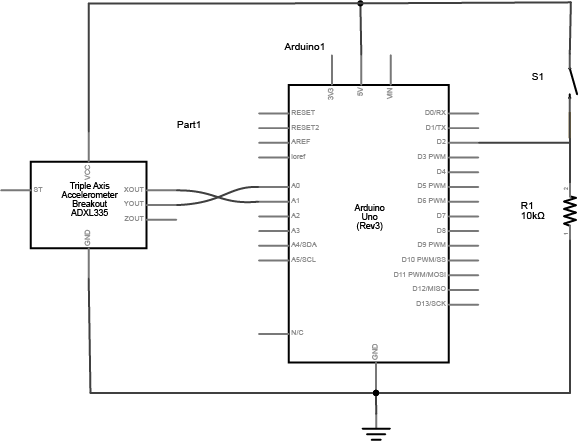
The photos and schematic in this lab show an accelerometer and a pushbutton. You don't have to use these, though. Use whatever sensors are appropriate to your final application. While you're figuring what sensors to use, use the most convenient sensors you've got in hand; perhaps two potentiometers for the analog sensors and a pushbutton? Changed line 30 from:
http://itp.nyu.edu/physcomp/images/labs/arduino_2_analog_1_dig_schem.png to:
![]() Changed line 32 from:
http://itp.nyu.edu/physcomp/images/labs/bboard_3_sensors.JPG to:
August 05, 2008, at 03:53 PM
by -
Deleted line 36:
Breadboard version August 05, 2008, at 03:52 PM
by -
Changed line 34 from:
(:cellnr ) to:
(:cellnr:) August 05, 2008, at 03:51 PM
by -
Deleted lines 24-27:
If you're using an Arduino breadboard shield, there is a row of sockets connected to 5V on the analog in side of the breadboard, and a row connected to ground on the digital in side of the board: http://itp.nyu.edu/physcomp/images/labs/breadboard_shield.jpg Changed lines 31-32 from:
For the photos in this lab, we used a force-sensitive resistor, an infrared ranger, and a pushbutton. The schematic and images are below. Use whatever sensors are appropriate to your final application. Whle you're figuring what sensors to use, use the most convenient sensors you've got in hand; perhaps two pots for the analog sensors and a pushbutton? to:
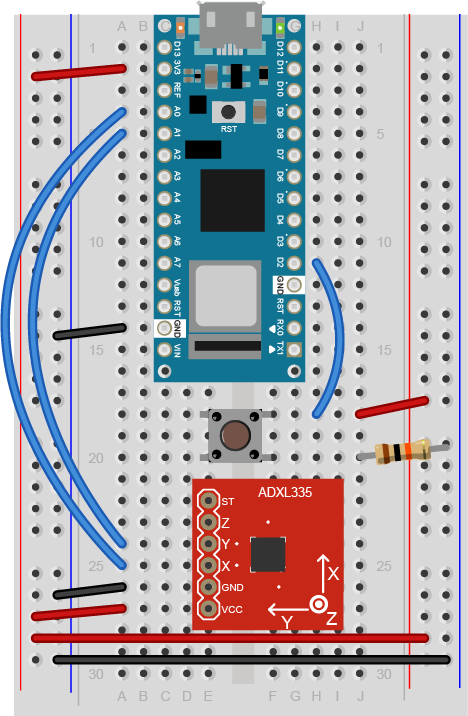
The photos and schematic in this lab show a force-sensitive resistor, an infrared ranger, and a pushbutton. You don't have to use these, though. Use whatever sensors are appropriate to your final application. While you're figuring what sensors to use, use the most convenient sensors you've got in hand; perhaps two potentiometers for the analog sensors and a pushbutton? Changed line 34 from:
(:cellnr colspan=2:) to:
(:cellnr ) Changed line 36 from:
(:cellnr:) to:
(:cell:) Deleted lines 38-40:
(:cell:) Breadboard shield version http://itp.nyu.edu/physcomp/images/labs/bboard_shield_3_sensors.JPG August 05, 2008, at 03:48 PM
by -
Changed lines 1-3 from:
In this lab, you'll send data from sensors to a program on a personal computer. You'll use the data from the sensors to create a pointing-and-selecting device (i.e. a mouse). to:
In the first serial lab, you sent data from one sensor to a personal computer. In this lab, you'll send data from multiple sensors to a program on a personal computer. You'll use the data from the sensors to create a pointing-and-selecting device (i.e. a mouse). August 05, 2008, at 03:46 PM
by -
Added lines 1-285:
In this lab, you'll send data from sensors to a program on a personal computer. You'll use the data from the sensors to create a pointing-and-selecting device (i.e. a mouse). For this lab you'll need: http://itp.nyu.edu/physcomp/images/labs/breadboard.jpg | Solderless breadboard
http://itp.nyu.edu/physcomp/images/labs/hookup_wire.jpg | 22-AWG hookup wire
http://itp.nyu.edu/physcomp/images/labs/arduino.jpg | Arduino Microcontroller http://itp.nyu.edu/physcomp/images/labs/resistors.jpg | 10Kohm resistors http://itp.nyu.edu/physcomp/images/labs/flex_sensors.jpg | Flex sensors Prepare the breadboardConnect power and ground on the breadboard to power and ground from the microcontroller. On the Arduino module, use the 5V and any of the ground connections: http://itp.nyu.edu/physcomp/images/labs/arduino_bboard_power.jpg If you're using an Arduino breadboard shield, there is a row of sockets connected to 5V on the analog in side of the breadboard, and a row connected to ground on the digital in side of the board: http://itp.nyu.edu/physcomp/images/labs/breadboard_shield.jpg
Connect the sensorsConnect two analog sensors to analog pins 0 and 1 like you did in the analog lab. Connect a switch to digital pin 2 like you did in the digital lab. For the photos in this lab, we used a force-sensitive resistor, an infrared ranger, and a pushbutton. The schematic and images are below. Use whatever sensors are appropriate to your final application. Whle you're figuring what sensors to use, use the most convenient sensors you've got in hand; perhaps two pots for the analog sensors and a pushbutton? (:table:) (:cellnr colspan=2:) http://itp.nyu.edu/physcomp/images/labs/arduino_2_analog_1_dig_schem.png (:cellnr:) Breadboard version http://itp.nyu.edu/physcomp/images/labs/bboard_3_sensors.JPG (:cell:) Breadboard shield version http://itp.nyu.edu/physcomp/images/labs/bboard_shield_3_sensors.JPG (:tableend:) Read and send the serial dataThe goal of this section is to understand how the microcontroller formats data when you send it serially. You'll only use one analog sensor for it. Program the following into the module:
int analogPin = 0;
int analogValue = 0; // outgoing ADC value
void setup()
{
// start serial port at 9600 bps:
Serial.begin(9600);
}
void loop()
{
// read analog input, divide by 4 to make the range 0-255:
analogValue = analogRead(analogPin);
analogValue = analogValue / 4;
Serial.println(analogValue, DEC);
// pause for 10 milliseconds:
delay(10);
}
When you open the Serial Monitor, you should see a number between 0 and 255 scrolling down the debugger pane. That's because the DEC modifier to Serial.println() formats the value it prints as an ASCII-encoded DECimal value. Also, the Serial Monitor assumes it should show you the ASCII character corresponding to each byte it receives. Try changing the Serial.println like so:
Now you get a range of garbage characters. What's going on? The BYTE modifier doesn't format the bytes. It sends out the raw binary value of the byte. The Serial Monitor receives that binary value and assumes it should show you the ASCII character corresponding to that value again. The garbage characters are characters correspinding to the ASCII values the Monitor is receiving. For example, imagine the sensor's value is 128. Divided by four, it becomes 32.
Here's the tricky part: Send the data in many formatsTry this program and view the results in the Serial Monitor:
int analogPin = 0;
int analogValue = 0; // integer to print
void setup() {
// open serial communications at 9600 bps
Serial.begin(9600);
}
void loop() {
// read the analog inoput, divide by 4:
analogValue = analogRead(analogPin) /4;
// print in many formats:
Serial.print(analogValue, BYTE); // Print the raw binary value analogValue
Serial.print('\t'); // print a tab
Serial.print(analogValue, BIN); // print the ASCII encoded binary analogValue
Serial.print('\t'); // print a tab
Serial.print(analogValue, DEC); // print the ASCII encoded decimal analogValue
Serial.print('\t'); // print a tab
Serial.print(analogValue, HEX); // print the ASCII encoded hexadecimal analogValue
Serial.print('\t'); // print a tab
Serial.print(analogValue, OCT); // print the ASCII encoded octal analogValue
Serial.println(); // print a linefeed and carriage return
delay(10);
}
You should get output like this: â 11100010 226 E2 342 á 11100001 225 E1 341 á 11100001 225 E1 341 á 11100001 225 E1 341 à 11100000 224 E0 340 à 11100000 224 E0 340 ß 11011111 223 DF 337 ß 11011111 223 DF 337 ß 11011111 223 DF 337 It's printing the raw binary value, then the ASCII-encoded binary value, then the ASCII-encoded decimal, hexadecimal, and octal values. You may never need all of these differnt formats, but you'll likely need at least the decimal and the raw binary versions at some point. Send the values for all three sensorsNow send the values for all three sensors as binary values, like so:
int firstSensor = 0; // first analog sensor
int secondSensor = 0; // second analog sensor
int thirdSensor = 0; // digital sensor
int inByte = 0; // incoming serial byte
void setup()
{
// start serial port at 9600 bps:
Serial.begin(9600);
pinMode(2, INPUT); // digital sensor is on digital pin 2
establishContact(); // send a byte to establish contact until Processing responds
}
void loop()
{
// if we get a valid byte, read analog ins:
if (Serial.available() > 0) {
// get incoming byte:
inByte = Serial.read();
// read first analog input, divide by 4 to make the range 0-255:
firstSensor = analogRead(0)/4;
// delay 10ms to let the ADC recover:
delay(10);
// read second analog input, divide by 4 to make the range 0-255:
secondSensor = analogRead(1)/4;
// read switch, multiply by 255
// so that you're sending 100 or 255:
thirdSensor = 100 + (155 * digitalRead(2));
// send sensor values:
Serial.print(firstSensor, BYTE);
Serial.print(secondSensor, BYTE);
Serial.print(thirdSensor, BYTE);
}
}
void establishContact() {
while (Serial.available() <= 0) {
Serial.print('A', BYTE); // send a capital A
delay(300);
}
}
This program will send a single character, "A", then it'll do nothing, because it's then waiting for data to arrive in the serial port before it sends. To make this work, you'll needto type characters back to the Arduino in the serial monitor. For every character you type, it'll send you three sensor readings. You can use other programs besides serial monitor to see the serial communication, as described below: Windows: Hyperterminal can be found in the Start Menu, under All Programs, Accessories, Communications, Hyperterminal. To configure Hyperterminal for serial communication, open the program and click on the File, Properties menu item. Choose the serial port you want to open from the popup menu in the Configuration tab. Click on Configure to bring up the Port Settings tab. Set the properties as needed for the device you’re talking to. For many of the projects that follow, you’ll set the port settings to 9600 bits per second, 8 data bits, no parity, one stop bit, and no hardware flow control. Once you’ve applied those settings, click the Call button on the toolbar to open the serial port. Any bytes you type in the window will be sent out the serial port you opened. They won't show up on the screen, however. Any bytes received in the serial port will be displayed in the window. Click the Disconnect button to close the serial port. OSX:
To configure Terminal for serial communication in OSX, open the program and type NOTE: only one program can control a serial port at a time. When you're not using a given program, remember to close the serial port. You won't be able to re-program the Arduino module if you don't, because the serial terminal program will have control of the serial port. Once you've got the serial port open in your terminal program, type any character. You should get three bytes back, representing the three bytes sent out by the microcontroller. They won't be readable as numbers, though. If you want to see them as numbers, change BYTE above to DEC in each print statement. What's happening here is that the computer is calling for a set of sensor readings by sending out a byte. The Arduino doesn't do anything unless it's received a byte ( Write a program to read those bytesFor this step, you'll need a programming environment that runs on the personal computer itslf, not on the microcontroller. Any environment that can open and close a serial port will do. For example, Java, Processing, Director, RealBASIC, Visual BASIC, and Max/MSP can all access the serial ports. JavaScript and Flash/Actionscript cannot, as of this writing. The example below is in Processing. It listens for incoming serial bytes. IF it hasn't gotten any bytes, it looks for "A", which is the first thing that the Arduino sends. If it's gotten an A, it reads bytes until it gets three of them. Then it sets the foreground color, x position, and y position of a ball on the screen using those values. When there's no incoming bytes available, it sends a byte out to call for more bytes. Read through it line by line, including comments, for the details. Then run it with your Arduino module attached to the serial port it's listening to.
import processing.serial.*;
int bgcolor; // Background color
int fgcolor; // Fill color
Serial port; // The serial port
int[] serialInArray = new int[3]; // Where we'll put what we receive
int serialCount = 0; // A count of how many bytes we receive
int xpos, ypos; // Starting position of the ball
boolean firstContact = false; // Whether we've heard from the microcontroller
void setup() {
size(256, 256); // Stage size
noStroke(); // No border on the next thing drawn
// Set the starting position of the ball (middle of the stage)
xpos = width/2;
ypos = height/2;
// Print a list of the serial ports, for debugging purposes:
println(Serial.list());
// I know that the first port in the serial list on my mac
// is always my Keyspan adaptor, so I open Serial.list()[0].
// On Windows machines, this generally opens COM1.
// Open whatever port is the one you're using.
port = new Serial(this, Serial.list()[0], 9600);
}
void draw() {
background(bgcolor);
fill(fgcolor);
// Draw the shape
ellipse(xpos, ypos, 20, 20);
}
void serialEvent(Serial port) {
// read a byte from the serial port:
int inByte = port.read();
// if this is the first byte received,
// take note of that fact. Otherwise, add it to the array:
if (firstContact == false) {
if (inByte == 'A') {
port.clear(); // clear the serial port buffer
firstContact = true;
port.write('A');
}
}
else {
// Add the latest byte from the serial port to array:
serialInArray[serialCount] = inByte;
serialCount++;
// If we have 3 bytes:
if (serialCount > 2 ) {
xpos = serialInArray[0];
ypos = serialInArray[1];
fgcolor = serialInArray[2];
// print the values (for debugging purposes only):
println(xpos + "\t" + ypos + "\t" + fgcolor);
// Send a capital A to request new sensor readings:
port.write('A');
// Reset serialCount:
serialCount = 0;
}
}
}
If you did everything right, the ball should move in response to the analog sensors, and appear or disappear when you press the button. Get creativeYou just duplicated the basic functionality of a mouse; that is, a device with two analog sensors that affect X and Y, and a digital sensor (mouse button). What applications can you think of that could use a better physical interface for a mouse? Create a prototype in Arduino and Processing, or whatever programming environment you choose. Come up with a physical interface that makes it clear what actions map to what movements and actions. Figure out which actions can and should be possible at the same time (e.g. moving x and y to make a diagonal path). Think about what actions should be exclusive, if any (e.g. pressing two mouse buttons at once?). Present a working software and hardware model of your idea. |