Intro to Physical Computing Syllabus

Research & Learning

Other Class pages

Shop Admin

ITP Help Pages
Tom's pcomp site
DanO's pcomp site


Using a transistor to control high current loads with an Arduino

Tutorials.HighCurrentLoads History

Hide minor edits - Show changes to markup

September 02, 2011, at 07:41 PM by ti8 -
Deleted lines 160-180:

Try this code: (:div class=code :)

 const int potPin = 0;           // Analog in 0 connected to the potentiometer
 const int transistorPin = 9;    // connected to the base of the transistor
 int potValue = 0;               // value returned from the potentiometer

 void setup() {
   // set  the transistor pin as output:
   pinMode(transistorPin, OUTPUT);
 }

 void loop() {
   // read the potentiometer, convert it to 0 - 255:
   potValue = analogRead(potPin) / 4;
   // use that to control the transistor:
   analogWrite(9, potValue);
 }

(:divend:)

September 02, 2011, at 07:40 PM by ti8 -
Changed lines 142-143 from:

const int transistorPin = 9; // connected to the base of the transistor

to:
 const int transistorPin = 9;    // connected to the base of the transistor
Changed lines 150-153 from:
   digitalWrite(transistorPin, HIGH);
   delay(1000);
   digitalWrite(transistorPin, LOW);
   delay(1000);
to:
   // read the potentiometer:
   int sensorValue = analogRead(A0);
   // map the sensor value to a range from 0 - 255:
   int outputValue = map(sensorValue, 0, 1023, 0, 255);
   // use that to control the transistor:
   analogWrite(transistorPin, outputValue);
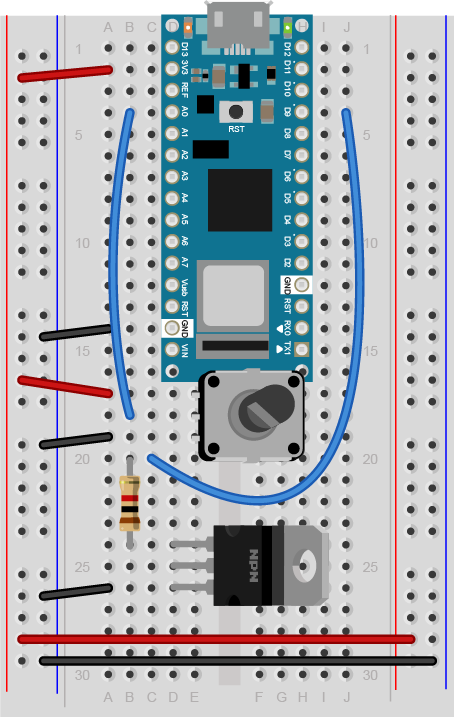
September 02, 2011, at 07:38 PM by ti8 -
Changed lines 113-114 from:

Here's a quick program to test the circuit:

to:

Write a quick program to test the circuit. Your program should make the transistor pin an output in the setup method. Then in the loop, it should turn the motor on and off every second, just like the blink sketch does.

Changed lines 118-130 from:

Boo

to:

const int transistorPin = 9; // connected to the base of the transistor

 void setup() {
   // set  the transistor pin as output:
   pinMode(transistorPin, OUTPUT);
 }

 void loop() {
   digitalWrite(transistorPin, HIGH);
   delay(1000);
   digitalWrite(transistorPin, LOW);
   delay(1000);
 }
Changed lines 135-142 from:

(:div class=code :)

 const int transistorPin = 9;    // connected to the base of the transistor

 void setup() {
   // set  the transistor pin as output:
   pinMode(transistorPin, OUTPUT);
to:

Now that you see it working, try changing the speed of the motor or the intensity of the lamp using the potentiometer.

To do that, read the voltage of the potentiometer using analogRead(). Then map the result to a range from 0 to 255 and save it in a new variable. Use that variable to set the speed of the motor or the brightness of the lamp using analogWrite().

(:toggle question2 init=hide show='I give up, how do I do that?' hide='Let me figure it out':)

(:source lang=arduino tabwidth=4 :) const int transistorPin = 9; // connected to the base of the transistor

 void setup() {
   // set  the transistor pin as output:
   pinMode(transistorPin, OUTPUT);
Changed lines 148-153 from:
 void loop() {
   digitalWrite(transistorPin, HIGH);
   delay(1000);
   digitalWrite(transistorPin, LOW);
   delay(1000);
to:
 void loop() {
   digitalWrite(transistorPin, HIGH);
   delay(1000);
   digitalWrite(transistorPin, LOW);
   delay(1000);
Added lines 155-164:

(:sourceend:)

Try this code: (:div class=code :)

 const int potPin = 0;           // Analog in 0 connected to the potentiometer
 const int transistorPin = 9;    // connected to the base of the transistor
 int potValue = 0;               // value returned from the potentiometer
Added lines 166-169:
 void setup() {
   // set  the transistor pin as output:
   pinMode(transistorPin, OUTPUT);
 }
Added lines 171-177:
 void loop() {
   // read the potentiometer, convert it to 0 - 255:
   potValue = analogRead(potPin) / 4;
   // use that to control the transistor:
   analogWrite(9, potValue);
 }
Deleted lines 179-199:

Now that you see it working, try changing the speed of the motor or the intensity of the lamp using the potentiometer. Try this code: (:div class=code :)

 const int potPin = 0;           // Analog in 0 connected to the potentiometer
 const int transistorPin = 9;    // connected to the base of the transistor
 int potValue = 0;               // value returned from the potentiometer

 void setup() {
   // set  the transistor pin as output:
   pinMode(transistorPin, OUTPUT);
 }

 void loop() {
   // read the potentiometer, convert it to 0 - 255:
   potValue = analogRead(potPin) / 4;
   // use that to control the transistor:
   analogWrite(9, potValue);
 }

(:divend:)

September 02, 2011, at 07:34 PM by ti8 -
Added lines 114-123:

(:toggle question1 init=hide show='I give up, how do I do that?' hide='Let me figure it out':)

(:source lang=arduino tabwidth=4 :) Boo (:sourceend:)

September 02, 2011, at 07:33 PM by ti8 -
Added line 94:
September 02, 2011, at 07:32 PM by ti8 -
Changed lines 94-96 from:

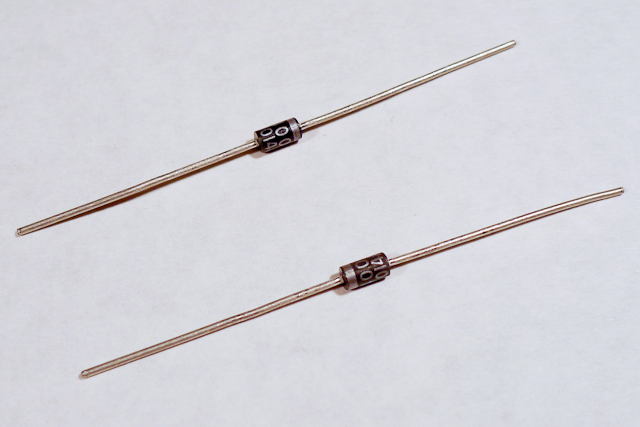
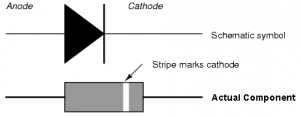
Be sure to add the diode to your circuit correctly. The silver band on the diode denotes the cathode which is the tip of the arrow in the schematic, like so: | click the image to enlarge.

to:

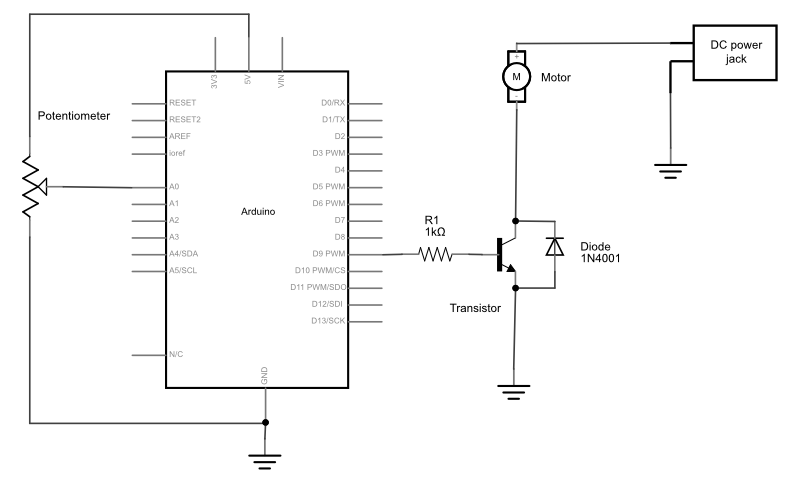
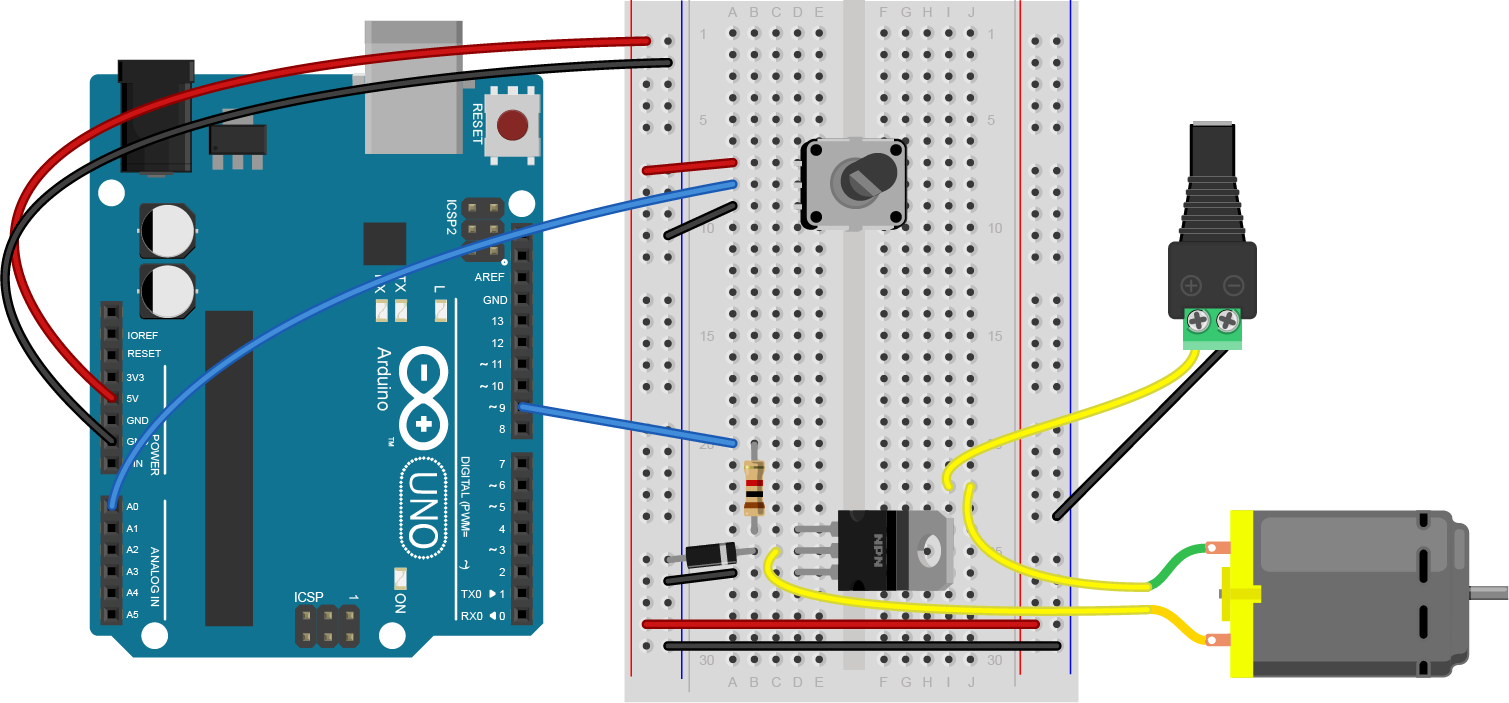
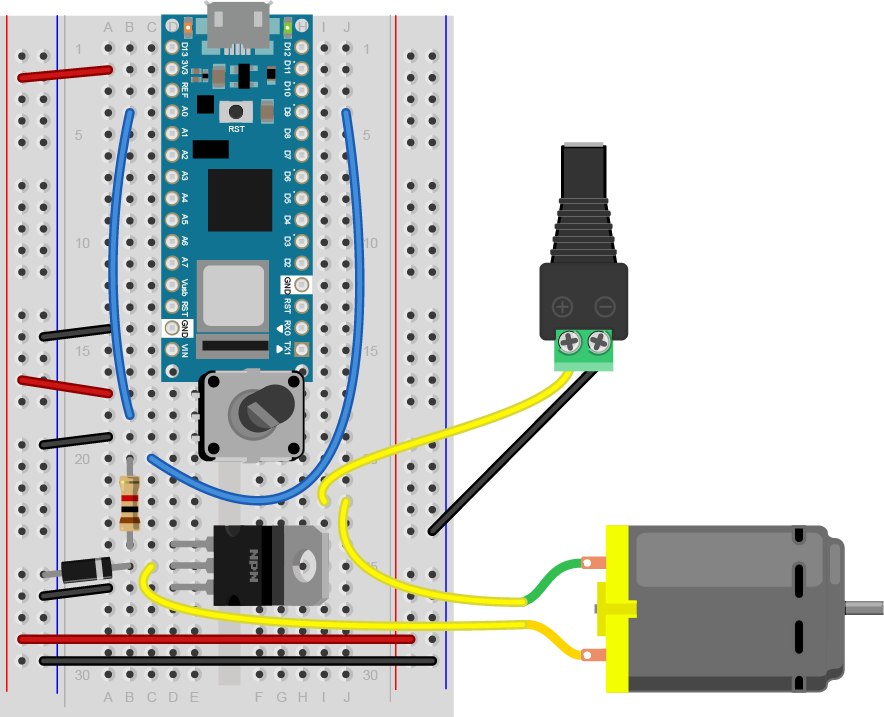
Be sure to add the diode to your circuit correctly. The silver band on the diode denotes the cathode which is the tip of the arrow in the schematic, like so:


click the image to enlarge
September 02, 2011, at 07:32 PM by ti8 -
Changed lines 94-96 from:

Be sure to add the diode to your circuit correctly. The silver band on the diode denotes the cathode which is the tip of the arrow in the schematic, like so: | click the image to enlarge.

to:

Be sure to add the diode to your circuit correctly. The silver band on the diode denotes the cathode which is the tip of the arrow in the schematic, like so: | click the image to enlarge.

Changed lines 107-108 from:
to:


September 02, 2011, at 07:31 PM by ti8 -
Changed lines 92-93 from:

click the image to enlarge

to:
Changed lines 103-109 from:

(:table:) (:cellnr:)


click the image to enlarge

(:cell:)


click the image to enlarge

(:tableend:)

to:

click the image to enlarge

click the image to enlarge
September 02, 2011, at 07:29 PM by ti8 -
Changed line 88 from:
[-Note: the schematic symbol for the transistor here is actually\\
to:

[-Note: the schematic symbol for the transistor here is actually\\
September 02, 2011, at 07:28 PM by ti8 -
September 02, 2011, at 07:27 PM by ti8 -
Changed lines 88-89 from:

[-Note: the schematic symbol for the transistor here is actually\\

to:
[-Note: the schematic symbol for the transistor here is actually\\
Changed line 94 from:
to:


September 02, 2011, at 07:20 PM by ti8 -
Changed lines 82-83 from:

click the image to enlarge
to:

click the image to enlarge


Changed lines 88-90 from:

(:table:) (:cellnr:)

to:
Added lines 91-92:

click the image to enlarge
Changed lines 94-97 from:

(:cell:)


click the image to enlarge

(:tableend:)

to:
September 02, 2011, at 07:17 PM by ti8 -
Changed lines 75-76 from:
to:


September 02, 2011, at 07:17 PM by ti8 -
Changed lines 73-74 from:

click the image to enlarge
to:
click the image to enlarge
September 02, 2011, at 06:58 PM by ti8 -
Changed line 52 from:
to:
September 02, 2011, at 06:58 PM by ti8 -
Changed lines 51-52 from:
to:
September 02, 2011, at 06:57 PM by ti8 -
Changed lines 51-52 from:
to:
September 02, 2011, at 06:51 PM by ti8 -
Changed lines 47-52 from:

Add a potentiometer and LED

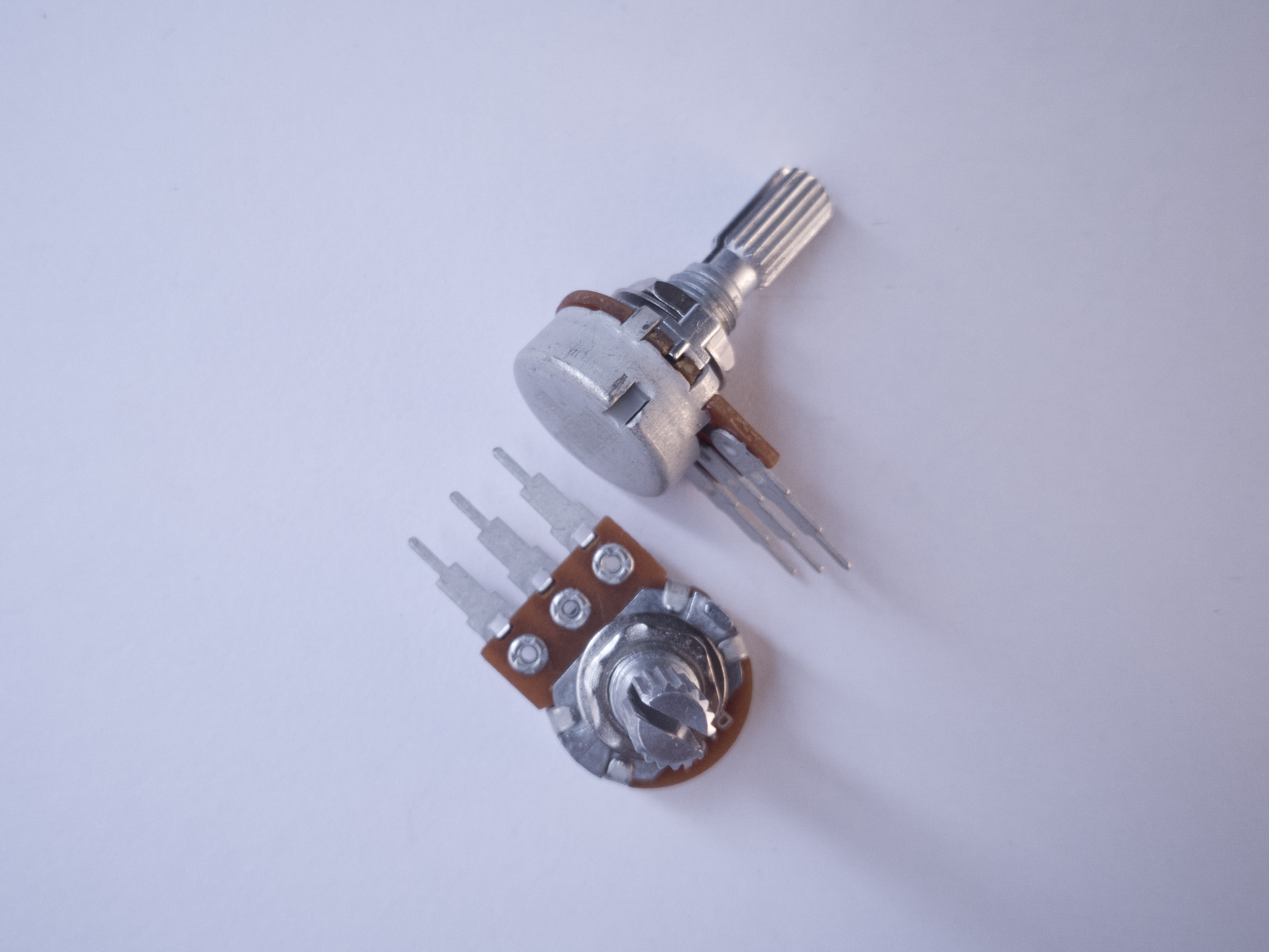
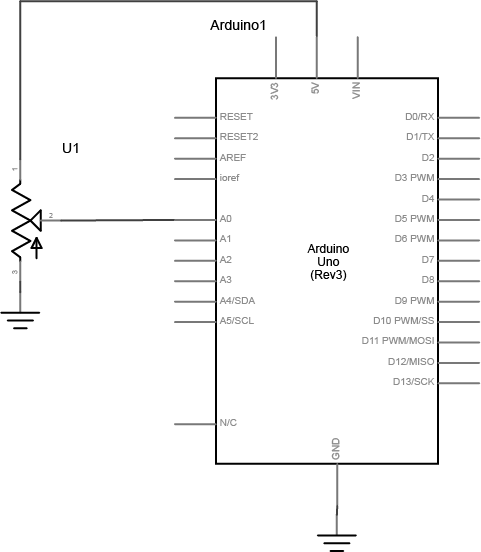
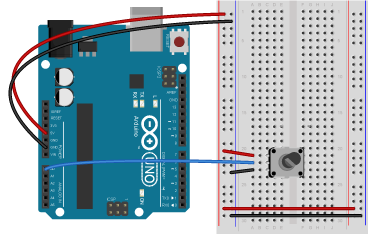
Connect a potentiometer to analog in pin 0 of the module, and an LED to digital pin 9:

to:

Add a potentiometer

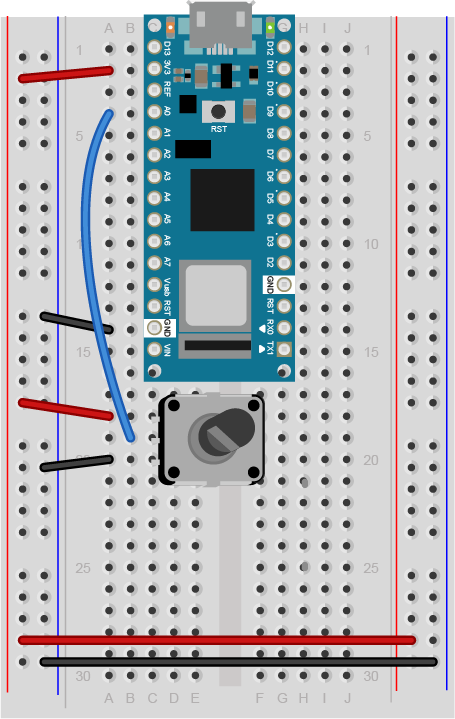
Connect a potentiometer to analog in pin 0 of the module:

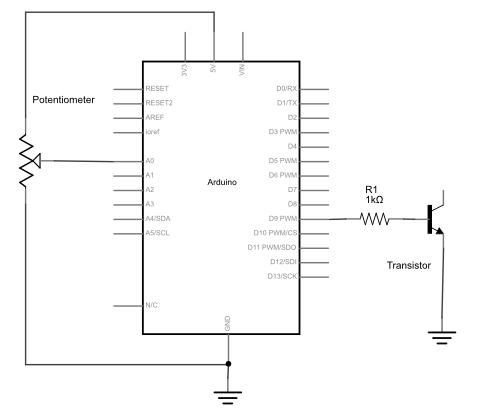
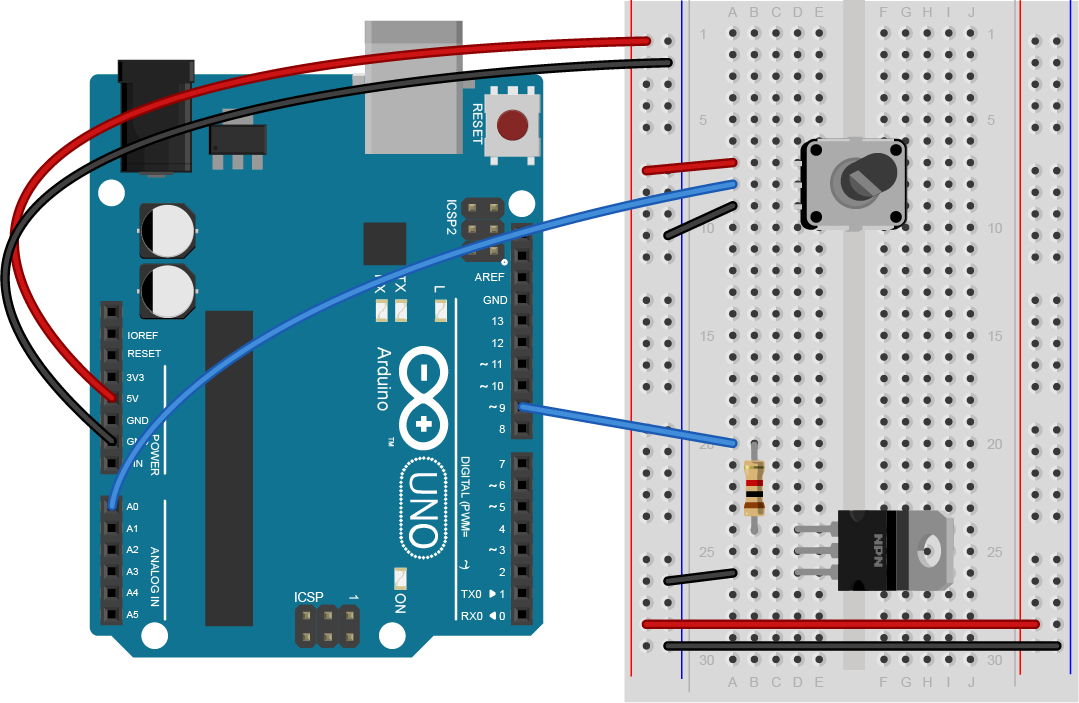
arduino_pot_bb.png arduino_pot_schem.png?

September 02, 2011, at 06:50 PM by ti8 -
Changed lines 41-71 from:

Prepare the breadboard

Conect power and ground on the breadboard to power and ground from the microcontroller. On the Arduino module, use the 5V and any of the ground connections:


click the image to enlarge

Add a potentiometer

Connect a potentiometer to analog in pin 0 of the module. You'll use this later to control the output, whether it's a motor or a light. (:table:) (:cell:)


click the image to enlarge

(:cell:)


click the image to enlarge

(:tableend:)

Connect a transistor to the microcontroller

The transistor allows you to control a circuit that's carrying higher current and voltage from the microcontroller. It acts as an electronic switch. The one you're using for this lab is an NPN-type transistor called a TIP120. The datasheet for it can be found here. It's designed for switching high-current loads. It has three connections, the base, the collector, and the emitter. The base is connected to the microcontroller's output. The high-current load (i.e. the motor or light) is attached to its power source, and then to the collector of the transistor. The emitter of the transistor is connected to ground.

http://itp.nyu.edu/physcomp/images/labs/tip120_pinout.png
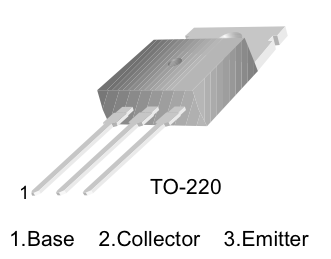
Pinout of a TIP-120 transistor, from left to right: base, collector, emitter.

http://itp.nyu.edu/physcomp/images/labs/npntransistor.gif
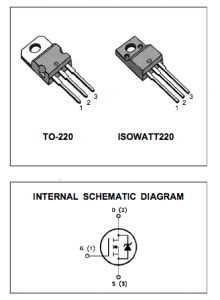
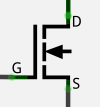
Note: you can also use an IRF510 or IRF520 MOSFET transistor for this. They have the same pin configuration as the TIP120, and perform similarly. They can handle more amperage and voltage, but are more sensitive to static electricity damage.

to:
Added lines 44-68:

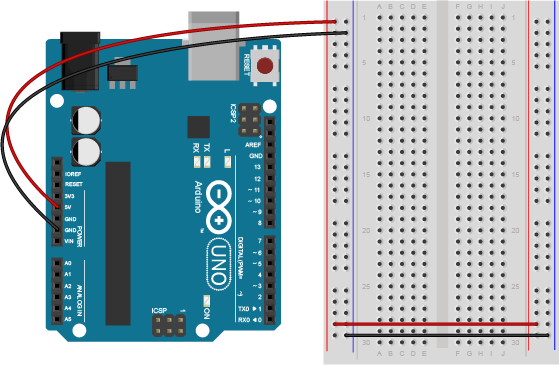
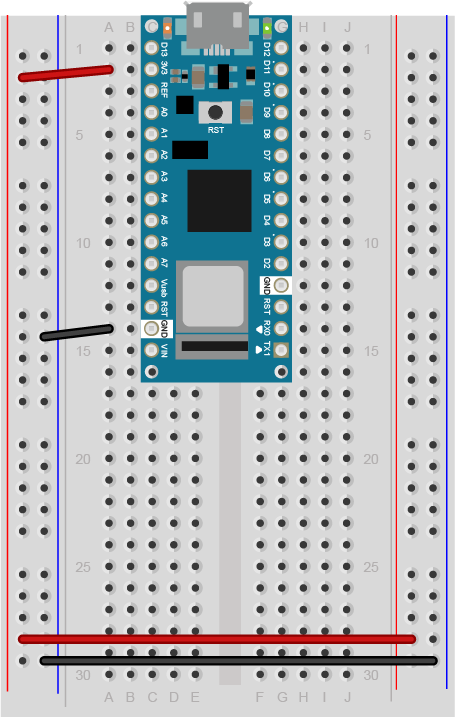
(Diagram made with Fritzing)

Add a potentiometer and LED

Connect a potentiometer to analog in pin 0 of the module, and an LED to digital pin 9:


(Diagram made with Fritzing)

Connect a transistor to the microcontroller

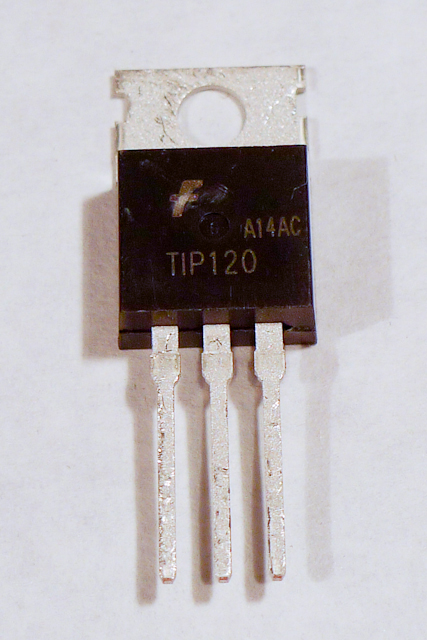
The transistor allows you to control a circuit that's carrying higher current and voltage from the microcontroller. It acts as an electronic switch. The one you're using for this lab is an NPN-type transistor called a TIP120. The datasheet for it can be found here. It's designed for switching high-current loads. It has three connections, the base, the collector, and the emitter. The base is connected to the microcontroller's output. The high-current load (i.e. the motor or light) is attached to its power source, and then to the collector of the transistor. The emitter of the transistor is connected to ground.

http://itp.nyu.edu/physcomp/images/labs/tip120_pinout.png
Pinout of a TIP-120 transistor, from left to right: base, collector, emitter.

http://itp.nyu.edu/physcomp/images/labs/npntransistor.gif
Note: you can also use an IRF510 or IRF520 MOSFET transistor for this. They have the same pin configuration as the TIP120, and perform similarly. They can handle more amperage and voltage, but are more sensitive to static electricity damage.


February 19, 2011, at 10:32 PM by ti8 -
Changed lines 18-20 from:

http://itp.nyu.edu/physcomp/images/labs/leds.jpg | Light Emiting Diodes, LED http://itp.nyu.edu/physcomp/images/labs/electrolytic_cap.JPG | 10uF electrolytic capacitor

to:
Deleted lines 20-21:

http://itp.nyu.edu/physcomp/images/labs/resistors.jpg | 10Kohm resistors

January 09, 2010, at 12:25 PM by ti8 -
Changed lines 48-49 from:
to:

click the image to enlarge
Changed line 97 from:
 click the image to enlarge
to:

click the image to enlarge

January 09, 2010, at 12:25 PM by ti8 -
Changed lines 81-82 from:
to:

click the image to enlarge
Changed lines 88-89 from:
to:

click the image to enlarge
Added line 97:
 click the image to enlarge
Changed line 99 from:
to:

click the image to enlarge
Changed lines 102-104 from:

Be sure to add the diode to your circuit correctly. The silver band on the diode denotes the cathode which is the tip of the arrow in the schematic, like so: .

to:

Be sure to add the diode to your circuit correctly. The silver band on the diode denotes the cathode which is the tip of the arrow in the schematic, like so: | click the image to enlarge.

Changed lines 107-110 from:

Connect a lamp

Likewise, the lamp circuit below assumes a 12V lamp. Change your power supply accordingly if you're using a different lamp. In the lamp circuit, the protection diode is not needed, since there's no way for the polarity to get reversed in this circuit:

to:

Connect a lamp instead

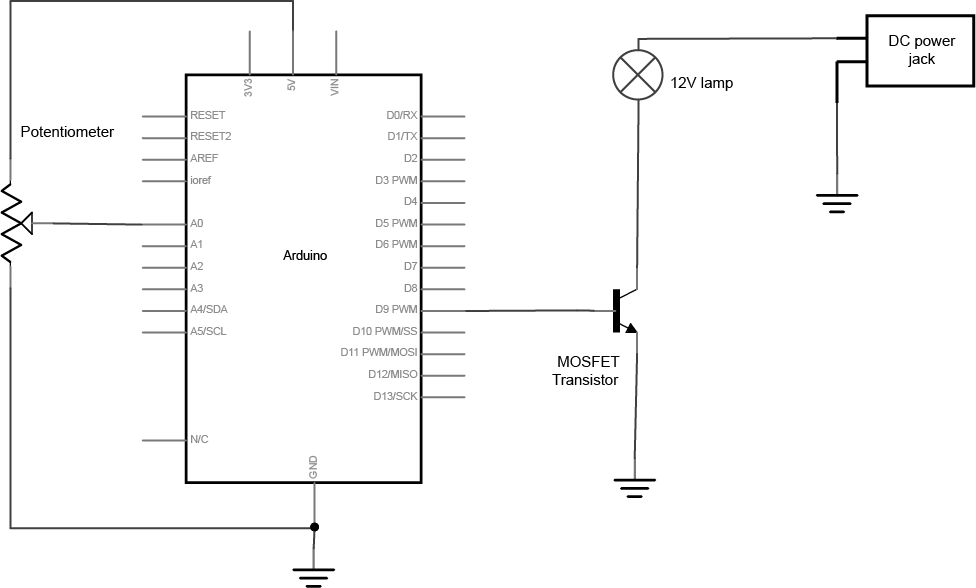
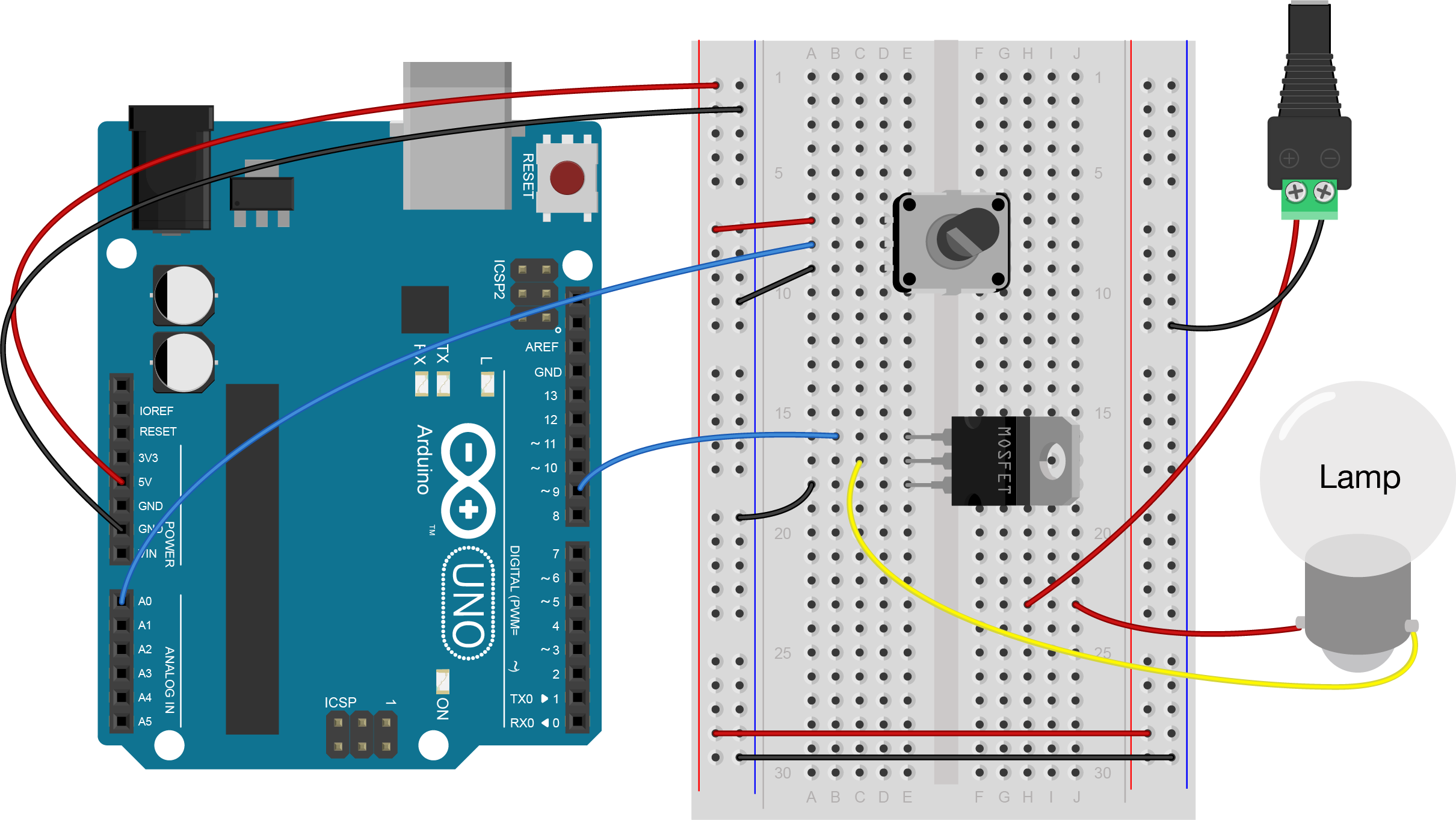
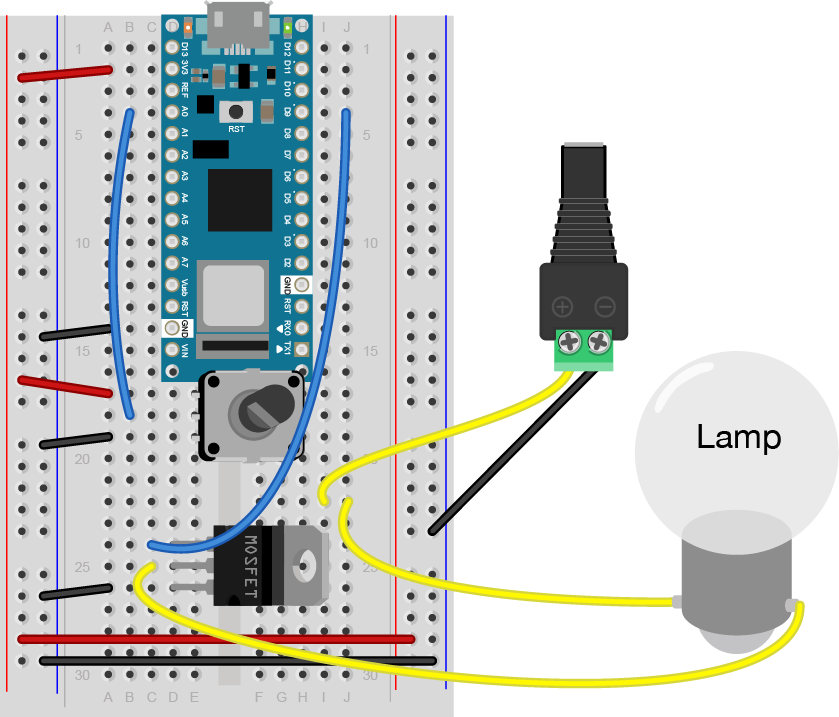
You could also attach a lamp using a transistor. Like the motor, the lamp circuit below assumes a 12V lamp. Change your power supply accordingly if you're using a different lamp. In the lamp circuit, the protection diode is not needed, since there's no way for the polarity to get reversed in this circuit:

Changed line 113 from:
to:

click the image to enlarge
Changed line 115 from:
to:

click the image to enlarge
January 09, 2010, at 12:23 PM by ti8 -
Changed lines 59-60 from:
?
click the image to enlarge
to:

click the image to enlarge
January 09, 2010, at 12:21 PM by ti8 -
Changed line 56 from:

click the image to enlarge
to:

click the image to enlarge
Changed lines 59-60 from:
?
click the image to enlarge
to:
?
click the image to enlarge
January 09, 2010, at 12:20 PM by ti8 -
Changed lines 58-60 from:
?
click the image to enlarge
to:
?
click the image to enlarge
January 09, 2010, at 12:19 PM by ti8 -
Changed line 58 from:
to:
?
click the image to enlarge
January 09, 2010, at 12:18 PM by ti8 -
Changed line 56 from:
to:

click the image to enlarge
Changed line 58 from:

click the image to enlarge

to:
January 09, 2010, at 12:17 PM by ti8 -
Changed line 58 from:
to:

click the image to enlarge

January 09, 2010, at 12:14 PM by ti8 -
Changed line 108 from:
to:
January 09, 2010, at 12:13 PM by ti8 -
Changed line 108 from:
to:
January 09, 2010, at 12:00 PM by ti8 -
Changed line 110 from:
to:
January 09, 2010, at 11:59 AM by ti8 -
Changed line 108 from:

http://itp.nyu.edu/physcomp/images/labs/arduino_tip120_lamp_schem.png

to:
Changed line 110 from:

http://itp.nyu.edu/physcomp/images/labs/bboard_tip120_lamp.JPG

to:
January 09, 2010, at 10:41 AM by ti8 -
Changed lines 55-59 from:

<<<<<<<

======= Attach:arduino_por_schem.png Δ Δ >>>>>>>

to:
January 09, 2010, at 10:40 AM by ti8 -
Added lines 55-57:

<<<<<<<

=======

Added line 59:

>>>>>>>

January 09, 2010, at 10:40 AM by ti8 -
Changed line 55 from:

http://itp.nyu.edu/physcomp/images/labs/arduino_pot_schem.png

to:
January 09, 2010, at 10:26 AM by ti8 -
Changed line 89 from:
to:
January 09, 2010, at 10:26 AM by ti8 -
Changed lines 90-91 from:

Note: the schematic symbol for the transistor here is actually for an IRF510 MOSFET. But it can be replaced with a TIP120

to:

Note: the schematic symbol for the transistor here is actually
for an IRF510 MOSFET. But it can be replaced with a TIP120

January 09, 2010, at 10:25 AM by ti8 -
Changed line 89 from:
to:
January 09, 2010, at 10:24 AM by ti8 -
Changed lines 89-90 from:

http://itp.nyu.edu/physcomp/images/labs/arduino_tip120_schem.png

to:

Note: the schematic symbol for the transistor here is actually for an IRF510 MOSFET. But it can be replaced with a TIP120

January 09, 2010, at 10:03 AM by ti8 -
Changed lines 94-95 from:

Be sure to add the diode to your circuit correctly. The silver band on the diode denotes the cathode which is the tip of the arrow in the schematic, like so: .

to:

Be sure to add the diode to your circuit correctly. The silver band on the diode denotes the cathode which is the tip of the arrow in the schematic, like so: .

Changed line 156 from:

A motor controlled like this can only be turned in one direction. To be able to reverse the direction of the motor, an H-bridge circuit is required. For more on controlling DC motors with H-bridges, see the DC Motor Control lab

to:

A motor controlled like this can only be turned in one direction. To be able to reverse the direction of the motor, an H-bridge circuit is required. For more on controlling DC motors with H-bridges, see the DC Motor Control lab

January 09, 2010, at 10:02 AM by ti8 -
Changed lines 94-95 from:

Be sure to add the diode to your circuit correctly. The silver band on the diode denotes the cathode which is the tip of the arrow in the schematic, like so: diode.png.

to:

Be sure to add the diode to your circuit correctly. The silver band on the diode denotes the cathode which is the tip of the arrow in the schematic, like so: .

January 09, 2010, at 10:00 AM by ti8 -
Added lines 87-90:

(:table:) (:cellnr:) http://itp.nyu.edu/physcomp/images/labs/arduino_tip120_schem.png (:cell:)

Deleted lines 91-99:

Be sure to add the diode to your circuit correctly. The silver band on the diode denotes the cathode which is the tip of the arrow in the schematic, like so: diagram.

(:table:) (:cellnr:) http://itp.nyu.edu/physcomp/images/labs/arduino_tip120_schem.png (:cell:) http://itp.nyu.edu/physcomp/images/labs/bboard_tip120_motor.JPG

Added lines 94-95:

Be sure to add the diode to your circuit correctly. The silver band on the diode denotes the cathode which is the tip of the arrow in the schematic, like so: diode.png.

January 09, 2010, at 09:59 AM by ti8 -
Changed lines 85-86 from:

In the motor circuit below, there is a diode in parallel with the collector and emitter of the transistor, pointing away from ground. This is there to protect the transistor should the polarity of the current reverse (for example, if the motor was turned in reverse, or when it releases back voltage). Be sure to add the diode to your circuit correctly. The silver band on the diode denotes the cathode which is the tip of the arrow in the schematic (diagram).

to:

FInally, add diode in parallel with the collector and emitter of the transistor, pointing away from ground. The diode to protects the transistor from back voltage generated when the motor shuts off, or if the motor is turned in the reverse direction.

Be sure to add the diode to your circuit correctly. The silver band on the diode denotes the cathode which is the tip of the arrow in the schematic, like so: diagram.

January 09, 2010, at 09:55 AM by ti8 -
Changed lines 80-82 from:

Attach a DC motor to the collector of the transistor. Most motors will require more amperage than the microcontroller can supply, so you will need to add a separate power supply as well. If your motor runs on around 9V, you could use a 9V battery. A 5V motor might run on 4 AA batteries. a 12V battery may need a 12V wall wart, or a 12V battery.

to:

Attach a DC motor to the collector of the transistor. Most motors will require more amperage than the microcontroller can supply, so you will need to add a separate power supply as well. If your motor runs on around 9V, you could use a 9V battery. A 5V motor might run on 4 AA batteries. a 12V battery may need a 12V wall wart, or a 12V battery. The ground of the motor power supply should connect to the ground of the microcontroller, on the breadboard.

January 09, 2010, at 09:54 AM by ti8 -
Changed lines 78-79 from:

Connect a motor

to:

Connect a motor and power supply

Attach a DC motor to the collector of the transistor. Most motors will require more amperage than the microcontroller can supply, so you will need to add a separate power supply as well. If your motor runs on around 9V, you could use a 9V battery. A 5V motor might run on 4 AA batteries. a 12V battery may need a 12V wall wart, or a 12V battery.

January 09, 2010, at 09:50 AM by ti8 -
Changed line 60 from:

Connect a TIP120 transistor to the microcontroller

to:

Connect a transistor to the microcontroller

Added lines 68-70:

Note: you can also use an IRF510 or IRF520 MOSFET transistor for this. They have the same pin configuration as the TIP120, and perform similarly. They can handle more amperage and voltage, but are more sensitive to static electricity damage.

Added lines 74-77:

Connect the base to an output pin of the microcontroller, and the emitter to ground like so:

January 09, 2010, at 09:46 AM by ti8 -
Changed line 57 from:

[|]]

to:
January 09, 2010, at 09:45 AM by ti8 -
Changed lines 48-49 from:

http://itp.nyu.edu/physcomp/images/labs/arduino_bboard_power.jpg

to:
Changed line 55 from:

http://itp.nyu.edu/physcomp/images/labs/arduino_pot_schem.png

to:

http://itp.nyu.edu/physcomp/images/labs/arduino_pot_schem.png

Changed line 57 from:

http://itp.nyu.edu/physcomp/images/labs/bb_pot.jpg

to:

[|]]

October 31, 2009, at 10:11 AM by ti8 -
Changed line 122 from:
 const int potValue = 0;         // value returned from the potentiometer
to:
 int potValue = 0;               // value returned from the potentiometer
September 08, 2009, at 11:20 AM by ti8 -
Changed lines 118-121 from:

int potPin = 0; // Analog in 0 connected to the potentiometer

 int transistorPin = 9;    // connected to the base of the transistor
 int potValue = 0;         // value returned from the potentiometer
to:

(:div class=code :)

 const int potPin = 0;           // Analog in 0 connected to the potentiometer
 const int transistorPin = 9;    // connected to the base of the transistor
 const int potValue = 0;         // value returned from the potentiometer
Changed lines 124-126 from:
 void setup() {
   // set  the transistor pin as output:
   pinMode(transistorPin, OUTPUT);
to:
 void setup() {
   // set  the transistor pin as output:
   pinMode(transistorPin, OUTPUT);
Changed lines 129-133 from:
 void loop() {
   // read the potentiometer, convert it to 0 - 255:
   potValue = analogRead(potPin) / 4;
   // use that to control the transistor:
   analogWrite(9, potValue);
to:
 void loop() {
   // read the potentiometer, convert it to 0 - 255:
   potValue = analogRead(potPin) / 4;
   // use that to control the transistor:
   analogWrite(9, potValue);
Changed lines 135-137 from:
to:

(:divend:)

September 08, 2009, at 11:19 AM by ti8 -
Changed lines 98-113 from:
int transistorPin = 9;    // connected to the base of the transistor

void setup() {
  // set  the transistor pin as output:
  pinMode(transistorPin, OUTPUT);
}

void loop() {
  digitalWrite(transistorPin, HIGH);
  delay(1000);
  digitalWrite(transistorPin, LOW);
  delay(1000);
}
to:

(:div class=code :)

 const int transistorPin = 9;    // connected to the base of the transistor

 void setup() {
   // set  the transistor pin as output:
   pinMode(transistorPin, OUTPUT);
 }

 void loop() {
   digitalWrite(transistorPin, HIGH);
   delay(1000);
   digitalWrite(transistorPin, LOW);
   delay(1000);
 }

(:divend:)

Deleted line 118:

[@

Changed lines 120-136 from:

int transistorPin = 9; // connected to the base of the transistor int potValue = 0; // value returned from the potentiometer

void setup() {

  // set  the transistor pin as output:
  pinMode(transistorPin, OUTPUT);

}

void loop() {

  // read the potentiometer, convert it to 0 - 255:
  potValue = analogRead(potPin) / 4;
  // use that to control the transistor:
  analogWrite(9, potValue);

}

@]

to:
 int transistorPin = 9;    // connected to the base of the transistor
 int potValue = 0;         // value returned from the potentiometer

 void setup() {
   // set  the transistor pin as output:
   pinMode(transistorPin, OUTPUT);
 }

 void loop() {
   // read the potentiometer, convert it to 0 - 255:
   potValue = analogRead(potPin) / 4;
   // use that to control the transistor:
   analogWrite(9, potValue);
 }
February 19, 2009, at 02:10 PM by rmn236 -
Changed lines 73-74 from:

In the motor circuit below, there is a diode in parallel with the collector and emitter of the transistor, pointing away from ground. This is there to protect the transistor should the polarity of the current reverse (for example, if the motor was turned in reverse, or when it releases back voltage). Be sure to add the diode to your circuit correctly. The silver band on the diode denotes the cathode which is the tip of the arrow in the schematic.

to:

In the motor circuit below, there is a diode in parallel with the collector and emitter of the transistor, pointing away from ground. This is there to protect the transistor should the polarity of the current reverse (for example, if the motor was turned in reverse, or when it releases back voltage). Be sure to add the diode to your circuit correctly. The silver band on the diode denotes the cathode which is the tip of the arrow in the schematic (diagram).

February 19, 2009, at 02:10 PM by rmn236 -
Changed lines 73-74 from:

In the motor circuit below, there is a diode in parallel with the collector and emitter of the transistor, pointing away from ground. This is there to protect the transistor should the polarity of the current reverse (for example, if the motor was turned in reverse, or when it releases back voltage).

to:

In the motor circuit below, there is a diode in parallel with the collector and emitter of the transistor, pointing away from ground. This is there to protect the transistor should the polarity of the current reverse (for example, if the motor was turned in reverse, or when it releases back voltage). Be sure to add the diode to your circuit correctly. The silver band on the diode denotes the cathode which is the tip of the arrow in the schematic.

February 19, 2009, at 01:55 PM by rmn236 -
Changed lines 69-70 from:

The schematic symbol of an NPN transistor where B is the base, C is the collector, is the emitter.

to:

The schematic symbol of an NPN transistor where B is the base, C is the collector, and E is the emitter.

February 19, 2009, at 01:54 PM by rmn236 -
Changed lines 69-70 from:

The schematic symbol of an NPN transistor

to:

The schematic symbol of an NPN transistor where B is the base, C is the collector, is the emitter.

February 19, 2009, at 01:52 PM by rmn236 -
Changed lines 42-43 from:
to:
Added lines 64-70:

http://itp.nyu.edu/physcomp/images/labs/tip120_pinout.png
Pinout of a TIP-120 transistor, from left to right: base, collector, emitter.

http://itp.nyu.edu/physcomp/images/labs/npntransistor.gif

The schematic symbol of an NPN transistor

February 19, 2009, at 01:32 PM by rmn236 -
Changed lines 1-2 from:

(:title Using a TIP-120 to control high current loads with an Arduino:)

to:

(:title Using a transistor to control high current loads with an Arduino:)

February 19, 2009, at 01:19 PM by rmn236 -
Added lines 1-2:

(:title Using a TIP-120 to control high current loads with an Arduino:)

February 19, 2009, at 01:13 PM by rmn236 -
Changed lines 127-129 from:

Note for the motor users:

A motor controlled like this can only be turned in one direction. To be able to reverse the direction of the motor, an H-bridge circuit is required. For more on controlling DC motors with H-bridges, see the DC Motor Control lab

to:

Notes

For the motor users:
A motor controlled like this can only be turned in one direction. To be able to reverse the direction of the motor, an H-bridge circuit is required. For more on controlling DC motors with H-bridges, see the DC Motor Control lab

February 19, 2009, at 01:07 PM by rmn236 -
Added lines 1-2:

In this tutorial, you'll learn how to control a high-current DC load such as a DC motor or an incandescent light from a microcontroller.

Deleted lines 4-5:

In this tutorial, you'll learn how to control a high-current DC load such as a DC motor or an incandescent light from a microcontroller.

Added lines 7-8:

You will need the following parts for this tutorial.

February 19, 2009, at 01:05 PM by rmn236 -
Changed lines 1-2 from:

(:toc:)

to:

(:toc Table of Contents:)

Changed lines 5-6 from:

For this tutorial you'll need:

to:

Parts

February 19, 2009, at 01:01 PM by rmn236 -
Added lines 1-2:

(:toc:)

Changed line 4 from:
to:
February 19, 2009, at 12:54 PM by rmn236 -
Changed line 78 from:

http://itp.nyu.edu/physcomp/images/labs/arduino_tip120_lamp_schem.png

to:

http://itp.nyu.edu/physcomp/images/labs/arduino_tip120_lamp_schem.png

Changed line 80 from:

http://itp.nyu.edu/physcomp/images/labs/bboard_tip120_lamp.JPG

to:

http://itp.nyu.edu/physcomp/images/labs/bboard_tip120_lamp.JPG

February 19, 2009, at 12:53 PM by rmn236 -
Changed line 78 from:

%height=300 alt='Arduino TIP120 schematic'%http://itp.nyu.edu/physcomp/images/labs/arduino_tip120_lamp_schem.png

to:

http://itp.nyu.edu/physcomp/images/labs/arduino_tip120_lamp_schem.png

Changed line 80 from:

%alt='Arduino TIP120 with lamp'%http://itp.nyu.edu/physcomp/images/labs/bboard_tip120_lamp.JPG

to:

http://itp.nyu.edu/physcomp/images/labs/bboard_tip120_lamp.JPG

February 19, 2009, at 12:52 PM by rmn236 -
Deleted line 75:
Deleted lines 76-77:

(:cellnr colspan=2:) %height=300 alt='Arduino TIP120 schematic'%http://itp.nyu.edu/physcomp/images/labs/arduino_tip120_lamp_schem.png

Added lines 78-79:

%height=300 alt='Arduino TIP120 schematic'%http://itp.nyu.edu/physcomp/images/labs/arduino_tip120_lamp_schem.png (:cell:)

Deleted lines 80-81:

(:cell:) %alt='Arduino TIP120 with lamp'%http://itp.nyu.edu/physcomp/images/labs/bboard_shield_tip120_lamp.JPG

February 19, 2009, at 12:50 PM by rmn236 -
Changed line 52 from:

http://itp.nyu.edu/physcomp/images/labs/bb_pot.jpg

to:

http://itp.nyu.edu/physcomp/images/labs/bb_pot.jpg

February 19, 2009, at 11:16 AM by rmn236 -
Changed line 65 from:

http://itp.nyu.edu/physcomp/images/labs/arduino_tip120_schem.png

to:

http://itp.nyu.edu/physcomp/images/labs/arduino_tip120_schem.png

Changed line 67 from:

http://itp.nyu.edu/physcomp/images/labs/bboard_tip120_motor.JPG

to:

http://itp.nyu.edu/physcomp/images/labs/bboard_tip120_motor.JPG

February 19, 2009, at 11:13 AM by rmn236 -
Deleted lines 63-64:

(:cellnr colspan=2:) %height=300 alt='Arduino TIP120 schematic'%http://itp.nyu.edu/physcomp/images/labs/arduino_tip120_schem.png

Changed line 65 from:

%alt='Arduino TIP120 with motor'%http://itp.nyu.edu/physcomp/images/labs/bboard_tip120_motor.JPG

to:

http://itp.nyu.edu/physcomp/images/labs/arduino_tip120_schem.png

Changed line 67 from:

%alt='Arduino TIP120 with motor'%http://itp.nyu.edu/physcomp/images/labs/bboard_shield_tip120_motor.JPG

to:

http://itp.nyu.edu/physcomp/images/labs/bboard_tip120_motor.JPG

February 19, 2009, at 11:08 AM by rmn236 -
Deleted line 51:

Breadboard version:

February 19, 2009, at 11:07 AM by rmn236 -
Changed line 50 from:

http://itp.nyu.edu/physcomp/images/labs/arduino_pot_schem.png

to:

http://itp.nyu.edu/physcomp/images/labs/arduino_pot_schem.png

February 19, 2009, at 11:06 AM by rmn236 -
Changed line 49 from:

(:cellnr colspan=2:)

to:

(:cell:)

Changed line 51 from:

(:cellnr:)

to:

(:cell:)

Deleted lines 53-55:

(:cell:) Breadboard shield version: http://itp.nyu.edu/physcomp/images/labs/shield_pot.jpg

February 19, 2009, at 11:04 AM by rmn236 -
Deleted lines 44-47:

If you're using an Arduino breadboard shield, there is a row of sockets connected to 5V on the analog in side of the breadboard, and a row connected to ground on the digital in side of the board:

http://itp.nyu.edu/physcomp/images/labs/breadboard_shield.jpg

October 15, 2008, at 10:17 PM by kh928 -
June 06, 2006, at 04:39 PM by tigoe -
Added lines 86-88:

(:table:) (:cellnr colspan=2:)

Changed lines 90-95 from:
to:

(:cellnr:) %alt='Arduino TIP120 with lamp'%http://itp.nyu.edu/physcomp/images/labs/bboard_tip120_lamp.JPG (:cell:) %alt='Arduino TIP120 with lamp'%http://itp.nyu.edu/physcomp/images/labs/bboard_shield_tip120_lamp.JPG (:tableend:)

June 06, 2006, at 04:29 PM by tigoe -
Changed line 35 from:

http://itp.nyu.edu/physcomp/images/labs/lamp_socket.JPG | Incandescent lamp and socket

to:

http://itp.nyu.edu/physcomp/images/labs/lamp_holder.JPG | Incandescent lamp and socket

June 06, 2006, at 04:27 PM by tigoe -
Changed line 35 from:

http://itp.nyu.edu/physcomp/images/labs/incandescent_lamp.JPG | Incandescent lamp and socket

to:

http://itp.nyu.edu/physcomp/images/labs/lamp_socket.JPG | Incandescent lamp and socket

Changed lines 75-77 from:

%height=300 alt='Arduino TIP120 with motor'%http://itp.nyu.edu/physcomp/images/labs/bboard_tip120_motor.JPG (:cellnr:) %height=300 alt='Arduino TIP120 with motor'%http://itp.nyu.edu/physcomp/images/labs/bboard_shield_tip120_motor.JPG

to:

%alt='Arduino TIP120 with motor'%http://itp.nyu.edu/physcomp/images/labs/bboard_tip120_motor.JPG (:cell:) %alt='Arduino TIP120 with motor'%http://itp.nyu.edu/physcomp/images/labs/bboard_shield_tip120_motor.JPG

June 06, 2006, at 04:25 PM by tigoe -
Added lines 71-72:

(:table:) (:cellnr colspan=2:)

Changed lines 74-79 from:
to:

(:cellnr:) %height=300 alt='Arduino TIP120 with motor'%http://itp.nyu.edu/physcomp/images/labs/bboard_tip120_motor.JPG (:cellnr:) %height=300 alt='Arduino TIP120 with motor'%http://itp.nyu.edu/physcomp/images/labs/bboard_shield_tip120_motor.JPG (:tableend:)

June 06, 2006, at 03:04 PM by tigoe -
Changed lines 124-127 from:

Get creative

Use your motor to make something move, vibrate, rise, fall, roll, creep, or whatever you can think of, in response to user input from a digital input device (switch, floor sensor, tripwire, etc).

to:
June 06, 2006, at 02:52 PM by tigoe -
Changed lines 85-97 from:
to:

int transistorPin = 9; // connected to the base of the transistor

void setup() {

  // set  the transistor pin as output:
  pinMode(transistorPin, OUTPUT);

}

void loop() {

  digitalWrite(transistorPin, HIGH);
  delay(1000);
  digitalWrite(transistorPin, LOW);
  delay(1000);

}

Changed lines 103-118 from:
to:

int potPin = 0; // Analog in 0 connected to the potentiometer int transistorPin = 9; // connected to the base of the transistor int potValue = 0; // value returned from the potentiometer

void setup() {

  // set  the transistor pin as output:
  pinMode(transistorPin, OUTPUT);

}

void loop() {

  // read the potentiometer, convert it to 0 - 255:
  potValue = analogRead(potPin) / 4;
  // use that to control the transistor:
  analogWrite(9, potValue);

}

June 06, 2006, at 02:41 PM by tigoe -
Added lines 67-68:

Connect a motor

Added lines 75-76:

Connect a lamp

Changed lines 81-94 from:

The simplest program for this would be as follows:

Sub main()

	call delay(0.5)  ' start  program with a half-second delay 

	do
		call putPin(13, getPin(14))
	loop

end sub

If your power supply for the BX24 is compatible with your motor, you can wire the motor supply in parallel with the 5V regulator. For example, I use a 12V DC 1000 mA power adaptor, so I can use a 12V motor, if the power from the motor is wired in parallel with the 5V regulator's input, like so:

Note that the motor and the BX24 need a common ground (in our case, they get it through the transistor's base; see above schematic).

to:

Program the microcontroller

Here's a quick program to test the circuit:


Now that you see it working, try changing the speed of the motor or the intensity of the lamp using the potentiometer. Try this code:


Note for the motor users:

A motor controlled like this can only be turned in one direction. To be able to reverse the direction of the motor, an H-bridge circuit is required. For more on controlling DC motors with H-bridges, see the DC Motor Control lab

Changed lines 98-103 from:

Step 4 (optional step):

A motor controlled like this can only be turned in one direction. To be able to reverse the direction of the motor, an H-bridge circuit is required. For more on controlling DC motors with H-bridges, see the notes on DC motor control. Then get an H-bridge such as the Texas Instruments SN754410, or make your own. Use it to control the direction of a motor.

Step 5:

to:

Get creative

June 06, 2006, at 02:37 PM by tigoe -
Added lines 27-28:

http://itp.nyu.edu/physcomp/images/labs/tip120_transistor.JPG | TIP120 transistor

June 06, 2006, at 02:35 PM by tigoe -
Changed lines 63-64 from:

The transistor allows you to control a circuit that's carrying higher current and voltage from the microcontroller. It acts as an electronic switch. The one you're using for this lab is an NPN-type transistor called a TIP120. It's designed for switching high-current loads. It has three connections, the base, the collector, and the emitter. The base is connected to the microcontroller's output. The high-current load (i.e. the motor or light) is attached to its power source, and then to the collector of the transistor. The emitter of the transistor is connected to ground.

to:

The transistor allows you to control a circuit that's carrying higher current and voltage from the microcontroller. It acts as an electronic switch. The one you're using for this lab is an NPN-type transistor called a TIP120. The datasheet for it can be found here. It's designed for switching high-current loads. It has three connections, the base, the collector, and the emitter. The base is connected to the microcontroller's output. The high-current load (i.e. the motor or light) is attached to its power source, and then to the collector of the transistor. The emitter of the transistor is connected to ground.

June 06, 2006, at 02:32 PM by tigoe -
Changed lines 69-75 from:
to:

This circuit assumes you're using a 12V motor. If your motor requires a different voltage, make sure to use a power supply that's appropriate. Connect the ground of the motor's supply to the ground of your microcontroller circuit, though, or the circuit won't work properly.

Likewise, the lamp circuit below assumes a 12V lamp. Change your power supply accordingly if you're using a different lamp. In the lamp circuit, the protection diode is not needed, since there's no way for the polarity to get reversed in this circuit:

%height=300 alt='Arduino TIP120 schematic'%http://itp.nyu.edu/physcomp/images/labs/arduino_tip120_lamp_schem.png

June 06, 2006, at 02:24 PM by tigoe -
Changed lines 67-71 from:

%alt='Arduino TIP120 schematic'%http://itp.nyu.edu/physcomp/images/labs/arduino_tip120_schem.png

The simplest program fot this would be as follows:

to:

%height=300 alt='Arduino TIP120 schematic'%http://itp.nyu.edu/physcomp/images/labs/arduino_tip120_schem.png

The simplest program for this would be as follows:

June 06, 2006, at 02:23 PM by tigoe -
Changed lines 67-69 from:

%alt='Arduino TIP120 schematic'%http://itp.nyu.edu/physcomp/images/labs/arduino_TIP120_schem.jpg

to:

%alt='Arduino TIP120 schematic'%http://itp.nyu.edu/physcomp/images/labs/arduino_tip120_schem.png

June 06, 2006, at 02:22 PM by tigoe -
Changed line 61 from:

Connect a TIP120 transistor to the microcontroller

to:

Connect a TIP120 transistor to the microcontroller

Changed lines 63-74 from:

Note the second power supply. Most motors take a great deal more current than a microprocessor, and need their own supply. The example below uses a 9V battery as a separate power source. Whatever motor you use, make sure the power source is compatible (i.e. don't use a 9V battery for a 3V motor!).

Connect a switch to another pin of the BX-24 and program it to control the motor, like so:

Detail of the board:

Note that we've added two capacitors on either side of our regulator. They smooth out the power, as the motor will cause spikes and dips when it turns on and off.

Here's the schematic for the capacitors and the regulator:

to:

The transistor allows you to control a circuit that's carrying higher current and voltage from the microcontroller. It acts as an electronic switch. The one you're using for this lab is an NPN-type transistor called a TIP120. It's designed for switching high-current loads. It has three connections, the base, the collector, and the emitter. The base is connected to the microcontroller's output. The high-current load (i.e. the motor or light) is attached to its power source, and then to the collector of the transistor. The emitter of the transistor is connected to ground.

In the motor circuit below, there is a diode in parallel with the collector and emitter of the transistor, pointing away from ground. This is there to protect the transistor should the polarity of the current reverse (for example, if the motor was turned in reverse, or when it releases back voltage).

%alt='Arduino TIP120 schematic'%http://itp.nyu.edu/physcomp/images/labs/arduino_TIP120_schem.jpg

June 06, 2006, at 02:15 PM by tigoe -
Changed line 52 from:

http://itp.nyu.edu/physcomp/images/labs/arduino_analog_pot_schem.png

to:

http://itp.nyu.edu/physcomp/images/labs/arduino_pot_schem.png

June 06, 2006, at 02:14 PM by tigoe -
Changed line 52 from:

http://itp.nyu.edu/physcomp/images/labs/arduino_analog_input_schem.png

to:

http://itp.nyu.edu/physcomp/images/labs/arduino_analog_pot_schem.png

Changed line 55 from:

http://itp.nyu.edu/physcomp/images/labs/bb_pot.jpg

to:

http://itp.nyu.edu/physcomp/images/labs/bb_pot.jpg

Changed line 58 from:

http://itp.nyu.edu/physcomp/images/labs/shield_pot.jpg

to:

http://itp.nyu.edu/physcomp/images/labs/shield_pot.jpg

June 06, 2006, at 02:01 PM by tigoe -
Changed lines 13-14 from:
to:

http://itp.nyu.edu/physcomp/images/labs/electrolytic_cap.JPG | 10uF electrolytic capacitor

Deleted lines 24-25:

http://itp.nyu.edu/physcomp/images/labs/electrolytic_cap.JPG | 10uF electrolytic capacitor

June 06, 2006, at 02:01 PM by tigoe -
Changed lines 21-22 from:

http://itp.nyu.edu/physcomp/images/labs/1N4004_diodes.JPG | power diodes (for DC Motor version only)

to:

http://itp.nyu.edu/physcomp/images/labs/1N4004_diodes.JPG | power diodes
(for DC Motor version only)

Added lines 28-29:


June 06, 2006, at 02:00 PM by tigoe -
Added lines 20-24:

http://itp.nyu.edu/physcomp/images/labs/1N4004_diodes.JPG | power diodes (for DC Motor version only)

http://itp.nyu.edu/physcomp/images/labs/electrolytic_cap.JPG | 10uF electrolytic capacitor

Deleted lines 31-36:

http://itp.nyu.edu/physcomp/images/labs/1N4004_diodes.JPG | power diodes

http://itp.nyu.edu/physcomp/images/labs/electrolytic_cap.JPG | 10uF electrolytic capacitor

   * 10Kohm resistors
Added line 33:
June 06, 2006, at 01:59 PM by tigoe -
Changed line 1 from:

In this tutorial, you'll learn how to control a high-current DC load such as a DC motor or an incandescent light from a microcontroller.

to:

In this tutorial, you'll learn how to control a high-current DC load such as a DC motor or an incandescent light from a microcontroller.

Changed lines 24-27 from:
   * 1N4004 diodes
    * TIP120 transistor
    * 10uF capacitor 
    * 10Kohm resistors
to:

- or -

http://itp.nyu.edu/physcomp/images/labs/incandescent_lamp.JPG | Incandescent lamp and socket

http://itp.nyu.edu/physcomp/images/labs/1N4004_diodes.JPG | power diodes

http://itp.nyu.edu/physcomp/images/labs/electrolytic_cap.JPG | 10uF electrolytic capacitor

   * 10Kohm resistors
Changed lines 45-48 from:

Add a Digital Input (a switch)

Connect a switch to digital input 2 on the Arduino.

to:

Add a potentiometer

Connect a potentiometer to analog in pin 0 of the module. You'll use this later to control the output, whether it's a motor or a light.

Changed line 50 from:

http://itp.nyu.edu/physcomp/images/labs/arduino_dig_input_schem.png

to:

http://itp.nyu.edu/physcomp/images/labs/arduino_analog_input_schem.png

Changed lines 52-53 from:

http://itp.nyu.edu/physcomp/images/labs/arduino_switch.jpg
Breadboard version

to:

Breadboard version: http://itp.nyu.edu/physcomp/images/labs/bb_pot.jpg

Changed lines 55-56 from:

http://itp.nyu.edu/physcomp/images/labs/bbrd_shield_switch.jpg
Shield version

to:

Breadboard shield version: http://itp.nyu.edu/physcomp/images/labs/shield_pot.jpg

Changed lines 59-61 from:

Step 1:

Get a DC motor that runs on low voltage DC, in the 5-15V range. Connect leads to its terminals, and run if from a benchtop power supply in the lab. Try changing the voltage on it, and seeing what effect it has. Don't go over the motor's rated voltage. Connect a switch in series with the motor and use it to turn on the motor.

to:

Connect a TIP120 transistor to the microcontroller

Changed lines 61-64 from:

Step 2:

Connect the base of a TIP120 transistor to one pin of your BX-24. Connect the motor to the transistor as follows:

to:
June 06, 2006, at 01:53 PM by tigoe -
Added lines 18-19:

http://itp.nyu.edu/physcomp/images/labs/potentiometer.jpg | 10Kohm potentiometer

Deleted lines 21-22:

http://itp.nyu.edu/physcomp/images/labs/potentiometer.jpg | 10Kohm potentiometer

June 06, 2006, at 01:52 PM by tigoe -
Added lines 20-21:

http://itp.nyu.edu/physcomp/images/labs/potentiometer.jpg | 10Kohm potentiometer

June 06, 2006, at 01:51 PM by tigoe -
Deleted lines 17-20:

http://itp.nyu.edu/physcomp/images/labs/switch.jpg | switch

http://itp.nyu.edu/physcomp/images/labs/L293_h-bridge.JPG | L293 H-bridge

June 06, 2006, at 01:43 PM by tigoe -
Changed lines 1-14 from:

Minimum parts needed: (new parts in bold. see parts list for details)

    * Prototyping board (breadboard)
    * Power supply connector (2)
    * 5-15VDC power supply
    * Assorted wires
    * 5V regulator
    * BX-24
    * Serial cable
    * DB9 female serial connector & headers
    * LED's
    * Switch
    * 1Kohm resistors
    * 1N4004 diodes
to:

In this tutorial, you'll learn how to control a high-current DC load such as a DC motor or an incandescent light from a microcontroller.

For this tutorial you'll need:

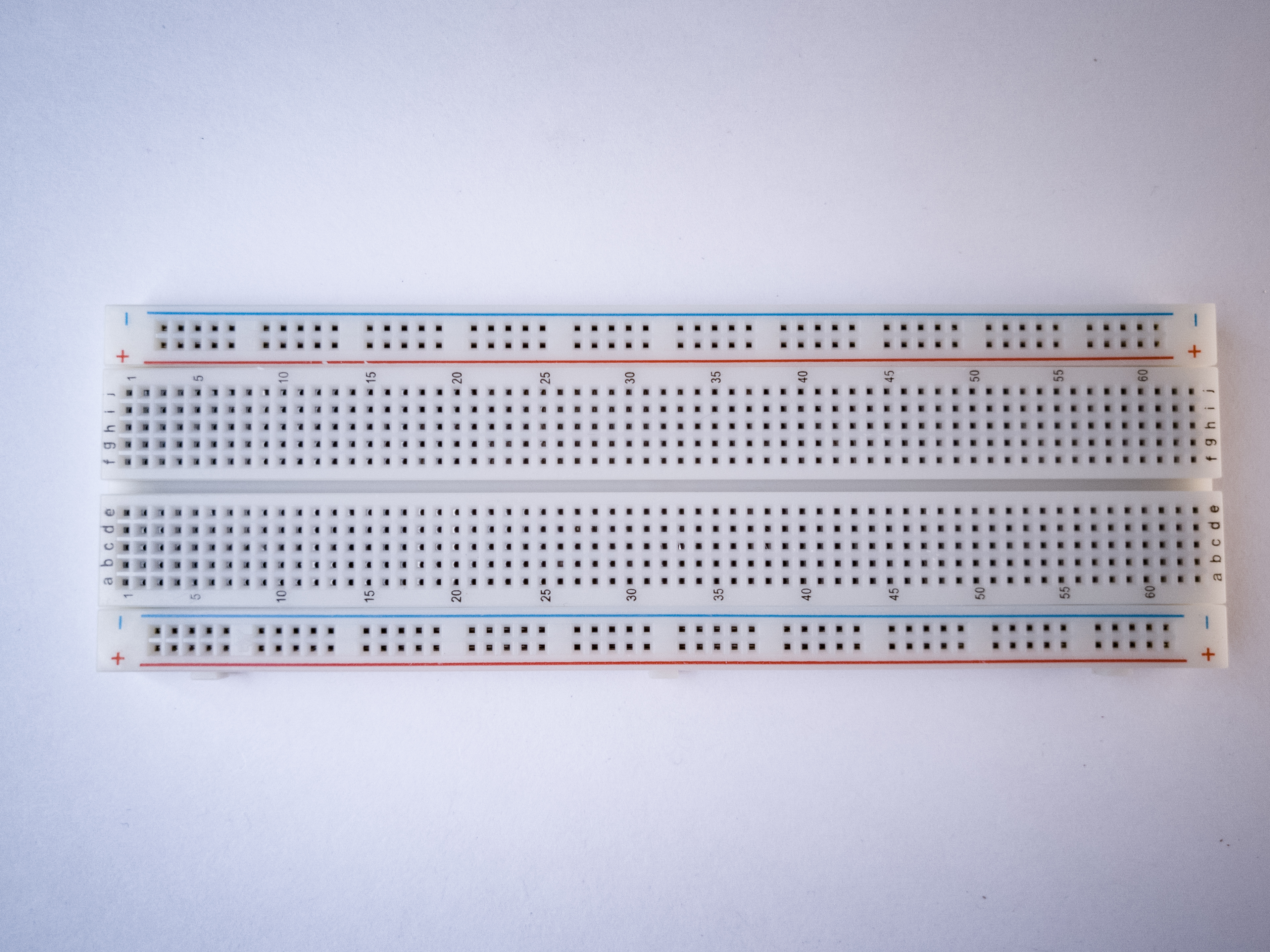
http://itp.nyu.edu/physcomp/images/labs/breadboard.jpg | Solderless breadboard

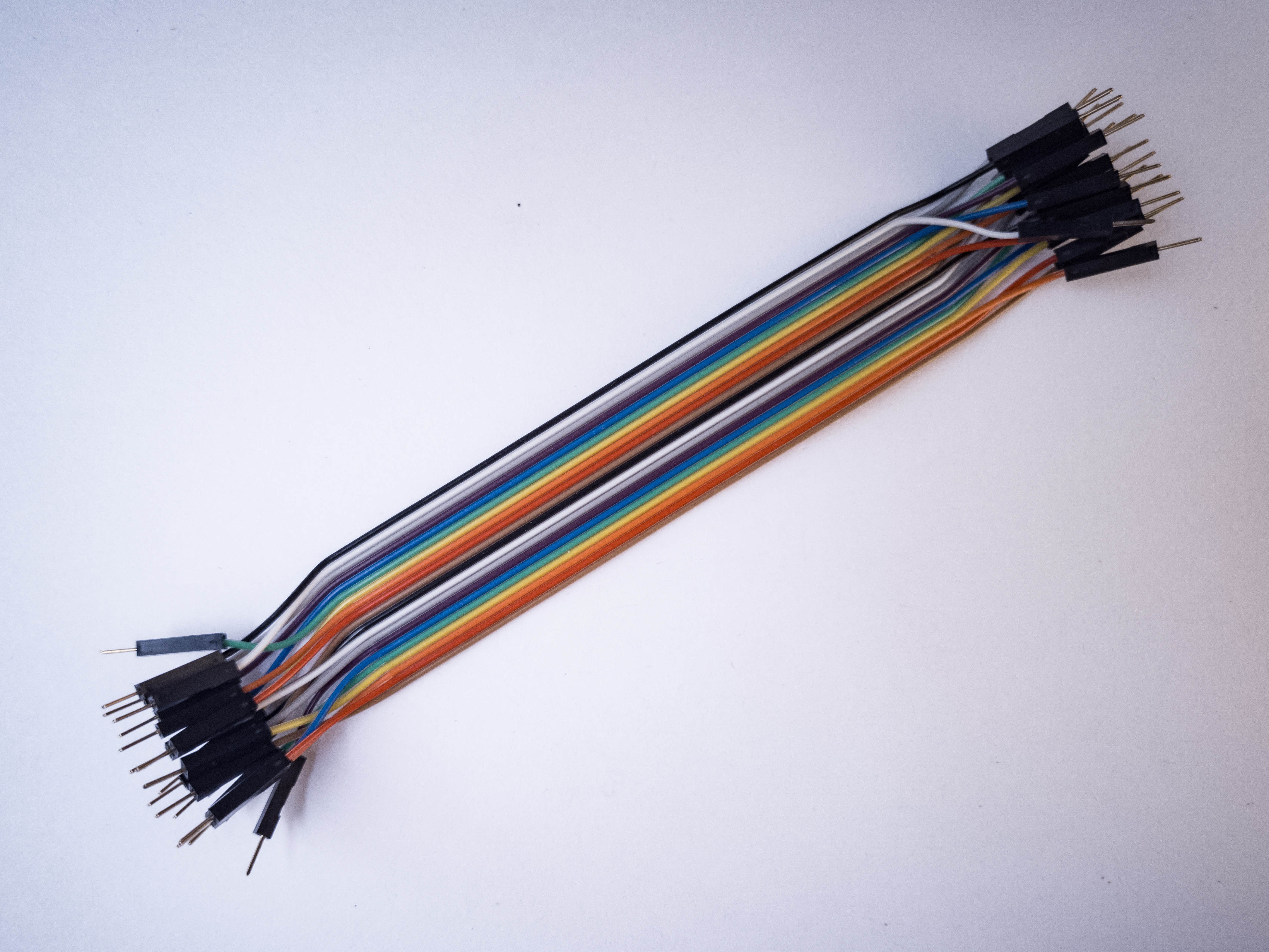
http://itp.nyu.edu/physcomp/images/labs/hookup_wire.jpg | 22-AWG hookup wire

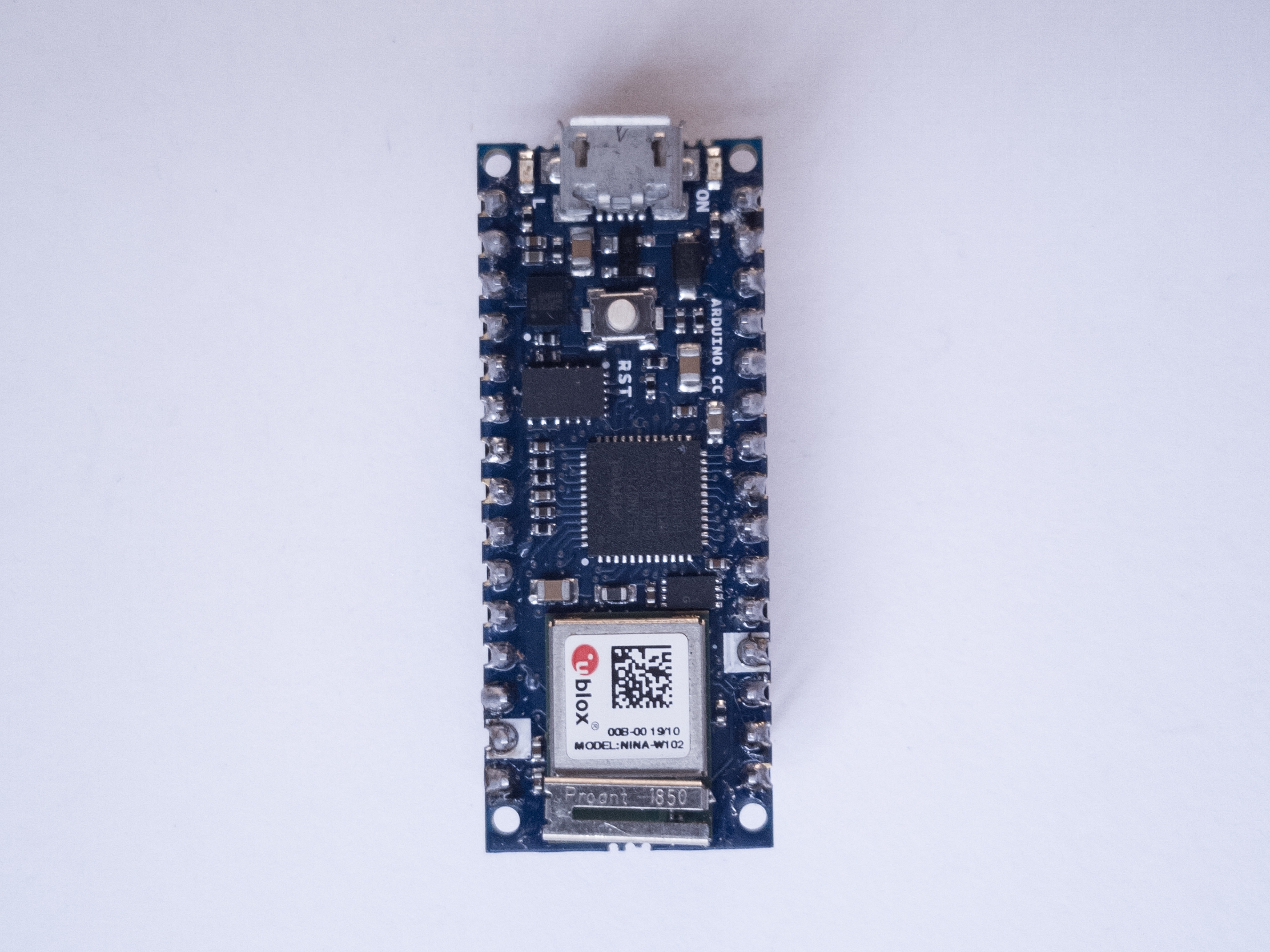
http://itp.nyu.edu/physcomp/images/labs/arduino.jpg | Arduino Microcontroller
module

http://itp.nyu.edu/physcomp/images/labs/leds.jpg | Light Emiting Diodes, LED


http://itp.nyu.edu/physcomp/images/labs/resistors.jpg | 10Kohm resistors

http://itp.nyu.edu/physcomp/images/labs/switch.jpg | switch

http://itp.nyu.edu/physcomp/images/labs/L293_h-bridge.JPG | L293 H-bridge

http://itp.nyu.edu/physcomp/images/labs/dc_power_supply.JPG | DC power supply

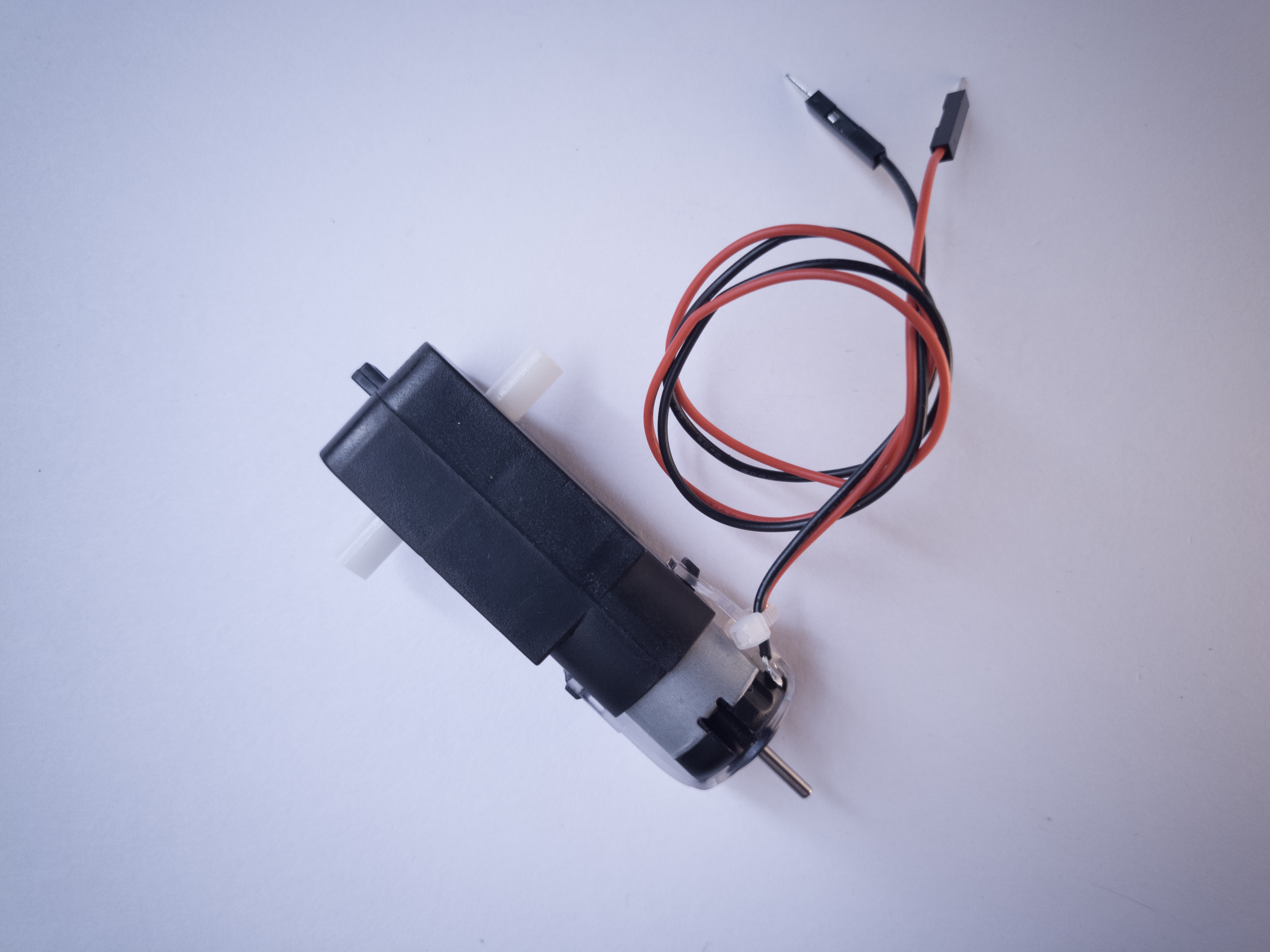
http://itp.nyu.edu/physcomp/images/labs/dc_motor.JPG | DC Motor

   * 1N4004 diodes
Changed lines 28-31 from:
    * DC motor
    * power supply for DC motor
    * 10uF capacitor (optional)
    * 1uF capacitor (optional)
to:
    * 10uF capacitor 
Changed lines 30-31 from:
    * 220 ohm resistors 
to:


Prepare the breadboard

Conect power and ground on the breadboard to power and ground from the microcontroller. On the Arduino module, use the 5V and any of the ground connections:

http://itp.nyu.edu/physcomp/images/labs/arduino_bboard_power.jpg

If you're using an Arduino breadboard shield, there is a row of sockets connected to 5V on the analog in side of the breadboard, and a row connected to ground on the digital in side of the board:

http://itp.nyu.edu/physcomp/images/labs/breadboard_shield.jpg

Add a Digital Input (a switch)

Connect a switch to digital input 2 on the Arduino.

(:table:) (:cellnr colspan=2:) http://itp.nyu.edu/physcomp/images/labs/arduino_dig_input_schem.png (:cellnr:) http://itp.nyu.edu/physcomp/images/labs/arduino_switch.jpg
Breadboard version (:cell:) http://itp.nyu.edu/physcomp/images/labs/bbrd_shield_switch.jpg
Shield version (:tableend:)

June 06, 2006, at 12:26 PM by tigoe -
Added lines 1-61:

Minimum parts needed: (new parts in bold. see parts list for details)

    * Prototyping board (breadboard)
    * Power supply connector (2)
    * 5-15VDC power supply
    * Assorted wires
    * 5V regulator
    * BX-24
    * Serial cable
    * DB9 female serial connector & headers
    * LED's
    * Switch
    * 1Kohm resistors
    * 1N4004 diodes
    * TIP120 transistor
    * DC motor
    * power supply for DC motor
    * 10uF capacitor (optional)
    * 1uF capacitor (optional)
    * 10Kohm resistors
    * 220 ohm resistors 

Step 1:

Get a DC motor that runs on low voltage DC, in the 5-15V range. Connect leads to its terminals, and run if from a benchtop power supply in the lab. Try changing the voltage on it, and seeing what effect it has. Don't go over the motor's rated voltage. Connect a switch in series with the motor and use it to turn on the motor.

Step 2:

Connect the base of a TIP120 transistor to one pin of your BX-24. Connect the motor to the transistor as follows:

Note the second power supply. Most motors take a great deal more current than a microprocessor, and need their own supply. The example below uses a 9V battery as a separate power source. Whatever motor you use, make sure the power source is compatible (i.e. don't use a 9V battery for a 3V motor!).

Connect a switch to another pin of the BX-24 and program it to control the motor, like so:

Detail of the board:

Note that we've added two capacitors on either side of our regulator. They smooth out the power, as the motor will cause spikes and dips when it turns on and off.

Here's the schematic for the capacitors and the regulator:

The simplest program fot this would be as follows:

Sub main()

	call delay(0.5)  ' start  program with a half-second delay 

	do
		call putPin(13, getPin(14))
	loop

end sub

If your power supply for the BX24 is compatible with your motor, you can wire the motor supply in parallel with the 5V regulator. For example, I use a 12V DC 1000 mA power adaptor, so I can use a 12V motor, if the power from the motor is wired in parallel with the 5V regulator's input, like so:

Note that the motor and the BX24 need a common ground (in our case, they get it through the transistor's base; see above schematic).

Step 4 (optional step):

A motor controlled like this can only be turned in one direction. To be able to reverse the direction of the motor, an H-bridge circuit is required. For more on controlling DC motors with H-bridges, see the notes on DC motor control. Then get an H-bridge such as the Texas Instruments SN754410, or make your own. Use it to control the direction of a motor.

Step 5:

Use your motor to make something move, vibrate, rise, fall, roll, creep, or whatever you can think of, in response to user input from a digital input device (switch, floor sensor, tripwire, etc).

  Edit | View | History | Print | Recent Changes | Search Page last modified on September 02, 2011, at 07:41 PM