Intro to Physical Computing Syllabus

Research & Learning

Other Class pages

Shop Admin

ITP Help Pages
Tom's pcomp site
DanO's pcomp site


Analog In with an Arduino

Labs.AnalogIn History

Hide minor edits - Show changes to markup

September 04, 2012, at 02:30 PM by mbe230 -
Deleted lines 206-208:

This is a suggestion for the Stupid Pet Trick assignment. You can do any project you wish as long as it demonstrates your mastery of the lab exercises and good physical interaction. This is just one suggestion.

September 04, 2012, at 02:11 PM by mbe230 -
Changed lines 104-105 from:

Thanks to adafruit, who have a good FSR tutorial as well.

to:

Thanks to adafruit, who have a good FSR tutorial as well.

August 18, 2011, at 11:50 AM by ti8 -
August 18, 2011, at 11:49 AM by ti8 -
Changed lines 126-129 from:

Now write a sketch to control the red LED with the first sensor (we'll call it the right hand sensor) and the green LED with the second sensor (we'll call it the left hand sensor). First, make two constants for the LED pin numbers, and two variables for the left and right sensor values.

(:toggle question4 init=hide show='I give up, how do I do that?' hide='Let me figure it out':)

to:

You know that the maximum input range of any analog input is from 0 to 5 volts. So if you wanted to know the voltage on an analog input pin at any point, how could you use the map function to get it?

(:toggle questionVoltage init=hide show='I give up, how do I do that?' hide='Let me figure it out':)

Changed lines 131-134 from:

const int redLED = 10; // pin that the red LED is on const int greenLED = 11; // pin that the green LED is on int rightSensorValue = 0; // value read from the right analog sensor int leftSensorValue = 0; // value read from the left analog sensor

to:

// read the sensor: int analogValue = analogRead(A0); // map the result to a voltage range from 0 to 5 volts // using a floating point decimal variable (called a float): float voltage = map(analogValue, 0.0, 5.0); // print it out: Serial.println(voltage);

Changed lines 141-144 from:

In the setup(), initialize serial communication at 9600 bits per second, and make the LED pins outputs.

(:toggle question5 init=hide show='I give up, how do I do that?' hide='Let me figure it out':)

to:

Now write a sketch to control the red LED with the first sensor (we'll call it the right hand sensor) and the green LED with the second sensor (we'll call it the left hand sensor). First, make two constants for the LED pin numbers, and two variables for the left and right sensor values.

(:toggle question4 init=hide show='I give up, how do I do that?' hide='Let me figure it out':)

Changed lines 147-153 from:

void setup() {

  // initialize serial communications at 9600 bps:
  Serial.begin(9600); 
  // declare the led pins as outputs:
  pinMode(redLED, OUTPUT);
  pinMode(greenLED, OUTPUT);

}

to:

const int redLED = 10; // pin that the red LED is on const int greenLED = 11; // pin that the green LED is on int rightSensorValue = 0; // value read from the right analog sensor int leftSensorValue = 0; // value read from the left analog sensor

Changed lines 154-157 from:

Start the main loop by reading the right sensor using analogRead(). Map its range to a range from 0 to 255. Then use analogWrite() to set the brightness of the LED from the mapped value. Print the sensor value out as well.

(:toggle question6 init=hide show='I give up, how do I do that?' hide='Let me figure it out':)

to:

In the setup(), initialize serial communication at 9600 bits per second, and make the LED pins outputs.

(:toggle question5 init=hide show='I give up, how do I do that?' hide='Let me figure it out':)

Added lines 159-173:

void setup() {

  // initialize serial communications at 9600 bps:
  Serial.begin(9600); 
  // declare the led pins as outputs:
  pinMode(redLED, OUTPUT);
  pinMode(greenLED, OUTPUT);

} (:sourceend:)

Start the main loop by reading the right sensor using analogRead(). Map its range to a range from 0 to 255. Then use analogWrite() to set the brightness of the LED from the mapped value. Print the sensor value out as well.

(:toggle question6 init=hide show='I give up, how do I do that?' hide='Let me figure it out':)

(:source lang=arduino tabwidth=4 :)

Deleted lines 204-205:
August 18, 2011, at 11:26 AM by ti8 -
Changed lines 1-2 from:

(:title Servo Motor Control with an Arduino:)

to:

(:title Analog In with an Arduino:)

Changed lines 5-6 from:

In this lab, you'll control a servomotor's position using the value returned from an analog sensor. Servos are the easiest way to start making motion with a microcontroller. Even though they don't turn 360 degrees, you can use them to create all sorts of periodic or reciprocating motions. Check out some of the Flying Pig mechanisms for ideas on how to make levers, cams, and other simple machines for making motion.

to:

In this lab, you'll learn how to connect a variable resistor to a microcontroller and read it as an analog input. You'll be able to read changing conditions from the physical world and convert them to changing variables in a program.

Changed lines 11-15 from:

For this lab you'll need:

http://itp.nyu.edu/physcomp/images/labs/breadboard.jpg | Solderless breadboard http://itp.nyu.edu/physcomp/images/labs/hookup_wire.jpg | 22-AWG hookup wire http://itp.nyu.edu/physcomp/images/labs/arduino.jpg | [-Arduino Microcontroller \\

to:

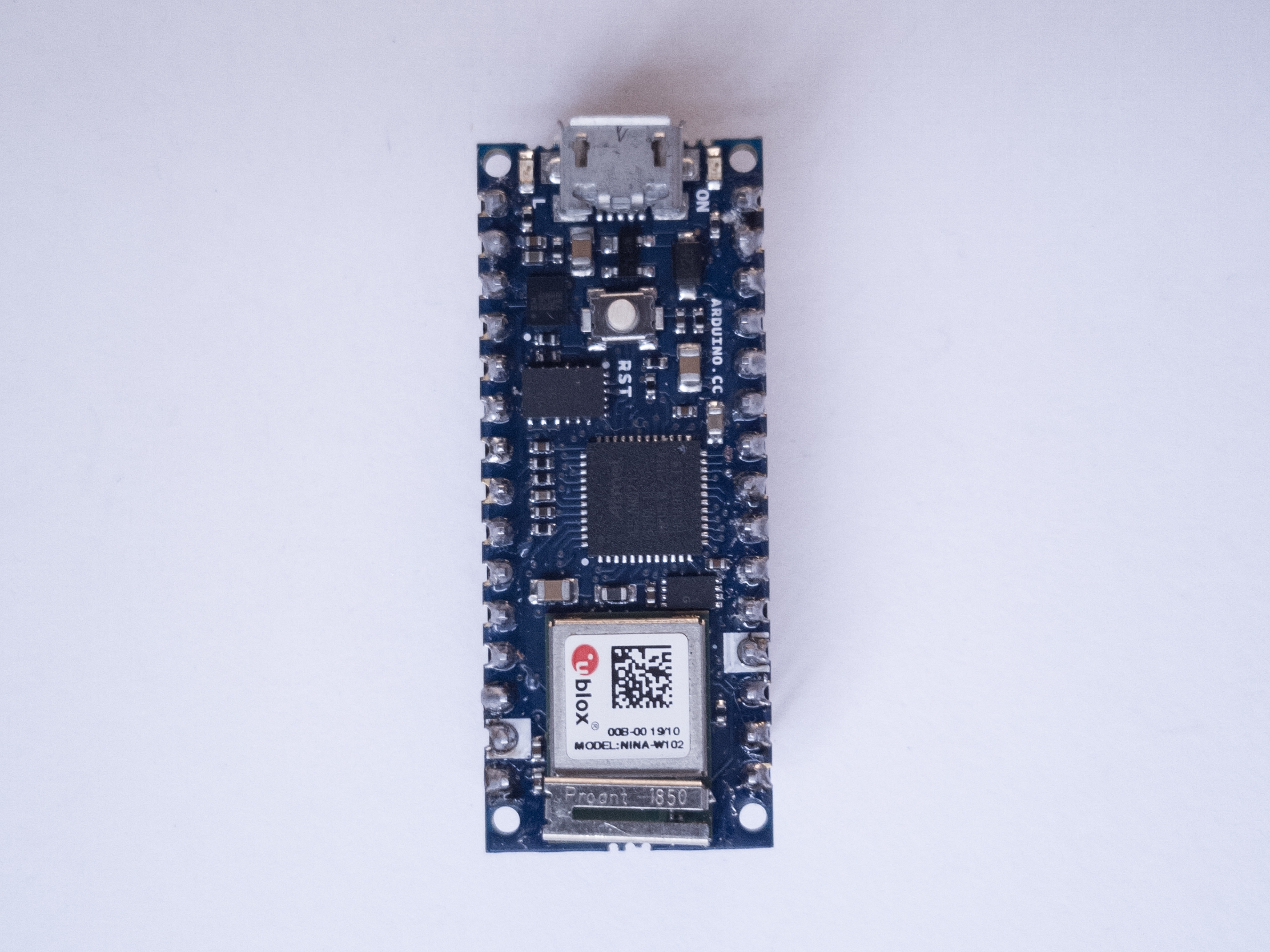
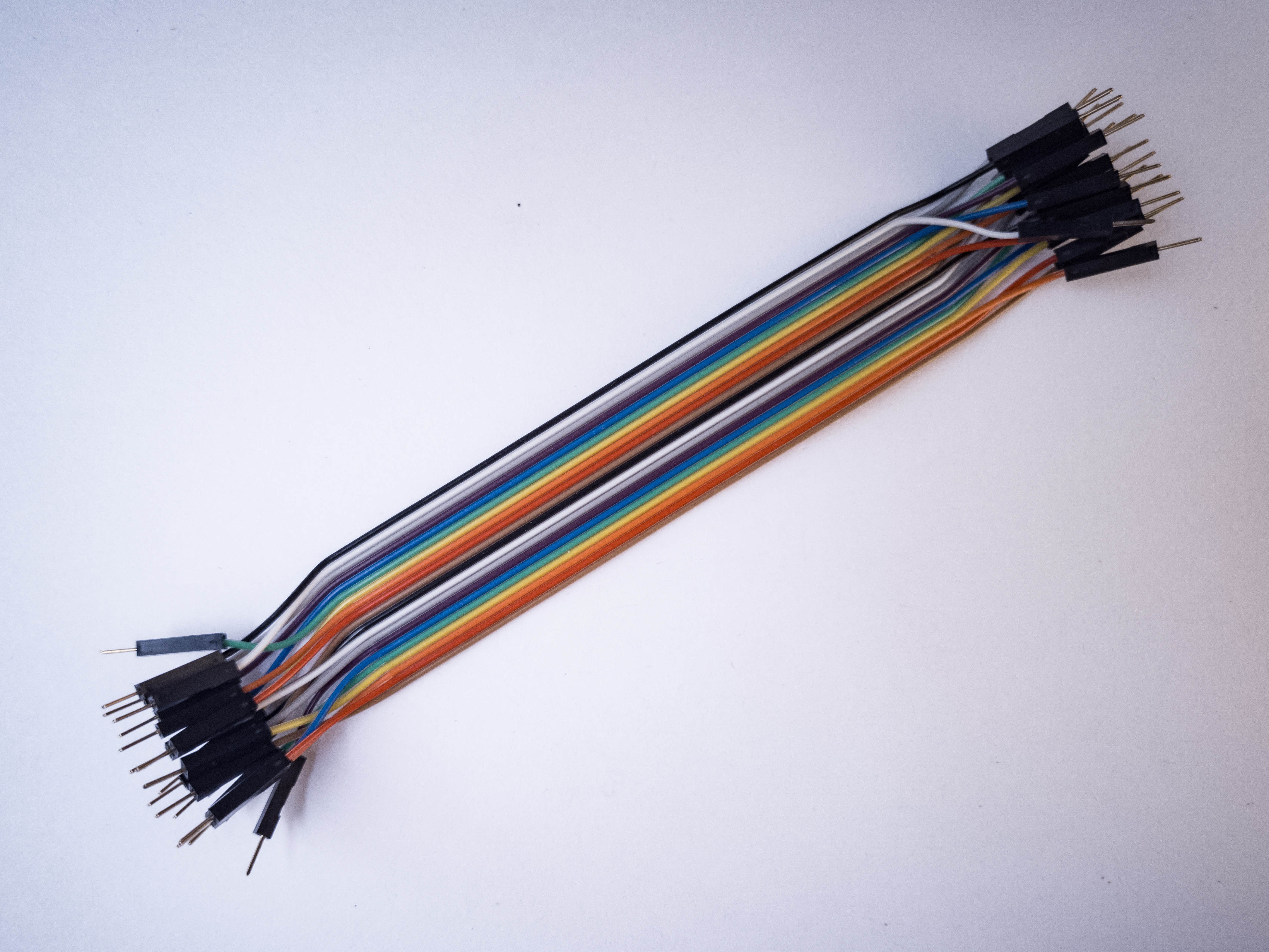
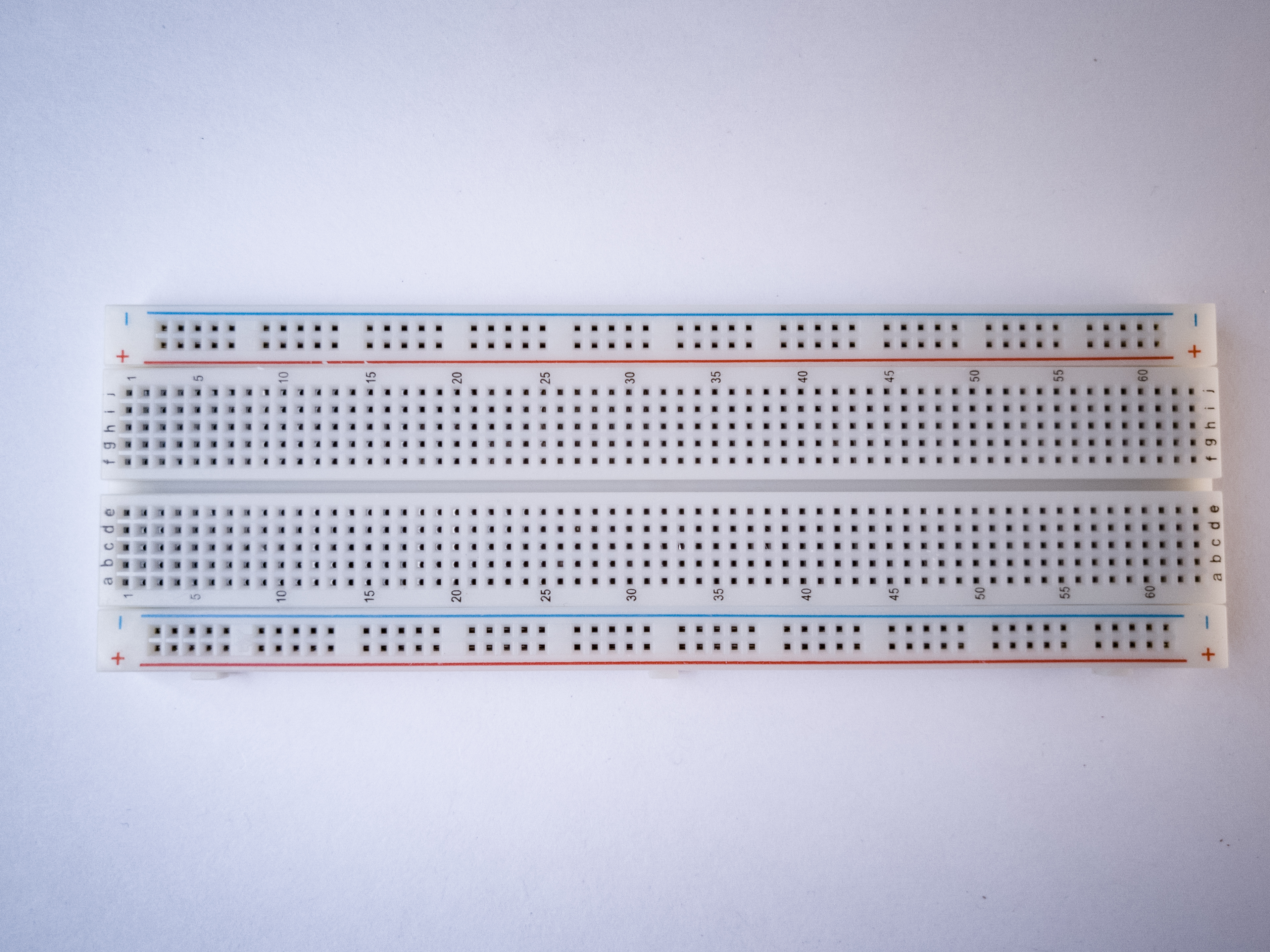
For this lab you will need to have the following parts:

Solderless breadboard
hookup wire
22-AWG hookup wire
Arduino module
[-Arduino Microcontroller \\
Changed lines 18-21 from:

http://itp.nyu.edu/physcomp/images/labs/resistors.jpg | 10Kohm resistors

http://itp.nyu.edu/physcomp/images/labs/flex_sensors.jpg | [-Flex sensors\\

to:
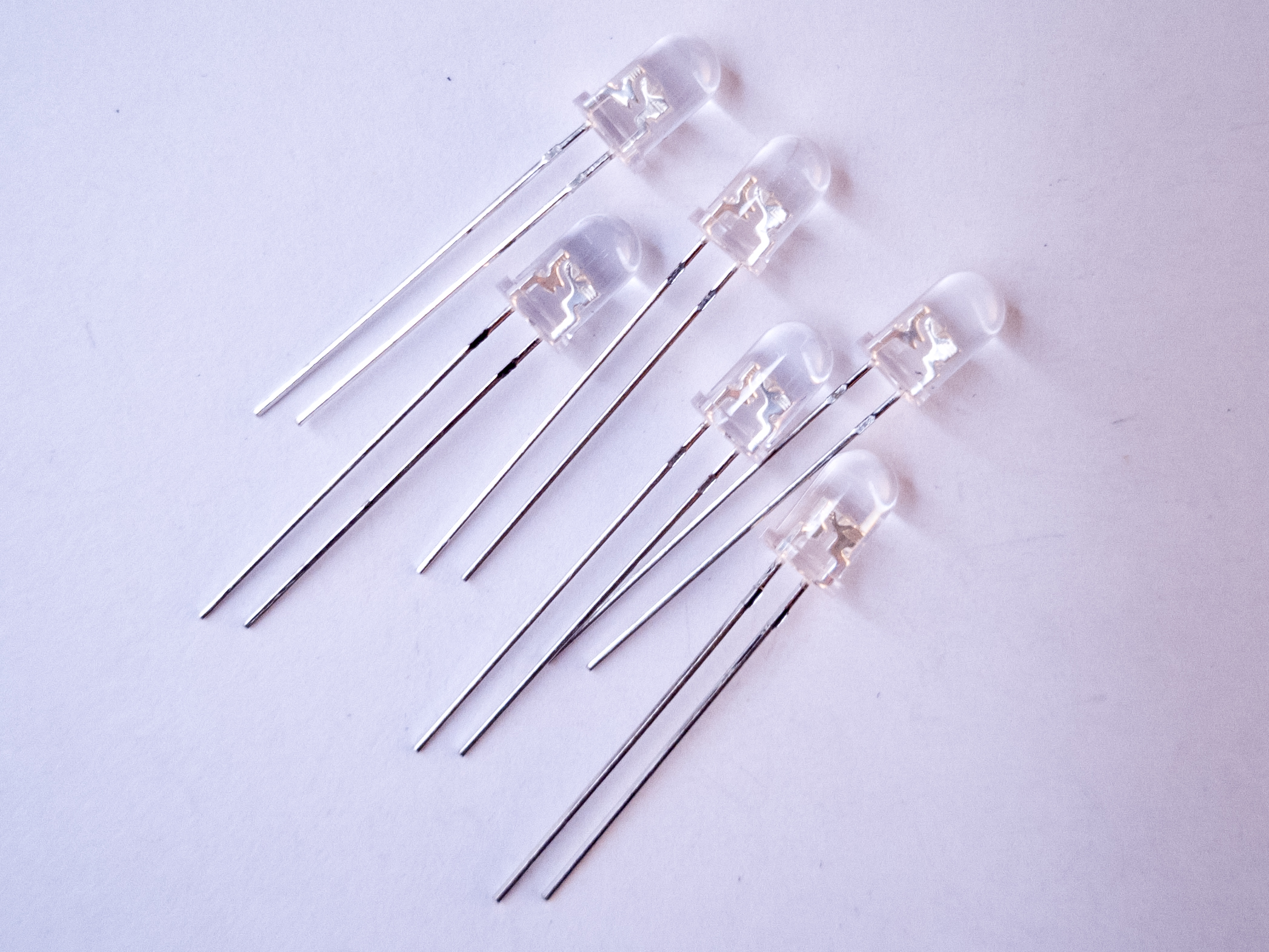
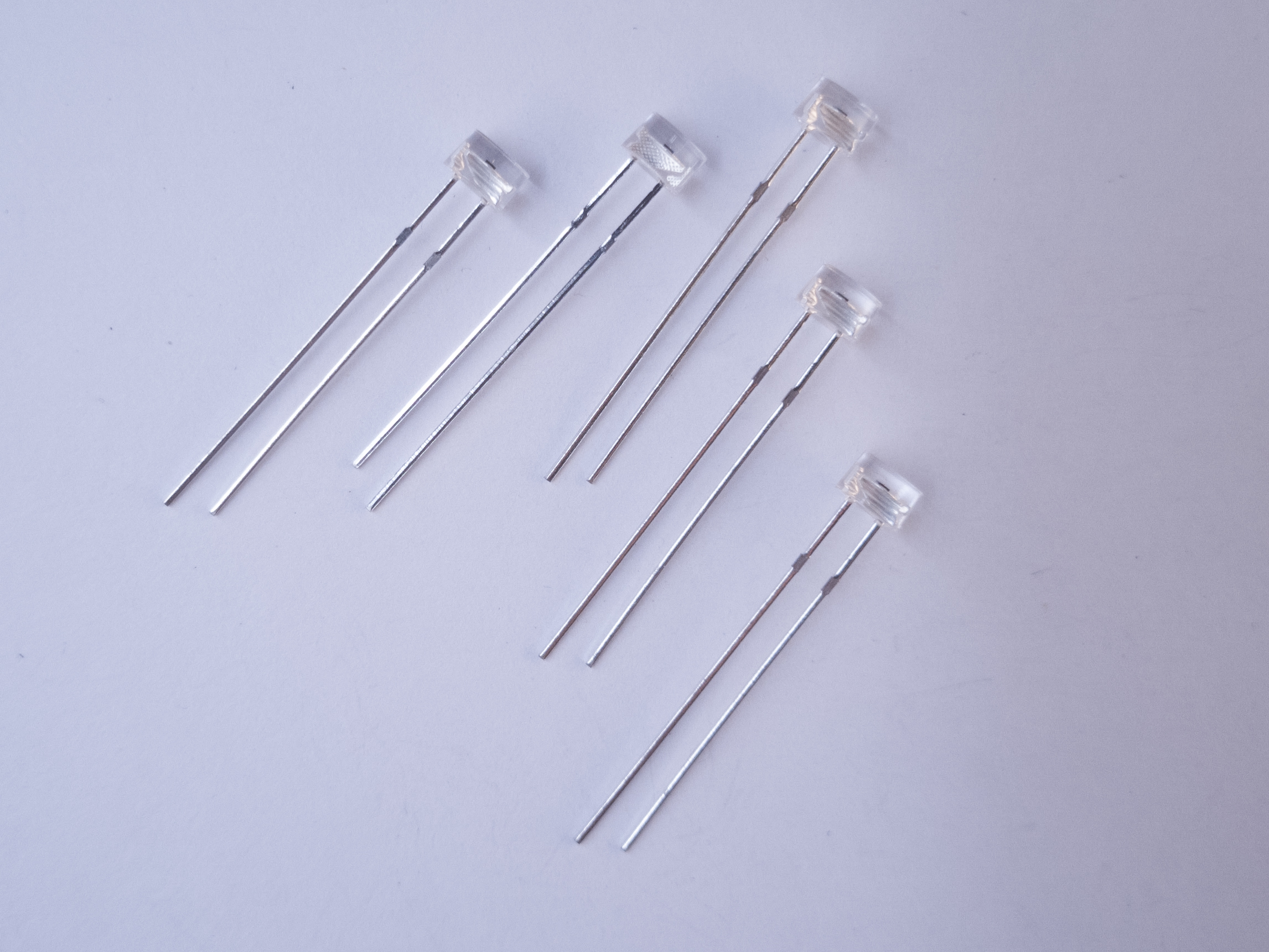
Light Emiting Diodes
Light Emiting Diodes, LED
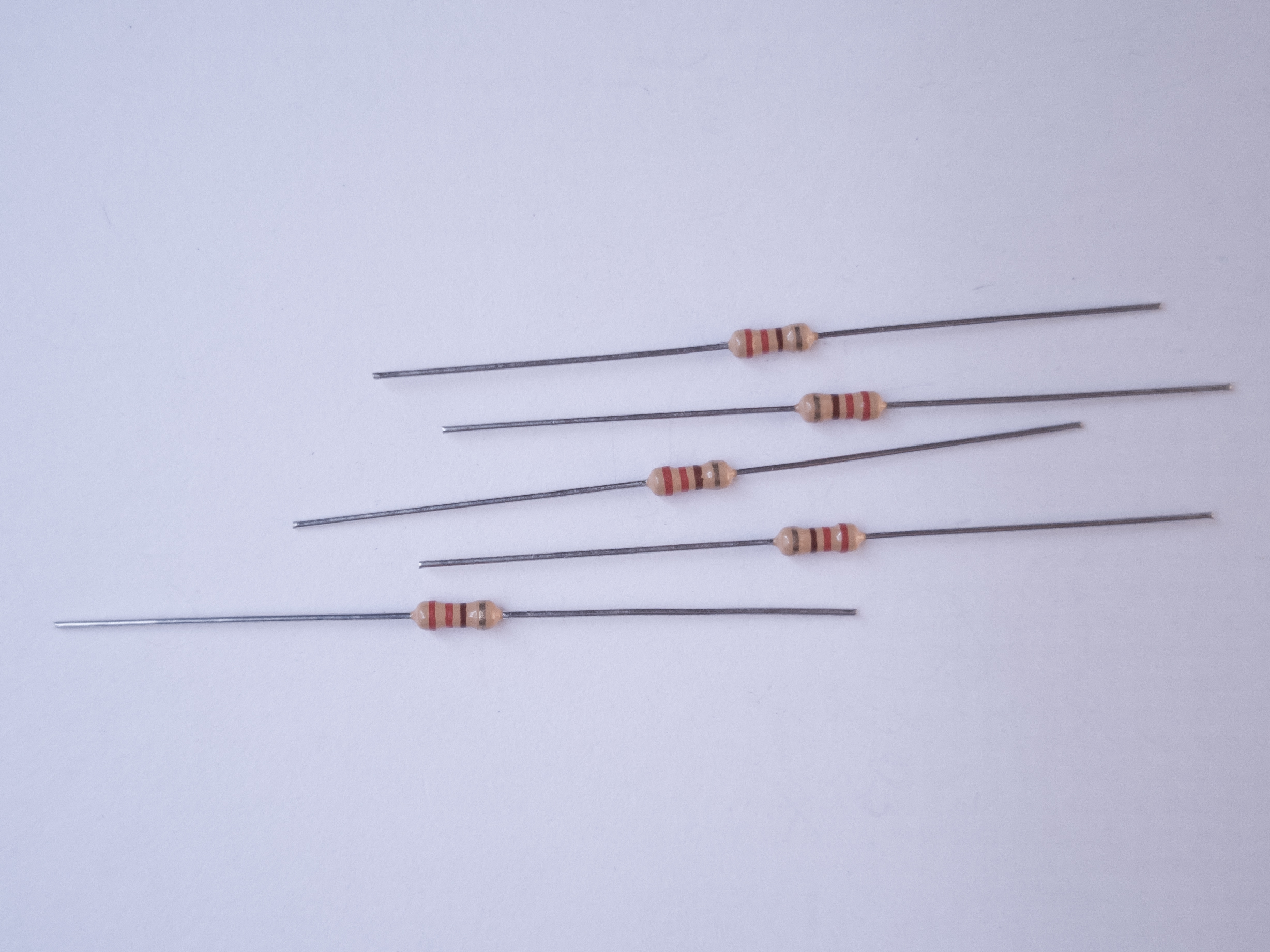
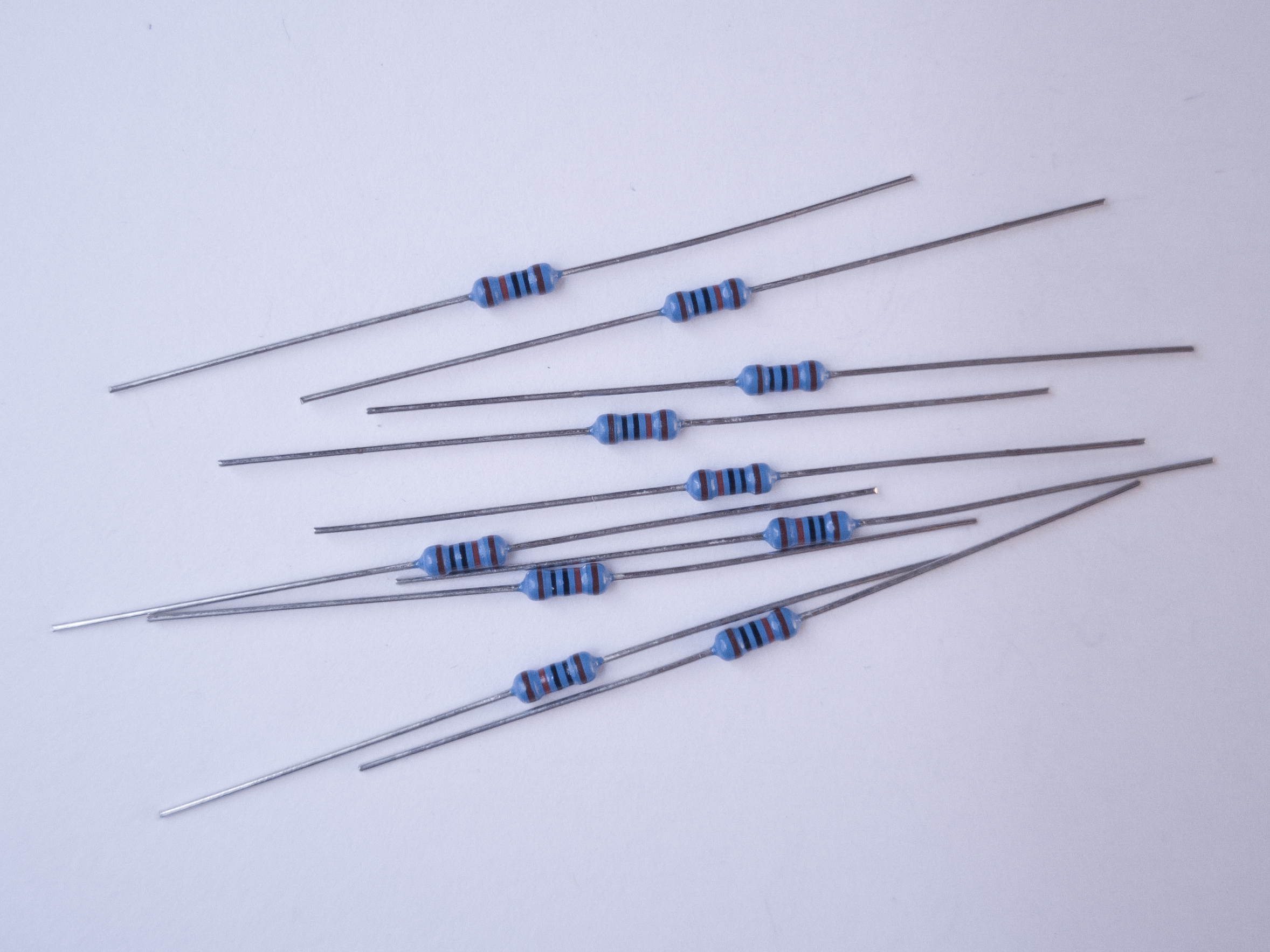
resistors
560-ohm (anything from 220 to 1K) and 10Kohm resistors
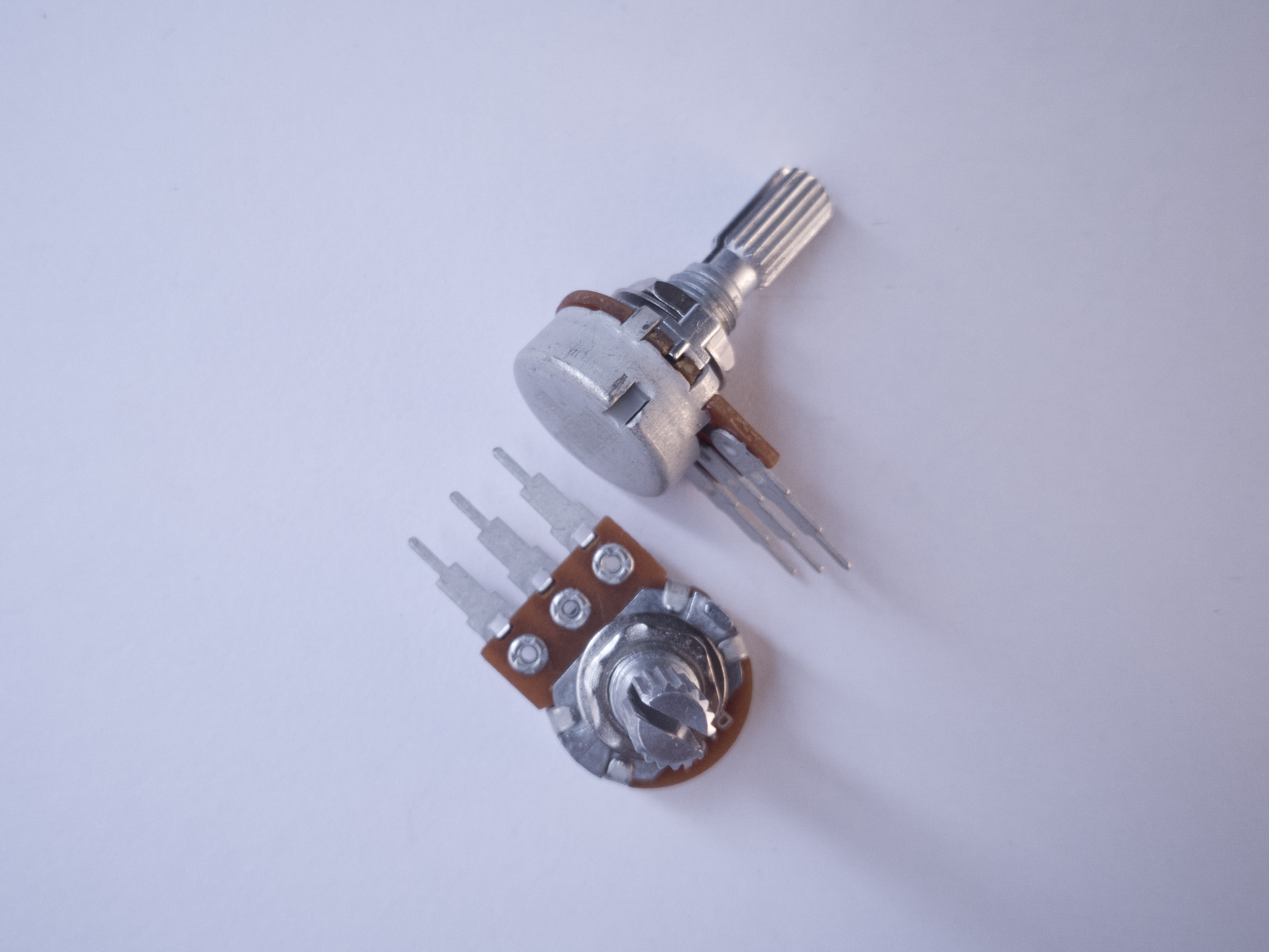
potentiometer
10Kohm potentiometer

Variable resistors

potentiometer
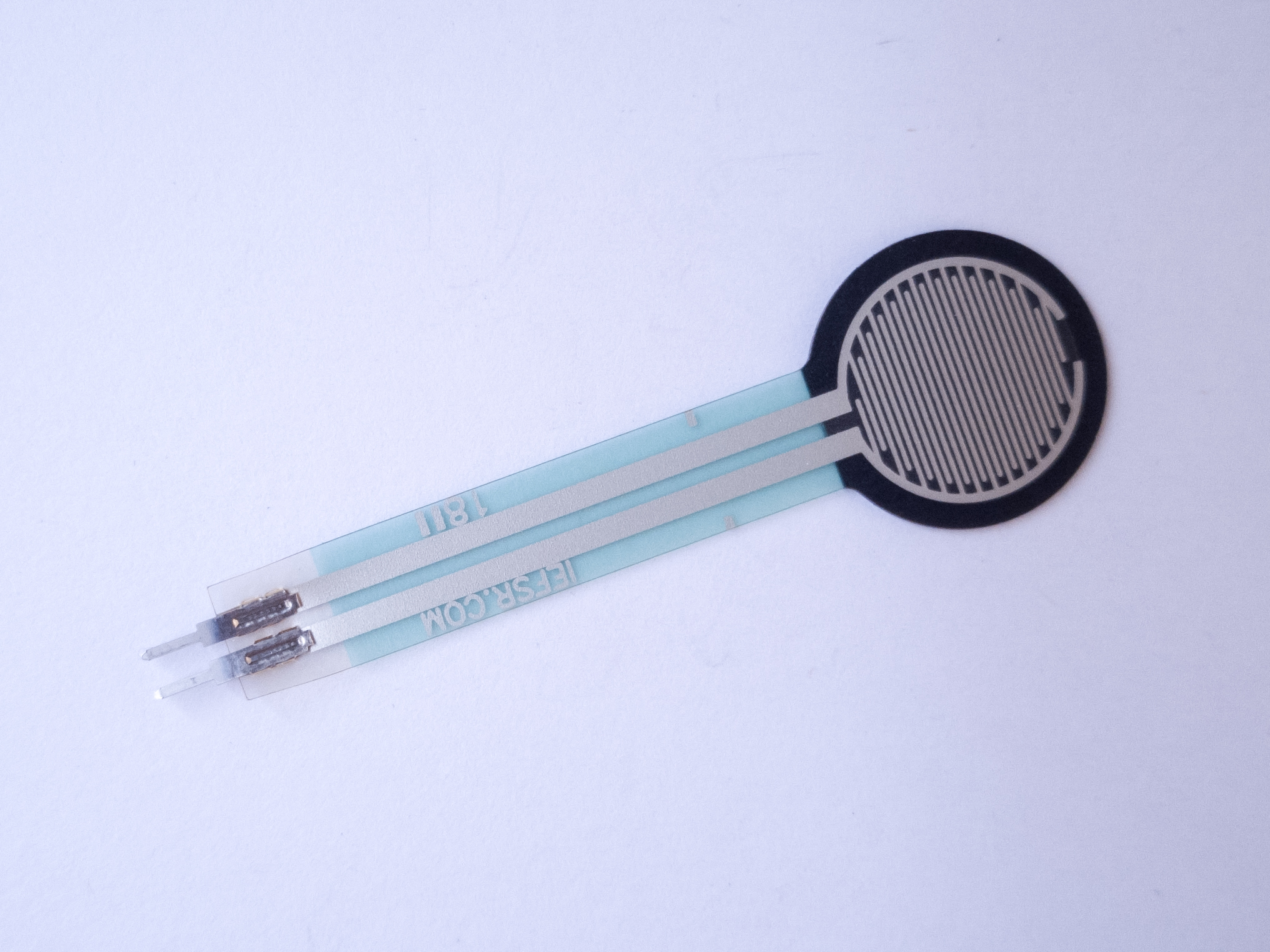
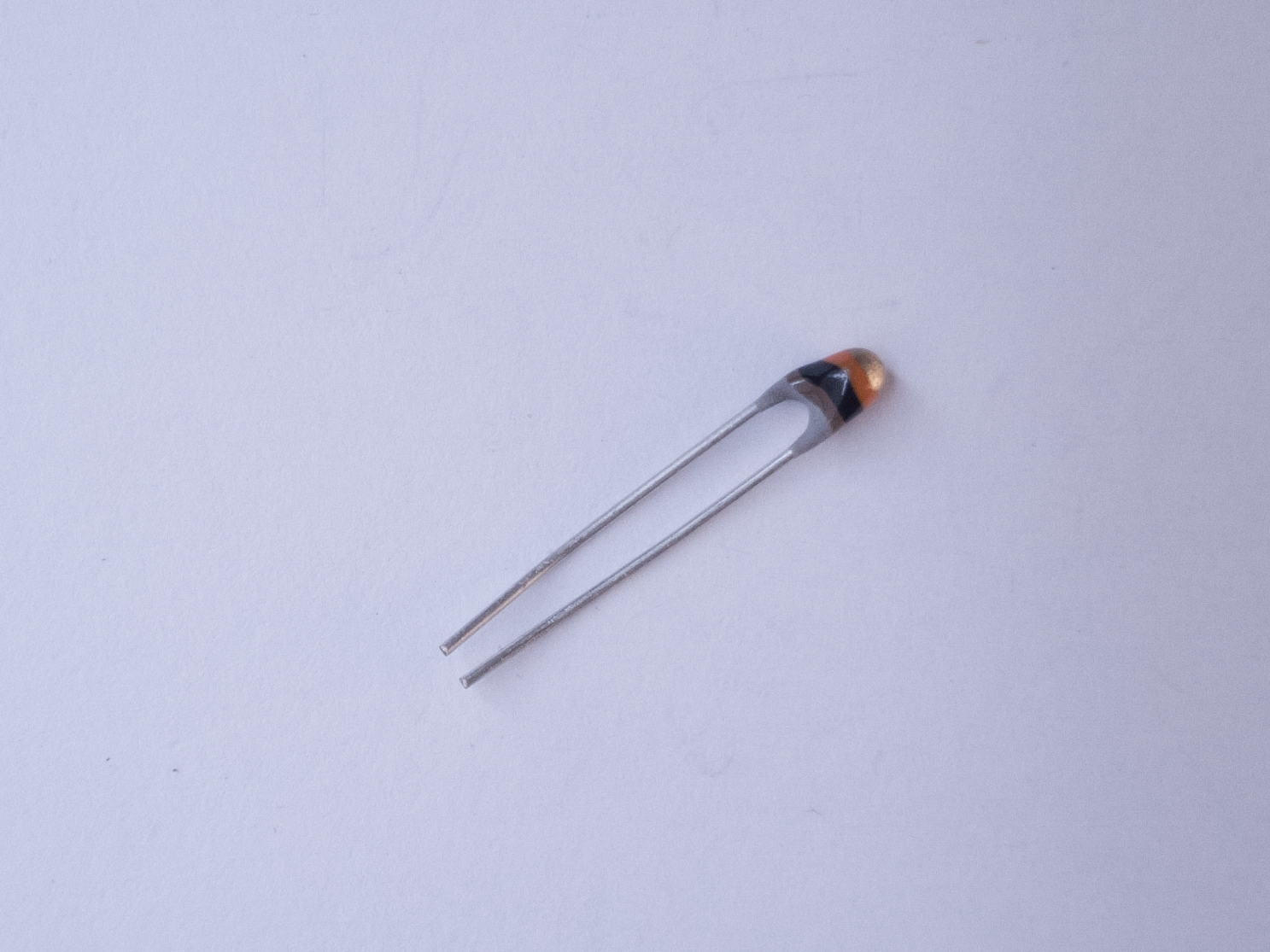
[-Flex sensors\\
Deleted line 24:

http://itp.nyu.edu/physcomp/images/labs/servo.JPG | RC Servomotor

Changed lines 28-31 from:

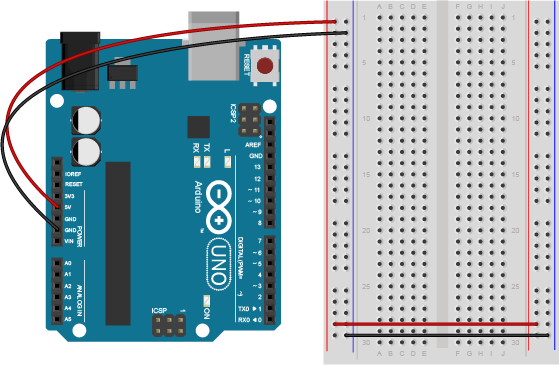
Connect power and ground on the breadboard to power and ground from the microcontroller. On the Arduino module, use the 5V and any of the ground connections:

(Diagram made with Fritzing - download)

to:

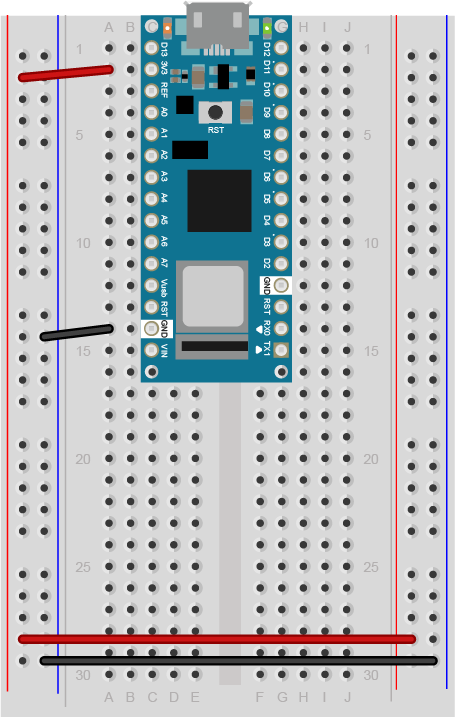
Conect power and ground on the breadboard to power and ground from the microcontroller. On the Arduino module, use the 5V and any of the ground connections:

Changed lines 32-40 from:

Connect an analog input sensor and a servo

Pick any analog input and connect it to Analog pin 0 as you did in the Analog Input and Output Lab. Then connect an RC servomotor to digital pin 2. The yellow wire of the servo goes to the pin, and the red and black wires go to +5V and ground, respectively.

Not all servos have the same wiring colors. For example, the Hextronik servos that come with Adafruit's ARDX kit use red for +5V,brown for ground, and mustrard yellow for control.

Attach:Attach:servo_control_fsr_bb.png Δ

to:

(Diagram made with Fritzing)

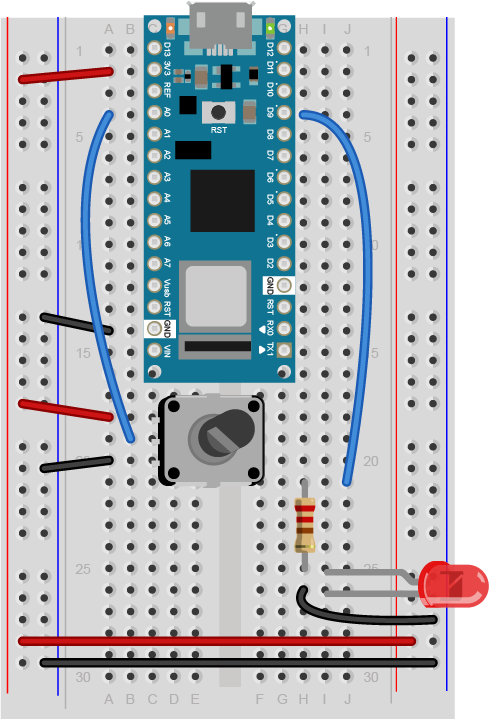
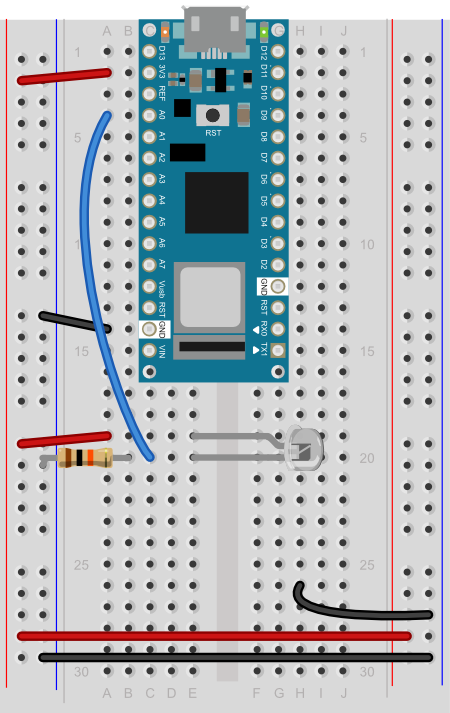
Add a potentiometer and LED

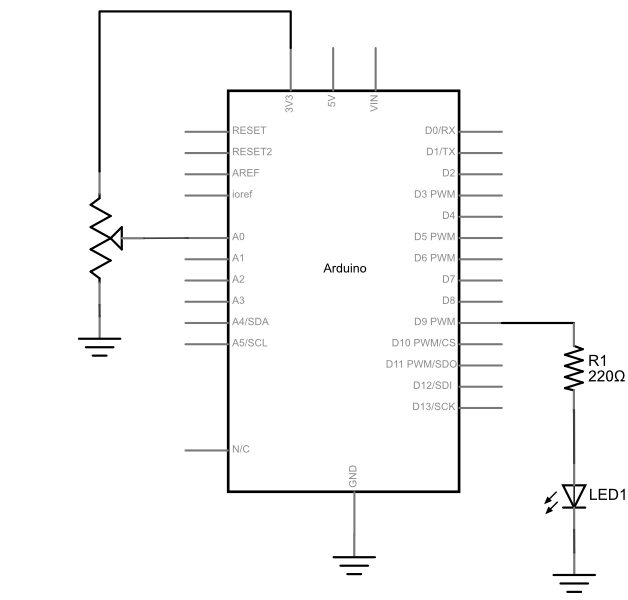
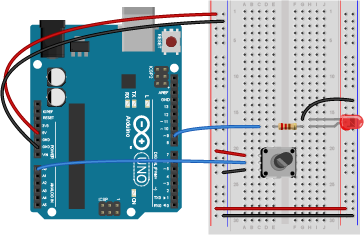
Connect a potentiometer to analog in pin 0 of the module, and an LED to digital pin 9:

Changed lines 42-48 from:

(Diagram made with Fritzing

Program the Microcontroller

First, find out the range of your sensor by using analogRead() to read the sensor and printing out the results.

(:toggle question1 init=hide show='What does that look like?' hide='Let me figure it out':)

to:

(Diagram made with Fritzing)

Program the Module

Program your Arduino as follows:

First, establish some global variables: One to hold the value returned by the potentiometer, and another to hold the brightness value. Make a global constant to give the LED's pin number a name.

(:toggle question1 init=hide show='I give up, how do I do that?' hide='Let me figure it out':)

Changed lines 53-61 from:

void setup() {

  Serial.begin(9600);		// initialize serial communications

}

void loop() {

  int analogValue = analogRead(A0); // read the analog input 
  Serial.println(analogValue);		// print it

}

to:

const int ledPin = 9; // pin that the LED is attached to int analogValue = 0; // value read from the pot int brightness = 0; // PWM pin that the LED is on.

Changed lines 59-60 from:

Now, map the result of the analog reading to a range from 0 to 179, which is the range of the sensor in degrees. Store the mapped value in a local variable called servoAngle.

to:

In the setup() method, initialize serial communications at 9600 bits per second, and set the LED's pin to be an output.

Changed lines 64-75 from:

void setup() {

  Serial.begin(9600);		// initialize serial communications

}

void loop() {

  int analogValue = analogRead(A0); // read the analog input 
  Serial.println(analogValue);		// print it

  // if your sensor's range is less than 0 to 1023, you'll need to
  // modify the map() function to use the values you discovered:
  int servoAngle = map(analogValue, 0, 1023, 0, 255);
to:

void setup() {

    // initialize serial communications at 9600 bps:
    Serial.begin(9600); 
    // declare the led pin as an output:
    pinMode(ledPin, OUTPUT);
Changed lines 73-75 from:

Finally, add the servo library at the beginning of your code, then make a variable to hold an instance of the library, and a variable for the servo's output pin. In the setup(), initialize your servo using servo.attach(). Then in your main loop, use servoAngle to set the servo's position.

to:

In the main loop, read the analog value using analogRead() and put the result into the variable that holds the analog value. Then divide the analog value by 4 to get it into a range from 0 to 255. Then use the analogWrite() command to face the LED. Then print out the brightness value.

Changed lines 78-99 from:
  1. include <Servo.h> // include the servo library

Servo servoMotor; // creates an instance of the servo object to control a servo int servoPin = 2; // Control pin for servo motor

void setup() {

  Serial.begin(9600);		// initialize serial communications
  servoMotor.attach(servoPin);  // attaches the servo on pin 2 to the servo object

}

void loop() {

  int analogValue = analogRead(A0); // read the analog input 
  Serial.println(analogValue);		// print it

  // if your sensor's range is less than 0 to 1023, you'll need to
  // modify the map() function to use the values you discovered:
  int servoAngle = map(analogValue, 0, 1023, 0, 255);

  // move the servo using the angle from the sensor:
  servoMotor.write(servoAngle);                  
to:

void loop() {

    analogValue = analogRead(A0);      // read the pot value
    brightness = analogValue /4;       //divide by 4 to fit in a byte
    analogWrite(ledPin, brightness);   // PWM the LED with the brightness value 
    Serial.println(brightness);        // print the brightness value back to the serial monitor
Added lines 87-197:

When you run this code, the LED should dim up and down as you turn the pot, and the brightness value should show up in the serial monitor.

Other variable resistors

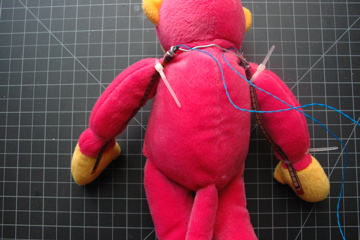
You can use many different types of variable resistors for analog input. For example, the pink monkey in the photo below has his arms wired with flex sensors. These sensors change their resistance as they are flexed. When the monkey's arms move up and down, the values of the flex sensors change the brightness of two LEDs. The same values could be used to control servo motors, change the frequency on a speaker, or move servo motors.

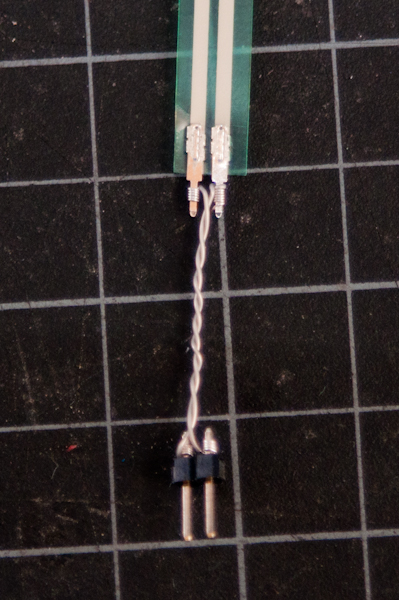
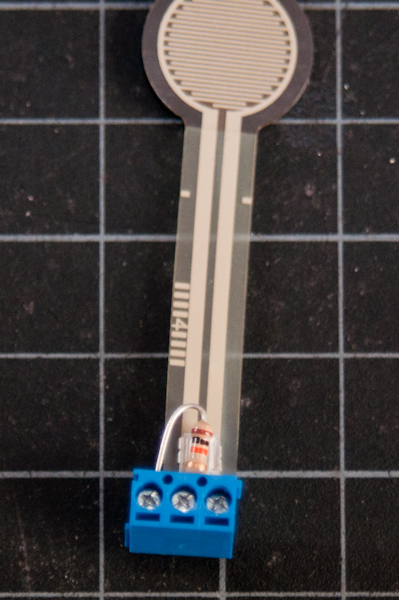
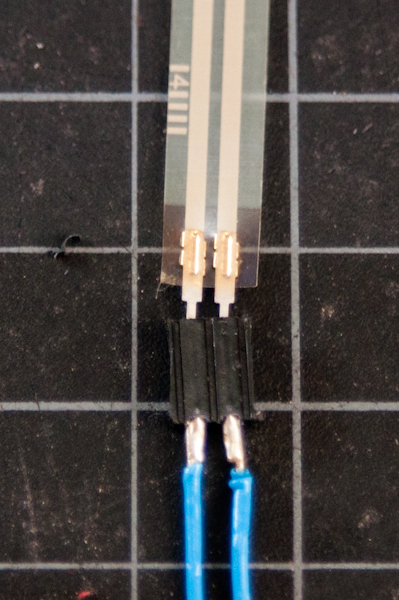
Note: Flex sensors and force-sensing resistors melt easily, so unless you are very quick with a soldering iron, it's risky to solder directly to their leads. Here are three better solutions:


use wire wrapping wire
and a wire wrapping tool

use screw terminals
(if you have a row of three, you can
attach the fixed resistor as well)

use female headers


Thanks to adafruit, who have a good FSR tutorial as well.

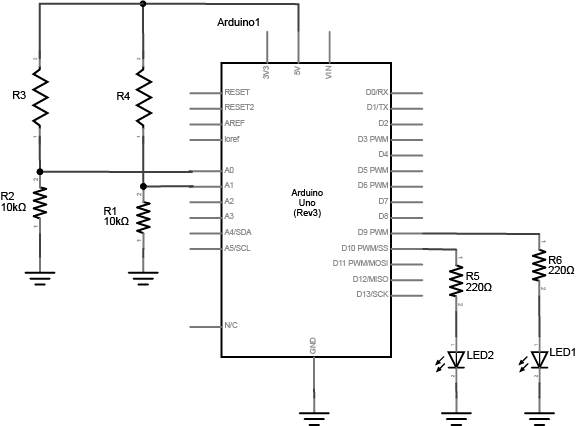
Here's an example circuit much like the pink monkey circuit above, but with force-sensing resistors instead of flex sensors.


(Diagram made with Fritzing)

The circuit above works for any variable resistor. It's called a voltage divider. There are two voltage dividers, one on analog in 0 and one on analog in 1. The fixed resistor in each circuit should have the same order of magnitude as the variable resistor's range. For example, if you're using a flex sensor with a range of 50 - 100 kilohms, you might use a 47Kohm or a 100Kohm fixed resistor. If you're using a force sensing resistor that goes from inifinity ohms to 10 ohms, but most of its range is between 10Kohms and 10 ohms, you might use a 10Kohm fixed resistor.

The code above assumed you were using a potentiometer, which always gives the full range of analog input, which is 0 to 1023. Dividing by 4 gives you a range of 0 to 255, which is the full output range of the analogWrite() command. The voltage divider circuit, on the other hand, can't give you the full range. The fixed resistor in the circuit limits the range. You'll need to modify the code.

To find out your range, open the serial monitor and watch the printout as you press the FSR or flex the flex sensor. Note the maximum value and the minimum value. Then you can map the range that the sensor actually gives as input to the range that the LED needs as output. For example, if your photocell gives a range from 400 to 900, you'd do this:

(:source lang=arduino tabwidth=4 :) // map the sensor value from the input range (400 - 900, for example) to the output range (0-255): int brightness = map(sensorValue, 400, 900, 0, 255); analogWrite(ledPin, brightness); (:sourceend:)

Now write a sketch to control the red LED with the first sensor (we'll call it the right hand sensor) and the green LED with the second sensor (we'll call it the left hand sensor). First, make two constants for the LED pin numbers, and two variables for the left and right sensor values.

(:toggle question4 init=hide show='I give up, how do I do that?' hide='Let me figure it out':)

(:source lang=arduino tabwidth=4 :) const int redLED = 10; // pin that the red LED is on const int greenLED = 11; // pin that the green LED is on int rightSensorValue = 0; // value read from the right analog sensor int leftSensorValue = 0; // value read from the left analog sensor (:sourceend:)

In the setup(), initialize serial communication at 9600 bits per second, and make the LED pins outputs.

(:toggle question5 init=hide show='I give up, how do I do that?' hide='Let me figure it out':)

(:source lang=arduino tabwidth=4 :) void setup() {

  // initialize serial communications at 9600 bps:
  Serial.begin(9600); 
  // declare the led pins as outputs:
  pinMode(redLED, OUTPUT);
  pinMode(greenLED, OUTPUT);

} (:sourceend:)

Start the main loop by reading the right sensor using analogRead(). Map its range to a range from 0 to 255. Then use analogWrite() to set the brightness of the LED from the mapped value. Print the sensor value out as well.

(:toggle question6 init=hide show='I give up, how do I do that?' hide='Let me figure it out':)

(:source lang=arduino tabwidth=4 :) void loop() {

  rightSensorValue = analogRead(A0); // read the pot value

  // map the sensor value from the input range (400 - 900, for example) 
  // to the output range (0-255). Change the values 400 and 900 below
  // to match the range your analog input gives:
  int brightness = map(rightSensorValue, 400, 900, 0, 255); 

  analogWrite(redLED, brightness);  // set the LED brightness with the result
  Serial.println(rightSensorValue);   // print the sensor value back to the serial monitor

(:sourceend:)

Finish the main loop by doing the same thing with the left sensor and the green LED.

(:toggle question7 init=hide show='I give up, how do I do that?' hide='Let me figure it out':)

(:source lang=arduino tabwidth=4 :)

  // now do the same for the other sensor and LED:
  leftSensorValue = analogRead(A1); // read the pot value

  // map the sensor value to the brightness again. No need to
  // declare the variable again, since you did so above:
  brightness = map(leftSensorValue, 400, 900, 0, 255); 

  analogWrite(greenLED, brightness);  // set the LED brightness with the result
  Serial.println(leftSensorValue);   // print the sensor value back to the serial monitor

} (:sourceend:)

Get creative

This is a suggestion for the Stupid Pet Trick assignment. You can do any project you wish as long as it demonstrates your mastery of the lab exercises and good physical interaction. This is just one suggestion.

Make a luv-o-meter with analog inputs. A luv-o-meter is a device that measures a person's potential to be a lover, and displays it on a graph of lights. In gaming arcades, the luv-o-meter is usually a handle that a person grips, and his or her grip is measured either for its strength or its sweatiness. But your luv-o-meter can measure any analog physical quantity that you want, providing you have a sensor for it. Make sure the display is clear, so the participant knows what it means, and make sure it is responsive.

August 18, 2011, at 11:24 AM by ti8 -
Changed lines 1-2 from:

(:title Analog In with an Arduino:)

to:

(:title Servo Motor Control with an Arduino:)

Changed lines 5-6 from:

In this lab, you'll learn how to connect a variable resistor to a microcontroller and read it as an analog input. You'll be able to read changing conditions from the physical world and convert them to changing variables in a program.

to:

In this lab, you'll control a servomotor's position using the value returned from an analog sensor. Servos are the easiest way to start making motion with a microcontroller. Even though they don't turn 360 degrees, you can use them to create all sorts of periodic or reciprocating motions. Check out some of the Flying Pig mechanisms for ideas on how to make levers, cams, and other simple machines for making motion.

Changed lines 11-15 from:

For this lab you will need to have the following parts:

Solderless breadboard
hookup wire
22-AWG hookup wire
Arduino module
[-Arduino Microcontroller \\
to:

For this lab you'll need:

http://itp.nyu.edu/physcomp/images/labs/breadboard.jpg | Solderless breadboard http://itp.nyu.edu/physcomp/images/labs/hookup_wire.jpg | 22-AWG hookup wire http://itp.nyu.edu/physcomp/images/labs/arduino.jpg | [-Arduino Microcontroller \\

Changed lines 18-22 from:
Light Emiting Diodes
Light Emiting Diodes, LED
resistors
560-ohm (anything from 220 to 1K) and 10Kohm resistors
potentiometer
10Kohm potentiometer

Variable resistors

potentiometer
[-Flex sensors\\
to:

http://itp.nyu.edu/physcomp/images/labs/resistors.jpg | 10Kohm resistors

http://itp.nyu.edu/physcomp/images/labs/flex_sensors.jpg | [-Flex sensors\\

Added line 24:

http://itp.nyu.edu/physcomp/images/labs/servo.JPG | RC Servomotor

Changed lines 28-30 from:

Conect power and ground on the breadboard to power and ground from the microcontroller. On the Arduino module, use the 5V and any of the ground connections:

to:

Connect power and ground on the breadboard to power and ground from the microcontroller. On the Arduino module, use the 5V and any of the ground connections:

(Diagram made with Fritzing - download)

Changed lines 33-41 from:

(Diagram made with Fritzing)

Add a potentiometer and LED

Connect a potentiometer to analog in pin 0 of the module, and an LED to digital pin 9:

to:

Connect an analog input sensor and a servo

Pick any analog input and connect it to Analog pin 0 as you did in the Analog Input and Output Lab. Then connect an RC servomotor to digital pin 2. The yellow wire of the servo goes to the pin, and the red and black wires go to +5V and ground, respectively.

Not all servos have the same wiring colors. For example, the Hextronik servos that come with Adafruit's ARDX kit use red for +5V,brown for ground, and mustrard yellow for control.

Attach:Attach:servo_control_fsr_bb.png Δ

Changed lines 43-51 from:

(Diagram made with Fritzing)

Program the Module

Program your Arduino as follows:

First, establish some global variables: One to hold the value returned by the potentiometer, and another to hold the brightness value. Make a global constant to give the LED's pin number a name.

(:toggle question1 init=hide show='I give up, how do I do that?' hide='Let me figure it out':)

to:

(Diagram made with Fritzing

Program the Microcontroller

First, find out the range of your sensor by using analogRead() to read the sensor and printing out the results.

(:toggle question1 init=hide show='What does that look like?' hide='Let me figure it out':)

Changed lines 52-54 from:

const int ledPin = 9; // pin that the LED is attached to int analogValue = 0; // value read from the pot int brightness = 0; // PWM pin that the LED is on.

to:

void setup() {

  Serial.begin(9600);		// initialize serial communications

}

void loop() {

  int analogValue = analogRead(A0); // read the analog input 
  Serial.println(analogValue);		// print it

}

Changed lines 64-65 from:

In the setup() method, initialize serial communications at 9600 bits per second, and set the LED's pin to be an output.

to:

Now, map the result of the analog reading to a range from 0 to 179, which is the range of the sensor in degrees. Store the mapped value in a local variable called servoAngle.

Changed lines 69-73 from:

void setup() {

    // initialize serial communications at 9600 bps:
    Serial.begin(9600); 
    // declare the led pin as an output:
    pinMode(ledPin, OUTPUT);
to:

void setup() {

  Serial.begin(9600);		// initialize serial communications

}

void loop() {

  int analogValue = analogRead(A0); // read the analog input 
  Serial.println(analogValue);		// print it

  // if your sensor's range is less than 0 to 1023, you'll need to
  // modify the map() function to use the values you discovered:
  int servoAngle = map(analogValue, 0, 1023, 0, 255);
Changed lines 85-86 from:

In the main loop, read the analog value using analogRead() and put the result into the variable that holds the analog value. Then divide the analog value by 4 to get it into a range from 0 to 255. Then use the analogWrite() command to face the LED. Then print out the brightness value.

to:

Finally, add the servo library at the beginning of your code, then make a variable to hold an instance of the library, and a variable for the servo's output pin. In the setup(), initialize your servo using servo.attach(). Then in your main loop, use servoAngle to set the servo's position.

Changed lines 91-95 from:

void loop() {

    analogValue = analogRead(A0);      // read the pot value
    brightness = analogValue /4;       //divide by 4 to fit in a byte
    analogWrite(ledPin, brightness);   // PWM the LED with the brightness value 
    Serial.println(brightness);        // print the brightness value back to the serial monitor
to:
  1. include <Servo.h> // include the servo library

Servo servoMotor; // creates an instance of the servo object to control a servo int servoPin = 2; // Control pin for servo motor

void setup() {

  Serial.begin(9600);		// initialize serial communications
  servoMotor.attach(servoPin);  // attaches the servo on pin 2 to the servo object

}

void loop() {

  int analogValue = analogRead(A0); // read the analog input 
  Serial.println(analogValue);		// print it

  // if your sensor's range is less than 0 to 1023, you'll need to
  // modify the map() function to use the values you discovered:
  int servoAngle = map(analogValue, 0, 1023, 0, 255);

  // move the servo using the angle from the sensor:
  servoMotor.write(servoAngle);                  
Deleted lines 116-226:

When you run this code, the LED should dim up and down as you turn the pot, and the brightness value should show up in the serial monitor.

Other variable resistors

You can use many different types of variable resistors for analog input. For example, the pink monkey in the photo below has his arms wired with flex sensors. These sensors change their resistance as they are flexed. When the monkey's arms move up and down, the values of the flex sensors change the brightness of two LEDs. The same values could be used to control servo motors, change the frequency on a speaker, or move servo motors.

Note: Flex sensors and force-sensing resistors melt easily, so unless you are very quick with a soldering iron, it's risky to solder directly to their leads. Here are three better solutions:


use wire wrapping wire
and a wire wrapping tool

use screw terminals
(if you have a row of three, you can
attach the fixed resistor as well)

use female headers


Thanks to adafruit, who have a good FSR tutorial as well.

Here's an example circuit much like the pink monkey circuit above, but with force-sensing resistors instead of flex sensors.


(Diagram made with Fritzing)

The circuit above works for any variable resistor. It's called a voltage divider. There are two voltage dividers, one on analog in 0 and one on analog in 1. The fixed resistor in each circuit should have the same order of magnitude as the variable resistor's range. For example, if you're using a flex sensor with a range of 50 - 100 kilohms, you might use a 47Kohm or a 100Kohm fixed resistor. If you're using a force sensing resistor that goes from inifinity ohms to 10 ohms, but most of its range is between 10Kohms and 10 ohms, you might use a 10Kohm fixed resistor.

The code above assumed you were using a potentiometer, which always gives the full range of analog input, which is 0 to 1023. Dividing by 4 gives you a range of 0 to 255, which is the full output range of the analogWrite() command. The voltage divider circuit, on the other hand, can't give you the full range. The fixed resistor in the circuit limits the range. You'll need to modify the code.

To find out your range, open the serial monitor and watch the printout as you press the FSR or flex the flex sensor. Note the maximum value and the minimum value. Then you can map the range that the sensor actually gives as input to the range that the LED needs as output. For example, if your photocell gives a range from 400 to 900, you'd do this:

(:source lang=arduino tabwidth=4 :) // map the sensor value from the input range (400 - 900, for example) to the output range (0-255): int brightness = map(sensorValue, 400, 900, 0, 255); analogWrite(ledPin, brightness); (:sourceend:)

Now write a sketch to control the red LED with the first sensor (we'll call it the right hand sensor) and the green LED with the second sensor (we'll call it the left hand sensor). First, make two constants for the LED pin numbers, and two variables for the left and right sensor values.

(:toggle question4 init=hide show='I give up, how do I do that?' hide='Let me figure it out':)

(:source lang=arduino tabwidth=4 :) const int redLED = 10; // pin that the red LED is on const int greenLED = 11; // pin that the green LED is on int rightSensorValue = 0; // value read from the right analog sensor int leftSensorValue = 0; // value read from the left analog sensor (:sourceend:)

In the setup(), initialize serial communication at 9600 bits per second, and make the LED pins outputs.

(:toggle question5 init=hide show='I give up, how do I do that?' hide='Let me figure it out':)

(:source lang=arduino tabwidth=4 :) void setup() {

  // initialize serial communications at 9600 bps:
  Serial.begin(9600); 
  // declare the led pins as outputs:
  pinMode(redLED, OUTPUT);
  pinMode(greenLED, OUTPUT);

} (:sourceend:)

Start the main loop by reading the right sensor using analogRead(). Map its range to a range from 0 to 255. Then use analogWrite() to set the brightness of the LED from the mapped value. Print the sensor value out as well.

(:toggle question6 init=hide show='I give up, how do I do that?' hide='Let me figure it out':)

(:source lang=arduino tabwidth=4 :) void loop() {

  rightSensorValue = analogRead(A0); // read the pot value

  // map the sensor value from the input range (400 - 900, for example) 
  // to the output range (0-255). Change the values 400 and 900 below
  // to match the range your analog input gives:
  int brightness = map(rightSensorValue, 400, 900, 0, 255); 

  analogWrite(redLED, brightness);  // set the LED brightness with the result
  Serial.println(rightSensorValue);   // print the sensor value back to the serial monitor

(:sourceend:)

Finish the main loop by doing the same thing with the left sensor and the green LED.

(:toggle question7 init=hide show='I give up, how do I do that?' hide='Let me figure it out':)

(:source lang=arduino tabwidth=4 :)

  // now do the same for the other sensor and LED:
  leftSensorValue = analogRead(A1); // read the pot value

  // map the sensor value to the brightness again. No need to
  // declare the variable again, since you did so above:
  brightness = map(leftSensorValue, 400, 900, 0, 255); 

  analogWrite(greenLED, brightness);  // set the LED brightness with the result
  Serial.println(leftSensorValue);   // print the sensor value back to the serial monitor

} (:sourceend:)

Get creative

This is a suggestion for the Stupid Pet Trick assignment. You can do any project you wish as long as it demonstrates your mastery of the lab exercises and good physical interaction. This is just one suggestion.

Make a luv-o-meter with analog inputs. A luv-o-meter is a device that measures a person's potential to be a lover, and displays it on a graph of lights. In gaming arcades, the luv-o-meter is usually a handle that a person grips, and his or her grip is measured either for its strength or its sweatiness. But your luv-o-meter can measure any analog physical quantity that you want, providing you have a sensor for it. Make sure the display is clear, so the participant knows what it means, and make sure it is responsive.

August 18, 2011, at 10:36 AM by ti8 -
Changed lines 97-98 from:

use wire wrapping wire //and a wire wrapping tool

use screw terminals //(if you have a row of three, you can //attach the fixed resistor as well)
to:

use wire wrapping wire
and a wire wrapping tool

use screw terminals
(if you have a row of three, you can
attach the fixed resistor as well)
Deleted lines 119-128:

(:div class=code :)

 // map the sensor vaue from the input range (400 - 900, for example) to the output range (0-255):
 int brightness = map(sensorValue, 400, 900, 0, 255);
 analogWrite(led, brightness);

(:divend:)

Now write a sketch to control the red LED with the first sensor (we'll call it the right hand sensor) and the green LED with the second sensor (we'll call it the left hand sensor). First, make two constants for the LED pin numbers, and two variables for the left and right sensor values.

(:toggle question4 init=hide show='I give up, how do I do that?' hide='Let me figure it out':)

Changed lines 121-124 from:

const int redLED = 10; // pin that the red LED is on const int greenLED = 11; // pin that the green LED is on int rightSensorValue = 0; // value read from the right analog sensor int leftSensorValue = 0; // value read from the left analog sensor

to:

// map the sensor value from the input range (400 - 900, for example) to the output range (0-255): int brightness = map(sensorValue, 400, 900, 0, 255); analogWrite(ledPin, brightness);

Added lines 125-135:

Now write a sketch to control the red LED with the first sensor (we'll call it the right hand sensor) and the green LED with the second sensor (we'll call it the left hand sensor). First, make two constants for the LED pin numbers, and two variables for the left and right sensor values.

(:toggle question4 init=hide show='I give up, how do I do that?' hide='Let me figure it out':)

(:source lang=arduino tabwidth=4 :) const int redLED = 10; // pin that the red LED is on const int greenLED = 11; // pin that the green LED is on int rightSensorValue = 0; // value read from the right analog sensor int leftSensorValue = 0; // value read from the left analog sensor (:sourceend:)

August 18, 2011, at 10:34 AM by ti8 -
Changed lines 97-98 from:

use wire wrapping wire \\and a wire wrapping tool

use screw terminals \\(if you have a row of three, you can \\attach the fixed resistor as well)
to:

use wire wrapping wire //and a wire wrapping tool

use screw terminals //(if you have a row of three, you can //attach the fixed resistor as well)
Changed line 100 from:
to:


August 18, 2011, at 10:33 AM by ti8 -
Changed lines 97-101 from:
?
use wire wrapping wire and a wire wrapping tool
?
use screw terminals (if you have a row of three, you can attached the fixed resistor as well)
?
use female headers
to:

use wire wrapping wire \\and a wire wrapping tool

use screw terminals \\(if you have a row of three, you can \\attach the fixed resistor as well)

use female headers

Thanks to adafruit, who have a good FSR tutorial as well.

August 18, 2011, at 10:31 AM by ti8 -
Changed lines 97-101 from:

Attach:fsrs_wirewrap.jpg Δ? | use wire wrapping wire and a wire wrapping tool Attach:fsrs_wirewrap.jpg Δ? | use screw terminals (if you have a row of three, you can attached the fixed resistor as well) Attach:fsrs_wirewrap.jpg Δ? | use female headers

to:
?
use wire wrapping wire and a wire wrapping tool
?
use screw terminals (if you have a row of three, you can attached the fixed resistor as well)
?
use female headers
August 18, 2011, at 10:29 AM by ti8 -
Changed lines 95-101 from:

(

to:

Note: Flex sensors and force-sensing resistors melt easily, so unless you are very quick with a soldering iron, it's risky to solder directly to their leads. Here are three better solutions:

Attach:fsrs_wirewrap.jpg Δ? | use wire wrapping wire and a wire wrapping tool Attach:fsrs_wirewrap.jpg Δ? | use screw terminals (if you have a row of three, you can attached the fixed resistor as well) Attach:fsrs_wirewrap.jpg Δ? | use female headers

Changed lines 109-115 from:

Note: Flex sensors and force-sensing resistors melt easily, so unless you are very quick with a soldering iron, it's risky to solder directly to their leads. Here are three better solutions:

Attach:fsrs_wirewrap.jpg Δ? | use wire wrapping wire and a wire wrapping tool Attach:fsrs_wirewrap.jpg Δ? | use screw terminals (if you have a row of three, you can attached the fixed resistor as well) Attach:fsrs_wirewrap.jpg Δ? | use female headers

to:
August 18, 2011, at 10:20 AM by ti8 -
Added lines 103-109:

Note: Flex sensors and force-sensing resistors melt easily, so unless you are very quick with a soldering iron, it's risky to solder directly to their leads. Here are three better solutions:

Attach:fsrs_wirewrap.jpg Δ? | use wire wrapping wire and a wire wrapping tool Attach:fsrs_wirewrap.jpg Δ? | use screw terminals (if you have a row of three, you can attached the fixed resistor as well) Attach:fsrs_wirewrap.jpg Δ? | use female headers

August 17, 2011, at 07:00 PM by ti8 -
Changed line 56 from:
sourceend
)
to:

(:sourceend:)

August 17, 2011, at 06:59 PM by ti8 -
Changed line 53 from:

const int ledPin = 9 // pin that the LED is attached to

to:

const int ledPin = 9; // pin that the LED is attached to

Changed line 56 from:

(:sourceend:)

to:
sourceend
)
Changed lines 65-68 from:
	// initialize serial communications at 9600 bps:
	Serial.begin(9600); 
	// declare the led pin as an output:
	pinMode(led, OUTPUT);
to:
    // initialize serial communications at 9600 bps:
    Serial.begin(9600); 
    // declare the led pin as an output:
    pinMode(ledPin, OUTPUT);
Changed lines 79-82 from:
	analogValue = analogRead(A0);	// read the pot value
	brightness = analogValue /4;	//divide by 4 to fit in a byte
	analogWrite(led, brightness);	// PWM the LED with the brightness value 
	Serial.println(brightness);		// print the brightness value back to the serial monitor
to:
    analogValue = analogRead(A0);      // read the pot value
    brightness = analogValue /4;       //divide by 4 to fit in a byte
    analogWrite(ledPin, brightness);   // PWM the LED with the brightness value 
    Serial.println(brightness);        // print the brightness value back to the serial monitor
August 17, 2011, at 06:52 PM by ti8 -
Changed lines 162-163 from:

(:toggle question6 init=hide show='I give up, how do I do that?' hide='Let me figure it out':)

to:

(:toggle question7 init=hide show='I give up, how do I do that?' hide='Let me figure it out':)

August 17, 2011, at 06:51 PM by ti8 -
Deleted line 39:

(Diagram made with Fritzing)

Changed lines 42-43 from:
to:

(Diagram made with Fritzing)

Deleted line 98:

(Diagram made with Fritzing)

Changed lines 101-102 from:
to:

(Diagram made with Fritzing)

Changed lines 115-145 from:

Here's an alternate version of the program above for this circuit:

(:div class=code :)

 int potPin = 0;    // Analog input pin that the potentiometer is attached to
 int sensorValue = 0;   // value read from the analog sensor
 int led = 9;    // PWM pin that the LED is on.  n.b. PWM 0 is on digital pin 9

 void setup() {
   // initialize serial communications at 9600 bps:
   Serial.begin(9600); 
   // declare the led pin as an output:
   pinMode(led, OUTPUT);
 }

 void loop() {
   sensorValue = analogRead(potPin); // read the pot value

   // map the sensor vaue from the input range (400 - 900, for example) 
   // to the output range (0-255). Change the values 400 and 900 below
   // to match the range your analog input gives:
   int brightness = map(sensorValue, 400, 900, 0, 255); 

   analogWrite(led, brightness);  // set the LED brightness with the result
   Serial.println(sensorValue);   // print the pot value back to the debugger pane
   delay(10);                     // wait 10 milliseconds before the next loop
 }

(:divend:)

to:

Now write a sketch to control the red LED with the first sensor (we'll call it the right hand sensor) and the green LED with the second sensor (we'll call it the left hand sensor). First, make two constants for the LED pin numbers, and two variables for the left and right sensor values.

(:toggle question4 init=hide show='I give up, how do I do that?' hide='Let me figure it out':)

(:source lang=arduino tabwidth=4 :) const int redLED = 10; // pin that the red LED is on const int greenLED = 11; // pin that the green LED is on int rightSensorValue = 0; // value read from the right analog sensor int leftSensorValue = 0; // value read from the left analog sensor (:sourceend:)

In the setup(), initialize serial communication at 9600 bits per second, and make the LED pins outputs.

(:toggle question5 init=hide show='I give up, how do I do that?' hide='Let me figure it out':)

(:source lang=arduino tabwidth=4 :) void setup() {

  // initialize serial communications at 9600 bps:
  Serial.begin(9600); 
  // declare the led pins as outputs:
  pinMode(redLED, OUTPUT);
  pinMode(greenLED, OUTPUT);

} (:sourceend:)

Start the main loop by reading the right sensor using analogRead(). Map its range to a range from 0 to 255. Then use analogWrite() to set the brightness of the LED from the mapped value. Print the sensor value out as well.

(:toggle question6 init=hide show='I give up, how do I do that?' hide='Let me figure it out':)

(:source lang=arduino tabwidth=4 :) void loop() {

  rightSensorValue = analogRead(A0); // read the pot value

  // map the sensor value from the input range (400 - 900, for example) 
  // to the output range (0-255). Change the values 400 and 900 below
  // to match the range your analog input gives:
  int brightness = map(rightSensorValue, 400, 900, 0, 255); 

  analogWrite(redLED, brightness);  // set the LED brightness with the result
  Serial.println(rightSensorValue);   // print the sensor value back to the serial monitor

(:sourceend:)

Finish the main loop by doing the same thing with the left sensor and the green LED.

(:toggle question6 init=hide show='I give up, how do I do that?' hide='Let me figure it out':)

(:source lang=arduino tabwidth=4 :)

  // now do the same for the other sensor and LED:
  leftSensorValue = analogRead(A1); // read the pot value

  // map the sensor value to the brightness again. No need to
  // declare the variable again, since you did so above:
  brightness = map(leftSensorValue, 400, 900, 0, 255); 

  analogWrite(greenLED, brightness);  // set the LED brightness with the result
  Serial.println(leftSensorValue);   // print the sensor value back to the serial monitor

} (:sourceend:)

August 17, 2011, at 06:36 PM by ti8 -
Changed lines 39-40 from:

Arduino with potentiometer and LED


to:
Deleted line 99:


August 17, 2011, at 06:34 PM by ti8 -
Changed line 39 from:
to:

Arduino with potentiometer and LED
August 17, 2011, at 06:33 PM by ti8 -
Changed line 39 from:
to:
Changed line 42 from:
to:
Changed line 100 from:
to:
Changed line 103 from:
to:
August 17, 2011, at 06:29 PM by ti8 -
Changed line 39 from:
to:
Changed line 42 from:
to:
Changed line 100 from:
to:
Changed line 103 from:
to:
August 17, 2011, at 06:27 PM by ti8 -
Deleted line 41:
Changed lines 100-101 from:
to:


Changed lines 103-104 from:
to:


August 17, 2011, at 06:26 PM by ti8 -
August 17, 2011, at 06:25 PM by ti8 -
Changed line 39 from:
to:
August 17, 2011, at 06:24 PM by ti8 -
Changed line 30 from:
to:
Changed lines 39-40 from:
to:
Changed lines 44-46 from:
to:


August 17, 2011, at 06:20 PM by ti8 -
Changed line 19 from:
resistors
220-ohm and 10Kohm resistors
to:
resistors
560-ohm (anything from 220 to 1K) and 10Kohm resistors
Changed lines 30-31 from:

(Diagram made with Fritzing - download)

to:
Changed lines 32-34 from:
to:

(Diagram made with Fritzing)

Changed lines 38-44 from:

(:table:) (:cellnr colspan=2:)

(Diagram made with Fritzing - download) (:cell:)

(:tableend:)

to:

(Diagram made with Fritzing)

Changed lines 45-71 from:

Program your Arduino with the following code:

(:div class=code :)

 int potPin = 0;    // Analog input pin that the potentiometer is attached to
 int potValue = 0;   // value read from the pot
 int led = 9;    // PWM pin that the LED is on.  n.b. PWM 0 is on digital pin 9

 void setup() {
   // initialize serial communications at 9600 bps:
   Serial.begin(9600); 
   // declare the led pin as an output:
   pinMode(led, OUTPUT);
 }

 void loop() {
   potValue = analogRead(potPin); // read the pot value
   analogWrite(led, potValue/4);  // PWM the LED with the pot value (divided by 4 to fit in a byte)
   Serial.println(potValue);      // print the pot value back to the debugger pane
   delay(10);                     // wait 10 milliseconds before the next loop
 }

(:divend:)

When you run this code, the LED should dim up and down as you turn the pot, and the value of the pot should show up in the debugger pane.

to:

Program your Arduino as follows:

First, establish some global variables: One to hold the value returned by the potentiometer, and another to hold the brightness value. Make a global constant to give the LED's pin number a name.

(:toggle question1 init=hide show='I give up, how do I do that?' hide='Let me figure it out':)

(:source lang=arduino tabwidth=4 :) const int ledPin = 9 // pin that the LED is attached to int analogValue = 0; // value read from the pot int brightness = 0; // PWM pin that the LED is on. (:sourceend:)

In the setup() method, initialize serial communications at 9600 bits per second, and set the LED's pin to be an output.

(:toggle question2 init=hide show='I give up, how do I do that?' hide='Let me figure it out':)

(:source lang=arduino tabwidth=4 :) void setup() {

	// initialize serial communications at 9600 bps:
	Serial.begin(9600); 
	// declare the led pin as an output:
	pinMode(led, OUTPUT);

} (:sourceend:)

In the main loop, read the analog value using analogRead() and put the result into the variable that holds the analog value. Then divide the analog value by 4 to get it into a range from 0 to 255. Then use the analogWrite() command to face the LED. Then print out the brightness value.

(:toggle question3 init=hide show='I give up, how do I do that?' hide='Let me figure it out':)

(:source lang=arduino tabwidth=4 :) void loop() {

	analogValue = analogRead(A0);	// read the pot value
	brightness = analogValue /4;	//divide by 4 to fit in a byte
	analogWrite(led, brightness);	// PWM the LED with the brightness value 
	Serial.println(brightness);		// print the brightness value back to the serial monitor

} (:sourceend:)

When you run this code, the LED should dim up and down as you turn the pot, and the brightness value should show up in the serial monitor.

Changed lines 95-106 from:

(:table:) (:cellnr colspan=2:)

(Diagram made with Fritzing - download) (:cell:)

(:tableend:)

The circuit above works for any variable resistor. It's called a voltage divider. There are two voltage dividers, one on analog in 0 and one on analog in 1. The fixed resistor in each circuit should have the same order of magnitude as the variable resistor's range. For example, if you're using a flex sensor with a range of 50 - 100 kilohms, you might use a 47Kohm or a 100Kohm fixed resistor. If you're using a force sensing resistor that goes from inifinity ohms to 10 ohms, but most of its range is between 10Kohms and 10 ohms, you might use a 10Kohm fixed resistor.

The code above assumes you are using a potentiometer, which always gives the full range of analog input, which is 0 to 1023. Dividing by 4 gives you a range of 0 to 255, which is the full output range of the analogWrite() command. The voltage divider circuit, on the other hand, can't give you the full range. The fixed resistor in the circuit limits the range. You'll need to modify the code. First find out your range, open the serial monitor and watch the printout as you wave your hand over the photocell. Note the maximum value and the minimum value. Then you can map the range that the photocell actually gives as input to the range that the LED needs as output. For example, if your photocell gives a range from 400 to 900, you'd do this:

to:

( Here's an example circuit much like the pink monkey circuit above, but with force-sensing resistors instead of flex sensors.

(Diagram made with Fritzing)

The circuit above works for any variable resistor. It's called a voltage divider. There are two voltage dividers, one on analog in 0 and one on analog in 1. The fixed resistor in each circuit should have the same order of magnitude as the variable resistor's range. For example, if you're using a flex sensor with a range of 50 - 100 kilohms, you might use a 47Kohm or a 100Kohm fixed resistor. If you're using a force sensing resistor that goes from inifinity ohms to 10 ohms, but most of its range is between 10Kohms and 10 ohms, you might use a 10Kohm fixed resistor.

The code above assumed you were using a potentiometer, which always gives the full range of analog input, which is 0 to 1023. Dividing by 4 gives you a range of 0 to 255, which is the full output range of the analogWrite() command. The voltage divider circuit, on the other hand, can't give you the full range. The fixed resistor in the circuit limits the range. You'll need to modify the code.

To find out your range, open the serial monitor and watch the printout as you press the FSR or flex the flex sensor. Note the maximum value and the minimum value. Then you can map the range that the sensor actually gives as input to the range that the LED needs as output. For example, if your photocell gives a range from 400 to 900, you'd do this:

Deleted line 151:
August 17, 2011, at 05:23 PM by ti8 -
February 11, 2010, at 11:21 AM by clm395 -
Deleted line 82:

Monkey's arms schematic:

February 11, 2010, at 11:20 AM by clm395 -
Changed line 31 from:
to:

(Diagram made with Fritzing - download)

Added lines 39-41:

(Diagram made with Fritzing - download) (:cell:)

Deleted lines 42-43:

(:cell:)

Added lines 80-82:

(Diagram made with Fritzing - download) (:cell:)

Deleted lines 84-85:

(:cell:)

February 09, 2010, at 05:00 PM by clm395 -
Changed line 41 from:
to:
February 09, 2010, at 04:59 PM by clm395 -
Changed line 41 from:
to:
February 09, 2010, at 04:59 PM by clm395 -
Changed line 41 from:
to:
February 09, 2010, at 04:58 PM by clm395 -
Changed lines 30-31 from:
to:
Changed line 41 from:
to:
Changed line 82 from:
to:
Deleted lines 84-87:

Here's a closeup on the breadboard:

September 23, 2009, at 09:13 PM by ti8 -
Added lines 91-129:

The code above assumes you are using a potentiometer, which always gives the full range of analog input, which is 0 to 1023. Dividing by 4 gives you a range of 0 to 255, which is the full output range of the analogWrite() command. The voltage divider circuit, on the other hand, can't give you the full range. The fixed resistor in the circuit limits the range. You'll need to modify the code. First find out your range, open the serial monitor and watch the printout as you wave your hand over the photocell. Note the maximum value and the minimum value. Then you can map the range that the photocell actually gives as input to the range that the LED needs as output. For example, if your photocell gives a range from 400 to 900, you'd do this:

(:div class=code :)

 // map the sensor vaue from the input range (400 - 900, for example) to the output range (0-255):
 int brightness = map(sensorValue, 400, 900, 0, 255);
 analogWrite(led, brightness);

(:divend:)

Here's an alternate version of the program above for this circuit:

(:div class=code :)

 int potPin = 0;    // Analog input pin that the potentiometer is attached to
 int sensorValue = 0;   // value read from the analog sensor
 int led = 9;    // PWM pin that the LED is on.  n.b. PWM 0 is on digital pin 9

 void setup() {
   // initialize serial communications at 9600 bps:
   Serial.begin(9600); 
   // declare the led pin as an output:
   pinMode(led, OUTPUT);
 }

 void loop() {
   sensorValue = analogRead(potPin); // read the pot value

   // map the sensor vaue from the input range (400 - 900, for example) 
   // to the output range (0-255). Change the values 400 and 900 below
   // to match the range your analog input gives:
   int brightness = map(sensorValue, 400, 900, 0, 255); 

   analogWrite(led, brightness);  // set the LED brightness with the result
   Serial.println(sensorValue);   // print the pot value back to the debugger pane
   delay(10);                     // wait 10 milliseconds before the next loop
 }

(:divend:)

September 23, 2009, at 08:57 PM by ti8 -
Added lines 55-56:
   // declare the led pin as an output:
   pinMode(led, OUTPUT);
Deleted line 66:
September 15, 2009, at 01:57 PM by ti8 -
Added lines 92-94:

This is a suggestion for the Stupid Pet Trick assignment. You can do any project you wish as long as it demonstrates your mastery of the lab exercises and good physical interaction. This is just one suggestion.

September 08, 2009, at 10:48 AM by kk1338 -
Changed lines 46-63 from:
int potPin = 0;    // Analog input pin that the potentiometer is attached to
int potValue = 0;   // value read from the pot
int led = 9;    // PWM pin that the LED is on.  n.b. PWM 0 is on digital pin 9

void setup() {
  // initialize serial communications at 9600 bps:
  Serial.begin(9600); 
}

void loop() {
  potValue = analogRead(potPin); // read the pot value
  analogWrite(led, potValue/4);  // PWM the LED with the pot value (divided by 4 to fit in a byte)
  Serial.println(potValue);      // print the pot value back to the debugger pane
  delay(10);                     // wait 10 milliseconds before the next loop
}
to:

(:div class=code :)

 int potPin = 0;    // Analog input pin that the potentiometer is attached to
 int potValue = 0;   // value read from the pot
 int led = 9;    // PWM pin that the LED is on.  n.b. PWM 0 is on digital pin 9

 void setup() {
   // initialize serial communications at 9600 bps:
   Serial.begin(9600); 
 }

 void loop() {
   potValue = analogRead(potPin); // read the pot value
   analogWrite(led, potValue/4);  // PWM the LED with the pot value (divided by 4 to fit in a byte)
   Serial.println(potValue);      // print the pot value back to the debugger pane
   delay(10);                     // wait 10 milliseconds before the next loop
 }

(:divend:)

February 19, 2009, at 03:12 PM by rmn236 -
Added lines 3-4:

Overview

February 19, 2009, at 02:12 PM by rmn236 -
Added lines 1-2:

(:title Analog In with an Arduino:)

Changed lines 5-6 from:

For this lab you'll need:

to:

(:toc Table of Contents:)

Parts

For this lab you will need to have the following parts:

August 08, 2008, at 04:17 PM by tqi6023 -
Deleted lines 0-1:

Analog Input Lab

August 08, 2008, at 04:17 PM by tqi6023 -
Changed line 33 from:
to:
Changed lines 64-66 from:
to:
Changed line 69 from:
to:
Changed line 71 from:
to:
Changed lines 76-77 from:
to:
August 08, 2008, at 04:15 PM by tqi6023 -
Changed line 33 from:
to:
August 08, 2008, at 04:13 PM by tqi6023 -
Changed lines 24-25 from:
to:
Changed line 35 from:
to:
August 08, 2008, at 04:11 PM by tqi6023 -
Changed line 35 from:
to:
August 08, 2008, at 04:10 PM by tqi6023 -
Changed lines 24-25 from:
to:
August 08, 2008, at 04:09 PM by tqi6023 -
Changed line 13 from:
resistors
220-ohm and 10Kohm resistors
to:
resistors
220-ohm and 10Kohm resistors
Changed lines 24-25 from:
to:
Changed line 35 from:
to:
August 08, 2008, at 04:07 PM by tqi6023 -
Changed lines 7-9 from:

http://itp.nyu.edu/physcomp/images/labs/breadboard.jpg | Solderless breadboard http://itp.nyu.edu/physcomp/images/labs/hookup_wire.jpg | 22-AWG hookup wire http://itp.nyu.edu/physcomp/images/labs/arduino.jpg | [-Arduino Microcontroller \\

to:
Solderless breadboard
hookup wire
22-AWG hookup wire
Arduino module
[-Arduino Microcontroller \\
Changed lines 12-14 from:

http://itp.nyu.edu/physcomp/images/labs/leds.jpg | Light Emiting Diodes, LED http://itp.nyu.edu/physcomp/images/labs/resistors.jpg | 220-ohm and 10Kohm resistors http://itp.nyu.edu/physcomp/images/labs/potentiometer.jpg | 10Kohm potentiometer

to:
Light Emiting Diodes
Light Emiting Diodes, LED
resistors
220-ohm and 10Kohm resistors
potentiometer
10Kohm potentiometer
Changed line 16 from:

http://itp.nyu.edu/physcomp/images/labs/flex_sensors.jpg | [-Flex sensors\\

to:
potentiometer
[-Flex sensors\\
Changed lines 24-25 from:

http://itp.nyu.edu/physcomp/images/labs/arduino_bboard_power.jpg

to:
Changed line 33 from:

http://itp.nyu.edu/physcomp/images/labs/arduino_analog_input_schem.png

to:
Changed line 35 from:

http://itp.nyu.edu/physcomp/images/labs/bb_pot.jpg

to:
Changed lines 64-66 from:

http://itp.nyu.edu/physcomp/images/labs/monski_analog.JPG

to:
Changed line 70 from:

http://itp.nyu.edu/physcomp/images/labs/arduino_analog_in2_schem.png

to:
Changed line 72 from:

http://itp.nyu.edu/physcomp/images/labs/bb_dualflex.jpg

to:
Changed lines 77-78 from:

http://itp.nyu.edu/physcomp/images/labs/bb_dualflex_b.jpg

to:
August 07, 2008, at 03:59 PM by tqi6023 -
Changed line 72 from:

http://itp.nyu.edu/physcomp/images/labs/shield_dualflex.jpg

to:

http://itp.nyu.edu/physcomp/images/labs/bb_dualflex.jpg

August 07, 2008, at 03:58 PM by tqi6023 -
Added lines 65-66:
Deleted line 69:
August 07, 2008, at 03:58 PM by tqi6023 -
Changed line 65 from:
table
)
to:

(:table:)

August 07, 2008, at 03:57 PM by tqi6023 -
Deleted lines 69-72:

(:cellnr:) Breadboard version:

http://itp.nyu.edu/physcomp/images/labs/shield_dualflex.jpg

Changed lines 71-73 from:

Breadboard Shield version:

http://itp.nyu.edu/physcomp/images/labs/bb_dualflex.jpg

to:

http://itp.nyu.edu/physcomp/images/labs/shield_dualflex.jpg

August 07, 2008, at 03:50 PM by tqi6023 -
Deleted lines 33-35:

(:cellnr:) Breadboard version: http://itp.nyu.edu/physcomp/images/labs/bb_pot.jpg

Added line 35:

http://itp.nyu.edu/physcomp/images/labs/bb_pot.jpg

August 07, 2008, at 03:50 PM by tqi6023 -
Deleted lines 25-28:

If you're using an Arduino breadboard shield, there is a row of sockets connected to 5V on the analog in side of the breadboard, and a row connected to ground on the digital in side of the board:

http://itp.nyu.edu/physcomp/images/labs/breadboard_shield.jpg

Deleted lines 37-38:

Breadboard shield version: http://itp.nyu.edu/physcomp/images/labs/shield_pot.jpg

October 03, 2006, at 11:15 PM by tigoe -
Changed line 60 from:
  analogWrite(led, potValue);    // PWM the LED with the pot value
to:
  analogWrite(led, potValue/4);  // PWM the LED with the pot value (divided by 4 to fit in a byte)
May 30, 2006, at 06:31 AM by tigoe -
Changed lines 51-52 from:

int led = 0; // PWM pin that the LED is on. n.b. PWM 0 is on digital pin 9

to:

int led = 9; // PWM pin that the LED is on. n.b. PWM 0 is on digital pin 9

May 24, 2006, at 05:45 PM by tigoe -
Changed line 17 from:

(you can use another\\

to:

(or a different\\

May 24, 2006, at 05:45 PM by tigoe -
Changed lines 16-18 from:

http://itp.nyu.edu/physcomp/images/labs/flex_sensors.jpg | Flex sensors (you can use another form of variable resistor)

to:

http://itp.nyu.edu/physcomp/images/labs/flex_sensors.jpg | Flex sensors
(you can use another
form of variable resistor)

May 24, 2006, at 05:44 PM by tigoe -
Changed line 16 from:
to:

http://itp.nyu.edu/physcomp/images/labs/flex_sensors.jpg | Flex sensors (you can use another form of variable resistor)

May 24, 2006, at 05:43 PM by tigoe -
Added lines 85-86:
May 24, 2006, at 05:36 PM by tigoe -
Changed lines 77-78 from:

Monkey's arms circuit:

to:

Breadboard version:

Added lines 81-82:

Breadboard Shield version:

May 24, 2006, at 05:35 PM by tigoe -
Changed line 79 from:

http://itp.nyu.edu/physcomp/images/labs/shield_dualflex.pg

to:

http://itp.nyu.edu/physcomp/images/labs/shield_dualflex.jpg

Changed lines 83-85 from:
to:

Here's a closeup on the breadboard: http://itp.nyu.edu/physcomp/images/labs/bb_dualflex_b.jpg

May 24, 2006, at 05:34 PM by tigoe -
Changed lines 33-34 from:
to:

(:table:) (:cellnr colspan=2:)

Changed line 36 from:
to:

(:cellnr:)

Changed lines 39-40 from:

Breadbiard shield version:

to:

(:cell:) Breadboard shield version:

Changed line 42 from:
to:

(:tableend:)

Changed lines 71-72 from:
to:
table
)

(:cellnr colspan=2:)

Changed line 76 from:
to:

(:cellnr:)

Changed lines 79-82 from:

http://itp.nyu.edu/physcomp/images/labs/bb_dualflex.JPG

http://itp.nyu.edu/physcomp/images/labs/shield_dualflex.JPG

to:

http://itp.nyu.edu/physcomp/images/labs/shield_dualflex.pg (:cell:) http://itp.nyu.edu/physcomp/images/labs/bb_dualflex.jpg (:tableend:)

May 24, 2006, at 05:32 PM by tigoe -
Changed lines 37-38 from:

http://itp.nyu.edu/physcomp/images/labs/bb_pot.JPG

to:

http://itp.nyu.edu/physcomp/images/labs/bb_pot.jpg

Changed lines 40-41 from:

http://itp.nyu.edu/physcomp/images/labs/shield_pot.JPG

to:

http://itp.nyu.edu/physcomp/images/labs/shield_pot.jpg

May 24, 2006, at 05:31 PM by tigoe -
Changed lines 37-38 from:

http://itp.nyu.edu/physcomp/images/labs/pp_pot.JPG

to:

http://itp.nyu.edu/physcomp/images/labs/bb_pot.JPG

Changed lines 40-41 from:

http://itp.nyu.edu/physcomp/images/labs/shield_pot_led.JPG

to:

http://itp.nyu.edu/physcomp/images/labs/shield_pot.JPG

May 24, 2006, at 05:30 PM by tigoe -
Changed lines 37-38 from:

http://itp.nyu.edu/physcomp/images/labs/arduino_pot_led.JPG

to:

http://itp.nyu.edu/physcomp/images/labs/pp_pot.JPG

Changed lines 40-41 from:

http://itp.nyu.edu/physcomp/images/labs/bboard_shield_pot_led.JPG

to:

http://itp.nyu.edu/physcomp/images/labs/shield_pot_led.JPG

Changed lines 77-78 from:

http://itp.nyu.edu/physcomp/images/labs/arduino_analog_in2.JPG

to:

http://itp.nyu.edu/physcomp/images/labs/bb_dualflex.JPG

http://itp.nyu.edu/physcomp/images/labs/shield_dualflex.JPG

May 23, 2006, at 12:26 AM by tigoe -
Changed lines 69-70 from:

%alt='Monski with analog sensors'http://itp.nyu.edu/physcomp/images/labs/monski_analog.JPG

to:

http://itp.nyu.edu/physcomp/images/labs/monski_analog.JPG

May 23, 2006, at 12:24 AM by tigoe -
Added lines 83-85:

Make a luv-o-meter with analog inputs. A luv-o-meter is a device that measures a person's potential to be a lover, and displays it on a graph of lights. In gaming arcades, the luv-o-meter is usually a handle that a person grips, and his or her grip is measured either for its strength or its sweatiness. But your luv-o-meter can measure any analog physical quantity that you want, providing you have a sensor for it. Make sure the display is clear, so the participant knows what it means, and make sure it is responsive.

May 23, 2006, at 12:21 AM by tigoe -
Added lines 69-70:

%alt='Monski with analog sensors'http://itp.nyu.edu/physcomp/images/labs/monski_analog.JPG

May 23, 2006, at 12:18 AM by tigoe -
Changed lines 71-72 from:

http://itp.nyu.edu/physcomp/images/labs/arduino_analog_input2_schem.png

to:

http://itp.nyu.edu/physcomp/images/labs/arduino_analog_in2_schem.png

Changed lines 75-76 from:

http://itp.nyu.edu/physcomp/images/labs/arduino_analog_input2.JPG

to:

http://itp.nyu.edu/physcomp/images/labs/arduino_analog_in2.JPG

May 23, 2006, at 12:17 AM by tigoe -
Changed lines 71-72 from:

http://itp.nyu.edu/physcomp/images/labs/arduino_analog_input2_schem.png

to:

http://itp.nyu.edu/physcomp/images/labs/arduino_analog_input2_schem.png

Added lines 75-76:

http://itp.nyu.edu/physcomp/images/labs/arduino_analog_input2.JPG

May 23, 2006, at 12:13 AM by tigoe -
Added lines 71-72:

http://itp.nyu.edu/physcomp/images/labs/arduino_analog_input2_schem.png

May 23, 2006, at 12:12 AM by tigoe -
Changed lines 73-74 from:

The circuit above works for any variable resistor. It's called a voltage divider. The fixed resistor in this circuit should have the same order of magnitude as the variable resistor's range. For example, if you're using a flex sensor with a range of 50 - 100 kilohms, you might use a 47Kohm or a 100Kohm fixed resistor. If you're using a force sensing resistor that goes from inifinity ohms to 10 ohms, but most of its range is between 10Kohms and 10 ohms, you might use a 10Kohm fixed resistor.

to:

The circuit above works for any variable resistor. It's called a voltage divider. There are two voltage dividers, one on analog in 0 and one on analog in 1. The fixed resistor in each circuit should have the same order of magnitude as the variable resistor's range. For example, if you're using a flex sensor with a range of 50 - 100 kilohms, you might use a 47Kohm or a 100Kohm fixed resistor. If you're using a force sensing resistor that goes from inifinity ohms to 10 ohms, but most of its range is between 10Kohms and 10 ohms, you might use a 10Kohm fixed resistor.

May 23, 2006, at 12:00 AM by tigoe -
Added line 36:

Breadboard version:

Changed line 39 from:
to:

Breadbiard shield version:

Changed lines 42-76 from:
to:

Program the Module

Program your Arduino with the following code:

int potPin = 0;    // Analog input pin that the potentiometer is attached to
int potValue = 0;   // value read from the pot
int led = 0;    // PWM pin that the LED is on.  n.b. PWM 0 is on digital pin 9

void setup() {
  // initialize serial communications at 9600 bps:
  Serial.begin(9600); 
}

void loop() {
  potValue = analogRead(potPin); // read the pot value
  analogWrite(led, potValue);    // PWM the LED with the pot value
  Serial.println(potValue);      // print the pot value back to the debugger pane
  delay(10);                     // wait 10 milliseconds before the next loop
}

When you run this code, the LED should dim up and down as you turn the pot, and the value of the pot should show up in the debugger pane.

Other variable resistors

You can use many different types of variable resistors for analog input. For example, the pink monkey in the photo below has his arms wired with flex sensors. These sensors change their resistance as they are flexed. When the monkey's arms move up and down, the values of the flex sensors change the brightness of two LEDs. The same values could be used to control servo motors, change the frequency on a speaker, or move servo motors.

Monkey's arms schematic:

Monkey's arms circuit:

The circuit above works for any variable resistor. It's called a voltage divider. The fixed resistor in this circuit should have the same order of magnitude as the variable resistor's range. For example, if you're using a flex sensor with a range of 50 - 100 kilohms, you might use a 47Kohm or a 100Kohm fixed resistor. If you're using a force sensing resistor that goes from inifinity ohms to 10 ohms, but most of its range is between 10Kohms and 10 ohms, you might use a 10Kohm fixed resistor.

Get creative

May 22, 2006, at 11:44 PM by tigoe -
Changed lines 34-35 from:

http://itp.nyu.edu/physcomp/images/labs/arduino_analog_input_schem.png

to:

http://itp.nyu.edu/physcomp/images/labs/arduino_analog_input_schem.png

Added lines 40-41:
May 22, 2006, at 11:43 PM by tigoe -
Changed lines 34-35 from:

http://itp.nyu.edu/physcomp/images/labs/arduino_analog_input_schem.png

to:

http://itp.nyu.edu/physcomp/images/labs/arduino_analog_input_schem.png

May 22, 2006, at 11:42 PM by tigoe -
Changed lines 34-35 from:

http://itp.nyu.edu/physcomp/images/labs/arduino_analog_in_schem.png

to:

http://itp.nyu.edu/physcomp/images/labs/arduino_analog_input_schem.png

May 22, 2006, at 11:41 PM by tigoe -
Changed lines 34-35 from:

http://itp.nyu.edu/physcomp/images/labs/arduino_pot_led_schem.png

to:

http://itp.nyu.edu/physcomp/images/labs/arduino_analog_in_schem.png

May 22, 2006, at 11:39 PM by tigoe -
Added lines 38-39:

http://itp.nyu.edu/physcomp/images/labs/bboard_shield_pot_led.JPG

May 22, 2006, at 11:18 PM by tigoe -
Changed lines 26-29 from:

http://itp.nyu.edu/physcomp/images/labs/arduino_shield.jpg

blah

to:

http://itp.nyu.edu/physcomp/images/labs/breadboard_shield.jpg


Add a potentiometer and LED

Connect a potentiometer to analog in pin 0 of the module, and an LED to digital pin 9:

http://itp.nyu.edu/physcomp/images/labs/arduino_pot_led_schem.png

http://itp.nyu.edu/physcomp/images/labs/arduino_pot_led.JPG

May 22, 2006, at 11:11 PM by tigoe -
Deleted line 25:
Added lines 28-29:

blah

May 18, 2006, at 05:12 PM by tigoe -
Changed line 14 from:
to:

http://itp.nyu.edu/physcomp/images/labs/potentiometer.jpg | 10Kohm potentiometer

May 18, 2006, at 05:11 PM by tigoe -
Added lines 15-16:

Variable resistors

May 18, 2006, at 05:00 PM by tigoe -
Changed lines 25-26 from:

http://itp.nyu.edu/physcomp/images/labs/arduino_shield_power.jpg

to:

http://itp.nyu.edu/physcomp/images/labs/arduino_shield.jpg

May 18, 2006, at 04:51 PM by tigoe -
Added line 24:
Added line 26:
May 18, 2006, at 04:50 PM by tigoe -
Changed lines 1-24 from:

Analog Input Lab

to:

Analog Input Lab

In this lab, you'll learn how to connect a variable resistor to a microcontroller and read it as an analog input. You'll be able to read changing conditions from the physical world and convert them to changing variables in a program.

For this lab you'll need:

http://itp.nyu.edu/physcomp/images/labs/breadboard.jpg | Solderless breadboard http://itp.nyu.edu/physcomp/images/labs/hookup_wire.jpg | 22-AWG hookup wire http://itp.nyu.edu/physcomp/images/labs/arduino.jpg | Arduino Microcontroller
module

http://itp.nyu.edu/physcomp/images/labs/leds.jpg | Light Emiting Diodes, LED http://itp.nyu.edu/physcomp/images/labs/resistors.jpg | 220-ohm and 10Kohm resistors


Prepare the breadboard

Conect power and ground on the breadboard to power and ground from the microcontroller. On the Arduino module, use the 5V and any of the ground connections:

http://itp.nyu.edu/physcomp/images/labs/arduino_bboard_power.jpg

If you're using an Arduino breadboard shield, there is a row of sockets connected to 5V on the analog in side of the breadboard, and a row connected to ground on the digital in side of the board:

http://itp.nyu.edu/physcomp/images/labs/arduino_shield_power.jpg

May 18, 2006, at 04:48 PM by tigoe -
Added line 1:

Analog Input Lab

  Edit | View | History | Print | Recent Changes | Search Page last modified on September 04, 2012, at 02:30 PM