Lab: Playing .WAV Files from an Arduino using I2S and SPI

Introduction

Playback of digital sound files is a popular use of microcontrollers. The Inter-IC Sound (I2S) protocol makes this possible. In this lab, you’ll learn how to use the I2S bus on the Arduino Nano 33 IoT in combination with the SPI bus to read a .wav sound file from a microSD card and play it on an I2S-compatible amplifier.

What is I2S?

I2S, the Inter-IC Sound protocol, is a serial protocol used for connecting digital audio devices. I2S allows you to transmit Pulse-Code Modulated (PCM) audio data between integrated circuits, like a microcontroller and a digital amplifier. The Arduino site offers a brief introduction to I2S, and Wikipedia has a good definition page on I2S as well. Though it’s not the only means of transmitting digitized audio from one component to another, it is a popular one.

Don’t confuse I2S with I2C, the inter-integrated circuit protocol. Both are synchronous serial protocols, but with different purposes. You can learn about I2C in these labs.

This will not work on the Uno. It will only work on the Nano 33 IoT and the MKR series Arduino boards, which have an I2S bus built in. The Arduino I2S and the ArduinoSound libraries support I2S.

The material in this lab is adapted from Tom Igoe’s SoundExamples page.

What You’ll Need to Know

To get the most out of this Lab, you should be familiar with the basics of programming an Arduino microcontroller. If you’re not, review the Digital Input and Output Lab, and perhaps the Getting Started with Arduino guide. You should also understand asynchronous serial communication and how it differs from synchronous serial communication. You should also know how to communicate with a microSD card from an Arduino using the SPI protocol.

Things You’ll Need

Figures 1-8 list the components you will need.
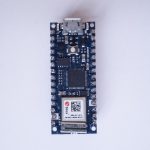
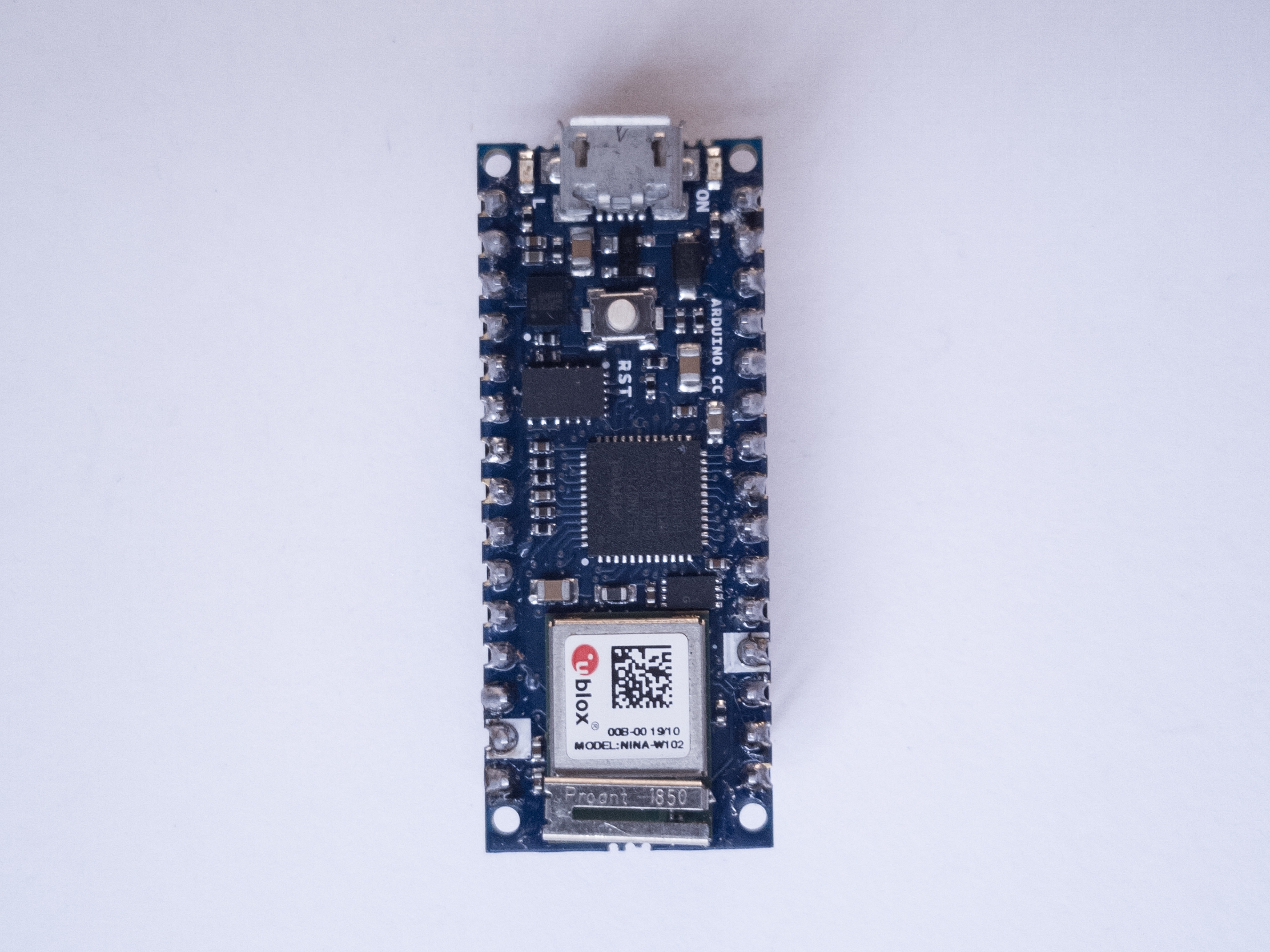
Photo of an Arduino Nano 33 IoT module. The USB connector is at the top of the image, and the physical pins are numbered in a U-shape from top left to bottom left, then from bottom right to top right.
Figure 1. An Arduino Nano 33 IoT.
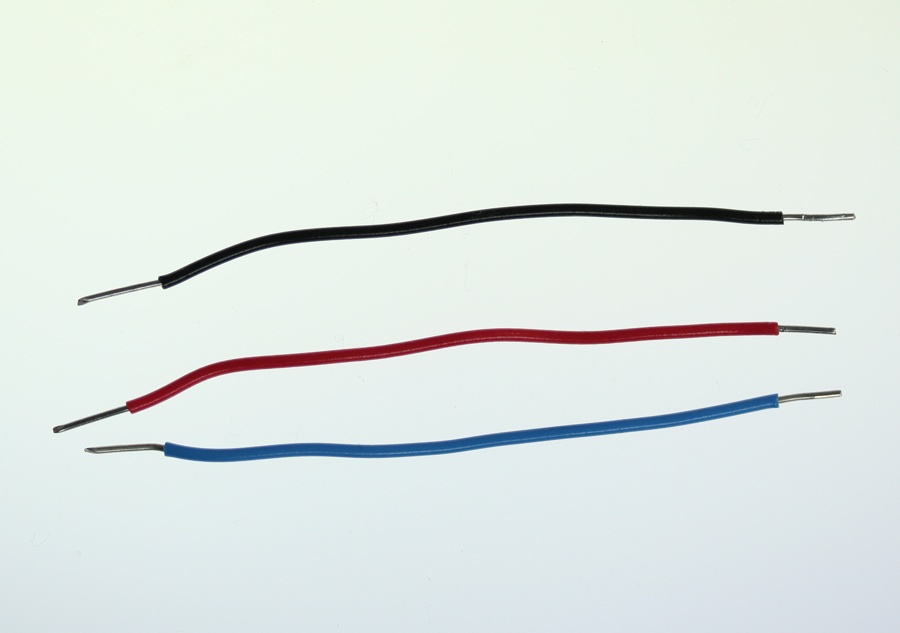
Three 22AWG solid core hookup wires. Each is about 6cm long. The top one is black; the middle one is red; the bottom one is blue. All three have stripped ends, approximately 4 to 5mm on each end.
Figure 2. 22AWG solid core hookup wires.
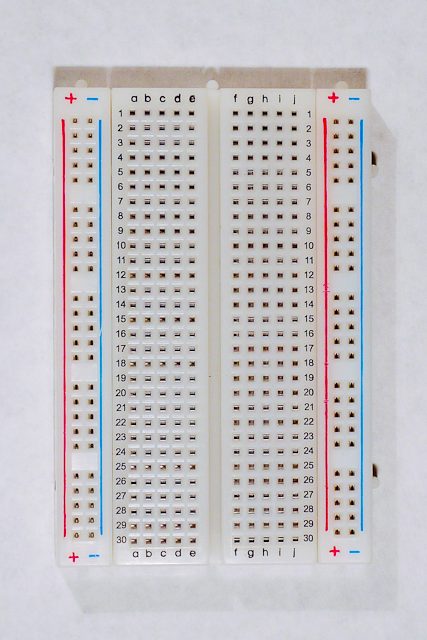
A short solderless breadboard with two rows of holes along each side. There are no components mounted on the board. The board is oriented sideways so that the long rows of holes are on the top and bottom of the image.
Figure 3. A short solderless breadboard.
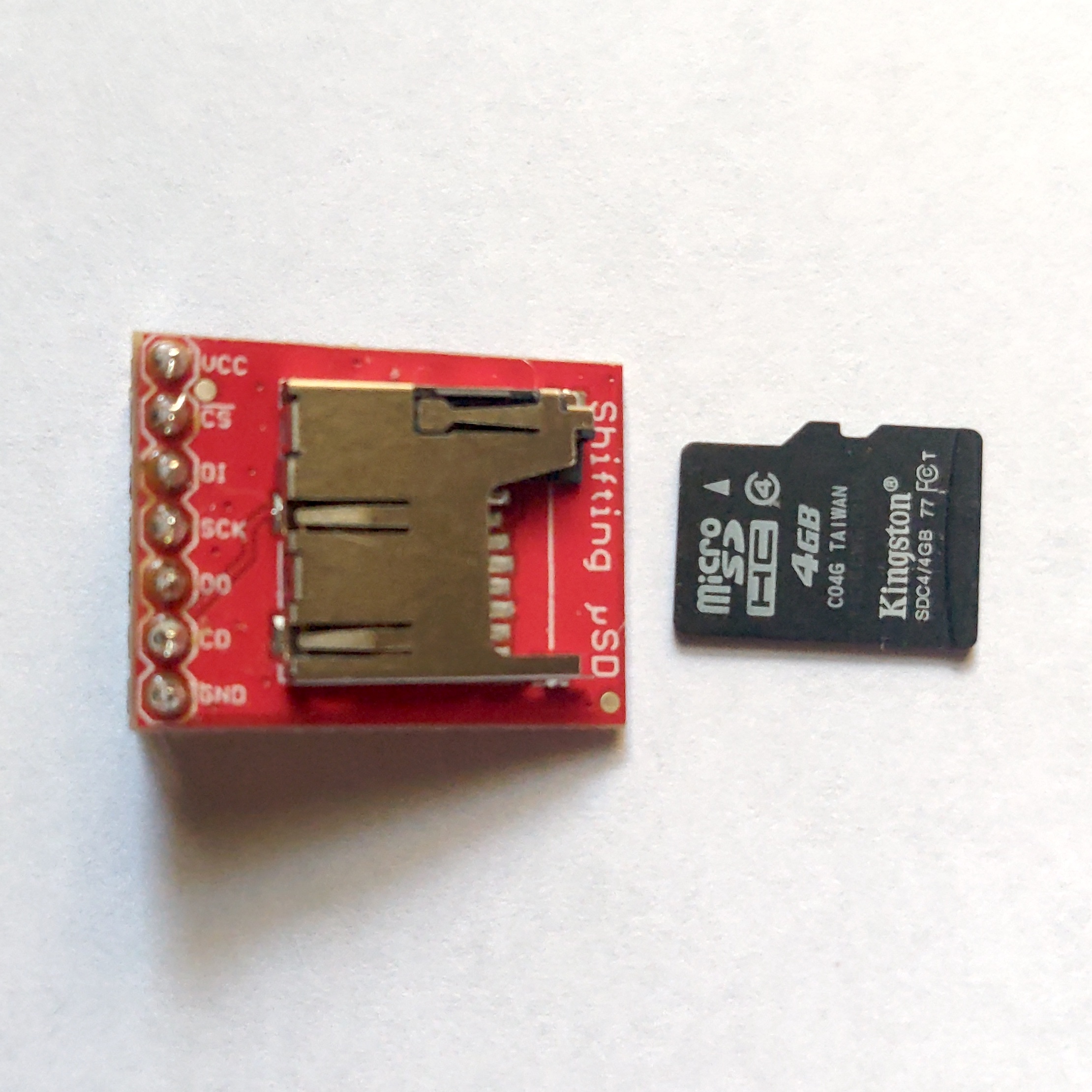
A photo of a microSD card breakout board
Figure 4. A MicroSD breakout board and MicroSD card.
Photo of an I2S Audio amp breakout board, model UDA1334
Figure 5. I2S Audio amp. The UDA1334 breakout board from Adafruit has been tested with this lab.
Photo of an I2S Audio Amp, the MAX98357A amp breakout board from Sparkfun
Figure 6. I2S Audio Amp. The MAX98357A amp breakout board from Sparkfun has been tested with this lab. Wires have been soldered to the Audio out + and – pins to make it easier to connect. Click to see the full part.
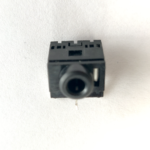
Photo of a stereo mini phono jack
Figure 7. 3.5mm audio jack. If you use the MAX98357A amp, you’ll need a jack as well.
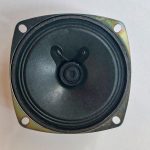
Photo of an 8 ohm speaker
Figure 8. If you’re using the MAX98357A amp, you can use a speaker as an alternative for the phono jack.

The Circuit

The circuit for this lab consists of:

  • the microcontroller
  • a microSD card breakout
  • an I2S audio amp breakout.

You’ll also need a microSD card reader for your personal computer.

The lab has been tested with two different amps, the UDA1334 breakout board from Adafruit, and the MAX98357A breakout board from Sparkfun. Both work just the same, but the Sparkfun amp needs an additional component, a 3.5mm audio hack.You’ll need to attach wires to connect to a stereo mini jack, as shown here, or you’ll need to solder a speaker onto the + and – holes of the breakout board. The Adafruit board has a built-in jack.

Connect the SD Card Breakout Board

The microSD card in this lab is for storing the .wav files that you want to play. You can playback from multiple files with the libraries used in this project.

SD cards use the  Serial Peripheral Interface (SPI) protocol to communicate with microcontrollers and other computers. SPI is a synchronous serial protocol that supports two-way communication between a controller device such as a microcontroller and a peripheral device like an SD card reader. All SPI devices have a common set of connections:

  • Serial Data In (SDI) connection, on which the controller sends data to the peripheral devices.
  • Serial Data Out (SDO) connection, on which the peripheral devices send data to the controller.
  • a Serial Clock  (SCLK) connection, on which the controller sends a regular clock signal to the peripheral devices.
  • one or more Chip Select (CS)  connections, which the controller uses to signal the peripheral devices when to listen to incoming data and when to ignore it.

The SDO of a controller connects to the SDI of a peripheral, and vice versa.

The SPI pin numbers are the same numbers for the Uno and Nano 33 IoT, as follows:

  • SDO – pin 11
  • SDI – pin 12
  • SCK – pin 13
  • CS – pin 10

The MicroSD card reader/writer shown in Figure 4 is from Sparkfun. It has level-shifting circuitry built-in to adjust for either 3.3- or 5-volt operation. They have a second model which is shown in Figure 9 was the model for the breadboard drawing in Figure 10. Both will work with this lab. There are many other models on the market though. Here’s an Adafruit model. Here’s a Pololu model. Here’s a DFRobot model. All of them will communicate with your microcontroller in basically the same way, though, using the SPI pin connections.

Most SD card readers have a card detect (CD) pin as well, that changes state when the card is inserted or removed. It’s optional, but it can be useful to make sure you have a card in the reader. It’s not used in this example. You will see differing names for the SPI pins as the names as manufacturers modernize their naming conventions. As a result, different breakout boards may have different labels. Make sure to match up the pin functions, not just the pin numbers. Figure 9 shows several models, and you can see that the pin naming conventions and pin positions differ from one model to the next.
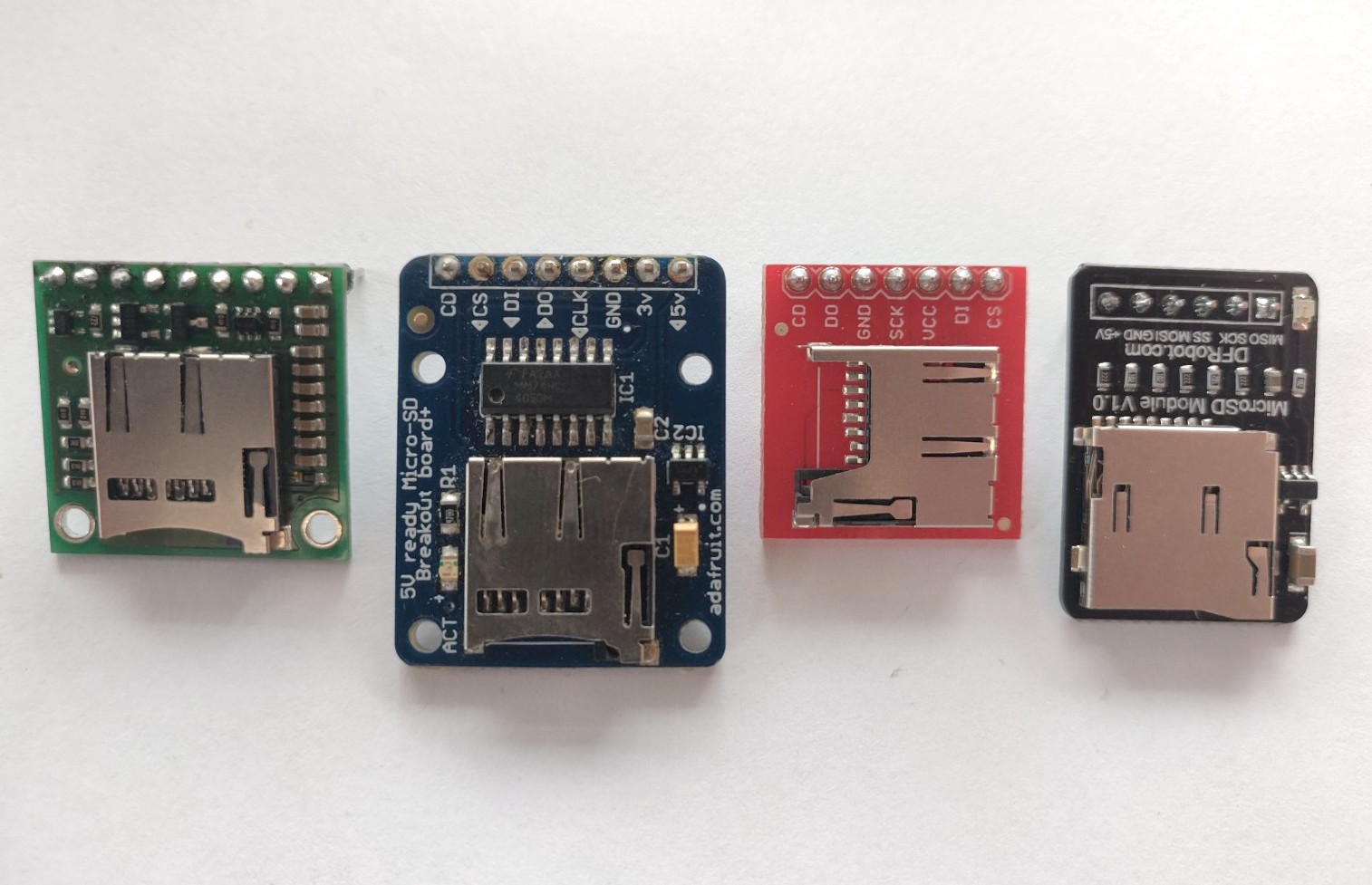
Photo of four different microSD breakout boards.
Figure 9. Different microSD breakout boards have different arrangements of the pins and different naming conventions. Shown here, from left to right: A Pololu MicroSD card breakout board; An Adafruit one; a Sparkfun one; and a DFRobot one.

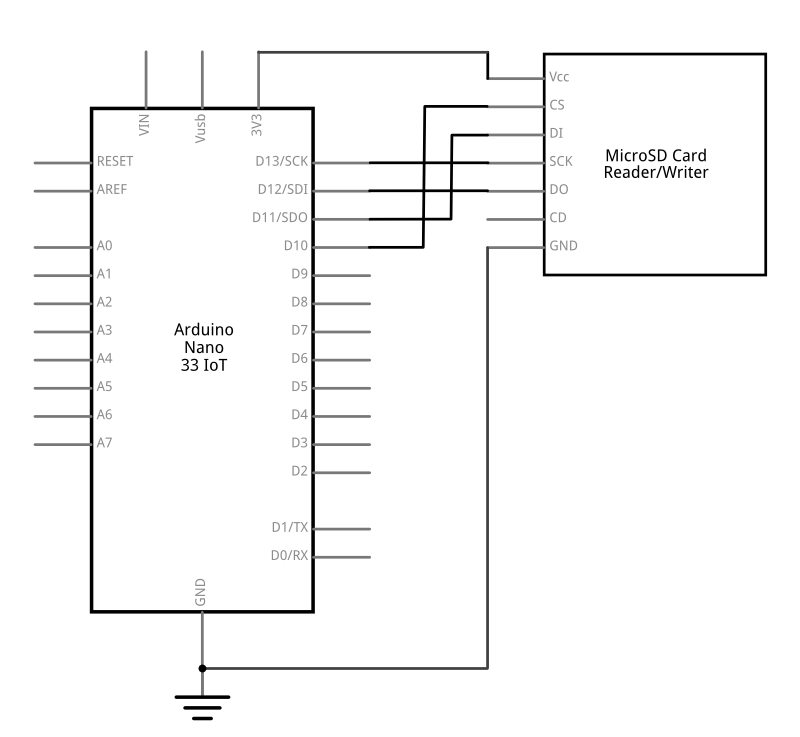
Connect your Arduino to the SD card reader as shown in Figure 10 and 11. If you’re using the Sparkfun SD card reader/writer, the pins are on the on the left side of the board, and they’re numbered, from top to bottom, as follows:

  • Vcc – voltage in. Connects to microcontroller voltage out
  • CS – Chip select. Connects to microcontroller CS (pin D10 on the Nano/Uno)
  • DI – SPI data in. Connects to microcontroller SDO (pin D11 on the Nano/Uno)
  • SCK – SPI clock.. Connects to microcontroller SCLK (pin D13 on the Nano/Uno)
  • DO – SPI data out. Connects to microcontroller SDI (pin D12 on the Nano/Uno)
  • CD – card detect. Not connected in this example
  • GND – ground. Connects to microcontroller ground
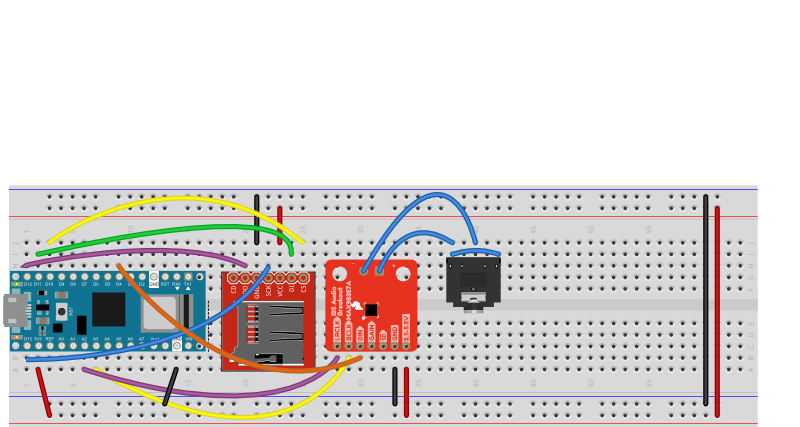
Breadboard drawing of a microSD card reader attached to an Arduino
Figure 10. Schematic drawing of a microSD card reader attached to an Arduino using SPI connections
Schematic drawing of a microSD card reader attached to an Arduino
Figure 11. Schematic drawing of a microSD card reader attached to an Arduino using SPI connections

Connect the I2S Amplifier

The I2S amplifier takes the digitized audio signal from your microcontroller and converts it to an analog audio signal that can play on analog speakers or headphones. The connections for an I2S bus are:

  • Serial clock (SCK) or Bit Clock (BCLK) – This is the line that carries the clock signal
  • Frame Select (FS), also called Word Select (WS or WSEL), or Left-Right Clock (LRC) – This determines left and right channels
  • Data, also called Digital Out (DOUT) or Digital In (DIN) depending on the application – This is the data signal itself.

The controlling device sends the clock signal, just like in other synchronous serial protocols like I2C and SPI.

Connect the I2S amp to your Arduino as follows:

  • BCLK connects to A3 of the Nano 33 IoT board
  • LRC connects to A2 of the Nano 33 IoT board
  • DIN connects to D4 (SDA Pin) of the Nano 33 IoT board
  • Vin connects to 3.3V
  • GND connects to ground
  • + connects to the left and right sides of a 3.5mm audio jack
  • – connects to the center pin of a 3.5mm audio jack

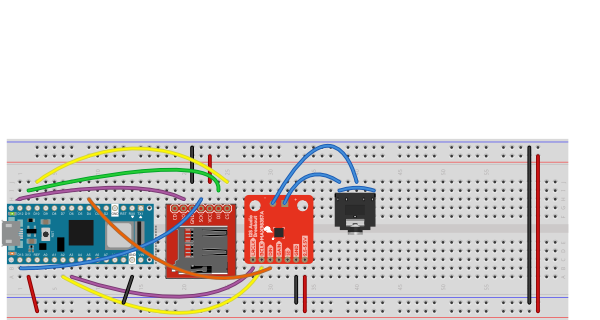
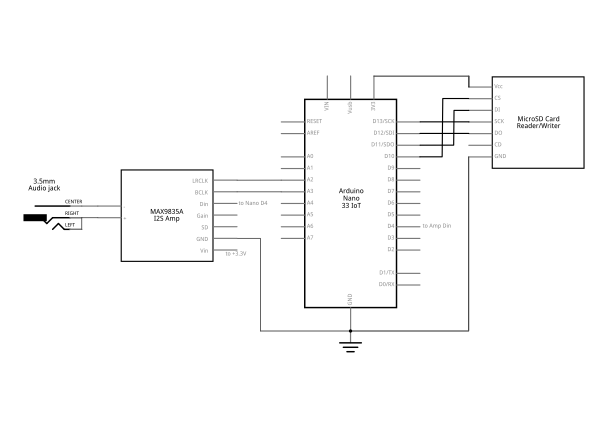
This wiring is shown in Figures 12 and 13 with a MAX98357 I2S audio amplifier and audio jack. You have to attach a 3.5mm audio jack to the amplifier separately. The photo in Figure 6 shows a jumper wire cut in half and soldered to the + and – terminals of the audio amplifier to make it easier to connect to a 3jack via a breadboard.

Breadboard view of an Arduino Nano 33 IoT connected to a microSD card and MAX98357A I2S amp  and audio jack
Figure 12. Breadboard view of an Arduino Nano 33 IoT connected to a microSD card and MAX98357A I2S amp and audio jack as described above.
Schematic view of an Arduino Nano 33 IoT connected to a microSD card and MAX98357A I2S amp and audio jack
Figure 13. Schematic view of an Arduino Nano 33 IoT connected to a microSD card and MAX98357A I2S amp and audio jack as described above.

The connections for the Adafruit UDA1334 I2S amp are similar, but the pins have different names:

  • BCLK connects to A3 of the Nano 33 IoT board
  • WSEL connects to A2 of the Nano 33 IoT board
  • DIN connects to D4 (SDA Pin) of the Nano 33 IoT board
  • Vin connects to 3.3V
  • GND connects to ground

The UDA1334 amp has a built-in 3.5mm audio jack, so there’s no need to wire a separate jack as there is with the previous amp.

Once you’ve connected the MicroSD card and amplifier, your circuit is ready.

Format the MicroSD card

Your SD card needs to be formatted as FAT32 or FAT16. The SD Card Lab has notes on how to do this. There are also instructions on the Arduino site on formatting your card, as well as the Adafruit site. If you’re formatting on MacOS, you can use the DiskUtility app, but you must format your disk as MS-DOS (FAT). You should test the SD card for reading and writing first.

Your filename needs to correspond to 8.3 naming, so it should be no more than 8 characters long, with the extension .wav at the end.

Make A .WAV file

The ArduinoSound library can only play audio files formatted as .wav files, because these are uncompressed audio files. The .wav file must be formatted as stereo, signed 16-bit, 44100Hz. There’s a good tutorial on the Arduino site on how to do this using the free audio editing software Audacity. Once you’ve made your file, copy it to the SD card.

Program the Microcontroller

The ArduinoSound library comes with a and example called WavePlayback to get you started. Here are a few of the important parameters you should know about:

You’ll make an instance of the SDWaveFile class to read the file from the SD card. From that, you can get the file duration, sample rate, bits per sample, channels, current time, and more. It’s useful to print out one of these properties, like the file duration, when you open it, to see that things are working.

The AudioOutI2S class gives you control over playback. You can check if the output can play, and you can play, pause, loop, resume, stop the playback. You can also check whether the file is playing or paused and you can set the volume.

Import the Library

Download the ArduinoSound library on your Arduino IDE. You can find it in the Library Manager of the IDE (Sketch Menu -> Include Library -> Manage Libraries, search for “ArduinoSound”). At the start of your sketch, import the libraries and set up a variable to hold the SDWaveFile instance like so:

#include <SD.h>
#include <ArduinoSound.h>
#define I2S_DEVICE 1   // this enables the I2C bus

// filename of wave file to play
// file name must be 8 chars (max) .3 chars
const char filename[] = "MUSIC.WAV";

// variable representing the Wave File
SDWaveFile waveFile;
// timestamp for printing the current time:
long lastPrintTime = 0;

Initialize the SD card

In the setup, you need to check that the components are working. If any of them fail, it’s a good idea to stop and notify the user. Since there’s no user interface in this basic sketch, you’ll use the Serial Monitor.

First, check that the SD card works:

void setup() {
  // Open serial communications:
  Serial.begin(9600);
  // wait for serial  monitor to open:
  while (!Serial);

  // setup the SD card.
  Serial.print("Initializing SD card...");
  if (!SD.begin()) {
    Serial.println("SD card initialization failed!");
    while (true); // do nothing
  }
  Serial.println("SD card is valid.");

Open the .wav File

Once you know the SD card is good, open the file as a .wav file and check that it can play:

// create a SDWaveFile
  waveFile = SDWaveFile(filename);

  // check if the WaveFile is valid
  if (!waveFile) {
    Serial.print("There is no .wav file called ");
    Serial.println(filename);
    while (true); // do nothing
  }
  // print the file's duration:
  long duration = waveFile.duration();
  Serial.print("Duration = ");
  Serial.print(duration);
  Serial.println(" seconds");

  // check if the I2S output can play the wave file
  if (!AudioOutI2S.canPlay(waveFile)) {
    Serial.println("unable to play wave file using I2S");
    while (true); // do nothing
  }

Set the Volume

Once you know the file’s good to play, set the volume and start playing. The AudioOutI2S.volume() function takes levels from 0-100. This will end the setup() function:

 // set the playback volume:
  AudioOutI2S.volume(80);
  // start playback
  Serial.println("playing file");
  AudioOutI2S.play(waveFile);

What To Do While While Playing

While the file is playing, you don’t need to do anything. It will play regardless of what you are doing in the loop() function. However, you can check to see if it is playing or paused, and you can check the current time. These can be useful for user interface actions like responding to a play/pause button, changing the volume, and so forth.

void loop() {
  if (millis() - lastPrintTime > 1000) {
    Serial.print(waveFile.currentTime());
    Serial.println( " seconds");
    lastPrintTime = millis();
  }
  if (!AudioOutI2S.isPlaying()) {
    Serial.println("File has stopped");
    while (true); // do nothing
  }
  if (AudioOutI2S.isPaused()) {
    Serial.println("File is paused");
  }
}

With that much code, you’ve got enough to play a file. You can find the complete sketch at this link. Upload this sketch to your Nano and connect a headphone or speaker via a cable to the 3.5mm audio jack. Once you open the Serial Monitor, the setup messages will print to let you know things are working, and then current time in seconds will print until the song is done. Then the sketch will stop and do nothing.

The AudioSound library gives you a lot of capability to build .wav file playback devices. Try building a simple audio player with play/pause/rewind buttons. Add a button to skip to the next track. Or try building a sample player that lets you play short files like instrument notes.

Lab: Data Logging With an SD Card Reader using SPI Communication

In this lab you’ll learn about sensor data logging and use SPI communication to write data to a microSD card from an Arduino.

In this lab you’ll learn about sensor data logging and use SPI communication to write data to a microSD card from an Arduino.

Introduction

Sometimes you need to collect data with a microcontroller when there’s no way to communicate with another computer while you’re doing it. This is where removable storage like an SD card helps. In this lab, you’ll see how to use the Serial Peripheral Interface (SPI) protocol to write to an SD card. You’ll take sensor readings on a microcontroller and write them to a file on the SD card reader using the SPI protocol. You’ll also consider what it means to  collect data about physical phenomena.

Related videos: Intro to Synchronous Serial, SPI

Data Collection and the Physical World

If you’re interested in data visualization and analysis, you have to start by gathering data, and much of that comes from physical activity. Though this lab doesn’t address the many non-technical considerations of data gathering, Mimi Onuoha’s essay The Point of Data Collection is an excellent introduction to that topic which you should also read when considering this lab.

Though this lab introduces you to the formatting and storage of sensor data on an SD card, there are multiple factors that you must consider in order to gather sensor-based data effectively, safely, and ethically. Here are just a few:

  • the conditions which you want to observe,
  • the sensors to use, and their sensitivity, resolution, and placement
  • the circumstances in which you’re observing, and who will be affected by that observation and the data that results from it.
  • the time scale of the observation, and the frequency of your readings
  • the formatting of the data and and the capacity for storing it
  • the energy needed to read the sensors and store the data

It’s not possible to address all of those issues in this lab, but many of them will be referenced along the way.

What You’ll Need to Know

To get the most out of this Lab, you should be familiar with the basics of programming an Arduino microcontroller. If you’re not, review the Digital Input and Output Lab, and perhaps the Getting Started with Arduino guide. You should also understand the basics of synchronous serial communication.

Things You’ll Need

Figure 1-5 show the components that you need for this lab.

Connect a Sensor to a Microcontroller

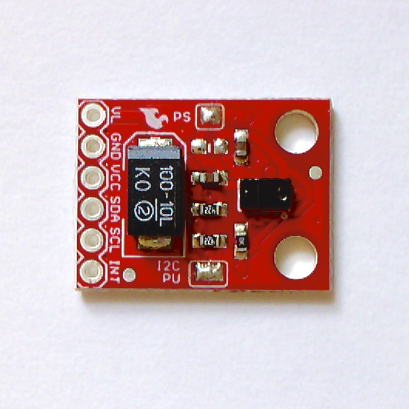
The sensors you use will depend on the activity you’re planning to study. For this exercise, start with a sensor that you’ve already learned how to use. Connect connect the sensor to your microcontroller. It might be a digital or analog input. It might be OneWire, like the DHT11 or DHT22 temp/humidity sensors. It might be I2C, like the APDS-9960 light sensor shown in Figure 5 (and covered in this I2C lab), or the TMP007 temperature sensor (covered in this lab). It could be built into your microcontroller board, like the IMU sensor built into the Nano 33 IoT (and covered in this lab). It might be asynchronous serial, like a GPS receiver. Getting the sensor’s data into the microcontroller is up to you.

Verify that the sensor’s working with the microcontroller by getting an initial reading.

The code below uses a generic analog input as sensor, to simplify the code. Once you have this working, you should add the appropriate code to read your particular sensor.

Connect an SD Card Reader to the Microcontroller

SD cards use the  Serial Peripheral Interface (SPI) protocol to communicate with microcontrollers and other computers. SPI is a synchronous serial protocol that supports two-way communication between a controller device such as a microcontroller and a peripheral device like an SD card reader. All SPI devices have a common set of connections:

  • Serial Data In (SDI) connection, on which the controller sends data to the peripheral devices.
  • Serial Data Out (SDO) connection, on which the peripheral devices send data to the controller.
  • a Serial Clock  (SCLK) connection, on which the controller sends a regular clock signal to the peripheral devices.
  • one or more Chip Select (CS)  connections, which the controller uses to signal the peripheral devices when to listen to incoming data and when to ignore it.

The SPI pin numbers are the same numbers for the Uno and Nano 33 IoT, as follows:

  • SDO – pin 11
  • SDI – pin 12
  • SCK – pin 13
  • CS – pin 10

If you’re using a MKRZero, it has a built-in SD card and a built-in SD card chip select called SDCARD_SS_PIN.

The MicroSD card reader/writer shown in Figures 3, 7, and 8 is from Sparkfun, and has level-shifting circuitry built-in to adjust for either 3.3- or 5-volt operation. There are many other models on the market though. Here’s an Adafruit model. Here’s a Pololu model. Here’s a DFRobot model. All of them will communicate with your microcontroller in basically the same way, though, using the SPI pin connections.

Most SD card readers have a card detect (CD) pin as well, that changes state when the card is inserted or removed. It’s optional, but it can be useful to make sure you have a card in the reader.

Connect your Arduino to the SD card reader as shown in Figure 6 and 7. If you’re using the Sparkfun SD card reader/writer, the pins are on the on the left side of the board, and they’re numbered, from top to bottom, as follows:

  • Vcc – voltage in. Connects to microcontroller voltage out
  • CS – Chip select. Connects to microcontroller CS
  • DI – SPI data in. Connects to microcontroller SDO
  • SCK – SPI clock.. Connects to microcontroller SCLK
  • DO – SPI data out.. Connects to microcontroller SDI
  • CD – card detect. Connects to microcontroller pin 9
  • GND – ground. Connects to microcontroller ground
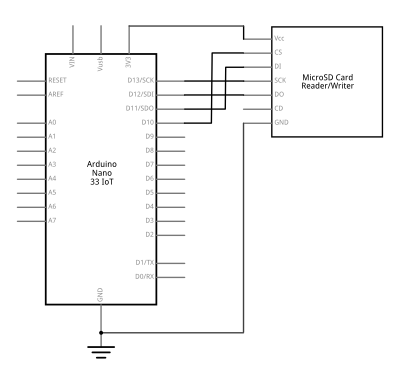
Breadboard view of a microSD card breakout board attached to a Nano 33 IoT.
Figure 6. Breadboard view of a microSD card breakout board attached to a Nano 33 IoT.
Schematic drawing of a micoSD card reader attached to an Arduino using SPI connections
Figure 7. Schematic drawing of a microSD card reader attached to an Arduino using SPI connections

Format the SD Card

Different operating systems use different file formats. Your SD card needs to be formatted as FAT16 or FAT32 in order to work with the SD card library. This format is common on Windows and Linux, but not always on MacOS computers. There are some notes on formatting on the Arduino SD Card library reference.

Formatting an SD Card (Windows)

On Windows, right-click the disk and choose “Format…” The fedault formatting option is FAT32, which will work for this lab.

Formatting an SD Card (MacOS)

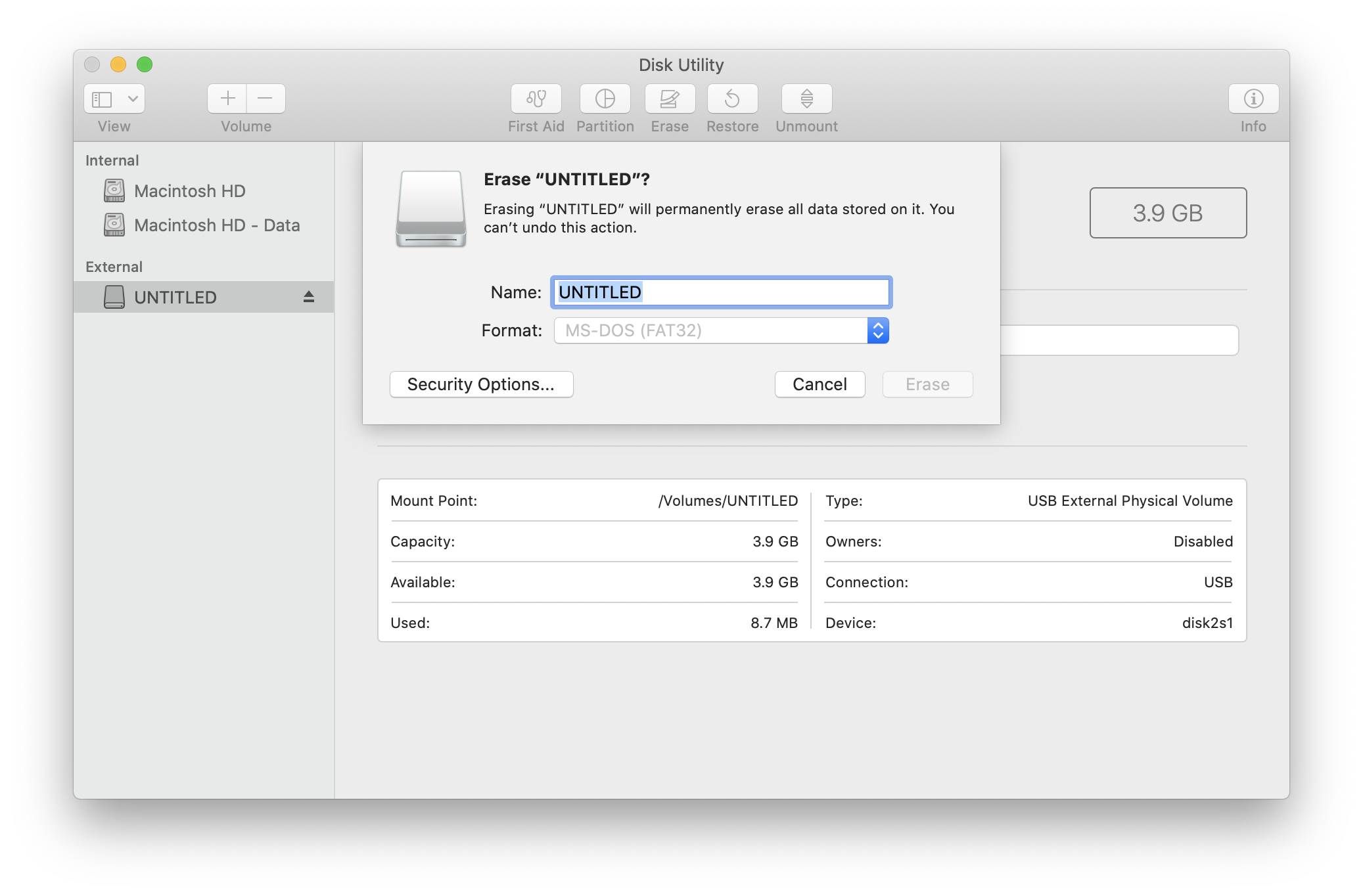
You can format a card as FAT32 using the MacOS Disk Utility application by selecting the SD card, Clicking the Erase button or typing command-shift-E, then selecting MS-DOS (FAT) from the Format Option menu that appears in the Format dialog. Figure 8 shows a screenshot of the MacOS Disk Utility application.

A screenshot of the MacOS Disk Utility Application
Figure 8. A screenshot of the MacOS Disk Utility Application showiing the Erase Disk Format option

Import the SD Library

With most SPI devices, you generally won’t write your own SPI commands. Most every company that makes a breakout board for a given SPI device will also write a library for it. The device-specific library abstracts away the process of using the SPI commands for the device.

Since SD card formats are a known standard, the SD card library for Arduino works with multiple different card readers, and was contributed to by authors from multiple companies. The library comes with several useful example programs to test your card reader and your card. Once you’ve installed the library from the Library Manager, you can find these examples if you click the File menu, examples submenu, then the SD submenu.

Test the SD card Reading and Writing

The CardInfo sketch will read the SD card and print out its formatting info and a list of files. This is a good place to start, to see if you formatted the card correctly. The Files example will  read the card and check for a file called example.txt on the card. ListFiles will print a list of the card’s file directory. With any of these, make sure to change the chipSelect pin number to the same pin as your board.  If all of those work, you’re ready to write your sketch.  There’s one in the library examples, but the code below walks you through the steps of writing your own.

A Datalogger Sketch

The first thing you need to do in your sketch is to include the SD card library at the top. The library includes a File class, which you can read to and write from like a file. Make an instance of that class, and make a constant for the file name. Make the file type .csv (comma-separated values) so the file is easy to read with a spreadsheet application later. Add constants for the chip select and card detect pins as well, and a variable to keep track of when your last successful reading was logged to the card:

// the SPI CS pin
const int chipSelect = 10;
const int cardDetect = 9;
// the filename. Use CSV so the result can be opened in a spreadsheet
const char fileName[] = "datalog.csv";
// time of last reading, in ms:
long lastReading = 0;

The File class implements many of the same functions as the Serial class that you’re already familiar with, like read(), write(), print(), println(), and available(). Both File and Serial are instances of a data class called a Stream. You’ll see other examples of Stream in other libraries for communication, like I2C and WiFi.

This sketch won’t use the Serial Monitor, since you won’t be attached to a computer when you’re reading data. Instead, you’ll use the built-in LED to tell whether things are working or not. 

Detect and Initialize the Card

In the setup(), initialize the LED, and use the card detect pin to tell if there’s a card present or not. When it’s there, use the SD.begin() to attempt to initialize the card. The SD.begin() function’s parameter is the chip select pin number.

void setup() {
  // variable for the LED's state:
  int ledState = HIGH;
  pinMode(LED_BUILTIN, OUTPUT);
  pinMode(cardDetect, INPUT);

  // if the card detect pin is false, no card:
  while (digitalRead(cardDetect) == LOW) {
    // toggle LED every 1/4 second while the SD card's not present:
    digitalWrite(LED_BUILTIN, HIGH);
  }
  // give the reader 5 seconds to settle the card once it's detected:
  delay(5000);
  
  // if the card is not present or cannot be initialized:
  while (!SD.begin(chipSelect)) {
    // toggle LED every 1/4 second while the SD card's not responding:
    digitalWrite(LED_BUILTIN, ledState);
    // change the LED state:
    ledState = !ledState;
    delay(250);
  }
  // turn the LED off:
  digitalWrite(LED_BUILTIN, LOW);
}


Set the Reading Interval

Start the main loop() function by checking the millis() function to see if one second (1000 ms) have passed since your last successful reading. Later in the code, you’ll update the lastReading variable using the millis() function:

 
void loop() {
  // read once a second:
  if (millis() - lastReading > 1000) {

Read the Sensors and Format for Writing

Next, set up a String variable, and use it to collect your sensor readings and any formatting, like the commas that will separate the readings. Then read your sensors and add them to the String:

    // make a string for assembling the data to log:
    String dataString = "";

    // read your sensors:
    int sensorOne = analogRead(A0);
    dataString += String(sensorOne);
    delay(1);
    // comma-separate the values:
    dataString += String(",");
    int sensorTwo = analogRead(A1);
    dataString += String(sensorTwo);

Write to the File

Once you’ve got the data formatted, check to see if you can open the File you created on the SD card for writing. If you can, then write to it. Turn the LED on when you’re writing, and off when you’re not, so you know when the card is busy. When you turn the LED off, update the lastReading variable with the time fron millis(). If you can’t access the file, turn the LED on constantly to indicate that there’s a problem. After that, you can close the initial if() statement that checks the time, and close the main loop:

    // open the file. Only one file can be open at a time,
    // so you have to close this one before opening another.
    File dataFile = SD.open(fileName, FILE_WRITE);

    // if the file is available, write to it:
    // turn the LED on while writing and off when not writing too:
    if (dataFile) {
      digitalWrite(LED_BUILTIN, HIGH);
      dataFile.println(dataString);
      dataFile.close();
      digitalWrite(LED_BUILTIN, LOW);
      lastReading = millis();
    } else {
      // if the file can't be opened, leave the LED on:
      digitalWrite(LED_BUILTIN, HIGH);
    }
  } // end of if millis() statement
} // end of loop

the dataFile.close() function is the one that actually stores the data to the card, so when that’s done, you know the data should be on the SD card. If you don’t want to open and close a lot, you can also use the dataFile.flush() function to write to the card.

That’s the whole working sketch. Try it. Once it’s run for a minute or so, remove the SD card, put it in your computer and see if there’s a file called datalog.csv on it. Open the card in a spreadsheet program to see your data.

You can find versions of this for the Nano 33 IoT’s built in IMU, for the APDS-9960 color sensor, and for the DHT11/DHT22 temperature and humidity sensors in the repository for this site.

Decide How and When to Record Data

Even though your sensor might be able to deliver multiple readings a second, you have to decide how frequently you need to record the results. For example, if you’re measuring temperature change in a room, do you need to read more frequently than once a minute?

How you format the data for storage and how frequently you read it affects how much memory it takes. For example, imagine you’re reading a temperature sensor and storing the results as a string, like so:

21.45°C

Each character of that reading takes a byte of data. So each reading would take about 6 to 8 bytes, depending on how many digits are involved, and whether you use a label like “°C” or not. If you’re reading from multiple sensors, or adding a time stamp to each reading, each reading can easily take 10 to 20 bytes or more.

Now, imagine you plan to store readings ten times a second. For every second, that’s 100 bytes. For every minute, 6 kilobytes. For every hour, 360 kilobytes. For every day, 8.6 megabytes.

Each reading takes energy as well. Different sensors draw differing amounts of current, as does an SD card reader. To find out how much, you could program your microcontroller to write once a second, and then measure the current over several seconds to see the differences in current draw when it’s measuring and when it’s not.

Given all of that, how frequently should you read your sensors? It depends on the activity. If you’re trying to record a hand or arm gesture using an an IMU sensor, you should read multiple times a second, because even a tenth of a second can change where the limb you’re measuring is. If you’re recording the change in air quality in your home, the air probably doesn’t move that fast, so once a minute, or even less, might be fine. Before you can build the circuit or write any code, you should make these decisions, to simplify the development of your device.

Time Stamp the Data

In order to see how the data changes over time, you need to keep track of when each reading was recorded. For many short-term datalogging experiments, you can simply use the millis(), or divide the millis() by 1000 to get seconds. That method loses a few seconds every day, but it’s fine if you’re logging data only for a few minutes or an hour or so. If you’re recording for longer or you need precise time of day and you are using a MKR board or the Nano 33 IoT, you can use the real-time clock that’s built into it, using the RTCZero library. A real-time clock (RTC) is an electronic component that keeps accurate time, usually attached to a microcontroller via synchronous serial communications protocols like I2C or SPI. The SAMD21 processor that’s at the heart of the MKR boards and the Nano 33 IoT has a built-in RTC. Here’s a lab that explains how to do that. 

Conduct the Measurements

Once you’ve gotten your code and circuit working, it’s time to take some readings. Place the sensor where it can read the activity you want to read, and let it run for a short interval. If it’s not supposed to be sensing your activity, leave it alone while it’s doing its job. Then turn it off, remove the SD card, and read the data on your personal computer. Once you’re confident that your device is working as you intended it, you can set it up to run for a longer time.

Review the Data

Since you saved the file as a .csv file, it will most likely open up in your favorite spreadsheet application, and you can see the results in a table. This can be very handy for looking through the data in a systematic way. You can then sort it by highest value, or by time (it should already be sorted by time), or if you are using multiple sensors, you can sort by one sensor value or the other.

Visualize the Data

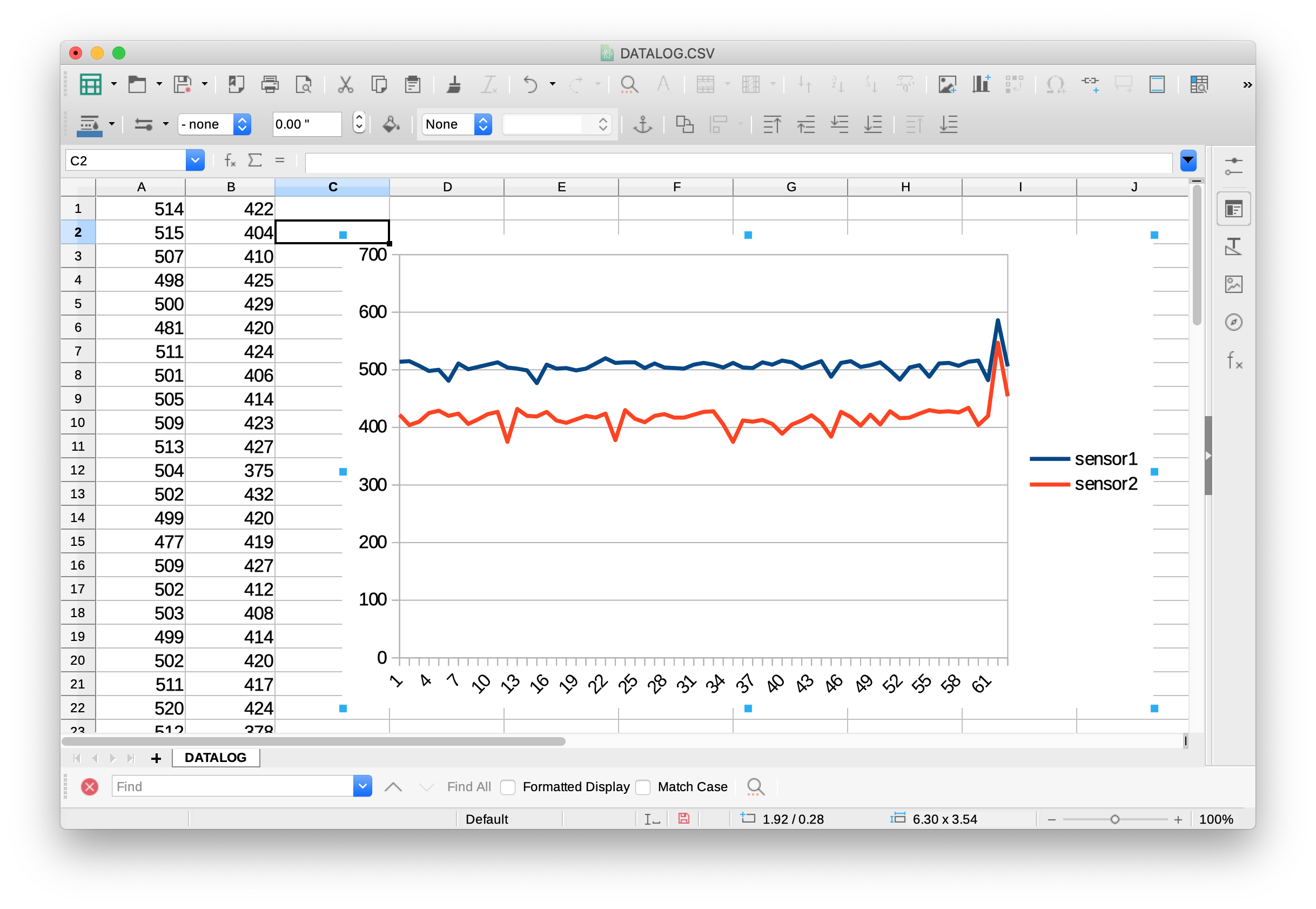
The other advantage of using a spreadsheet program is that most all of them have a graphing tool built in that will allow you to graph the results of your sensor readings, as shown in Figure 9. With a graph, you can look for patterns in the changes of data visually. Of course, you could write your own graphing program in p5.js or Processing or some other program, but by using a standard data format (CSV), and writing to a file on an SD card, you’ve made it possible to use existing software tools to analyze the data from your sensors.

A screenshot of LibreOffice spreadsheet showing the sensor readings and a graph of the readings.
Figure 9. A screenshot of LibreOffice spreadsheet showing the sensor readings and a graph of the readings from the sketch above.

Powering the Datalogger for Long-Term Measurements

If you’re setting up an environmental sensor, or a sensor to read the changes in a space over a long time, you’ll need a way to power your device. If there’s electrical power, you could simply plug the device into the wall using a USB adapter. If you can’t plug into the wall, you’ll need a battery. For some background on voltage and power, view this video on electrical power.

Battery Capacity

Batteries are rated by voltage and energy capacity. Capacity is usually given in milliamp-hours. You might think that if a battery is a 2000mAh (2000 milliamp-hours), the battery can supply a maximum of 2000 milliamps at a given instant when it’s charged, and can do so for up to one hour. That’s not the whole story though. Batteries don’t charge or discharge in a linear fashion, though. Maximum charging and discharging rates are relative to a battery’s total capacity; in other words, larger batteries can both supply higher currents, and charge at higher currents.

Batteries are tested at a “C-rate”, which you can find in their data sheet, that actually determines the maximum current that a batterycan supply. A 1000 mAh battery could provide more than 1 amp depending on it’s maximum discharge C-rating. If the rate is 2C, then the battery could provide 2 amps (for less than the full hour, of course). For example, here’s a 2000 mAh battery from Adafruit. This battery’s data sheet indicates that its performance was rated at 0.2C, indicating that though it’s rated for 2000 mAh, its standard charging and discharge current is 0.5 amps.

Mobile phone charging battery packs can be convenient because they already have a USB plug on them. It’s easy to find packs that have a capacity of 1000 mAh or more at 5 volts. A variety of standard battery combinations can work, like a 9V battery or a set of AA cells in a battery clip. AA batteries are typically 1.5V each, so you’d need a 3- or 4-battery clip to get enough voltage to run your processor.

Rechargeable 3.7V lithium polymer batteries are available too (also called Lithium-ion, Li-Ion, LiPoly, or LiPo), and can run the Nano 33 boards, though usually not an Uno. These are useful because you can reuse them many times, unlike other batteries. These are often found inside the mobile phone chargers mentioned earlier (and in mobile devices and laptops). Here are some examples:

Make sure to check the connector type on your Li-ion batteries. The most common connector is a 2-pin JST-PH connector, but some manufacturers use variations on this. Also check the polarity, as sometimes they come wired backwards. Connecting a battery to a charger backwards can damage both.

With these, you’ll need a charger. There’s one built into the MKR boards, and there are number of charger options. Here are a few:

Only charge lithium batteries with a dedicated charger designed for the specific type and number of cells you are using! The Adafruit chargers, for example, can only charge 1-cell batteries with 3.7V/4.2V cells. A rechargeable battery must be charged at a specific safe charging rate,. All batteries are potentially explosive if mis-handled or misused in charging and discharging, and lithium batteries can be particularly volatile, as this animation of a man biting a battery like an old-timey prospector biting a gold coin shows.

Put Your Microcontroller to Sleep When it’s not Reading

Your device consumes power when even when it’s not running, and when you’re running on battery power, that means you can log less data before the battery dies. One way to get more readings out of a battery is to put the microcontroller to sleep. Different microcontrollers have different modes of sleep that they can use. The Uno, unfortunately, has no easy sleep mode, but the Nano 33 IoT and MKR boards do, using the ArduinoLowPower library. With this library, you can put the microcontroller into a number of low power modes, and wake it up, either after a set time using the real time clock, or from a change on input pin (called an external interrupt):

  • Idle – this mode has the fastest wake-up time, but the least power savings. The processor is stopped, but peripherals like the realtime clock (RTC), analog-to-digital converter (ADC) and Serial, and I2C are not.
  • Sleep – this mode allows has slower wakeup time, but better power savings. Only the peripherals you’re using in your sketch remain on.
  • Deep sleep – This mode has the the slowest wake-up time and the best power savings. All but the realtime clock peripherals are stopped. The CPU can be woken up only using the clock or interrupt pins.

Conclusion

Though this lab is primarily about connecting an SD card reader to a microcontroller to write sensor-based data to an SD card, this exercise has lots of secondary factors which you need to consider, from the energy needed to gather the data to the design of the data-gathering experiment to the individuals whose activities are represented in the data. All of these come into play even before you consider how to present the data that you’ve gathered. Hopefully this introduction has given you a starting place from which to consider those factors.

Lab: SPI Communication With A Digital Potentiometer

In this lab, you’ll see synchronous serial communication in action using the Serial Peripheral Interface (SPI) protocol. You’ll communicate with a digital potentiometer chip from a microcontroller.

Introduction

In this lab, you’ll see synchronous serial communication in action using the Serial Peripheral Interface (SPI) protocol. You’ll communicate with a digital potentiometer chip from a microcontroller. You’ll use the digital pot to control the loudness of a speaker playing a tone from the microcontroller.

Related videos: Intro to Synchronous Serial, SPI

What You’ll Need to Know

To get the most out of this Lab, you should be familiar with the basics of programming an Arduino microcontroller. If you’re not, review the Digital Input and Output Lab, and perhaps the Getting Started with Arduino guide. You should also understand asynchronous serial communication and how it differs from synchronous serial communication.

Things You’ll Need

From Figure 1-5 are the parts that you need for this lab.

Three 22AWG solid core hookup wires. Each is about 6cm long. The top one is black; the middle one is red; the bottom one is blue. All three have stripped ends, approximately 4 to 5mm on each end.
Figure 1. 22AWG solid core hookup
Photo of an Arduino Nano 33 IoT module. The USB connector is at the top of the image, and the physical pins are numbered in a U-shape from top left to bottom left, then from bottom right to top right.
Figure 2. Arduino Nano 33 IoT
This component is a small rectangle with several pins on each of the two long sides. There is a small round depression on the upper left corner of the rectangle, and a semicircular dip in the middle of the top.
Figure 3. Digital Potentiometer
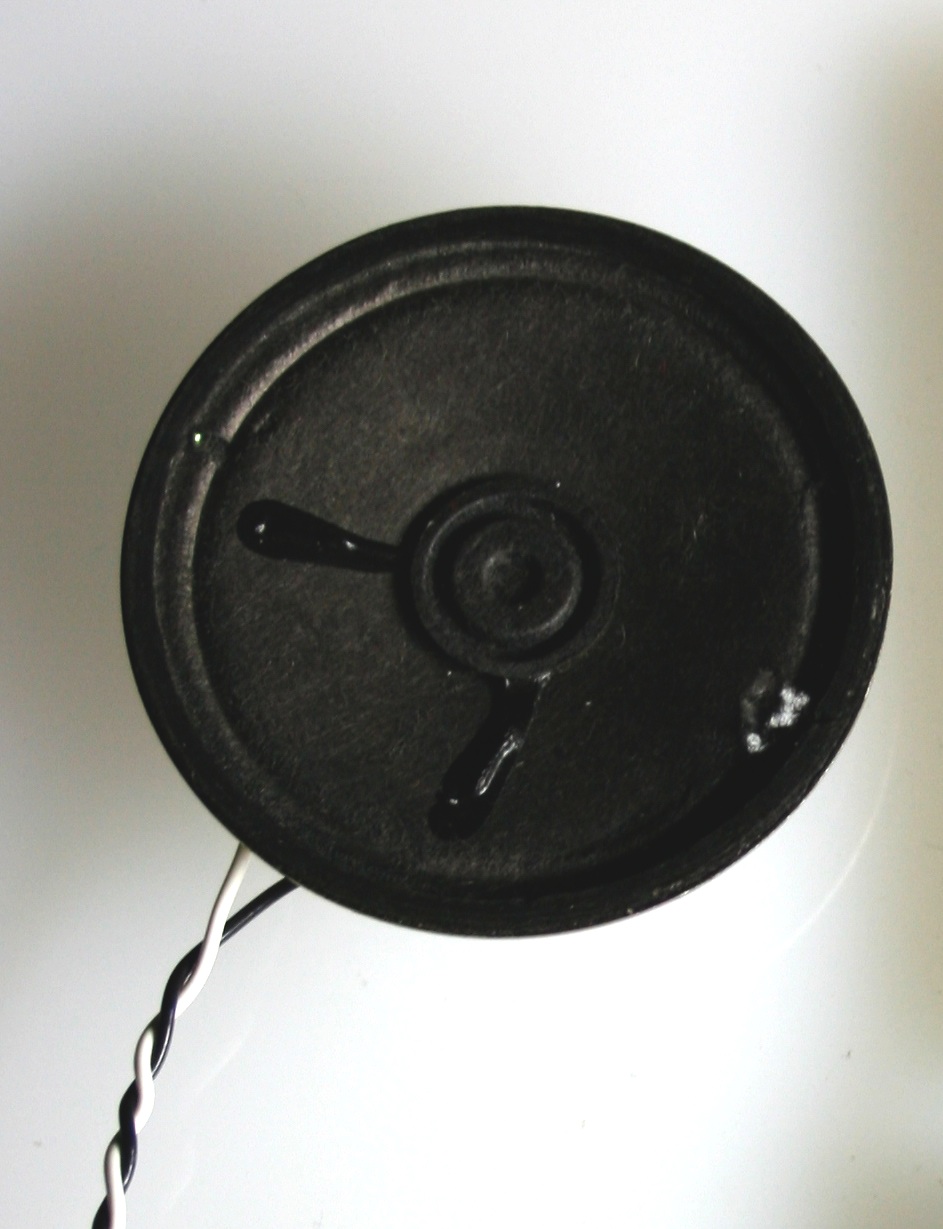
An 8 ohm speaker with 2 wires solder to the speakers leads
Figure 4. An 8 ohm speaker
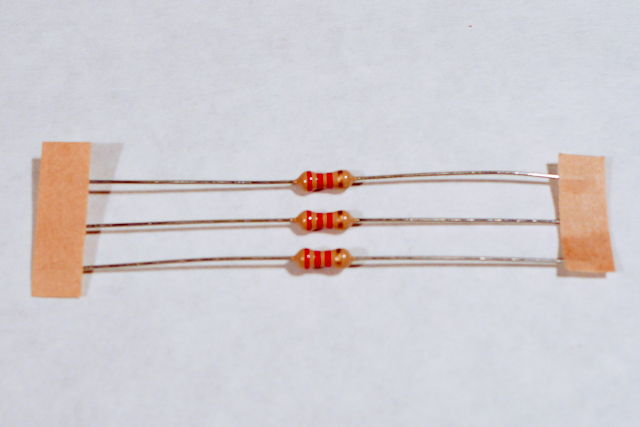
Resistors. Shown here are 220-ohm resistors. You can tell this because they have two red and one brown band, followed by a gold band.
Figure 5. Resistors. Shown here are 220-ohm resistors. You can tell this because they have two red and one brown band, followed by a gold band.

Controlling the Loudness of a Speaker

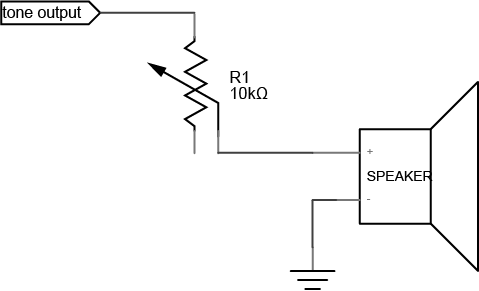
If you did the tone lab on this site, you know that it’s not possible to vary the loudness of a tone generated from a microcontroller. In order to change the loudness, you’d need to change the voltage of the tone pin. If you put a potentiometer in series with the speaker as shown below, you can modify the tone’s loudness, as is shown in Figure 6.

Electrical diagram of speaker. The speaker's negative pin is connected to ground and the positive pin is connected to a 10k potentiometer
Figure 6. Electrical diagram of speaker. The speaker’s negative pin is connected to ground and the positive pin is connected to a 10k potentiometer

This circuit requires that you modify the loudness manually, by turning the pot. But with a digital potentiometer, you can modify the loudness from your program.

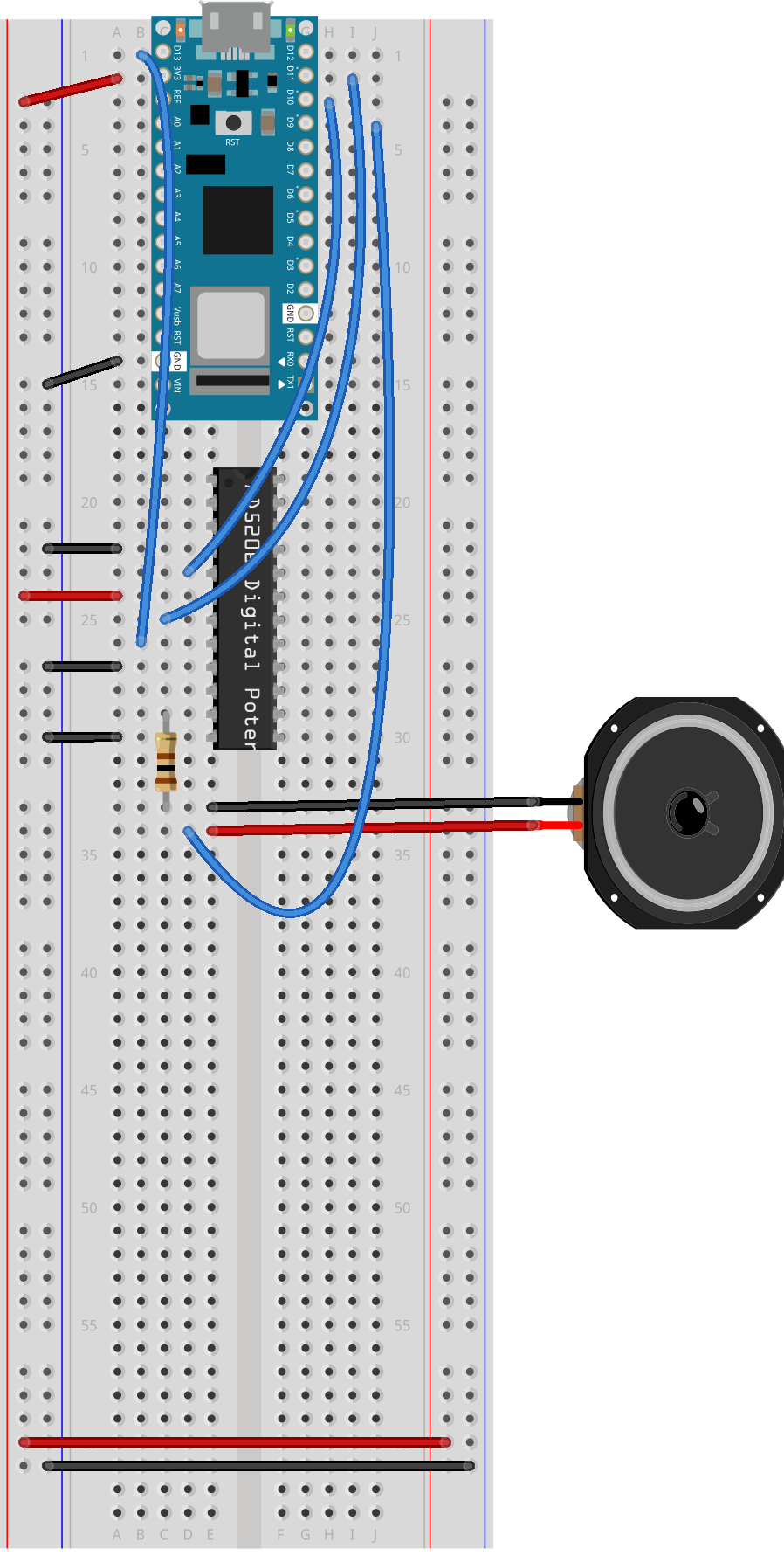
Connect the digital potentiometer

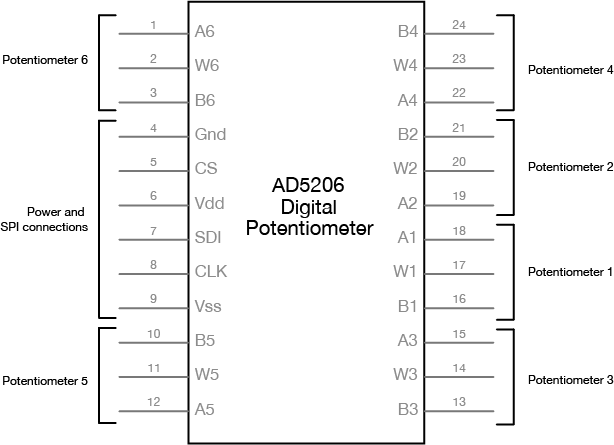
The digital potentiometer used in this lab,  an Analog Devices AD5206, is an integrated circuit (IC) that can perform one specific function: it has six potentiometers that you can control, as is shown in Figure 7. Each of its pins has a specific function, as shown below. It’s in a Dual Inline Package, or DIP. DIP package ICs typically have their pins enumerated in a U-shape, starting with pin 1 on the top left, and the highest number pin on the top right.

AD5206 Digital Potentiometer. The pins on the left side of the chip are pins for potentiometer 6, followed by pins for power and SPI connections, followed by pins for potentiometer 5. The potentiometer pins are labeled A, W, and B. The power and SPI connection pins are labeled Ground, CS, Vdd, SDI, CLK, and Vss. The pins on the right side of the chip are for potentiometers 4, 2, 1, and 3. Each of the potentiometer pins are labeled A, W, and B.
Figure 7. AD5206 Digital Potentiometer. The pins on the left side of the chip are pins for potentiometer 6, followed by pins for power and SPI connections, followed by pins for potentiometer 5. The potentiometer pins are labeled A, W, and B. The power and SPI connection pins are labeled Ground, CS, Vdd, SDI, CLK, and Vss. The pins on the right side of the chip are for potentiometers 4, 2, 1, and 3. Each of the potentiometer pins are labeled A, W, and B.

The potentiometers in this chip are labeled A1, B1, W1 through A6, B6, W6. The A and B pins are the  fixed end pins of the potentiometer, and if you measure resistance across them with a multimeter, you’ll measure 10 kilohms. The W pins are the wipers, and the resistance is programmable via the SPI connection. You can use any of these potentiometers in a circuit just like you would a regular potentiometer.

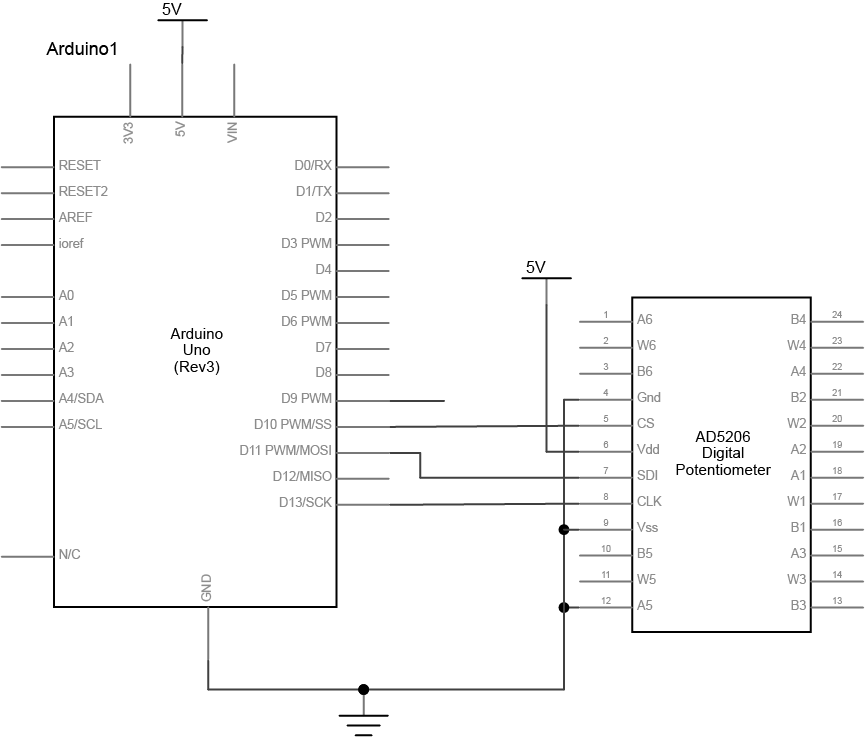
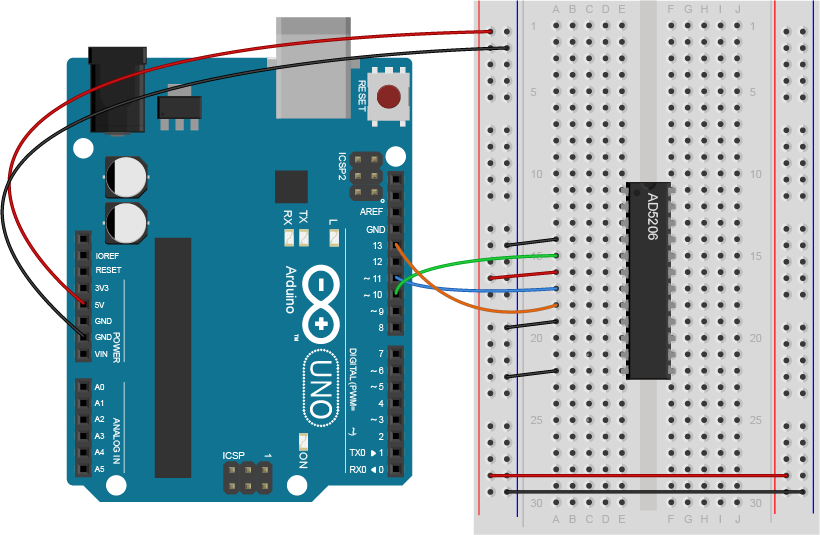
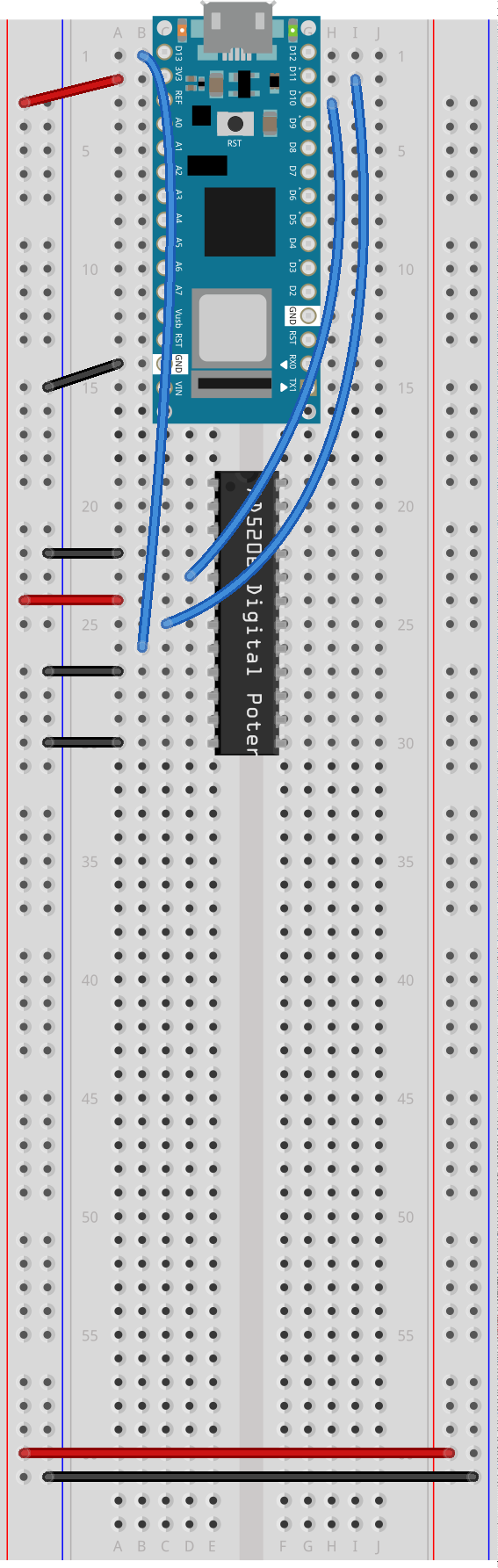
First, connect the digital potentiometer’s power and ground connections, and the connections for clock, chip select, and serial data in, as shown in Figure 8-10:

Schematic of an Arduino attached to a AD5206 Potentiometer. The Arduino's ground is attached the the potentiometer's A5, Vss, and Ground pins, numbered 12, 9, and 4, respectively. The Arduino's D10, D11, and D13 pins are attached to the potentiometer's CS, SDI, and CLK pins, which are numbered 5, 7, and 8, respectively. The potentiometer's Vdd pin, number 6, is connected to 5 volts.
Figure 8. Schematic of an Arduino attached to a AD5206 Potentiometer. The Arduino’s ground is attached the the potentiometer’s A5, Vss, and Ground pins, numbered 12, 9, and 4, respectively. The Arduino’s D10, D11, and D13 pins are attached to the potentiometer’s CS, SDI, and CLK pins, which are numbered 5, 7, and 8, respectively. The potentiometer’s Vdd pin, number 6, is connected to 5 volts. If using the Arduino Nano the potentiometer’s Vdd pin, number 6, should connect to 3.3 volts.
Schematic of an Arduino attached to a AD5206 Potentiometer. The Arduino's ground is attached the the potentiometer's A5, Vss, and Ground pins, numbered 12, 9, and 4, respectively. The Arduino's D10, D11, and D13 pins are attached to the potentiometer's CS, SDI, and CLK pins, which are numbered 5, 7, and 8, respectively. The potentiometer's Vdd pin, number 6, is connected to 5 volts.
Figure 9. Schematic of an Arduino attached to a AD5206 Potentiometer. The Arduino’s ground is attached the the potentiometer’s A5, Vss, and Ground pins, numbered 12, 9, and 4, respectively. The Arduino’s D10, D11, and D13 pins are attached to the potentiometer’s CS, SDI, and CLK pins, which are numbered 5, 7, and 8, respectively. The potentiometer’s Vdd pin, number 6, is connected to 5 volts.
Figure 10. Schematic of an Arduino attached to a AD5206 Potentiometer. The Arduino's ground is attached the the potentiometer's A5, Vss, and Ground pins, numbered 12, 9, and 4, respectively. The Arduino's D10, D11, and D13 pins are attached to the potentiometer's CS, SDI, and CLK pins, which are numbered 5, 7, and 8, respectively. The potentiometer's Vdd pin, number 6, is connected to 3.3 volts.
Figure 10. Schematic of an Arduino attached to a AD5206 Potentiometer.

Figure 10. Schematic of an Arduino attached to a AD5206 Potentiometer. The Arduino’s ground is attached the the potentiometer’s A5, Vss, and Ground pins, numbered 12, 9, and 4, respectively. The Arduino’s D10, D11, and D13 pins are attached to the potentiometer’s CS, SDI, and CLK pins, which are numbered 5, 7, and 8, respectively. The potentiometer’s Vdd pin, number 6, is connected to 3.3 volts.

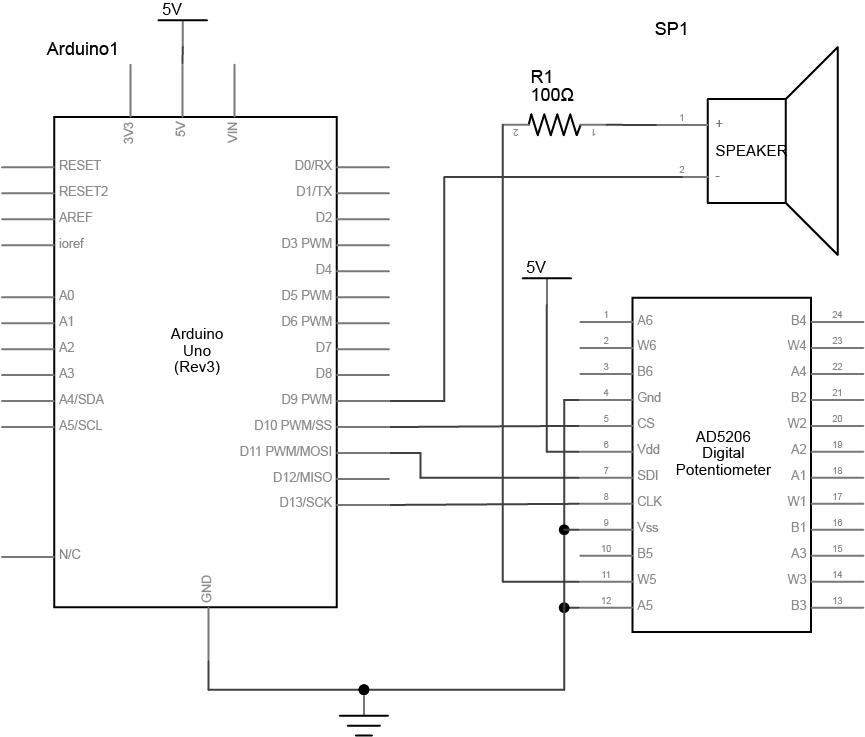
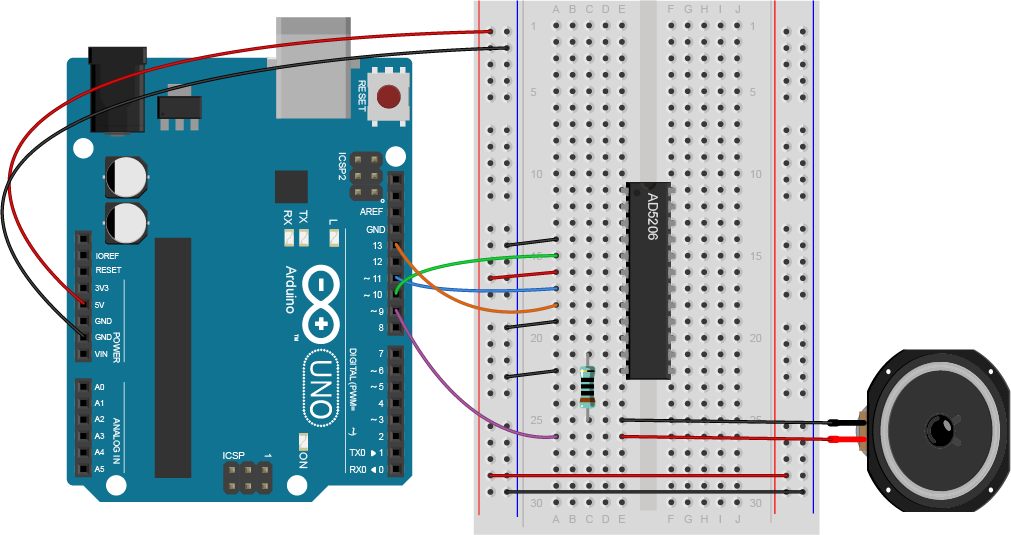
Next, add a speaker to the wiper of the fifth channel of the digital pot. Include a 100-ohm resistor in series with the speaker. Then connect the A5 pin to digital pin 9 of the Arduino, which you’ll use to generate a tone. You can use any channel of the digital pot if you want, but the code below uses the fifth channel.

Schematic of an Arduino attached to a AD5206 Potentiometer and a speaker. The Arduino's ground is attached the the potentiometer's A5, Vss, and Ground pins, numbered 12, 9, and 4, respectively. The Arduino's D10, D11, and D13 pins are attached to the potentiometer's CS, SDI, and CLK pins, which are numbered 5, 7, and 8, respectively. The potentiometer's Vdd pin, number 6, is connected to 5 volts. The Arduino's D9 pin is connected to the negative terminal of a speaker. The speaker's positive terminal is connected to a 100 Ohm resistor, which is connected to the potentiometer's W5 pin, number 11.
Figure 11. Schematic of an Arduino attached to a AD5206 Potentiometer and a speaker. The Arduino’s ground is attached the the potentiometer’s A5, Vss, and Ground pins, numbered 12, 9, and 4, respectively. The Arduino’s D10, D11, and D13 pins are attached to the potentiometer’s CS, SDI, and CLK pins, which are numbered 5, 7, and 8, respectively. The potentiometer’s Vdd pin, number 6, is connected to 5 volts. If using the Arduino Nano, the potentiometer’s Vdd pin, number 6, should connect to 3.3 volts. The Arduino’s D9 pin is connected to the negative terminal of a speaker. The speaker’s positive terminal is connected to a 100 Ohm resistor, which is connected to the potentiometer’s W5 pin, number 11.
Schematic of an Arduino attached to a AD5206 Potentiometer and a speaker. The Arduino's ground is attached the the potentiometer's A5, Vss, and Ground pins, numbered 12, 9, and 4, respectively. The Arduino's D10, D11, and D13 pins are attached to the potentiometer's CS, SDI, and CLK pins, which are numbered 5, 7, and 8, respectively. The potentiometer's Vdd pin, number 6, is connected to 5 volts. The Arduino's D9 pin is connected to the negative terminal of a speaker. The speaker's positive terminal is connected to a 100 Ohm resistor, which is connected to the potentiometer's W5 pin, number 11.
Figure 12. Schematic of an Arduino attached to a AD5206 Potentiometer and a speaker. The Arduino’s ground is attached the the potentiometer’s A5, Vss, and Ground pins, numbered 12, 9, and 4, respectively. The Arduino’s D10, D11, and D13 pins are attached to the potentiometer’s CS, SDI, and CLK pins, which are numbered 5, 7, and 8, respectively. The potentiometer’s Vdd pin, number 6, is connected to 5 volts. The Arduino’s D9 pin is connected to the negative terminal of a speaker. The speaker’s positive terminal is connected to a 100 Ohm resistor, which is connected to the potentiometer’s W5 pin, number 11.
Figure Schematic of an Arduino attached to a AD5206 Potentiometer and a speaker. The Arduino's ground is attached the the potentiometer's A5, Vss, and Ground pins, numbered 12, 9, and 4, respectively. The Arduino's D10, D11, and D13 pins are attached to the potentiometer's CS, SDI, and CLK pins, which are numbered 5, 7, and 8, respectively. The potentiometer's Vdd pin, number 6, is connected to 3.3 volts. The Arduino's D9 pin is connected to the negative terminal of a speaker. The speaker's positive terminal is connected to a 100 Ohm resistor, which is connected to the potentiometer's W5 pin, number 11.
Figure 13. Figure Schematic of an Arduino attached to a AD5206 Potentiometer and a speaker. 

Figure 13. Schematic of an Arduino attached to a AD5206 Potentiometer and a speaker. The Arduino’s ground is attached the the potentiometer’s A5, Vss, and Ground pins, numbered 12, 9, and 4, respectively. The Arduino’s D10, D11, and D13 pins are attached to the potentiometer’s CS, SDI, and CLK pins, which are numbered 5, 7, and 8, respectively. The potentiometer’s Vdd pin, number 6, is connected to 3.3 volts. The Arduino’s D9 pin is connected to the negative terminal of a speaker. The speaker’s positive terminal is connected to a 100 Ohm resistor, which is connected to the potentiometer’s W5 pin, number 11.


Program the Microcontroller

The AD5206 has a simple command protocol, detailed in the “Operation” section of the data sheet. You send two bytes: the channel number you wish to control, and the level for the channel. Setting a channel to 0 makes the resistance between the wiper and the B pin 0 ohms, and setting it to 255 makes the resistance between the wiper and B 10 kilohms. There’s one slightly confusing issue: the channels are addressed as numbers 0 through 5 in code, yet numbered 1 through 6 on the pin diagram. Just remember that the first channel is channel 0, the second channel is channel 1, and so forth (just like array elements in most programming languages).

You can find Arduino-compatible libraries for many SPI devices that use the SPI library, but never expose it directly in the API. Instead, these libraries will include device-specific commands that use the SPI library to transfer data. Because the AD5206’s protocol is so simple, however, you don’t need a device-specific library, you can just use the SPI library. It’s a good illustration of what’s going on inside of some of the more complex SPI libraries.

At the beginning of your code, include the SPI library and set up a pin number for the chip select pin. The other SPI pins are set by the microcontroller you’re using (see the Arduino SPI reference page for the pin numbers). Then in the setup function, call SPI.begin() to initialize communications:

// include the SPI library:
#include "SPI.h"
const int CSPin = 10;   // chip select pin number

void setup() {
  // initialize SPI:
  SPI.begin();
  // set the mode of CSPin
  pinMode(CSPin, OUTPUT);
}

In your main loop, first make a tone on pin 9.  Then make two for() loops to fade the loudness up and down. The actual work of controlling the digital potentiometer will be handled by a function you’ll write called digitalPotWrite():

void loop() {
tone(9, 440); // play a tone on pin 9

// fade the loudness up:
for (int loudness = 100; loudness <= 255; loudness++) {
digitalPotWrite(4, loudness);
delay(20);
}
delay(1000); // delay 1 second

// fade the loudness down:
for (int loudness = 255; loudness >= 100; loudness--) {
digitalPotWrite(4, loudness);
delay(20);
}

delay(1000); // delay 1 second
}

Finally, write the digitalPotWrite() function to control the digital potentiometer via SPI. Because SPI data can go both directions at the same time, i.e. from controller to peripheral and from peripheral to controller, there is a single command, SPI.transfer(), to transfer data instead of the read() and write() commands you’re used to from asynchronous serial communication. In order to put the digital pot in listening mode, you take its chip select pin low, then when you’re finished communicating with it, you take the pin high again:

void digitalPotWrite(int address, int value) {
  // take the SS pin low to select the chip:
  digitalWrite(CSPin, LOW);
  // send in the address and value via SPI: 
  SPI.transfer(address);
  SPI.transfer(value);
  // take the SS pin high to de-select the chip:
  digitalWrite(CSPin, HIGH);
}

Once you upload this code, you’re done!  You should hear the tone (middle A, 440Hz) fading in and out. You may have noticed that the for() loops fade from 100 to 255. The digital pot is changing the resistance across the wiper on the fifth potentiometer (aka channel 4) from approximately 3921 ohms (100/255 * 10k) to 10 kilohms. These are the levels that were determined from experiment to be the edges of audibility. But if your hearing is better, you may try adjusting the lower limit to see if you can hear it at a lower level.

Conclusion

This is a very simple use of SPI. Data only goes from controller peripheral in this example, and only two bytes are transferred. However, it gives you an indication of how the process works. Each SPI-based device will have its own command protocol, and data will be transferred from controller to peripheral (and vice versa) using the SPI transfer command.  To open communications with a given SPI device, you take its chip select pin low, and to close communications, you take the chip select pin low again. This same procedure will work on all SPI devices once you know the command protocol.  Keep in mind that most device-specific libraries will handle the SPI communication for you without you having to see it, just like the digitalPotWrite() command does in this example.

For another example of SPI in action with the AD5206, see the digital pot example on the Arduino site. There’s also an example with a barometric pressure sensor. The SD card library, which allows you to communicate with SD cards, uses the SPI library as well, and is used in the Data Logging with an SD card lab.

Synchronous Serial Communication: The Basics

Introduction

Related Video: Intro to Synchronous Serial

Asynchronous serial communication, which you can see in action in the Serial Output lab, is a common way for two computers to communicate. Both computers must have their own clock, and keep time independently of each other. This works well for personal computers, mobile devices, and microcontrollers because they all have their own clock crystal that acts as the processor’s heartbeat. However, there are simpler integrated circuits that have only one function, such as to read a sensor or to control a digital potentiometer or an oscillator to drive a PWM circuit. These ICs have no clock crystal of their own. They consist of a few memory registers and the minimal circuitry needed to connect these memory registers to the circuit that they control. To communicate with these ICs, you need to use synchronous serial communication.

To get the most out of these notes, you should know what a microcontroller is and have an understanding of the basics of microcontroller programming. You should also understand the Asynchronous Serial Communication: The Basics as well.

Synchronous serial communication protocols feature a controller device which sends a clock pulse to one or more peripheral devices. The devices exchange a bit of data every time the clock changes. There are two common forms of synchronous serial, Inter-Integrated Circuit, or I2C (sometimes also called Two-Wire Interface, or TWI), and Serial Peripheral Interface, or SPI.

Synchronous serial devices communicate by shifting bits of data along their communication lines, like a bucket brigade. Data moved down the line one bit every time the clock pulses. All the devices in a synchronous serial chain share the same data and clock lines. Peripheral devices are directed by the controller device when to listen to the bits coming down the line, and when to ignore them. However, the two most common synchronous serial protocols, SPI and I2C, use different methods for directing the peripheral devices.

Serial Peripheral Interface (SPI)

Related video: SPI

Related Lab: SPI Communication With A Digital Potentiometer

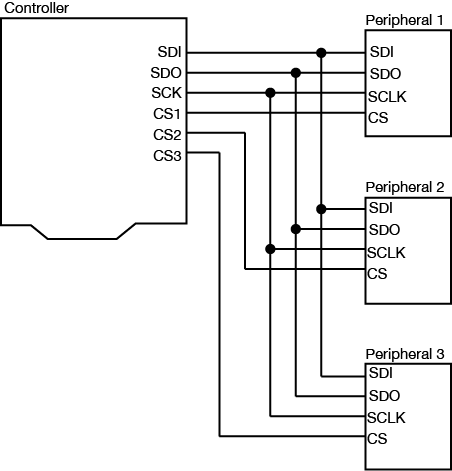
SPI devices are connected by four wires, as shown in Figure 1:

  • a Serial Data In (SDI), on which the controller sends data to the peripheral devices.
  • a Serial Data Out (SDO), on which the peripheral devices send data to the controller.
  • a Clock  (SCLK) connection, on which the controller sends a regular clock signal to the peripheral devices.
  • one or more Chip Select (CS)  connections, which the controller uses to signal the peripheral devices when to listen to incoming data and when to ignore it.

A Note on Pin Naming

The electronics industry has used the terms “master/slave” to refer to controller devices and peripheral devices for decades without regard for the historical context of, and offense caused by, those terms. As a result, you will see the terms MOSI/MISO/SS  in data sheets to refer to the pins of an SPI device.  While a modern standard naming scheme has not yet emerged to replace these, the Open Source Hardware Association has a proposal on the table. Make Magazine proposes retaining the acronym while renaming the terms. The SDO, SDI and CS terms are currently used by a handful of companies within the industry, but have some ambiguity when used in practice. Hence, the PICO/POCI proposal. The debate is not resolved, and you will likely see some variations on the terms. The SDO, SDI, and SCK terms are the most widely accepted terms that do not carry historical baggage.

The SDI, SDO, and SCLK connections are shared between all the devices connected to the controller. This configuration is called a bus. Each peripheral has its own dedicated Chip Select connection to the controller, however.

Diagram of SPI synchronous serial communication between a microcontroller and three peripheral devices. There are three lines which connect the microcontroller to all three peripherals. They are labeled SDI (serial data in to controller), SDO (serial data out from controller), and SCLK. There are an additional three lines, each going directly from the microcontroller to each peripheral, labeled CS1 (chip select 1), CS2, and CS3.

Figure 1. A typical SPI bus configuration. The Controller’s output (SDO) is the peripherals’ input (SDI) and vice versa. Each peripheral gets its own Chip Select line. All other lines are shared.

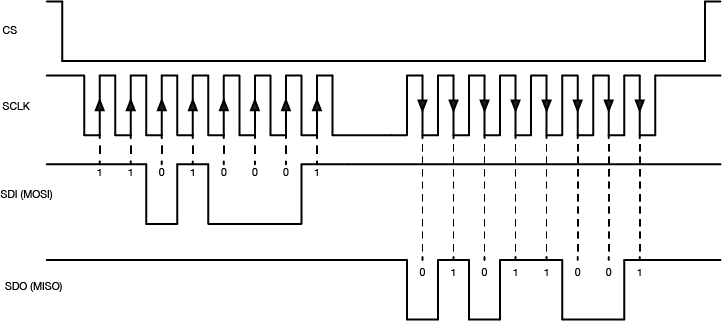
When the controller device wants to communicate with one of the peripherals, it sets that device’s Chip Select pin low. The peripheral will then listen for new bits of data on the microcontroller’s Serial Data Out (SDO) line every time the clock changes from low to high (called the rising edge of the clock). If it is instructed to send any data back, it will send data back to the controller when the clock signal changes from high to low (called the falling edge of the clock). When a peripheral device’s Chip Select pin is high, it will not respond to any commands sent on the data line.

The data exchange between SPI devices is usually shown like this (Figure 2):

This diagram shows a graph of the changes in the SDI, SDO, and SCK lines between a microcontroller and its peripheral during SPI synchronous serial communication. It shows that data is written out from the microcontroller to the peripheral when the clock line changes from low to high. data is read in from the peripheral when the clock line changes from high to low.
Figure 2. Timing diagram for SPI serial communication

The Arduino’s SPI pins are determined by the processor. You can find the pins for the various models on the SPI library reference page. For the Arduino Uno, the pin numbers are pin 11 for SDO, pin 12 for SDI, and pin 13 for Clock (SCK). Pin 10 is the default Chip Select pin (SS), but you can use other pins for Chip Select as needed. The Arduino SPI library allows you to control the SPI bus. Most SPI devices that are compatible with Arduino come with their own libraries, however, which wrap the SPI library in commands specific to the device in question.

For example, the Analog Devices ADXL345 accelerometer can communicate via SPI. Its protocol works as follows: first the controller sets the ADXL345’s Chip Select (CS) pin low, then sends a command to the ADXL345 on the SDI line to enter measurement mode. The ADXL345 then continually samples the accelerometer and stores the latest readings in three memory registers. When the controller wants to know those values, it sets the Chip Select (CS) pin low and sends a request to read those memory registers. The ADXL345 responds by sending back the contents of the memory registers on the SDO line. When all the data has been received, the controller sets the Chip Select pin high again.

The advantage of SPI is that the data transactions are simple: all you need to do is to send the data to the device you’re communicating with. The disadvantage is that the number of wires needed to connect goes up by one for every peripheral device you add to the bus.

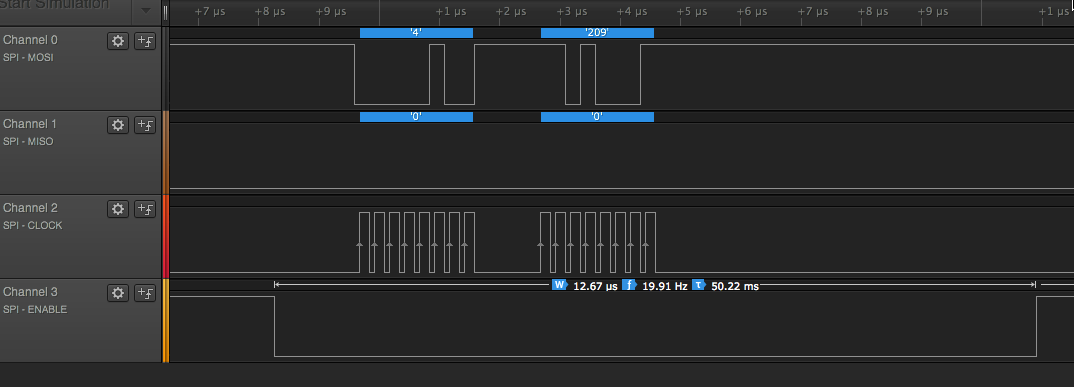
Screenshot of data capture from a microcontroller communicating with an Analog Devices digital Potentiometer over SPI. The image shows the change in voltage over time of the SPI connections between a microcontroller and the peripheral device. The potentiometer sends no data, but the controller sends two bytes over the MOSI line.
Figure 3. Data capture from a microcontroller communicating with an Analog Devices digital Potentiometer over SPI. The potentiometer sends no data, but the controller sends two bytes over the SDO line.

Inter-Integrated Circuit (I2C) or Two-Wire Interface (TWI)

Related video: I2C

Related Lab: I2C Communication With An Infrared Temperature Sensor

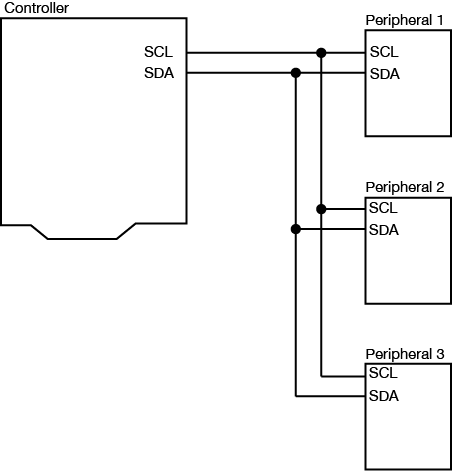
I2C is another popular synchronous serial protocol. It also uses a bus configuration like SPI, but there are only two connections between the controller device and the peripheral devices as shown in Figure 4:

  • a Serial Clock (SCL) connection, on which the controller sends the clock signal, just as in SPI
  • a Serial Data (SDA) connection, on which the controller and peripherals exchange data in both directions.
Diagram of I2C synchronous serial communication. There are two wires connecting the microcontroller and the three peripheral devices, labeled SDA (serial data) and SCL (serial clock). The same two lines connect all three peripheral devices.
Figure 4. Diagram of I2C synchronous serial communication.

Each I2C peripheral device has a unique address on the bus. When the controller wants to communicate with a particular peripheral, it sends that peripheral’s address down the SDA connection, transferring each bit on the rising edge of the clock. An extra bit indicates whether the controller wants to write or read to the peripheral that it’s addressing. The appropriate peripheral then goes into listening mode, and the controller sends a command to the peripheral. Then the controller switches its connection to the SDA line from output to input. The peripheral then replies with the appropriate data, sending each bit on the falling edge of the clock. The controller switches its connection on the SDA line back to output once it’s received all of the data.

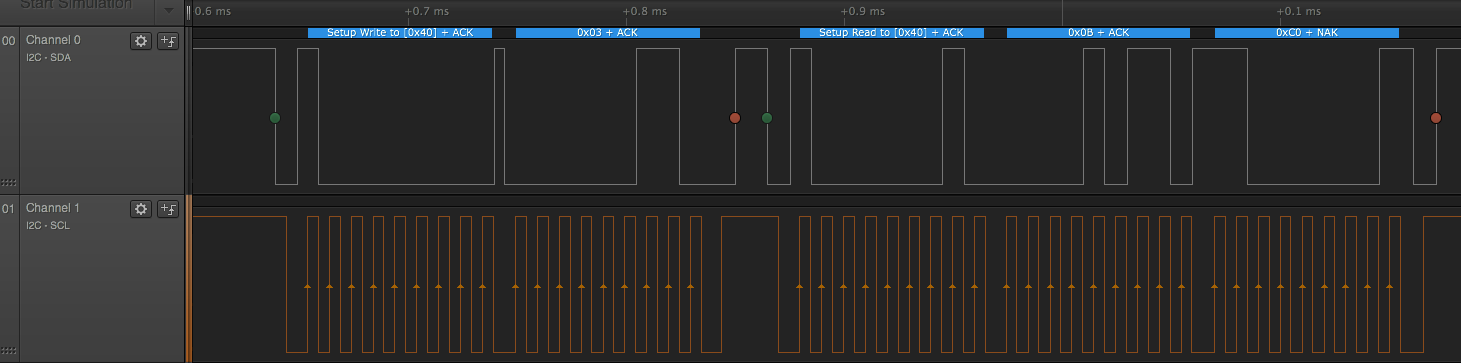
The I2C data capture in Figure 5 is typical (click to enlarge it). This is from a Texas Instruments TMP007 temperature sensor. The peripheral’s address is 0x40. First the controller sends a byte with 0x40 + 0 in the final bit, indicating that it plans to write a command to the peripheral. All of this data is sent valid on the rising edge of the clock. Then the controller sends a command, 0x03, which means “tell me your object’s temperature” to this particular IC. Then the controller sends a byte with the peripheral’s address again, 0x40 +1 in the final bit, indicating that it wants to read from the peripheral. The peripheral responds with two bytes, 0x0B and 0xC0. The controller then puts those two bytes together to get the object’s temperature (see the TMP007 datasheet if you want to know more)

Data capture from a microcontroller communicating with an TMP007 temperature sensor using I2C communication. The image shows the change in voltage over time of the SPI connections between a microcontroller and the peripheral device. The direction of data transfer is not discernable from the electrical signals alone, so you have to rely on the value of the bytes they represent to know what is going on.
Figure 5. Data capture from a microcontroller communicating with an TMP007 temperature sensor using I2C communication. he advantage of I2C is that you really only need two wires to connect all the I2C devices you want to your controller. The disadvantage is that you have to send an address before you send any command.

The Arduino’s I2C pins are determined by the processor. You can find the pins for the various models on the Wire library reference page. The Arduino Wire library allows you to control the I2C bus. For the Arduino Uno, the pin numbers are analog pin 4 for SDA and analog pin 5 for SCL. On the Uno rev.3 layout, SDA and SCL are also broken out on the digital side of the board, next to the ground pin.  Most I2C devices that are compatible with Arduino come with their own libraries which wrap the Wire library in commands specific to the device in question. For example, Adafruit‘s library for the TMP007 relies on the Wire library to transmit and receive data.

I2C Control of Multiple Microcontrollers

You can also use I2C as a way to control many microcontrollers from one central controller. For example, if you needed to operate a large number of servomotors, you could put five or six each on a single Arduino, then chain several Arduinos together in an I2C chain and program them all to respond as peripherals. Then you would program a central microcontroller as the controller, and have it send commands to the peripheral devices when it’s time to move each device’s servos. You can see an example of how to do this in this example from the Arduino site.

What are Qwiic/Stemma/Grove/Gravity?

In addition to the standard I2C connections, Sparkfun and Adafruit use a connector called Qwiic which connects the I2C and power connectors all in one cable, eliminating the need for soldering. It’s a Sparkfun brand name. However, you’ll need a Qwiic adapter shield to use it. Adafruit have a similar brand called Stemma, Seedstudio uses Grove, and DFRobot uses Gravity. They all support I2C, and they all have custom solderless connectors, though they are not all compatible with each other Qwiic, Stemma, and Arduino’s Modulino connectors work pretty well together, though. For an example of Qwiic connectors in action, see this lab introducing the Nano Qwiic shield.

Conclusion

SPI and I2C are useful protocols because they allow you to interface with a wide variety of sensor and actuator ICs without having to use many of your microcontroller’s IO pins. Because they are both bus protocols, you can chain many devices on the same bus, and call on them only when needed from your microcontroller. For more on their usage, see the Lab: SPI Communication With A Digital Potentiometer and the Lab: I2C Communication With An Infrared Temperature Sensor.