Lab: Controlling a Stepper Motor With a Step and Direction Driver

Introduction

In the stepper motor and H-bridge lab, you learned how to control a stepper motor with a dual H-bridge driver, specifically the TB6612FNG. This is not the only driver for controlling a stepper. Step & direction stepper drivers offer a simpler approach, from the microcontroller side. They have just two control pins, one for step and one for direction. They also feature configuration pins that let you set the step pin to move the motor a full step, a half step, or less. This is called microstepping, and you can find stepper drivers that will work as low as 1/256th of a step. This allows finer control over the stepper motor. In this lab you’ll learn how to use a step & direction controller to control a stepper motor.

What You’ll Need to Know

To get the most out of this lab, you should be familiar with the following concepts. You can check how to do so in the links below:

Things You’ll Need

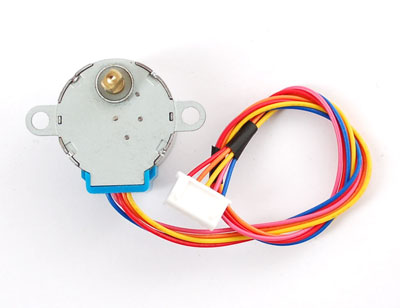
The motor shown in the images here is a 5V Small Reduction Stepper Motor, 32-Step, with 1:16 Gearing. This motor is a useful starter motor for steppers because it can run on the current and voltage supplied by your Arduino without an external power supply. The driver is a STMicro STSPIN220 on a Pololu breakout board. There are a number of other step & direction motor drivers available if the STSPIN220 doesn’t meet your needs. Control for all of them will be similar to what you see below. In fact, Pololu makes a number of carrier boards for different step & direction drivers, all with the same pin layout. The principles in this lab, and the library used, will work with other stepper motors and step & direction drivers as well, though you will have to make some modifications depending in which parts you are using.

Good Safety Practice

When you’re working with motors, you’re often dealing with high voltage, high current, or both. You should be extra careful never to make changes to your circuit while it is powered. If you need to make changes, unplug the power, make your changes, inspect your changes to be sure they are right, and then reconnect power.

It’s also a good idea to disconnect your motor from your circuit before uploading new code to your microcontroller. Often the current draw of the motor will cause the microcontroller to reset, and cause uploading problems. To avoid this, disconnect your motor before uploading, and reconnect it after uploading.

Because motors consume a lot of current when they start up, it’s common to add a decoupling capacitor of 10-100 µF near the voltage input to your driver and/or microcontroller. You’ll see this in the figures below. It will smooth out any voltage changes that occur as a result of the motor’s changing current consumption.

Prepare the breadboard

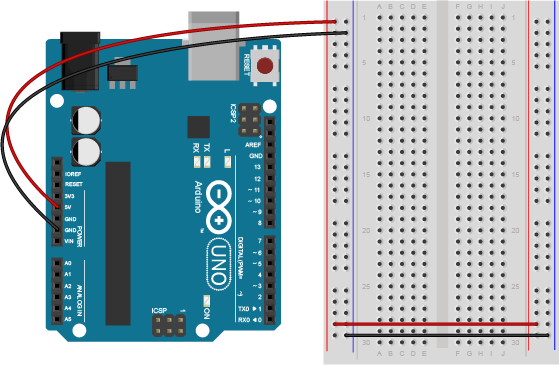
Connect power and ground on the breadboard to power and ground from the microcontroller. On the Arduino module, use the 5V or 3.3V (depending on your model) and any of the ground connections, as shown in Figures 9 and 10.

An Arduino Uno on the left connected to a solderless breadboard, right.
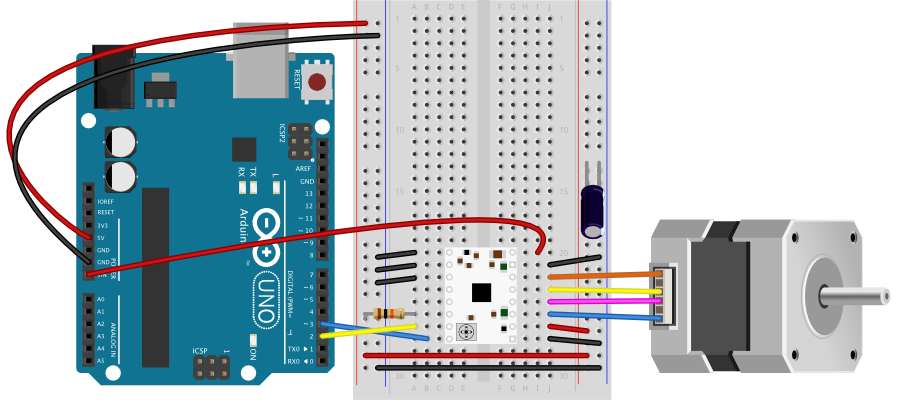
Figure 9. Breadboard drawing of an Arduino Uno on the left connected to a solderless breadboard on the right

Figure 9 shows an Arduino Uno on the left connected to a solderless breadboard, right. The Uno’s 5V output hole is connected to the red column of holes on the far left side of the breadboard. The Uno’s ground hole is connected to the blue column on the left of the board. The red and blue columns on the left of the breadboard are connected to the red and blue columns on the right side of the breadboard with red and black wires, respectively. These columns on the side of a breadboard are commonly called the buses. The red line is the voltage bus, and the black or blue line is the ground bus.


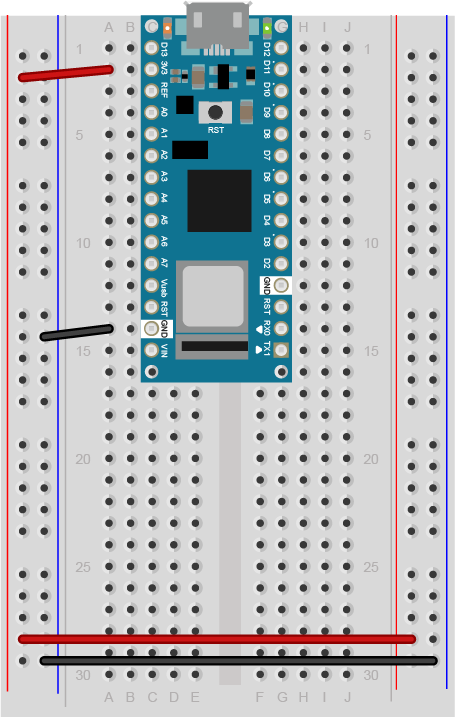
Arduino Nano on a breadboard.
Figure 10. Breadboard view of an Arduino Nano mounted on a solderless breadboard.

Made with Fritzing

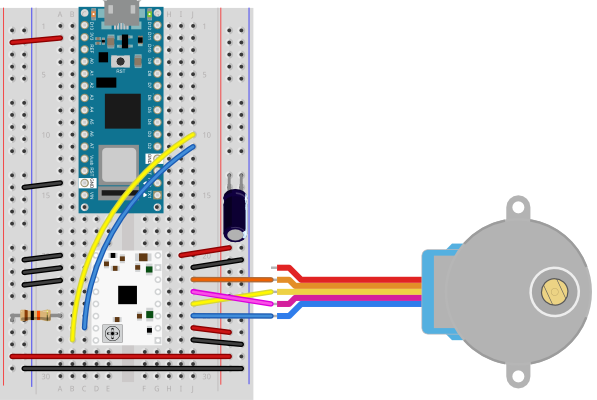
As shown in Figure 10, the Nano is mounted at the top of the breadboard, straddling the center divide, with its USB connector facing up. The top pins of the Nano are in row 1 of the breadboard.

The Nano, like all Dual-Inline Package (DIP) modules, has its physical pins numbered in a U shape, from top left to bottom left, to bottom right to top right. The Nano’s 3.3V pin (physical pin 2) is connected to the left side red column of the breadboard. The Nano’s GND pin (physical pin 14) is connected to the left side black column. These columns on the side of a breadboard are commonly called the buses. The red line is the voltage bus, and the black or blue line is the ground bus. The blue columns (ground buses) are connected together at the bottom of the breadboard with a black wire. The red columns (voltage buses) are connected together at the bottom of the breadboard with a red wire.

How the Stepper Motor Works

A stepper motor is basically two motor coils in one motor, which allows you to turn the motor in steps. For more on this, see this stepper motor page.

The motor shown in this lab, a 5V Small Reduction Stepper Motor, 32-Step, with 1:16 Gearing, is typical of a class of stepper motors you can find using the designation 28BYJ-48. They come in a few varieties. There are 5V and 12V models, and there are versions like the one shown here, that have a gearbox on the top to increase their torque and increase the number of steps per revolution. The un-geared models have as few as 32 steps per revolution. This model has 32 steps per revolution and a 1/16 reduction gear box, giving it 32 * 16, or 512 steps per revolution. You can find models with an even higher reduction as well.

A stepper motor like this one has two coils to control it as shown in Figure 11. Each coil has a center connection as well, and the center connections are joined together, which is what makes this a unipolar stepper. If you don’t connect the center connection, then the motor will work like a bipolar stepper, each coil operating independently. This is how you’ll use it for this exercise. Each coil will connect to one control channel of the motor driver. The pink and orange wires are connected to the first coil. They will connect to one channel of the motor driver, while the yellow and blue wires are the other coil, and will connect to the other channel of the bridge (channel B). In this case, the red wire, pin 1, will not be used.

Schematic drawing of a stepper motor. A circle represents the motor, and two coils to the left and bottom of the circle represent the coils. The ends of the left coil are labeled pink and orange. The ends of the bottom coil are labeled yellow and blue. The middles of both coils are connected together, and labeled red. The red connection will not be used in this example.
Figure 11. Schematic drawing of a stepper motor.

A bipolar stepper motor typically omit the red wire and just have two independent coils. A bipolar model like this 3.9V NEMA-8 stepper from Pololu would also work with this lab.

Check the Motor Coils’ Resistance

The wiring pattern in Figure 11 is typical, for the 28BYJ-48 motors. Nonetheless, it’s a good idea to check the wiring by measuring the coil resistance. The motor shown here has a coil resistance (impedance) of about 42 ohms. For a bipolar motor, each pair of coils (e.g. blue and yellow, orange and pink) would give you the motor’s rated coil resistance. Since this is a unipolar motor, you should read approximately 22-24 ohms across red and each of the other wires, and about 42-45 ohms across each pair (blue-yellow and orange-pink).

The sequence of the wires on the motor’s connector may vary from one manufacturer to another, so it’s a good idea to measure the resistance, then write down the pin order for reference later on.

How The Motor Driver Works

The STSPIN220 can handle a motor  supply voltage from 1.8 to 10V, and  it operates on a logic voltage of 3.3–5V. It can control an output current of 1.1A per coil.

The motor driver has the following pins. The pin numbers shown here are for the Pololu breakout board. The pins are numbered here in a DIP fashion, in a U-shape from top left to bottom left, then bottom right to top right. The list below describes the pins in numeric order.

  1. Enable – enables the driver when you take it LOW  and disables it when you take it HIGH. The breakout board pulls this pin LOW by default, so if you don’t connect it, your motor should work fine.
  2. Mode 1 -Configuration pin for microstepping
  3. Mode 2 – Configuration pin for microstepping
  4. 1 – not connected by default
  5. 2 – not connected by default
  6. Standby – Puts the the driver in a low-power standby mode and disables the motor when you take it LOW.
  7. Step/Mode 3 -When you pulse this pin HIGH then LOW, the motor moves forward one step. Also functions as a configuration pin for microstepping.
  8. Dir/Mode 4 – When you pulse this pin HIGH, the motor in one direction when you pulse the step pin. When you take it LOW, it moves in the other. Also functions as a configuration pin for microstepping.
  9. Ground – ground
  10. Vcc – Logic voltage. Connect this to the Vcc of your microcontroller, for example 5V for an Uno or 3.3V for a Nano 33 IoT
  11. A1 – Motor output coil 1
  12. A2 – Motor output coil 1
  13. B2 – Motor output coil 2
  14. B1 – Motor output coil 2
  15. Ground – ground
  16. VMOT – motor voltage supply input, 1.8-10V.

Connect the Motor Driver and Set the Current Limit

Many step and direction drivers like the STSPIN220 have an adjustable current limit built into the driver. This lets you set the maximum output current to match the current your motor needs. Pololu has a video explaining this process. This is important, because if you don’t set the current limit correctly, you risk damaging the driver and the motor. The details follow here. You have to know your motor’s desired current, then you use a formula to work out the value of a current limiting resistor for the driver.

If you have the motor’s current from the datasheet (110mA for the motor listed above), then you’re all set. If you don’t, you can calculate it from the motor’s voltage and the resistance of its coils. First, measure the resistance of one coil, as explained in the stepper motor lesson. Remember that current, voltage, and resistance are all related using the formula

Voltage = Current * Resistance

For example, if your motor’s coil resistance reads 45.4 ohms, and it runs on 5 volts, then the current = 5 / 45.4, or about 110 mA.

To prepare for this, connect the STSPIN220 board as shown in Figures 12 and 13. Do not connect a motor yet. You’re powering the board up just so you can set the current limit.

The board is mounted straddling the center row of a breadboard, and the following pins on the STSPIN220 are connected:

  • Pin 1, Enable – connected to the ground bus on the left side of the breadboard
  • Pin 9, Ground – connected to the ground bus on the right side of the breadboard
  • Pin 10, Vcc – Logic voltage. Connected to the voltage bus on the right side of the breadboard
  • Pin 15, Ground – connected to the ground bus on the right side of the breadboard
  • Pin 16, VMOT – Connected to the voltage bus on the right side of the breadboard. If you were using an external power supply for a higher voltage stepper motor, you would connect this to the positive terminal of the external supply.
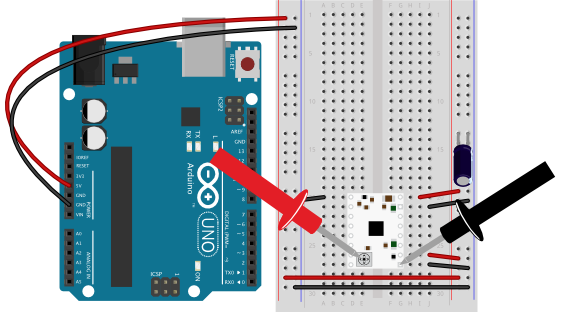
Breadboard view of an SDSPIN220 stepper motor driver on a breadboard, powered by 5V from an Arduino Uno.
Figure 12. Breadboard view of an SDSPIN220 stepper motor driver on a breadboard, powered by 5V from an Arduino Uno. Multimeter leads are touching the trimmer pot of the STSPIN220 and the ground pin, to read the current limiting voltage.
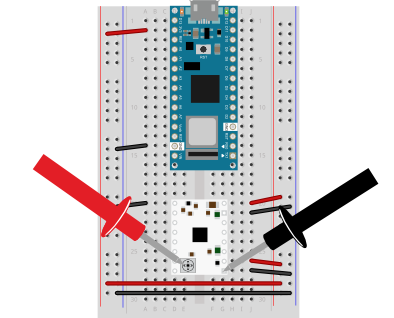
Breadboard view of an SDSPIN220 stepper motor driver on a breadboard, powered by 3.3V from an Arduino Nano 33 IoT.
Figure 13. Breadboard view of an SDSPIN220 stepper motor driver on a breadboard, powered by 3.3V from an Arduino Nano 33 IoT. Multimeter leads are touching the trimmer pot of the STSPIN220 and the ground pin, to read the current limiting voltage.

Pololu makes its step & direction driver boards with a built-in trimmer potentiometer to act as a current limiting resistor. It’s usually at the bottom of the board. Calculating the value of this resistor is explained in detail in section 6 of the STSPIN220 data sheet. Pololu have summarized it in a formula below.

To set the current limit, you power up the driver without a motor attached and measure the voltage between this trimmer pot and ground. Then you turn the trimmer pot until you read the reference voltage for the current limit, or VREF. In Figures 12 and 13 there are multimeter probes shown, used to measure voltage. The red probe (positive) is touching the trimmer pot on the STSPIN220 and the black probe (negative) is touching pin 9, the ground pin. Set your multimeter to read voltage in the range of your Vcc (3.3 to 5V), then touch the leads to the trimmer pot and to ground as shown in figures 12 and 13. You should get a voltage between zero and Vcc. Then turn the pot with a small screwdriver until you read your desired VREF.

For the STSPIN220, the current limit formula is as follows:

Current= VRef * 5

Rearranging that to get the voltage on the trimmer pot:

VRef = Current / 5

So, if your desired current is 110 mA, or 0.11 A, then VREF = 0.11 / 5, or 0.022V. Turn your pot until the voltage reads that value (or whatever you calculated it to be for your motor) and you’re ready to go. The trimmer pot is small and difficult to turn, so try to get in the general range of your VREF. You probably won’t get it exactly. If you find the motor or the driver is excessively hot while running (if you can’t touch it comfortably) then you should re-adjust the trimmer pot to get closer to your proper VREF.

You can now disconnect from your power supply, add the motor, and reconnect to program the microcontroller.

Connect the Motor

This motor nominally runs on 5 volts. It will run as low as 3.3 volts if you give it enough current (about 110 mA). It can run on the current supplied to an Uno or Nano 33 IoT’s USB connection. Ideally, though, you should run it from an external power supply, as described later in the lab.

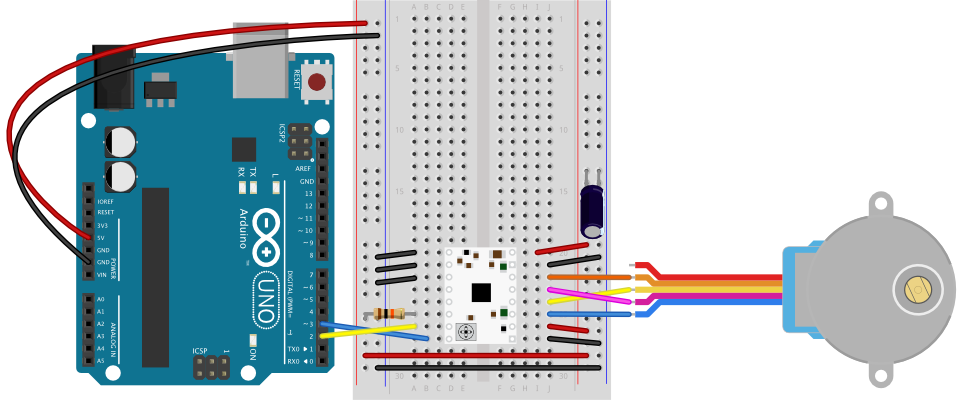
To finish your stepper motor circuit, connect the motor according to Figures 14 through 16.

Table 1 below describes the pin connections for the circuit. The STSPIN220 is still connected to the breadboard as shown previously in figures 12 and 13, but now the motor’s coils are connected to pins 11 – 14 of the motor driver and the driver’s step and direction pins (pins 7 and 8 respectively) are connected to digital output pins 2 and 3 of the Arduino, respectively. The two mode pins (pins 2 and 3) are connected to ground, and the standby pin (pin 6) is connected to Vcc through a 10-kilohm resistor.

Motor Driver Physical pin numberPin functionCircuit Connection
1EnableGround
2Mode 1Ground
3Mode 2Ground
41not connected
52not connected
6Standby10-kilohm resistor to Vcc
7StepArduino digital pin 2
8DirectionArduino digital pin 3
9GroundGround
10VccArduino Vcc (3.3 or 5V)
11A1Motor coil 1
12A2Motor coil 1
13B2Motor coil 2
14B1Motor coil 2
15GroundGround
16VMOTArduino Vcc if using USB power. Arduino Vin if using an external power supply.
Table 1. STSPIN220 connections to Arduino circuit
Schematic drawing of a stepper motor and STSPIN220 motor driver connected to an Arduino. The connections are described in the body of this page.
Figure 14. Schematic diagram of an STSPIN220 stepper motor driver and stepper motor connected to an Arduino.
Breadboard drawing of a stepper motor and STSPIN220 motor driver connected to an Arduino Uno. The connections are described in the body of this page.
Figure 15. Breadboard diagram of an STSPIN220 stepper motor driver and stepper motor connected to an Arduino Uno.
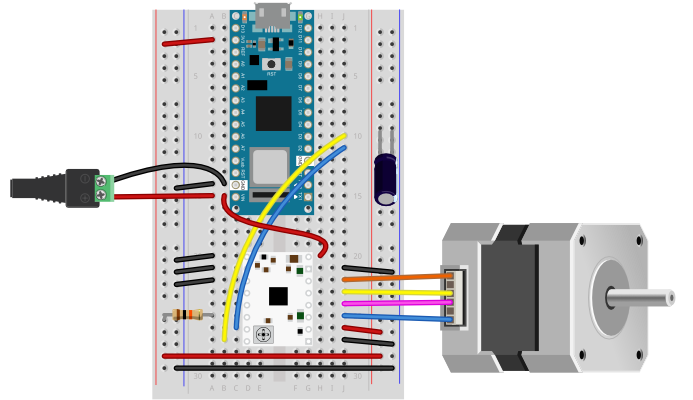
Breadboard drawing of a stepper motor and STSPIN220 motor driver connected to an Arduino Nano 33 IoT. The connections are described in the body of this page.
Figure 16. Breadboard diagram of an STSPIN220 stepper motor driver and stepper motor connected to an Arduino Nano 33 IoT.

Made with Fritzing

Once you have the motor and the driver connected, you’re ready to program the microcontroller.

Program the microcontroller

You don’t need a library for a step and direction controller, though there are several out there, to do things like ramp the speed up and down, ease in and out, and so forth. All you need to do to move the motor is to set the direction pin, and to pulse the motor high then return to low. A 3-millisecond pulse will do the job reliably. If you need more speed, you can try reducing this down to 2 or even 1ms, once you know the motor’s working properly.

Regardless of what motor driver you are using, the first thing you should do after wiring up a stepper motor is to write two test programs, one to test if it’s stepping, and one to test if it can rotate one revolution in both directions.

For your first program, it’s a good idea to run the stepper one step at a time, to see that all the wires are connected correctly. If they are, the stepper will step one step forward at a time, every half second, using the code below.

const int stepPin = 2;
const int dirPin = 3;

void setup() {
  pinMode(stepPin, OUTPUT);
  pinMode(dirPin, OUTPUT);
}

void loop() {
  // motor  direction: 
  digitalWrite(dirPin, HIGH);
  // step the motor one step:
  digitalWrite(stepPin, HIGH);
  delay(3);
  digitalWrite(stepPin, LOW);
  // wait half a second:
  delay(500);
}

Once you’ve got that working, try making the stepper move one whole revolution at a time using the code below:

const int stepPin = 2;
const int dirPin = 3;
const int stepsPerRevolution = 512;
bool direction = HIGH;

void setup() {
  pinMode(stepPin, OUTPUT);
  pinMode(dirPin, OUTPUT);
}

void loop() {
  // motor  direction:
  digitalWrite(dirPin, direction);
  // move one revolution :
  for (int step = 0; step < stepsPerRevolution; step++) {
    // step the motor one step:
    digitalWrite(stepPin, HIGH);
    delay(3);
    digitalWrite(stepPin, LOW);
    delay(1);
  }
  // wait half a second:
  delay(500);
  // change direction:
    direction = !direction;
}

When you run this code, you should see the motor turn one revolution, wait half a second, then turn one revolution in the other direction.

My motor’s only going one direction!

If you find that the motor only turns in one direction, you probably have the pin connections wrong. It could be that you got the order wrong. Try rearranging the order of the pins. Disconnect power each time you try changing your connections. First, try swapping the two pins on each coil (e.g. blue and yellow, pink and orange) and run it again. If that fails, swap one wire from one coil for one wire from the other coil. Keep trying variations until your motor goes around in one direction, then goes around in the opposite direction.

Unipolar Stepper Control

The steps above showed you how to control your motor as a bipolar stepper, but the motor shown is actually a unipolar motor. Remember the red wire you didn’t connect? That wire connects the two coils and can act as a common power source or ground wire. To use the motor as a unipolar motor, try connecting that wire (wire 1) of the motor to the Vin power supply from the DC power jack. You should see that there’s not a lot of difference.

Attach Something to the Stepper

If you want to mount an arm or pointer to the stepper motor, you need to make a hole for the pointer that fits the shaft perfectly. You could measure this with a caliper. There are also collars and shaft couplers that you can buy for various stepper motors that will allow you to attach things to your stepper. ServoCity has a number of examples, as does Pololu. To pick a good shaft adapter, you need to know what you’re going to do with the stepper, and what the size and shape of the shaft is.

Using an External Power Supply

Although the example shown above used a motor that can run on the voltage and current supplied to the Arduino via USB, this is not the norm for stepper motors. Most of the time you need to use an external power supply. You should match your supply to your motor. Keep in mind that if you have, say, a 12-Volt power supply and a 5-volt motor, you can add a 5-volt voltage regulator, as shown in the breadboard lab. Figures 17 through 19 show a few different options for powering different stepper motors.

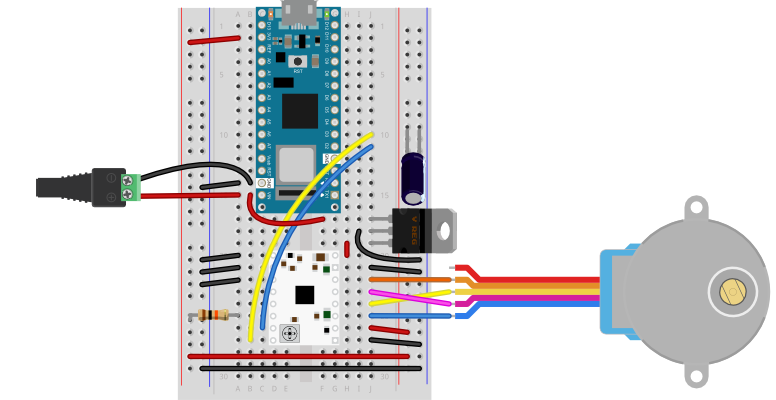
Figures 17 and 18 show how you might power a 9V stepper motor from an Uno or Nano, respectively. Figures 17 and 18 show a NEMA-17 stepper motor. Figure 19 shows how you could power a 5V stepper from a Nano, using a 9-12V DC power supply for the Nano and a 5V voltage regulator for the motor and motor driver.

The STSPIN220 can run motors from 1.8-10V. If you need to run a motor at a voltage greater than 10V, there are several other step and direction motor drivers that can do the job. For example, the A4988 is similar to the STSPI220, but has a motor voltage range of 8-35V. Many of them come with the same or similar pin arrangements as well. For a comparison, see the Step & Direction Drivers compared table in the Controlling Stepper Motors page of this site.

It’s worth noting that when the Nano 33 IoT is powered from its Vin pin, the USB connection no longer powers the Nano. Instead, the Vin powers the Nano. You can still get 3.3V from the 3.3V out pin (pin 2), however.

The exact voltage and amperage requirements for a stepper motor circuit will depend on the motor you are using. These images show a few options that can work, but you should adapt them depending on the particular electrical characteristics of your motor.

Breadboard view of an STSPIN220 running a 9V stepper motor from an Arduino Uno.
Figure 17. Breadboard view of an STSPIN220 running a 9V NEMA-style stepper motor from an Arduino Uno. The circuit is similar to Figure 15 above, but in this image the STSPIN220’s VMOT pin (pin 16) is connected to the Uno’s Vin pin. The whole circuit would be powered by a 9V DC power supply connected to the Uno’s power jack.
Breadboard view of an STSPIN220 running a 9V stepper motor from an Arduino Nano 33 IoT.
Figure 18. Breadboard view of an STSPIN220 running a 9V NEMA-style stepper motor from an Arduino Nano 33 IoT. The circuit is similar to Figure 16 above, but in this image an external power jack is connected to the Nano’s Vin pin (pin 15) and grounded to its ground pin (pin 14). The STSPIN220’s VMOT pin (pin 16) is connected to the Nano 33 IoT’s Vin pin (pin 15) and the positive terminal of the power jack. The Nano would then need to be powered by a 9V DC power supply connected to the power jack.
Breadboard view of an STSPIN220 running a 5V stepper motor from an Arduino Nano 33 IoT with an external voltage regulator
Figure 19. Breadboard view of an STSPIN220 running a 5V stepper motor from an Arduino Nano 33 IoT with an external voltage regulator. The circuit is similar to Figures 16 and 18 above, but in this image an external power jack is connected to the Nano’s Vin pin (pin 15) and grounded to its ground pin (pin 14). A 7805 5V voltage regulator has been added to the breadboard in three rows just above the STSPIN220 on the right side of the breadboard. The regulator’s input pin is closest to the top of the board, and is connected to the Nano’s Vin pin and the positive terminal of the power jack. Its ground is in the middle, and is connected to the right side ground bus of the breadboard. Its output is closest to the bottom and is connected to the STSPIN220’s VMOT pin (pin 16). The whole circuit could be powered by a 9-12V DC power supply connected to the power jack. The regulator would ensure that the motor and the STSPI220 always get 5V and up to 1A.

Advanced Features: Speed Control, Microstepping, and G-code

This lab has covered the basics of step & direction drivers. These drivers are capable of much more control, depending on how you wire them and how you program the microcontroller to control them.

Controlling the speed of a motor is managed by changing the timing between steps. You can manage this in your own code by changing the delay after each step pulse, or you can use a library like accelStepper which has options for speed control.

Microstepping allows you to control a stepper in 1/2, 1/4, 1/8, or as low as 1/256 step increments. The number of microsteps depends on the driver you are using. You set the microstep increment using the mode pins. Pololu’s documentation for the STSPIN220 covers the details of this for this board (see the section titled Step (and microstep) Size). Other step & direction boards will have similar instructions.

Step and direction motor controllers are often used in DNC machines like 3D printers and 3D mills. These machines have a communication format called G-code which describes how the machine should move to print or carve a shape. The GRBL library for Arduino translates G-code into a series of stepper motor movements. There are many sites which explain this in more depth, like the one at this link.

Applications

Stepper motors have lots of applications. One of the most common is to make a tw0- or three-axis gantry for CNC plotters, printers, and mills. A gantry is a structure on which you mount motors and the equipment that they are moving in order to achieve a task. Evil Mad Science’s AxiDraw is a good two-axis example. You can also use steppers to create animation in art projects, as seen in Nuntinee Tansrisakul’s Shadow through Time. Heidi Neilson’s Moon Arrow is another example that uses stepper motors and geolocation tools to make an arrow that always points at the moon.

Lab: OLED Screen Display using I2C

Many common electronic devices feature small screens for status updates, control feedback, and so forth. These displays feature many different technologies. Lately, one of the most common is the OLED display. These displays are matrices of organic LEDs, each pixel being comprised of one to three LEDS. Small displays typically use either the SPI or I2C synchronous serial protocols. In this lab, you’ll use I2C to control a monochrome OLED display with an array of 128×64 OLEDs to display text and monochrome graphics. The Solomon Systech SSD1306 OLED driver IC is a popular and inexpensive display driver in lots of display breakouts.

For more on OLEDs, see this introduction from energy.gov. CNET provides this comparison of LCD vs OLED displays. This lab is adapted from material from this site.

What You’ll Need to Know

To get the most out of this Lab, you should be familiar with the basics of programming an Arduino microcontroller. If you’re not, review the Digital Input and Output Lab, and perhaps the Getting Started with Arduino guide. You should also understand asynchronous serial communication and how it differs from synchronous serial communication.

Things You’ll Need

Figures 1-6 list the components you will need.

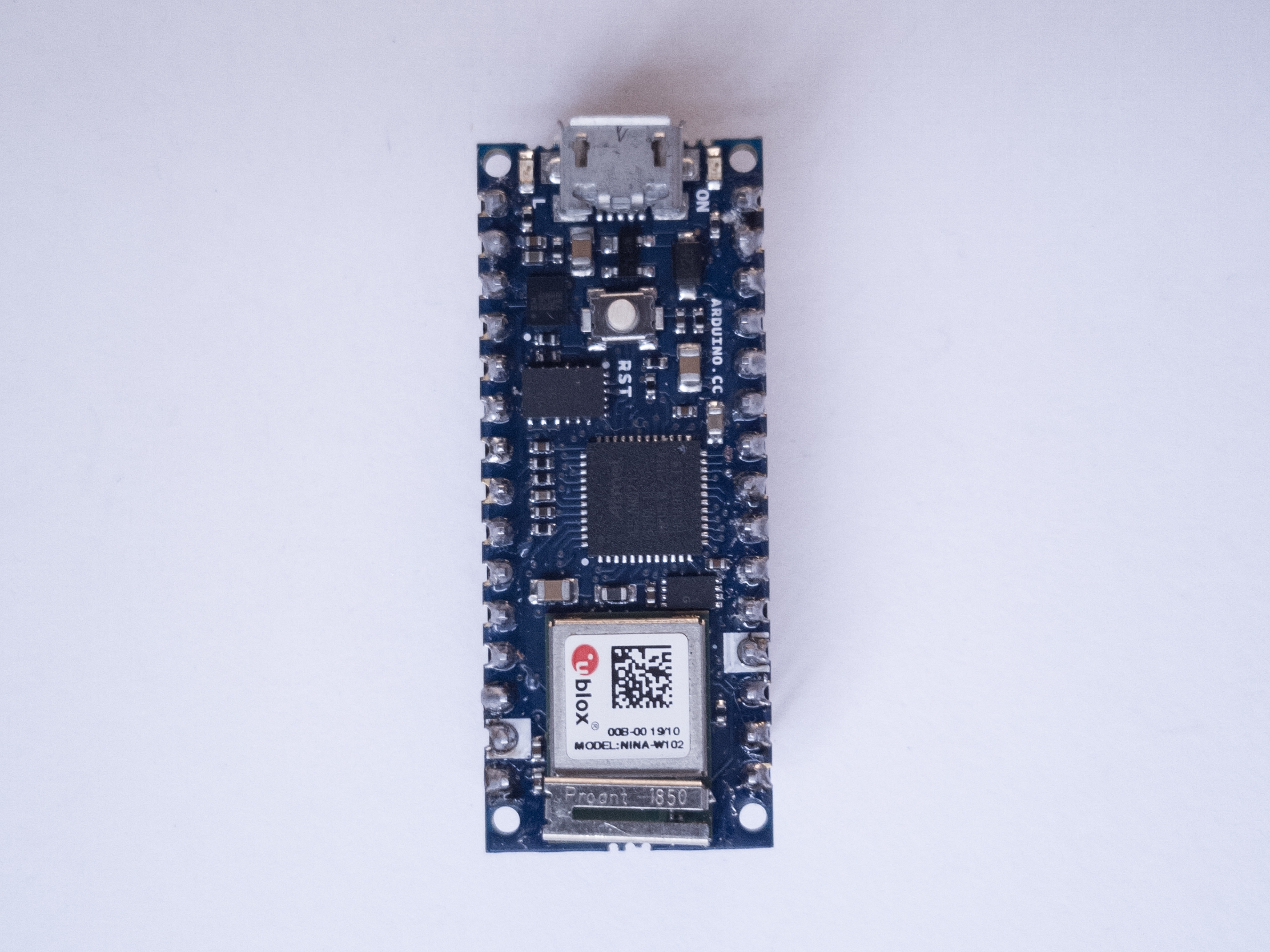
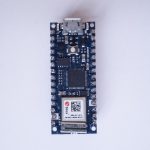
Photo of an Arduino Nano 33 IoT module. The USB connector is at the top of the image, and the physical pins are numbered in a U-shape from top left to bottom left, then from bottom right to top right.
Figure 1. An Arduino Nano 33 IoT.
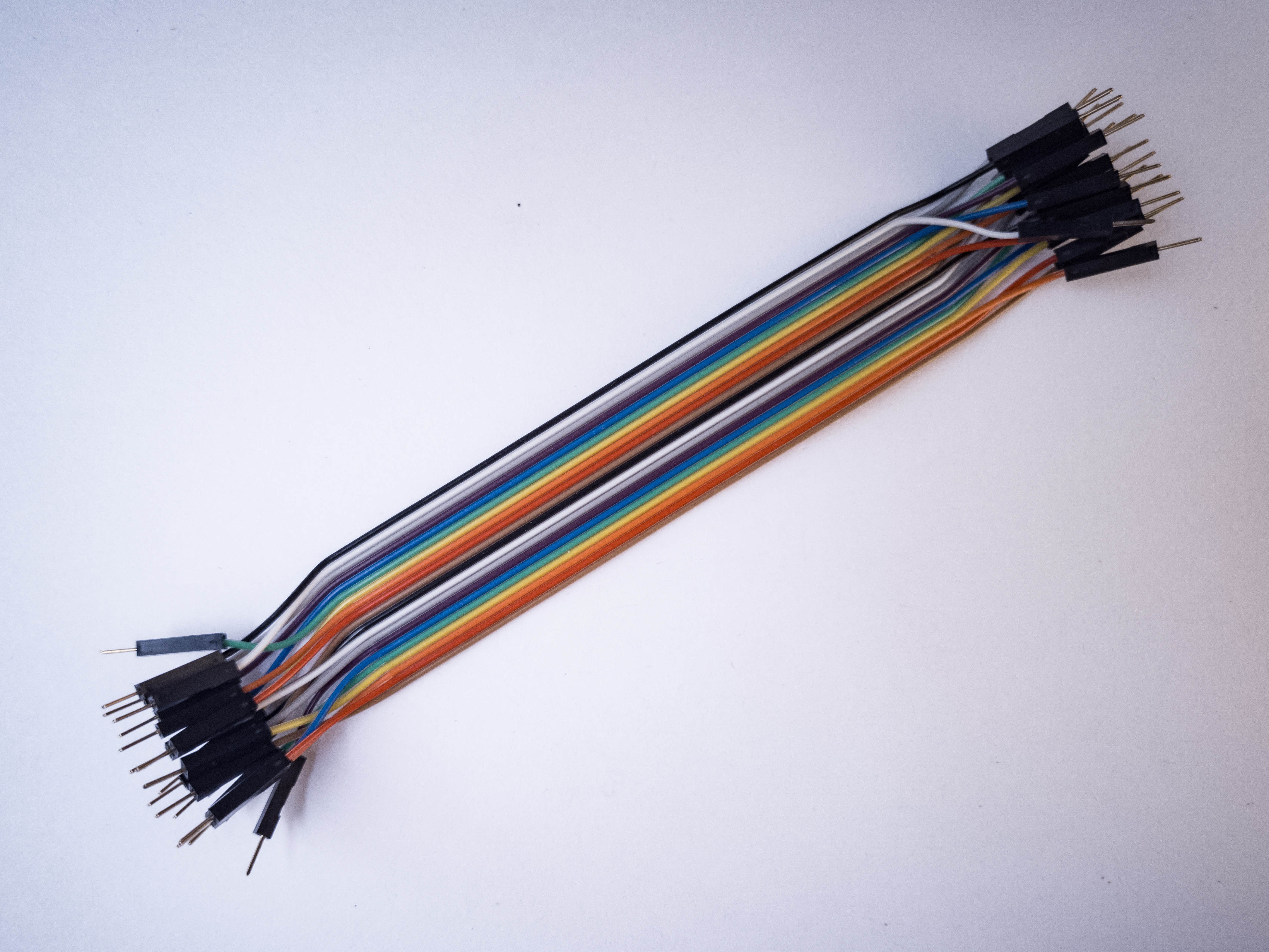
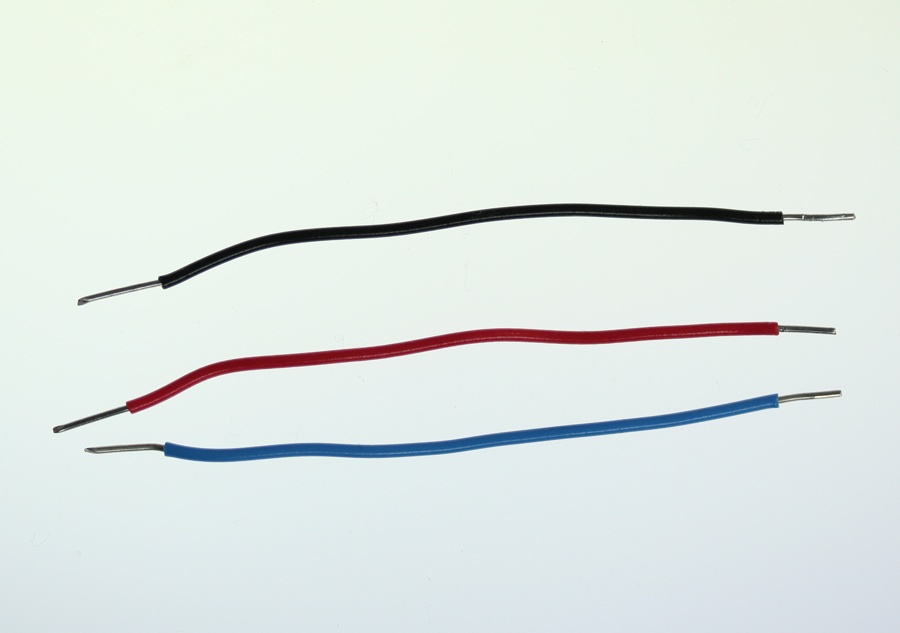
Three 22AWG solid core hookup wires. Each is about 6cm long. The top one is black; the middle one is red; the bottom one is blue. All three have stripped ends, approximately 4 to 5mm on each end.
Figure 2. 22AWG solid core hookup wires.
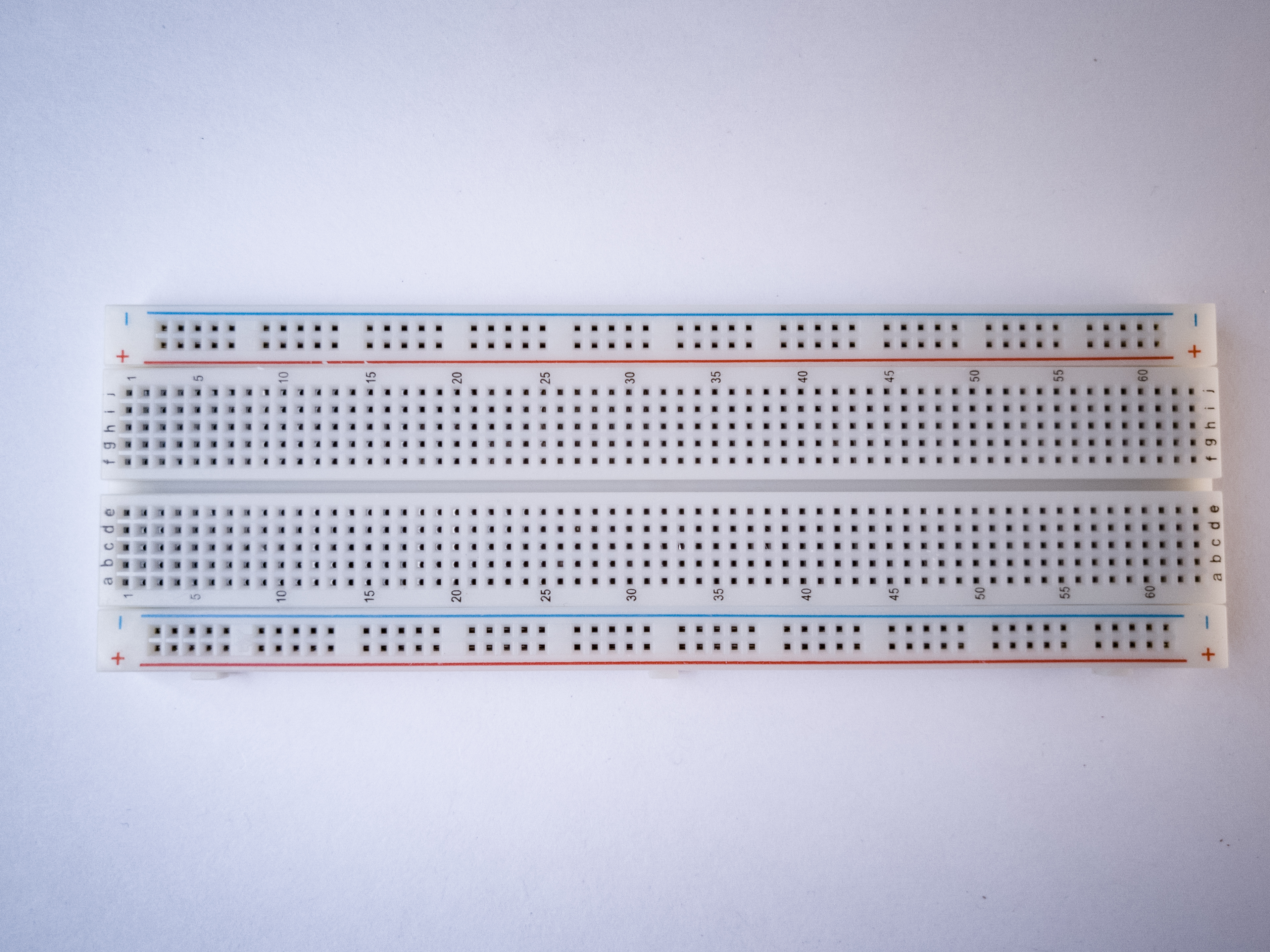
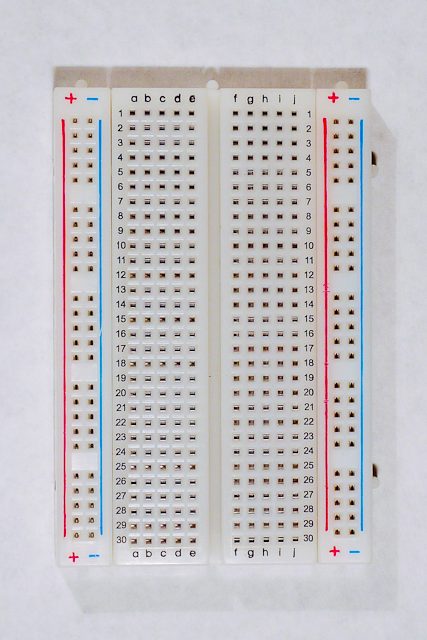
A short solderless breadboard with two rows of holes along each side. There are no components mounted on the board. The board is oriented sideways so that the long rows of holes are on the top and bottom of the image.
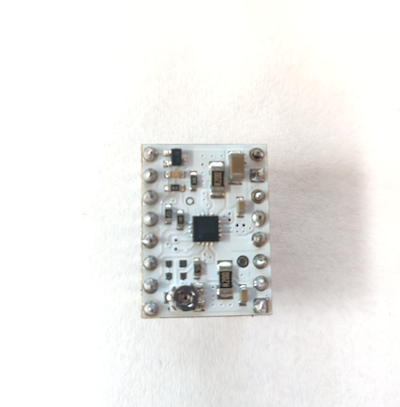
Figure 3. A short solderless breadboard.
Photo of an OLED display, approx. 2.5 cm x 2.5 cm
Figure 4. SSD1306 OLED display
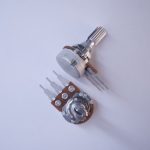
Photo of two potentiometers
Figure 5. Potentiometer

The Circuit

The circuit for this lab consists of:

  • the microcontroller
  • a potentiometer. You can use any analog sensor you choose, however.
  • an SSD1306 OLED breakout board

There are many breakout boards that use the SSD1306 OLED: AdafruitSparkfun DFRobotCrystalfontzMakerFocus, Amazon, and many others. It typically comes in a 128×32 pixel version and a 128×64 pixel version. Solomon Systech makes other variations on this display as well, like the SSD1309 or the 1315. They come with different resolutions, different physical sizes, and different features.

Most of the SSD1206 displays have all blue pixels, but there are some models on the market have one section of yellow pixels and the rest blue. You can’t change the color of the pixels, so be aware of what you are buying and choose what you need. If you need a board with all blue pixels, don’t get the one with the yellow section.

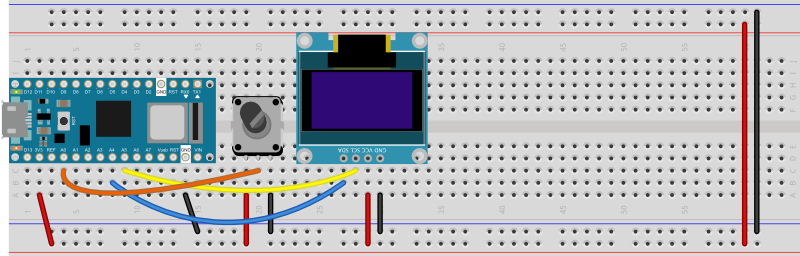
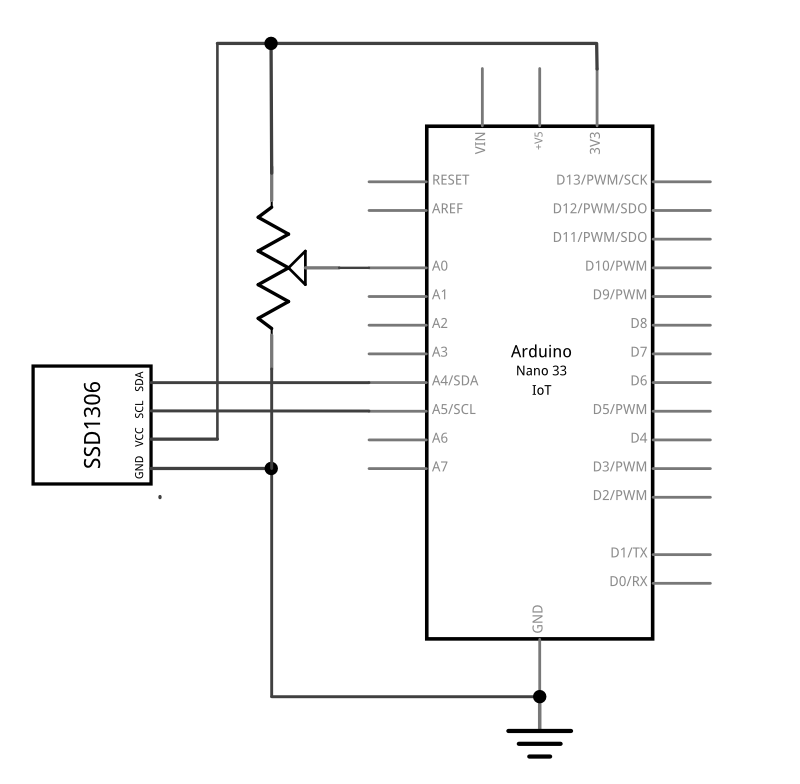
Connect the display’s voltage and ground pins to your voltage and ground buses, and the I2C clock (SCL) and I2C serial data (SDA) pins to your microcontroller’s corresponding I2C pins as shown in Figure 6-7. The schematic, Figure 6, is the same for both the Uno and the Nano. For the Arduino Uno or the Arduino Nano boards, the I2C pins are pins A4 (SDA) and A5(SCL). This is the same connection for almost any I2C device.

Connect the potentiometer’s two outside connections to power and ground, respectively. Connect the middle pin (the wiper) to the Arduino’s pin A0. You’ll use the potentiometer to generate something to display on the screen.

Once you’ve got the circuit wired as shown in Figures 6-7, you’re ready to program the microcontroller.

 Breadboard view of a potentiometer and an SSD1306 OLED screen attached to a Nano 33 IoT
Figure 6. Breadboard view of a potentiometer and an SSD1306 OLED screen attached to a Nano 33 IoT. The potentiometer is connected to pin A0. The screen’s SDA pin is connected to pin A4 and the SCL pin is connected to pin A5.
Schematic drawing of a potentiometer and an SSD1306 OLED screen attached to a Nano 33 IoT.
Figure 7. Schematic drawing of a potentiometer and an SSD1306 OLED screen attached to a Nano 33 IoT. The schematic is the same for an Uno. The potentiometer is connected to pin A0. The screen’s SDA pin is connected to pin A4 and the SCL pin is connected to pin A5.

Program the Microcontroller

There are many libraries available for controlling the SSD1306 OLED screens. Adafruit’s SSD1306 library works well with all the SSD1306 displays, both the 128×64 and 128×32 models. Adafruit’s library is consistent with many of their other display libraries, and they make a lot of them. So it’s a good place to start. It doesn’t work with other SSD13xx models though. For example, Sparkfun makes a Micro OLED with the SSD1309, which has a 64×48 resolution. It requires a different library.

The u8g2 library by Oli Kraus, is intended as a universal monochrome display library for OLED, eInk, TFT, and other displays. It supports some SSD130x boards, but not all. It’s a pretty good library, but lacks some of the features of the Adafruit library. The examples included here use the Adafruit library. You’ll also need the Adafruit_GFX library which supports graphics across a number of small displays.

Import the Libraries

At the start of your sketch, import the libraries and set up a variable to hold the display driver instance like so:

#include <Wire.h>
#include <Adafruit_SSD1306.h>
#include <Adafruit_GFX.h>

const int SCREEN_WIDTH = 128; // OLED display width, in pixels
const int SCREEN_HEIGHT = 64; // OLED display height, in pixels

// initialize the display:
Adafruit_SSD1306 display(SCREEN_WIDTH, SCREEN_HEIGHT);

Initialize the Display

In the setup, you need to check that the display is working. If it fails, it’s a good idea to stop and notify the user. Since there’s no user interface in this basic sketch, you’ll use the Serial Monitor.

void setup() {
  // initialize serial and wait for serial monitor to open:
  Serial.begin(9600);
  if (!Serial) delay(3000);
  // first parameter of begin() sets voltage source.
  // SSD1306_SWITCHCAPVCC is for 3.3V
  // second parameter is I2C address, which is
  // 0x3C, or 3D for some 128x64 modules:
  if (!display.begin(SSD1306_SWITCHCAPVCC, 0x3C)) {
    Serial.println("Display setup failed");
    while (true);
  }
  Serial.println("Display is good to go");
}

Print to the Display

You can print to the display by giving it a text size and cursor position and then using .print() or .println(). The loop below reads analog input 0, then prints the time in seconds on the first line and the sensor reading on the second.

The function which actually updates the display is called .display(). All of the other functions update a buffer in the microcontroller’s memory. So you can make all the changes you want with commands like .print(), .setCursor(), .clearDisplay(), and so forth, but you will only see the changes when you call .display(). This is typical of many display libraries.

In the code below, you’ll clear the display, then set the size to twice the default, then move the cursor to the top left. Then you print the seconds since the sketch started, move the cursor down a line, and print the analog 0 sensor reading. Finally, you push it all to the display using .display():

void loop() {
  int sensorReading = analogRead(A0);
  // clear the display:
  display.clearDisplay();
  // set the text size to 2:
  display.setTextSize(2);
  // set the text color to white:
  display.setTextColor(SSD1306_WHITE);

  // move the cursor to 0,0:
  display.setCursor(0, 0);
  // print the seconds:
  display.print("secs:");
  display.print(millis() / 1000);

  // move the cursor down 20 pixels:
  display.setCursor(0, 20);
  // print a sensor reading:
  display.print("sensor:");
  display.print(sensorReading);
  // push everything out to the screen:
  display.display();
}

Here’s a link to the full sketch.

The SSD1306 is a monochrome display, but you still have to set the color to see anything display, because the library defaults to no colors. For a list of what SSD1306_WHITE and the other constants in the library mean, see this link.

Fonts

The default font of the library is not terribly attractive, and gets blocky when you increase the size. But you can add fonts. The Adafruit_GFX library includes many fonts compatible with lots of their display libraries. Search for this library in the library manager and include it to use the fonts. They have a good tutorial on using fonts as well. The short version is as follows. First, include the font you want to use with your library includes like so:

#include<Fonts/FreeSans9pt7b.h>

Next, in your setup() or whenever you want to switch fonts, use the .setFont() function like so:

 display.setFont(&FreeSans9pt7b);

The text will now appear using your chosen font. Here’s a link to an example using one of the Adafruit_GFX fonts.

One of the nice things about using custom fonts is if you pick the right size for your screen, you don’t need to use .setTextSize(), so you can avoid pixelating your font. Note that custom fonts generally measure pixel height from the baseline. So, to position a 16-point font at the top of the screen, for example, position it with a few pixels at the top to spare: at (0, 20), not (0,0).

You can also use more custom fonts by generating them from this OLED display custom font generator. For “Library Version” choose “Adafruit GFX Font”. This will generate a custom header file that you include with your sketch. Make a new tab in the IDE, give the tab a name like font.h, and include it at the top of your code with the other library header files. The font name will be at the bottom of the header file. For example, if you generated the Dialog Font, Plain, 16 point, the font name would be Dialog_plain_16 and you’d include it just like the one above, like so:

 display.setFont(&Dialog_plain_16);

The text will now appear using your custom font. Here’s a link to an example using a custom-generated font.

Graphics

There are many libraries for graphics on small displays. Typically these displays don’t have a fast refresh rate, so you can’t exactly create fast action games on them, but they can be good for simple graphic informational displays. Different display libraries will have slightingly different naming schemes for their graphics, but you can usually count on being able to draw points, lines, rectangles, circles, and sometimes rounded rects and triangles. You can generally also count on functions like drawRect() vs. fillRect() depending on whether you want a filled rectangle or not. All libraries will include methods for setting a color, clearing a screen, and filling the screen with a color. Most will also include commands for rotating the graphics display. Here’s the Adafruit_GFX library graphics primitives tutorial as an example.

Remember, all of your commands are only executed when you call .display().

Here’s a link to a graphic example that graphs the sensor reading. If you haven’t already included the Adafruit_GFX library, you will need to for this.

Displaying QR Codes

One way you can use the graphic capabilities of any small display is to show QR codes. QR codes can contain any string of text you want in a machine-readable form. Though we’re used to generating QR codes to supply web addresses (URLs), you can also send plain text strings, phone numbers, passcodes or other test-based information as well. On microcontroller-based devices, they can be a way to transfer identifying information like IP or MAC addresses, Bluetooth LE service UUIDs, or anything else your mobile phone or tablet might need to know about your microcontroller device in order to communicate with it.

QR codes can be generated from a text string and translated to a microcontroller display using Richard Moore’s qrcode library for Arduino and the graphics library for your particular display.

Like any library, you need to include the qrcode library at the top of your code like so:

#include <qrcode.h>

Determining QR Code Block Size

A QR code’s block size is the height and width of each of the blocks in the code. It depends size depends on the number of blocks per side. The length of the string you plan to display and a few other factors affect the block size. Here’s a table which lays out how the string length, error correction, and QR code version affect the the pixel dimensions of a QR code. Here’s a simpler version in the documentation for the qrcode library. A long string or higher levels of error correction can result in largee QR codes than you can fit on a small display. The library’s .size() function can give you the number of blocks in your QR code.

QR Codes need a “quiet zone” around the block in order to be readable to another device, so you can’t fill your display’s entire length or width with a QR code.

Here’s a good rule of thumb to get a block size that you can fit on your display:

  • Set the QR version and the QR error level
  • Start with an arbitrary offset. The larger your offset, the smaller the QR code can be.
  • Subtract twice the offset width (also arbitrary) from the display’s smallest dimension (64px, in the case of the SSD1306)
  • divide by the qrcode.size

Here’s a function to generate a QR code. It will take a String object, the QR code version you want to use, and the QR code error level you want, then it will generate a QRCode object, and display it on the display using the display library’s .fillRect() function:

void displayQrCode(String message) {
  // Create the QR code
  QRCode qrcode;
  int qrVersion = 3;
  int qrErrorLevel = ECC_MEDIUM;
  int offset = 2;
  int backgroundColor = SSD1306_BLACK;
  int foregroundColor = SSD1306_WHITE;

  // allocate QR code memory:
  byte qrcodeBytes[qrcode_getBufferSize(qrVersion)];
  // initialize the QR code text:
  qrcode_initText(&qrcode, qrcodeBytes, qrVersion, qrErrorLevel, message.c_str());
  // calculate the QR code block size:
  int blockSize = (display.height() - (offset * 2)) / qrcode.size;
  // fill the screen with the background color:
  display.fillScreen(backgroundColor);

  // read the bytes of the QR code and set the blocks light or dark, accordingly:
  // vertical loop:
  for (byte y = 0; y < qrcode.size; y++) {
    // horizontal loop:
    for (byte x = 0; x < qrcode.size; x++) {
      // calculate the block's X and Y positions:
      int blockX = (x * blockSize) + offset;
      int blockY = (y * blockSize) + offset;
      // read the block value from the QRcode:
      int blockValue = qrcode_getModule(&qrcode, x, y);
      // set the default block color:
      int blockColor = backgroundColor;
      // if the block value is 1, set color to foreground color instead:
      if (blockValue == 1) {
        blockColor = foregroundColor;
      }
      // display the block on the screen:
      display.fillRect(blockX, blockY, blockSize, blockSize, blockColor);
    }
  }
  // refresh the display here, after the nested loops:
  display.display();
  // print the message:
  Serial.println(message);
}

Here’s a link to a full sketch to generate QR codes on an SSD1306 display. Upload it to your Nano, then open the serial monitor and enter a string to display. Then scan the QR Code with your phone’s QR scanning app. You should be able to read short strings of text, up to 50 or so characters. You can also send URLs, phone numbers, or anything else your phone’s QR code reader can interpret.

The shorter the string, the easier it is for your QR code scanner to read it. This is why many URLs you see on QR codes in public use URL shorteners.

Conclusion

Even though the SSD1306 is a small, low resolution monochrome display, it packs a lot of potential for the price. Adding an informational display can improve many devices, and by adding a QR code, you have the possibility to add many more features through the web, Bluetooth, and more. For more on microcntroller displays, see this repository.

Lab: Using a Real-Time Clock

In this lab, you’ll learn how to use a real-time clock on a microcontroller.

In this lab, you’ll learn how to use a real-time clock on a microcontroller.

Introduction

Though this is written for the Arduino Nano 33 IoT and MKR modules, the principles apply to any real-time clock.

A real-time clock (RTC) is an application-specific integrated circuit (ASIC) that’s designed to keep accurate time in hours, minutes, seconds, days, months, and years. Most real-time clocks have a synchronous serial interface to communicate with a microcontroller. The DS1307 from Dallas Semiconductor is a typical one. Each RTC generally has a library to interface with it as well.  Many microcontrollers are incorporating an RTC into the microcontroller chip itself now as well. The SAMD M0+ chip that is the CPU of the MKRs and the Nano 33 IoT has an RTC built into it.

What You’ll Need to Know

To get the most out of this lab, you should be familiar with the following concepts and you should install the Arduino IDE on your computer. You can check how to do so in the links below:

Things You’ll Need

Arduino Nano on a breadboard.
Figure 1. Breadboard view of Arduino Nano mounted on a breadboard.

Image made with Fritzing


You’ll need an Arduino Nano 33 IoT or any of the MKR series Arduinos for this exercise. You don’t need any other parts, unless you plan to connect to external sensors.

As shown in Figure 1, The Nano is mounted at the top of the breadboard, straddling the center divide, with its USB connector facing up. The top pins of the Nano are in row 1 of the breadboard.

Program the Arduino

Make sure you’re using the Arduino IDE version 1.8.9 or later. If you’ve never used the type of Arduino module that you’re using here (for example, a Nano 33 IoT), you may need to install the board definitions. Go to the Tools Menu → Board submenu → Board Manager. A new window will pop up. Search for your board’s name (for example, Nano 33 IoT), and the Boards manager will filter for the correct board. Click install and it will install the board definition.

You’ll need to install the RTC library too. Go to the Sketch menu → Include Library… Submenu → Manage Libraries. A new window will pop up. Search for your the name of the library (RTCZero) and click the Install button. The Library manager will install the library. You might want to open the RTC library documentation in a browser as well. This library should work on any board that uses the SAMD M0+ processor.

Real-time clocks are simple devices. You set the time, then it runs. When you want the time, you read the time. Depending on the software interface of the RTC you’re using, sometimes you can set the time using UNIX Epoch time as well, which is the number of seconds that have elapsed since 00:00:00 Thursday, 1 January 1970. The API may differ from one library to a next, but all RTC libraries will have commands to get and set the hour, minute, second, day, month, and year. The RTCZero is typical in that sense. Here is an example of how to set the time:

#include <RTCZero.h>  // include the library
RTCZero rtc;           // make an instance of the library

void setup() {
  Serial.begin(9600);

  rtc.begin(); // initialize RTC

  // Set the time
  rtc.setHours(12);
  rtc.setMinutes(34);
  rtc.setSeconds(56);

  // Set the date
  rtc.setDay(23);
  rtc.setMonth(6);
  rtc.setYear(19);

  // you can also set the time and date like this:
  //rtc.setTime(hours, minutes, seconds);
  //rtc.setDate(day, month, year);

  // if you know the epoch time, you can do this:
  rtc.setEpoch(1564069843);
}

To read the time, you use the getter methods: getSecond, getMinute, getHour, etc.:

void loop() {
  int h = rtc.getHours();

  int m = rtc.getMinutes();
  int s = rtc.getSeconds();
  int d = rtc.getDay();
  int mo = rtc.getMonth();
  int yr = rtc.getYear();
  long epoch = rtc.getEpoch();

  // make a String for printing:
  String dateTime = "";
  if (h < 10) dateTime += "0";
  // add a zero for single-digit values:
  dateTime += h;
  dateTime += ":";
  if (m < 10) dateTime += "0";
  // add a zero for single-digit values:
  dateTime += m;
  dateTime += ":";
  if (s < 10) dateTime += "0";
  // add a zero for single-digit values:
  dateTime += s;
  dateTime += ",";
  if (d < 10) dateTime += "0";
  // add a zero for single-digit values:
  dateTime += d;
  dateTime += "/";
  if (mo < 10) dateTime += "0";
  // add a zero for single-digit values:
  dateTime += mo;
  dateTime += "/";
  if (yr < 10) dateTime += "0";
  // add a zero for single-digit values:
  dateTime += yr;
  Serial.println(dateTime);
  delay(1000);
}

Using the RTC Alarm

The RTCZero library also has the capability to set an alarm and call a function when the alarm goes off. Not all RTCs offer this feature, but since it’s built into the processor, it’s possible for the Nano 33 IoT and the MKR boards. Here’s a simple example that prints a message once a minute:

#include <RTCZero.h>
RTCZero rtc;

void setup() {
  Serial.begin(9600);

  rtc.begin();
  rtc.setTime(12, 23, 56);
  rtc.setDate(23, 06, 19);

  // set the alarm time:
  rtc.setAlarmTime(0, 0, 0);
  // alarm when seconds match the alarm time:
  rtc.enableAlarm(rtc.MATCH_SS);
  // attach a function to the alarm:
  rtc.attachInterrupt(alarm);
}

void loop() {
  // nothing happens here
}

void alarm() {
  Serial.println("Top of the minute");
}


You can match just the seconds for an alarm once a minute (rtc.MATCH_SS) or the minutes and seconds for once an hour (rtc.MATCH_MMSS) or hours, minutes, seconds for once a day (rtc.MATCH_HHMMSS).

Maintaining Time

In order to be truly “real” time, an RTC needs constant power. The built-in RTC of the SAMD M0+ microcontroller will reset to “zero” when power is interrupted (but will continue to increment through a reset provided an initial time is not hardcoded in setup).

For this reason, many RTC breakout boards, such as Adafruit’s DS3231 board, include a battery holder, typically for the kind of long lasting coin-cell batteries found in watches. RTCs powered this way can maintain accurate time for several years without additional power. The Arduino RTC page has notes on maintaining power for the built-in RTC on Arduino Zero and later boards.

Microcontroller Pin Functions

Introduction

This page explains the basic pin functions that most microcontrollers share, and offers some tips for switching from one microcontroller to another. Since the tutorials on this site are all written with the Arduino Uno in mind, and students may be using other controllers, you may need to know how to “convert” a tutorial from the controller it’s written for to your own controller. In order to get the most out of it, you should know something about electrical circuits, and what a microcontroller is and what it can do. This video might help: Hardware functions in a microcontroller

What Do All These Pins Do?

A typical microcontroller can have between 6 and 60 pins on it, to which you’re expected to attach power connections, input and output connections, and communications connections. Every microcontroller has different configurations for its pins, and often one pin will have more than one function. This combining of functions on one pin is called pin multiplexing.

Every microcontroller has names for the pins specific to its hardware, but the Arduino  application programming interface (API) provides a set of names  for pins and their functions that should work across all microcontrollers that are programmable with the API. So, for example, A0 will always be the analog input pin 0, whether you’re on an Uno, 101, MKRZero, MKR1000, or other Arduino-compatible board. When you connect to the pin with the same function on another board, your code should operate the same, even though the physical layout of pins is different.

Every board has an operating voltage that affects its pins as well. The operating voltage, which is the same as the voltage of the GPIO pins, is labeled below. If you’re connecting a component to a board with a lower voltage than the component, you’ll need to do some level shifting.

Pin Diagrams

Microcontrollers typically come in a variety of physical forms, or packages. Sparkfun has a nice tutorial on integrated circuit package types if you want to know more. Pin numbering on any integrated circuit, including microcontrollers, starts at top left corner, which is usually marked with a dot. From there, you count around the chip counter-clockwise. For modules like the Arduino Uno, this numbering doesn’t hold up, since the board has several pin headers. The pin headers are usually numbered, and the pins of each header are counted. Unfortunately, header numbering does not always follow the same patterns as IC numbering.

Microcontroller pins are referred to by their physical pin (where they are physically on the board) and their functional pin names (what they do). For example, the Arduino Nano’s physical pin 20 is digital I/O pin 2.

Arduino Nano Series

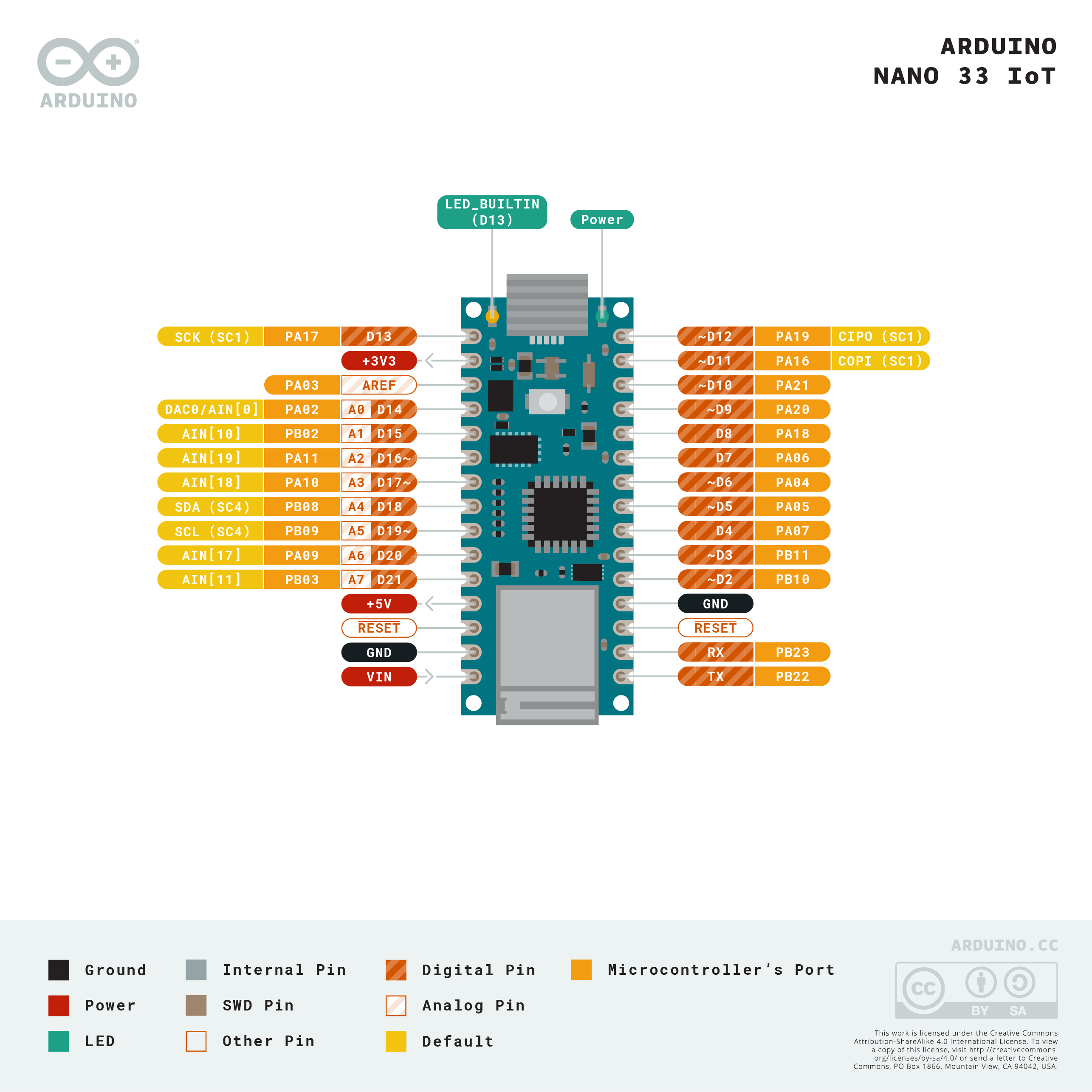
Arduino Nano 33 IoT Pin diagram

The Arduino Nano boards, like the Nano Every, Nano 33 IoT, Nano 33 BLE, Nano 33 BLE Sense, and Nano RP2040 Connect have a number of similar features. The Nano 33 IoT is shown in Figure 1, but the other Nanos have the same pin layout. The pin numbering follows the U-shaped pattern of a typical integrated circuit as described above; pin 1 is on the top left, and pin 30 is on the top right. The pins, summarized, are as follows:

  • Physical pin 1: Digital I/O 13
  • Physical pin 2: 3.3V output
  • Physical pin 3: Analog Reference
  • Physical pin 4-11: Analog in A0-A7; Digital I/O 14-21
  • Physical pin 12: VUSB (not normally connected)
  • Physical pin 13: Reset
  • Physical pin 14: Ground
  • Physical pin 15:Vin
  • Physical pin 16: Digital I/O pin 1; Serial1 UART TX
  • Physical pin 17: Digital I/O pin 0; Serial1 UART RX
  • Physical pin 18: Reset
  • Physical pin 19: Ground
  • Physical pin 20-30: Digital I/O pins 2-12

PWM Pins: on the Nano 33 IoT, the following pins can be used as PWM pins: digital pins 2, 3, 5, 6, 9, 10, 11, 12, A2, A3, and A5. One pin A0, can also be used as a true analog out, because it has a digital-to-analog converter (DAC) attached. On the Nano Every, only pins  3, 5, 6, 9, and 10 can be used as PWM pins. On the Nano 33 BLE, all digital pins can be used as PWM pins.

  • SPI Pins:
    • SDI- digital pin 12 (physical pin 30)
    • SDO – digital pin 11 (physical pin 29)
    • SCK – digital pin 13 (physical pin 1)
    • CS – digital pin 10 (physical pin 28)
  • I2C Pins:
    • SDA – pin A4 (physical pin 8)
    • SCL – pin A5 (physical pin 9)
  • UART Pins:
    • Serial 1 TX: digital pin 1 (physical pin 16)
    • Serial1 RX: digital pin 0 (physical pin 17)

Notes on the Nano Series

  • The Nano Every operates on 5V. The Nano 33 IoT, 33 BLE, and RP2040 Connect operate on 3.3V.
  • The Nano 33 IoT is based on the SAMD21 processor, just like the MKR boards. It has a NINA W102 radio that can communicate using Bluetooth 4.0 or WiFi, just like the MKR 1010. The RP2040 Connect has the same radio. It also has a real-time clock and an IMU sensor. For more on this board, see the Introduction to the Nano 33 IoT.
  • The Nano 33 BLE is based on the nRF 52840 microcontroller. It can communicate using Bluetooth 5.0
  • The Nano Every is based on the ATMega4809 microcontroller. It is functionally most similar to the Uno’s Atmega328 processor.
  • The Nano RP2040 Connect is based on the Raspberry Pi RP2040 processor, a dual SAMD21 processor.
  • On the Nano Every, pins 16 and 17 (TX and RX)  are the serial port called Serial; they are also attached to the USB-Serial microcontroller on board. On  the 33 IoT and 33 BLE, they are the serial port called Serial1 and are not attached to the USB serial port.
  • On the Nano 33 IoT as opposed to other Arduino Nano boards, pins A4 and A5 have an internal pull-up resistor and default to the I2C functions.
  • On the Nano 33 IoT and Nano 33 BLE,  the VUSB pin does NOT supply voltage but is connected through a jumper, to the USB power input. You need to solder the jumper on the bottom of the board to use VUSB.
  • Interrupts: All the Nano 33 IoT’s, Nano 33 BLE’s, and Nano Every’s digital pins can be used as hardware interrupts. However, some repeat, so check the AttachInterrupt guide for the best pins to use as interrupts.

Arduino Uno Rev 3

Arduino Uno Rev 3 Pin diagram

The Arduino Uno Rev 3, shown in Figure 1, is the classic Arduino model. The pin numbering follows the U-shaped pattern of a typical integrated circuit as described above; pin 1 is on the top left, and pin 30 is on the top right. The pins, summarized, are as follows:

  • Physical pin 1: not connected
  • Physical pin 2: I/O reference voltage
  • Physical pin 3: Reset
  • Physical pin 4: 3.3V output
  • Physical pin 5: 5V output
  • Physical pin 6-7: Ground
  • Physical pin 8: Vin
  • Physical pin 9-14: Analog in A0-A5; Digital I/O 14-19
  • Physical pin 15-28: Digital I/O pin 0-13
  • Physical pin 29: Ground
  • Physical pin 30:Analog Reference
  • Physical pin 31: I2C SDA; Digital I/O pin 18; Analog in A4
  • Physical pin 32: I2C SCL; Digital I/O pin 19; Analog in A5

PWM Pins: on the Uno Rev 3, the following pins can be used as PWM pins: digital pins 3, 5, 6, 9, 10, 11.

  • SPI Pins:
    • SDI- digital pin 12 (physical pin 27; digital I/O pin 12)
    • SDO – digital pin 11 (physical pin 26; digital I/O pin 11)
    • SCK – digital pin 13 (physical pin 28; digital I/O pin 13)
    • CS – digital pin 10 (physical pin 25; digital I/O pin 10)
  • I2C Pins:
    • SDA – pin A4 (physical pin 13 or 31; Analog in pin A4)
    • SCL – pin A5 (physical pin 14 or 32; Analog in pin A5)
  • UART Pins:
    • Serial TX: digital pin 1 (physical pin 16)
    • Serial RX: digital pin 0 (physical pin 15)

Notes on the Uno Rev 3

At the bottom center of the Uno board is a six-pin connector called the In-Circuit Serial Programming connector (ICSP). It has two rows of pins, labeled as follows:

  • Top row (left to right): Reset, SCK, SDI
  • Bottom row (left to right): Ground, SDO, +5V

On the top right of the Uno is another six-pin connector. The Uno has a second microcontroller on board to handle USB-to-serial communications. This is the ICSP header for that microcontroller.

The Serial port called Serial is attached to pins 0 and 1, and to the USB-Serial micrcontroller on board.

Interrupts: on the Uno rev. 3, only digital pins 2 and 3 can be used as interrupts.

Arduino MKR Series

Mkr Zero Pin diagram

The Arduino MKR series are intended for advanced RF applications. They have the same SAMD Cortex M0+ as the Nano 33 IoT, and a built-in rechargeable battery connector and charging circuit. Like most of the Nanos, the MKRs are 3.3V boards. There are several boards in the MKR line for different connectivity needs:

  • The MKRZero has a built-in MicroSD card
  • The MKR1000 and MKR1010 are WiFi boards; the MKR1010 has Bluetooth as well
  • The MKR1300 and MKR1310 have LoRa and LoRaWAN connectivity
  • The MKR1400 has a GSM radio
  • The MKR1500 has a NB IoT 3G radio.

In addition, there are several special purpose shields for the MKR boards.

The pin numbering follows the U-shaped pattern of a typical integrated circuit as described above; pin 1 is on the top left, and pin 28 is on the top right. The pins, summarized, are as follows:

  • Physical pin 1: Analog Reference
  • Physical pin 2-8: Analog in A0-A6
  • Physical pin 9-14: Digital I/O pin 0-5
  • Physical pin 15-23: Digital I/O pin 6-14
  • Physical pin 24: Reset
  • Physical pin 25: Ground
  • Physical pin 26: 3.3V output
  • Physical pin 27: Vin
  • Physical pin 28: 5V output

PWM Pins: on the MKR series, the following pins can be used as PWM pins: digital pins 0 – 8, 10, 12, analog pins A3, A4.

  • SPI Pins:
    • SDI- digital pin 12 (physical pin 19; digital I/O pin 10)
    • SDO – digital pin 11 (physical pin 17; digital I/O pin 8)
    • SCK – digital pin 13 (physical pin 18; digital I/O pin 9)
    • CS – any other digital pin
  • I2C Pins:
    • SDA – Digital I/O pin 11 (physical pin 19)
    • SCL – Digital I/O pin 12 (physical pin 20 )
  • UART Pins:
    • Serial TX: digital pin 14 (physical pin 21)
    • Serial RX: digital pin 13 (physical pin 20)

Notes on the MKR Series

  • Serial: The MKR series boards have two hardware UARTs.The first one, UART0 (aka Serial in your sketches) is attached directly to the USB port not to any pins. GPIO pins 13 and 14 are Serial1
  • Battery in: LiPo, 3.7V, 700mAh min Recharging circuit on board.
  • Interrupts: On the MKR series, pins 0, 1, 4, 5, 6, 7, 8, 9, A1, and A2 can be used as interrupts.

Pin Functions Explained

In order to make sense of all of this, it helps to know the general functions of a microcontroller. There are a few common functions:

Power:  Every microcontroller will have connections for power (often labeled Vcc, Vdd, or Vin) and ground. A bare microcontroller will have only those, but modules like the Arduino, the Raspberry Pi, and others also have voltage regulators and other components on board. On these, it’s common to see an unregulated voltage input (Vin) and a regulated voltage output (5V and 3.3V on the Uno, for example).

Clock: Every microcontroller needs a clock. The bare microcontroller chip usually has two pins for this. On a module, the clock is usually built onto the board, and the pins are not exposed.

General Purpose Input and Output (GPIO): Most pins on a microcontroller can operate as either a digital input or digital output.

Hardware Interrupts: Many microcontrollers have a subset of their GPIO pins attached to hardware interrupt circuits. A hardware interrupt can interrupt the flow of a program when a given pin changes its state, so you can read it immediately. Some higher level functions like asynchronous serial and PWM sometimes use these interrupts. They’re also good for very responsive reading of digital inputs.

Analog Input (ADC): Not all microcontrollers have an analog-to-digital converter (ADC), but those that do have a number of pins connected to it and act as inputs to the ADC. If there are analog inputs, include analog reference pin as well, that tells the microcontroller what the default high voltage of the ADC is.

Pulse Width Modulation (PWM): Few microcontrollers have a true analog voltage output (though the MKR1000 does), but most have a set of pins connected to an internal oscillator that can produce a pseudo-analog voltage using PWM. This is how the analogWrite() function in Arduino works.

Communications:

Universal Asynchronous Receiver/Transmitter (UART): Asynchronous serial communication is managed by a Universal Asynchronous Receiver/Transmitter, or UART, inside the processor. The UART pins are usually attached to internal hardware interrupts that can interrupt the program flow when new serial data arrives, so you never miss a byte. It’s possible to manage serial communication in software alone, but at high speeds, you’ll see more errors.

Synchronous Serial: SPI and I2C: Most microcontrollers also have dedicated modules in the processor to handle the two most common forms of synchronous serial communication.

The Serial-Peripheral Interface (SPI) bus has four dedicated pins: Serial Data Out (SDO), also called Controller In, Peripheral Out (CIPO); Serial Data In (SDI), or Controller Out, Peripheral In (COPI); Serial Clock (SCK) and Chip Select (CS). Many miccrocontrollers are programmed via SPI through an In-Circuit Serial Programming header (ICSP) as well.

The Inter-Integrated Circuit (I2C) bus has two pins: Serial Data (SDA) and Serial Clock (SCL).

Reset: All microcontrollers have a pin which resets the program. Usually you take this pin low to reset the controller.

IORef: this is the operating voltage of the board. The Uno and 101 have this pin so that shields can read this voltage to adjust their own output voltages as needed. Not all shields have this functionality.

Picking a Microcontroller

by Tom Igoe, August 2016
updated June 202
3

Introduction

With a wide variety of Arduino and Arduino-compatible options on the market, students often ask “which is the best controller for me to get?” What follows is a guide how to decide what to choose. This is by no means an exhaustive list, it only includes boards I use regularly enough to recommend.

The lab exercises for this class were originally written for the Arduino Uno. Currently we teach it with the Arduino Nano 33 IoT, for reasons explained below.

The things you should consider in picking a controller, other than price:

  • Is this controller compatible with my other components?
    • Does it operate on the same voltage range?
    • Does it have the correct interface (e.g. asynchronous serial, I2C, SPI)?
    • Is it programmable with the tools I am using and any existing code I am using?
  • What  physical inputs and outputs do I need?
  • With what other devices does it need to communicate?
    • What protocols will they use (e.g. WiFi, Bluetooth, USB, etc)?
    • What aspects of the project can be handled by those other devices?
  • Is the form factor one I can work with?

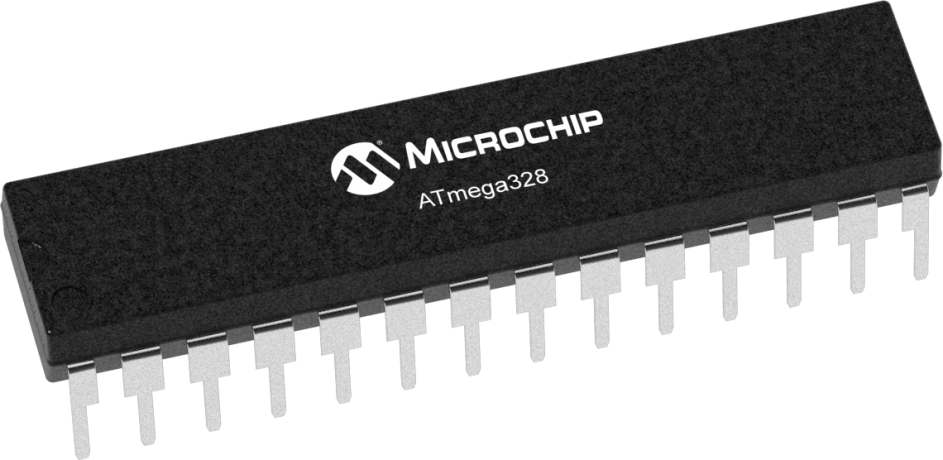
The processor at the core of the Uno, Atmel’s ATMega328, is an 8-bit microcontroller. The ATMega328 is one of the few processors that still comes in a breadboard-friendly DIP package, so you can even build your own Uno-compatible circuit on a breadboard if you want to save money. In projects where you’re using multiple controllers, the DIY breadboard option is a smart choice. However, it’s not a task for you if you aren’t yet comfortable building circuits and reading schematics.

Nowadays, 32-bit microcontrollers are available for about the same price or cheaper than 8-bit controllers. The Arduino Nano series and MKR series are mostly 32-bit processors (the Nano Every is still 8-bit) that can do all that the original Uno can do and more. These newer controllers have more processing power and memory for your program than the Uno and other 8-bit controllers, and with the various connectivity options (WiFi, Bluetooth) that these boards offer, you’ve got more room to grow. If you’re buying your first controller, your best choice is probably one of the 32-bit controllers. The Nano line and the MKR line are the ones I currently use the most.

3.3V? 5V? What’s the difference?

1.7V, of course (a little electrical humor).

The Arduino Uno and the boards that came before it operated on 5 volts DC. However many newer controllers, including all the ones here,  and the embedded Linux boards like the BeagleBone and the Raspberry Pi, operate on 3.3 volts instead. Many older components, like the Sharp IR rangers that are popular in physical computing, operate on 5 volts, and many newer ones operate on 3.3 volts. Because of this change, you often need to adjust the voltage output of one component before it goes into another component. This is called level shifting. It’s a common technique you learn how to deal with when you work with many different components.

I Need A Lot of Input and Output…

Many physical computing projects need lots of input and output connections to read lots of sensors. There are lots of strategies for handling this. Many of the most common strategies are described in chapter 14 of Physical Computing: Sensing and Controlling the Physical World by Dan O’Sullivan and Tom Igoe. Although that book describes processors other than the Arduino, the circuits and techniques described work well with Arduino-compatible boards.

If you just want a single board with a lot of pins, consider the Arduino Due.   The Due has an Atmel SAM3X8E ARM Cortex-M3 processor, which is a more powerful version of the processor than the M0 in the MKR boards. This, or the strategies in Physical Computing, are probably the best option for multiple I/O for beginners.

If you’re feeling more advanced and want another approach, consider building your project with multiple processors. You can build your own Uno variant on a breadboard, or you can use the even smaller ATTiny84 and ATTiny85 controllers. These controllers have only a few I/O pins, but they are a couple of dollars each, and David Mellis has an excellent guide to programming them. You can link several of them together in one circuit and have each one control a handful of your I/O pins, then use one of the other processors mentioned here as a main controller.

Connectivity

Increasingly, projects need not just basic input and output, but also WiFi, Bluetooth, USB, or some other form of connectivity. This is where the more modern boards outshine the Uno and derivatives. Bluetooth, WiFi, and USB are pretty easy to get on a variety of boards. Other radio types are less common, but there’s a board for pretty much every form of connectivity.

Nano

The Nano family is a good, inexpensive starting place for beginners, with lots of room to grow. The Nano Every is thoroughly compatible with the Uno’s architecture for a lower price. It operates on 5 volts, just like the Uno. The Nano 33 IoT is a 3.3V board, with lots of extra features. It has the same processor as the MKR series, the SAMD21 Cortex M0+ ARM processor, and has a Bluetooth and WiFi radio on board, at a lower price than the MKR line.  At the top of the line, the Nano 33 BLE and BLE Sense and the Nano RP2040 Connect have enough processor power to run TinyML machine learning models as well.

Code you’ve written for the Uno will also run on the Nanos as well, but you’ll need to pay attention to which pins your external components are connected to, since the layout is not the same as the Uno. All of the Nanos except the Every are 3.3V boards, meaning that the default voltage is 3.3 volts, not 5 volts. This can present some challenges when dealing with sensors that operate on 5 volts, though nowadays most sensors are 3.3-volt compatible.

MKR

The MKR family are handy when you need advanced connectivity features.They have the same SAMD Cortex M0+ as the Nano 33 IoT, and a built-in rechargeable battery connector and charging circuit. Like most of the Nanos, the MKRs are 3.3V boards. There are several boards in the MKR line for different connectivity needs: The MKRZero has a built-in MicroSD card. The MKR1000 and MKR1010 are WiFi boards; the MKR1010 has Bluetooth as well. The MKR1300 and MKR1310 have LoRa and LoRaWAN connectivuty. The MKR1400 has a GSM radio, and the MKR1500 has a NB IoT 3G radio. In addition, there are several special purpose shields for the MKR boards.

Caveat: be wary of cheap derivatives, clones, and counterfeits of these boards. There are a number of very good derivatives that offer extra features, or different layouts. There are also a number of derivatives and clones that try to look the same, but use lower quality components or spend less time on inspecting assembled boards. We see a few broken projects every year that are due to a clone board failing.  Many of the vendors linked from this page sell their own Arduino-compatible variants that are reputable, if you want to look for derivatives.

Feather

Adafruit’s Feather M0 boards are also good DIP-format boards. They use the same processor, Atmel’s CortexM0+, they also use the DIP package, and they come in a variety of special-purpose variations. The basic Feather M0 Proto board has just the processor, it’s like a MKR1000 without the Wifi. The Feather Adalogger M0 is the same thing with a built-in SD card. The Feathers also have a built-in LiPo battery charger.

With one of the boards above, you can do everything covered in the labs for this class, with a faster and more capable processor than the Uno. Everything that follows is for readers who are already comfortable with microcontrollers, and looking for more info for advanced projects. For more information, see the comparison chart and vendors at the bottom of this page.

ESP

You could also consider Espressif’s processors, if you need lots of processors connected wirelessly. They’re not as inexpensive as the ATTiny processors, but they have built-in WiFi. Espressif’s ESP8266 processor is a very inexpensive 32-bit processor with WiFi built in. It’s very popular when you’re building projects that need lots of WiFi devices. THE ESP boards have relatively little I/O, however,  and only one analog in that can only read a 1-volt range. So the lower cost is often lost in extra components to add I/O.  The Feather Huzzah ESP8266 is a good implementation of the ESP8266, as is Spark Fun’s ESP8266 Thing Dev board. Many other vendors sell their own version of the ESP8266 board, but these are the two that I’ve used which are simplest for relative beginners to use. The ESP8266 WiFi libraries are based on the Arduino WiFi101 libraries, so code is relatively compatible with the MKR1000. The ESP32 is an upgraded version of the ESP8266.

The ESP8266 boards can also run other languages. There’s a port of JavaScript, a MicroPython version, and Lua version that are relatively mature, and others still in development. Watch the ESP repositories for updates.

The ESP8266 boards are not great for the absolute beginner, but they’re relatively easy for intermediate users, and handy when you need a lot of processors networked inexpensively.

Can I Program it in Python/JavaScript?

Yes, but there are limitations. There are microcontrollers on the market that you can program with scripting languages like Python and JavaScript. The Espruino is a good version of JavaScript for microcontrollers, and the MicroPython board does the same for Python. The BBC Micro:Bit runs both. The Espruino JavaScript engine is available for the ESP8266 as well. The RP2040 Connect and some of the Feathers run Python as well.

Although these scripting engines seem enticing for microcontroller use, they come at a cost. Scripting engines can never run your code as fast as compiled code, and sometimes the timing can be inconsistent, because the engine’s cleaning up memory and not listening to your I/O pins. Any good programming tool needs a good framework for building libraries as well. When you’re looking at new tools like this, check what libraries are available, and what the framework for building libraries looks like, and how many programmers are using it. Also consider that any scripting language on a microcontroller means that your source code, not the compiled binary program, is present on the processor itself. This is no big deal for hobbyists, but is a potential security risk for commercial products.

What About Embedded Linux?

There are a number of different embedded Linux processors on the market now that are in the same price range as microcontroller boards. The Raspberry Pi and the BeagleBone Green Wireless are excellent examples of this, and good products. These boards are getting more capable all the time. Many of the Processing and P5.js/node.js examples for this class run on the Raspberry Pi 2 and 3, for example, or the BeagleBone Green Wireless.

For this intro to physical computing class, they are overkill, however, because they require you to learn how an embedded operating system works in addition to the electronics, programming, and physical interaction design we’re already covering. It’s not uncommon to combine a microcontroller with an embedded linux processor, with the former handling physical I/O and the latter handling media control or network communication. The two communicate via asynchronous serial, just like your laptop and your microcontroller will do in the serial labs in this class.

For the purposes of this class, you’re welcome to explore the embedded Linux boards independently once you’ve shown mastery of the material covered in class. Your projects will be evaluated mostly on how well they demonstrate good physical interaction design, however.

Where To Get Boards

The Arduino boards mentioned here are carried by the Arduino online store as well as many of the vendors mentioned here: Adafruit, Spark Fun, Seeed Studio, and Digikey are the vendors I use most frequently. For Seeed Studio products in the US, Digikey is a useful reseller. It’s worth comparing them all for pricing, though the differences are not usually large.

Interpreting Serial Data

Introduction

Serial data is passed byte by byte from one device to another, but it’s up to you to decide how each device (computer or microcontroller) should interpret those bytes, when the beginning of a message is, when the end is, and what to do with the bytes in between.  Serial communication protocols define the structure of communication between devices. These notes explain how serial data is interpreted by computers.

To get the most out of these notes, you should know what a microcontroller is and have an understanding of the basics of microcontroller programming. You should also understand the basics of serial communication. You should have some understanding of programming a personal computer as well, ideally in a language that can access the serial ports of the computer, like p5.js, the Processing programming environment, the node.js programming environment, Python, or Java.

This is a useful page to return to when you have a specific advanced serial communication problem to solve.

ASCII and Binary

Related video: ASCII Bytes Explained

Imagine that you’re sending the value of one sensor from a microcontroller to a personal computer. If the sensor’s value is always less than 255, you know it can fit in a single byte. This kind of message is easy. Just send the value over and over, and the receiver can read the latest byte to have your whole message. In Arduino, you can do this using the Serial.write() command, as shown in the Arduino sketch below:

Binary Serial Arduino Program

void setup() {
  Serial.begin(9600);
}

void loop() {
  // read the sensor:
  int sensorValue = analogRead(A0);
  // divide by 4 to reduce the range to 0-255:
  sensorValue = sensorValue / 4;
  // send it:
  Serial.write(sensorValue);
}

Imagine a typical stream of bytes sent by the program above:

23 23 23 23 24 24 25 25 26 28 27 27 27

Every value you send can range from 0 to 255, the full range that can fit in a byte.  A protocol like this is often called a binary protocol, because there’s no other meaning to each byte’s value other than the value of the number itself.

Now imagine you want to send two sensor readings.  You might think “No problem; just add another analogRead() command and another Serial.write() command.” But the resulting stream of data would look the same. Each byte would range from 0 to 255, and you’d have no way to know which byte represents which sensor. You need some punctuation bytes.

If you’re sending more than one value (and you usually are), then the receiving computer has to know when the message starts and when it ends, and it needs to know how to put the bytes together into a message.

Computers use numbers to represent alphanumeric characters (letters and numbers and punctuation) in bytes. The first standard code for doing this was called the ASCII code which stands for American Standard Code for Information Interchange. ASCII assigns each number or letter a specific byte value from 0 to 127.  For example, capital A is ASCII value 65. Capital B is 66. A space is ASCII value 32. The numeral 0 is ASCII 48. ASCII includes only the characters for the English alphabet, though, so a newer protocol, the Unicode protocol, includes the ASCII character set and includes codes for other alphabets as well. The simplest subset of Unicode, UTF-8, is compatible with ASCII.

The ASCII table and Unicode set can be found in many computer manuals’ indexes, and all over the place online. These codes are used for number-to-character translation in every computer operating system and programming language.

Because ASCII and Unicode assign each alphanumeric character a unique value, including punctuation symbols, you can now differentiate the values in your serial stream by ASCII-encoding them.  Change the Serial.write() in the program above to a Serial.print() command, and add one more line:

ASCII-encoded Serial Arduino Program

void setup() {
  Serial.begin(9600);
}

void loop() {
  // read the sensor:
  int sensorValue = analogRead(A0);
  // divide by 4 to reduce the range to 0-255:
  sensorValue = sensorValue / 4;
  // send it:
  Serial.print(sensorValue);
  Serial.print(",");
}

Now you’ve got a string of bytes representing numeric characters, AND a byte representing a comma.  What would the values of the bytes be?

50 51 44 50 51 44 50 51 44 50 51 44 50 52 44 50 52 44 50 53 44 50 53 44 50 54 44 50 56 44 50 55 44 50 55 44 50 55 44

Why is it so much longer, and what are all those 44s doing in there so regularly?  If you look at the ASCII table, you’ll see why. The sensor values are ASCII-encoded now.  That means that the value 23 is represented by the character “2” followed by the character “3”. In ASCII, “2” has the value 50 and “3” has the value 51. And “,” has the value 44.  So the numbers above, read as ASCII, translate to:

"23,23,23,23,24,24,25,25,26,28,27,27,27"

It takes more bytes to send data this way, but you have a more human-readable protocol, because most receiving programs will default to displaying byte values using the ASCII or unicode characters assigned to them.

Serial Terminal Programs

Related video: Serial 4 – Devices and Bytes

Most serial terminal programs assume that when you’re receiving serial data, it should be interpreted as ASCII characters, This is why you’ll see random characters when you open the Serial Monitor in Arduino after uploading the binary serial program above: the Arduino’s using a binary protocol, but the Serial Monitor thinks it’s an ASCII protocol.

The freeware program CoolTerm is a useful Serial Terminal application, because it can show you both ASCII and raw binary values. Download it, then open it. Click the Options icon, then choose your serial port from the Serial Port menu:

Screenshot of the CoolTerm options menu, showing the port name that's the same as your Arduino, and a rate of 9600 bps
Figure 1. CoolTerm options menu

Click OK, then click Connect (Figure 1). You should see the same random characters you were seeing in the Arduino IDE’s Serial Monitor as shown in Figure 2. (make sure you have the Serial Monitor closed before you connect in CoolTerm because Serial ports can only be controlled by one program at a time). But if you click on the View Hex icon, you’ll see a very different view:

CoolTerm "view hex" view
Figure 2. The CoolTerm serial terminal application showing the hexadecimal view.

Now you’re looking at the ASCII characters for each byte in the right hand column, and the raw binary values in the center column (in hexadecimal notation) as shown in Figure 3. This is really handy when you’re trying to interpret a binary protocol.

Click the Disconnect icon in CoolTerm  (because  Serial ports can only be controlled by one program at a time) and upload the ASCII-encoded Serial Arduino program above. Once the program’s uploaded, connect in CoolTerm again and look at how the hex view has changed:

The CoolTerm serial terminal application showing the hexadecimal view. The screen is filled with hexadecimal values in the center, along with the ASCII characters corresponding to those values running down the side. This time you see the numeric values of the ASCIII characters.
Figure 3. The CoolTerm serial terminal application showing the hexadecimal view. This time you see the numeric values of the ASCIII characters.

With this version of the program, the ASCII view is more readable. In the hex view, you can tell the commas from the regular data, because every third byte is 0x2C, or 44 in decimal, or “,” in ASCII.

Related video: Serial 7 – Reading Strings

Make the following final improvement to the program above:

ASCII-Encoded Serial Arduino Sketch with Line Break

void setup() {
  Serial.begin(9600);
}

void loop() {
  // read the sensor:
  int sensorValue = analogRead(A0);
  // divide by 4 to reduce the range to 0-255:
  sensorValue = sensorValue / 4;
  // send it:
  Serial.print(sensorValue);
  Serial.print(",");

  // read another sensor:
  int sensorValue2 = analogRead(A1);
  // divide by 4 to reduce the range to 0-255:
  sensorValue2 = sensorValue2 / 4;
  // send it:
  Serial.println(sensorValue2);
}

When you view the output of this, you’ll see you get a string of two numbers, with a linefeed after each string. In hex view, these will be represented as 0x0A (linefeed) and 0x0D (carriage return). This is a simple multi-value protocol. You’ve got a comma separating the values, and a linefeed and carriage return separating each set of values.  This protocol is both easy to read, and easy for most personal computer programming environments to interpret. For more on that, see the Serial Duplex Lab using P5.js and p5.webserial.

Managing the Serial Buffer

Before you read this section, try the Serial Duplex Lab using P5.js and p5.webserial. This section will make more sense when you’ve seen the programs in that lab in operation.

The reason this form of  serial communication is called  “asynchronous” is that the data between the two devices involved is not synchronized. The sender can send when the receiver is not listening, and vice versa. Both sides typically maintain a serial buffer, which is a place in memory to store incoming serial data before it is used, as mentioned in the serial basics notes. On computers with an operating system, this serial buffer is maintained even when your program isn’t running. So when you stop your program and re-start it, there may be data in the buffer from a previous run of the program. This can cause errors. Most programming environments automatically flush this buffer every time you restart the program, but if the one you are using does not, then look for a function that flushes the buffer. It’s often called flush() and it’s good to run it right after you open the serial port. In Processing and p5.webserial it’s called clear().

In Processing:

// in your setup() after you create a new serial object called myPort: myPort.clear();

In p5.js with p5.webserial:

function openPort() {
  // wait for the serial.open promise to return,
  // then call the initiateSerial function
  serial.open().then(initiateSerial);

  // once the port opens, let the user know:
  function initiateSerial() {
    serial.clear();
  }
}

Make Sure There’s Any Data To Read

The first thing you can do wrong is to assume there’s data there to read when there isn’t. Imagine the following situation:

Your microcontroller is continually sending a string of three sensors values to a program on your personal computer, ASCII-encoded, comma-separated, and terminated by a newline, like so:

234,23,142\n

The controller is not waiting for a response from your desktop program, it’s just continually sending as fast as it can. The desktop program reading this data is waiting until it sees a newline character, then reading the whole buffer. Then it splits the incoming string into an array and converts the values to integers. You want to read only when a newline character comes in.

In p5.js using the p5.webserial library it might look like this:

function serialEvent(){
  let inputString = serial.readStringUntil("\r\n");
  // split the string into an array:
  let sensorReadings = split(inputString, ",");
}

In Processing, it might look like this:

// in the setup(), configure the serial object to generate serial events // only when a newline arrives, like so: myPort.bufferUntil(‘\n’); // then your serialEvent function looks like this: void serialEvent(Serial myPort){ String inputString = myPort.readString(); // split the string into an array: String[] sensorReadings = split(inputString, “,”); }

The receiving program may not be reading as frequently as the microcontroller is sending, and the personal computer’s serial buffer contains the unread bytes. You stop the desktop program, and there’s still a byte in the buffer, like this:

\n

The next time you start your program, there’s a newline in the buffer even if the Arduino’s not running, so a serial data event is generated and your serialEvent() function is called. But there’s no string preceding the newline character, so when you try to split the string into an array, you get an error .  The serial communication between the devices was working properly, but because it’s asynchronous, it’s your job to check that the data in the buffer is what you think it is. That’s your job as programmer. You might address this problem by checking that there’s a valid string to read first:

in p5.js with p5.webserial:

 let inputString = myPort.readStringUntil("\r\n");
  if (inputString != null) {
    // when you know you've got a good string, take action:
    // split the string into an array:
    let sensorReadings = split(inputString, ",");
  }

in Processing:

String inputString = myPort.readString(); if (inputString != null) { // when you know you’ve got a good string, take action on it: // split the string into an array: String[] sensorReadings = split(inputString, “,”); }

Similar problems can happen in all serial environments.

Clear Any Old Data Before Reading

Although this solution works if you’re reading the serial buffer as a string, it doesn’t solve every problem. Another way to avoid this particular problem is to make sure that you’ve cleared out the serial buffer at the beginning of your program before you start reading new data. Once you’ve configured your serial object and opened the port, clear the buffer by calling serial.clear().

Make Sure All The Data Has Been Received

You can still get errors even if you’ve cleared the buffer and made sure there’s data to read if the data there to read doesn’t match your expectations. In the example above, your data sentence includes three ASCII-encoded numbers and a newline.  But what if the microcontroller doesn’t send that?  Maybe there’s an error in its program, or maybe there’s still data in the serial buffer (because you didn’t clear the buffer).  You should check to make sure that everything you expect is present before you operate on it. For example, imagine you’re splitting the input data into an array of three strings, then copying those strings into global variables like so:

in Processing:

// global variables: int xPosition, yPosition, zPositon; // then your serialEvent function looks like this: void serialEvent(Serial myPort){ String inputString = myPort.readString(); // split the string into an array: String[] sensorReadings = split(inputString, “,”); // copy the first element into xPosition: xPosition = int(sensorReadings[0]); // copy the second element into yPosition: yPosition = int(sensorReadings[1]); // copy the third element into zPosition: zPosition = int(sensorReadings[2]); }

In p5.js with p5.webserial:

// global variables:
let xPosition, yPosition, zPositon;

// then your serialEvent function looks like this:
function serialEvent(){
  let inputString = serial.readStringUntil("\r\n");
  // split the string into an array:
  let sensorReadings = split(inputString, ",");
  // copy the first element into xPosition:
  xPosition = Number(sensorReadings[0]);
  // copy the second element  into yPosition:  
  yPosition = Number(sensorReadings[1]); 
  // copy the third element into zPosition: 
  zPosition = Number(sensorReadings[2]);  
}

This works great until you don’t have three elements in the array. If there wasn’t a full sentence of data, the array might have only one or two elements, and your error is back. To solve this, make sure the length of the array is as long as the number of elements you’re trying to read from it like so:

in Processing:

// global variables: int xPosition, yPosition, zPositon; // then your serialEvent function looks like this: void serialEvent(Serial myPort){ String inputString = myPort.readString(); // split the string into an array: String[] sensorReadings = split(inputString, “,”); if (sensorReadings.length > 2) { // copy the first element into xPosition: xPosition = int(sensorReadings[0]); // copy the second element into yPosition: yPosition = int(sensorReadings[1]); // copy the third element into zPosition: zPosition = int(sensorReadings[2]); } }

In p5.js with p5.webserial:

// global variables:
let xPosition, yPosition, zPositon;

// then your serialEvent function looks like this:
function serialEvent(){
  let inputString = serial.readStringUntil("\r\n");
  // split the string into an array:
  let sensorReadings = split(inputString, ",");
  if (sensorReadings.length > 2) {  
    // copy the first element into xPosition:
    xPosition = Number(sensorReadings[0]);
    // copy the second element  into yPosition:  
    yPosition = Number(sensorReadings[1]); 
    // copy the third element into zPosition: 
    zPosition = Number(sensorReadings[2]);
  }  
}

If all of the data isn’t there for any reason, this if statement will prevent an error by skipping the part where you look for data that’s not there.  When you combine it with the check for a null string above, and the clearing of the serial buffer, you make your serial reading much more stable.  The final result might look like this:

in Processing:

// global variables: int xPosition, yPosition, zPositon; // then your serialEvent function looks like this: void serialEvent(Serial myPort){ String inputString = myPort.readString(); if (!inputString) return; // split the string into an array: String[] sensorReadings = split(inputString, “,”); if (sensorReadings.length > 2) { // copy the first element into xPosition: xPosition = int(sensorReadings[0]); // copy the second element into yPosition: yPosition = int(sensorReadings[1]); // copy the third element into zPosition: zPosition = int(sensorReadings[2]); } }

In p5.js with p5.webserial:

// global variables:
let xPosition, yPosition, zPositon;

// then your serialEvent function looks like this:
function serialEvent(){
  let inputString = serial.readStringUntil("\r\n");
  if (!inputString) return;
  // split the string into an array:
  let sensorReadings = split(inputString, ",");
  if (sensorReadings.length > 2) {  
    // copy the first element into xPosition:
    xPosition = Number(sensorReadings[0]);
    // copy the second element  into yPosition:  
    yPosition = Number(sensorReadings[1]); 
    // copy the third element into zPosition: 
    zPosition = Number(sensorReadings[2]);
  }  
}

When combined with a handshaking methodology as seen in the Serial Duplex Lab using P5.js and p5.webserial, you also ensure that the serial buffer is only filled when you’re ready for new data. All of these practices are good serial communication practices and will make your projects more stable.

Parsing Text in Arduino

There are some tools in the Serial library of Arduino that make it simpler to parse text strings. For example if you know you are getting a string of numbers separated by commas, you can use Serial.parseInt() like so:

void setup() {
  // initialize serial
  Serial.begin(9600);
}

void loop() {
  if (Serial.available()) {
    int x = Serial.parseInt();
    int y = Serial.parseInt();
    int z = Serial.parseInt();
    Serial.print("x = ");
    Serial.print(x);
    Serial.print(", y = ");
    Serial.print(y);
    Serial.print(", z = ");
    Serial.println(z);
  }
}

Try sending comma-separated strings of three numbers to this from the Serial Monitor. You should get an output like this:

x = 34, y = 45, z = 56

Sometimes you will get 0 values if a non-numeric character arrives (like a newline or carriage return). You can catch these by checking for the right number of bytes. For example, 34, 56, 78 followed by carriage return and newline is 10 bytes. So if you know you can expect at least 10 bytes, you could use if (Serial.available() > 10). There are a number of other useful finding and parsing functions in the Serial library, including:

  • Serial.find()
  • Serial.findUntil()
  • Serial.parseInt()
  • Serial.parseFloat()
  • Serial.readBytes()
  • Serial.readBytesUntil()
  • Serial.readString()
  • Serial.readStringUntil()

For more on these, see the full Arduino Serial reference.

Data Protocols

What you’ve seen in these notes has been a common data protocol called Comma Separated Values (CSV), in which the values of different data items, whether numeric or otherwise, are encoded as text and separated by commas. Here are a few examples:

23,35,423,24,554,23,51,443,63,74,0,43
cat, dog, chicken, eel, pig, donkey, monkey, ocelot
23.5, 96.8, 2.343, 0.65, -17.34

CSV is probably the simplest of data formats, because Unicode is ubiquitous, and almost all programming APIs have a function for splitting strings on a delimiter like a comma. However, there might be more complex data protocols.

URL Encoding

You may have seen something like this at the end of a web URL:

?lat=40.8028523&long=-73.9562655&name=coco%20nail%20salon

This is called URL encoding, and it’s a common way of formatting data so that it can be included with the hypertext transport protocol, HTTP. You’ll notice that it always starts with a ?. Web locations can’t include a ?, so it delimits the beginning of a query string. Items are separated by & symbols, and each item’s key (or name) comes first, followed by an = sign, then the item’s value. This is more complex than CSV, but it’s possible to come up with an algorithm to read it, and functions to do so are common in web-native programming APIs.

JavaScript Object Notation

A common format used in JavaScript is JavaScript Object Notation, or JSON. A JSON string looks like this:

{ "name": "Sandy",
  "age": 99,
  "employed": true
}

JSON data is always enclosed in braces {}, and each key-value data pair is separated by a colon (:). pairs are separated by commas. Data items can be of any data type, because JavaScript itself is an untyped language.

Since p5.js is a JavaScript API, let’s look at how it’d be handy if we sent data serially to it. Here’s a sample Arduino program to send JSON to p5.js:

void setup() {
  Serial.begin(9600);
}

void loop() {
  Serial.println("{\"x\": 34, \"y\": 45, \"z\": 200}");
  delay(100);
}

Now here’s a serialEvent() function you can use in p5.js with p5.webserial to receive the data. Take this sketch and replace the serialEvent function it with the following:

function serialEvent() {
  // read a string from the serial port
  // until you get carriage return and newline:
  var inString = serial.readStringUntil("\r\n");
    //check to see that there's actually a string there:
    if (inString) {
      // parse the string as JSON:
      var sensors = JSON.parse(inString);
      locH = sensors.x; 
      locV = sensors.y; 
      circleColor = sensors.z; 
      console.log(sensors);
  }
}

What’s happening here is that p5.js is expecting a JSON-formatted string, and parsing it (JSON.parse()), and then you get to use the values in it just like a regular JSON object. It’s simpler than parsing all the pieces out with split(). Of course, it’s a pain to have to format a complex JSON-formatted string in Arduino, but there is a library that’ll help, called Arduino_JSON. You can install it from the Library manager (search for the name with the underscore, Arduino_JSON), and install it. There are several examples that come with it, but here’s a simple one for putting sensor values into a JSON string:

#include <Arduino_JSON.h>
// make a new JSONVar object called device:
JSONVar device;

void setup() {
  Serial.begin(9600);
}

void loop() {
  // make a data item called x in the JSONVar object:
  device["x"] = analogRead(A0);
  delay(1);
  // make a data item called y in the JSONVar object:
  device["y"] = analogRead(A1);
  delay(1);
  // make a data item called z in the JSONVar object:
  device["z"] = analogRead(A2);
  // print out the JSONVar object:
  Serial.println(device);
}

Add three analog sensors to pins A0 through A2 (potentiometers will do the job). Then try this with the same sketch. p5.js will read the data from the sensors and use them to set the position and color of the ball.

To see the sketch running on GitHub at this link. You can see the source files for copying into the p5.js editor at this link.

Conclusion

There are lots of different data formats out there, for different applications. Learning how they are structured and how to format them will simplify communication from device to device. Most protocols are either binary, as you saw at the beginning of these notes, or ASCII-encoded, like the ones in the latter half of these notes. Of the ASCII-encoded protocols, CSV is the simplest and most common, but all of them can be learned and interpreted with a little work. When you are using a well-known protocol, it’s always worth checking to see if there’s a library to format or interpret it in whatever programming environment you are using.

Microcontrollers: The Basics

Overview

Different kinds of computers are designed for different purposes. The computer at the heart of your laptop is optimized for different purposes than the one in your phone or the one in your mouse. The simplest computers are those that are designed to take inout from the physical world and control output devices in the physical world. These are called microcontrollers.

Most electronic devices you use today have a microcontroller at their core. Microcontrollers are optimized for control of physical input and output. They’re generally less computationally capable than the processors used in multimedia computers or servers, for example. They require less power than a those other processors, and they’re easier to interface with the physical world through input circuits called sensors and output circuits called actuators. They can communicate with other processors through various communication interfaces.

Computer, microcontroller, processor? Which is which?

You’ll hear these terms thrown around interchangeably here and in other writing about computers. Computer and processor are generic terms for the anything that can run a program, basically. Controller or microcontroller is usually reserved for a simple processor that does only one task, like listening to sensors. In explaining microcontrollers, we’ll distinguish them from personal computers or servers, which contain more powerful processors that can run an operating system.

Microcontrollers: Computers for the Physical World

When you’re building something that controls digital media from the physical world, it’s common to use microcontrollers to sense the user’s actions, then pass information about those actions to a multimedia processor like the one in your laptop. Keyboards and computer mice have microcontrollers inside that communicate with personal computers using the USB communications protocol.

Atmel Atmega328P chip. This 28 pin chip is the processor for the Arduino Uno
Figure 1.  Atmel Atmega328P chip
Atmel Atmega328P chip in a surface-mount format, designed for robot soldering.
Figure 2. Atmel Atmega328P chip
Surface mount package of the Atmega328. This version is slightly larger than the previous one, but still designed for robot soldering.
Figure 3. SMD package of a microcontroller

Microcontrollers come in many different size packages as shown in Figure 1,  Figure 2 and Figure 3.

Like any other computer, a microcontroller has to have input ports to detect action by a user, and output ports through which it expresses the results of its programs. The metal pins or contact points on a microcontroller are the inputs and outputs. Other devices, like light, heat, or motion sensors, motors, lights, our sound devices, are attached to these pins to allow the microcontroller to be sensitive to the world and to express itself. A microcontroller also requires power connections and communications connections, just like any other computer.

Figure 4 shows an Atmel (now owned by Microchip) microcontroller with its pins labelled. You can see which ones are general purpose input and output (GPIO), which ones are for power and communications, and which ones have specialty functions as well, the most common of which is analog input. For more on the typical functions of a microcontroller, see the Microcontroller Pin Functions page.

ATMEGA328 pin diagram with each pin's location and name
Figure 4. ATMEGA328 pin diagram

There are several different types of microcontrollers. The simplest have very little program memory, only one or two GPIO pins and no specialty functions. These might only cost a fraction of a dollar apiece in large quantities. Slightly more capable ones will have more memory, more GPIO pins and will include specialty functions as well, such as dedicated pins for particular communications protocols. The Atmega328 processor that’s at the heart of the Arduino Uno is one of these processors. The SAMD21 at the heart of the Nano 33 IoT is its more modern cousin. You can buy these processors for a few dollars apiece in quantity. More powerful than those are the controllers that have connections to interface to a display screen, like those in your mobile phone. These might cost several dollars, or tens of dollars. The more memory, processing power and input/output ports that a microcontroller has, the more expensive it tends to be.

When your device is complex enough to need an operating system, it might contain several controllers and processors. The controls for displays, power, and physical I/O are usually farmed out to microcontrollers, while the central processor runs the operating system, communicating with each lesser processor as needed.

The line between microcontrollers and operating system processors is getting blurry these days, so it helps to understand types of programs that different devices might run in order to understand the difference.

Programs for Microcontrollers and Other Processors

Programs for any processors fall into a few different classes: firmware, bootloaders, basic input-output systems, and operating systems. When you understand how they’re all related, you gain a better picture of how different classes of processors are related as well.

Microcontrollers generally run just one program as long as they are powered. That program is programmed onto the controller from a personal computer using a dedicated hardware programming device. The hardware programmer puts the program on the controller by shifting the instructions onto it one bit at a time, through a set of connections dedicated for this purpose. If you want to change the program, you have to use the programmer again. This is true of any processor, by the way: even the most powerful server or multimedia processor has to have a piece of firmware put on it with a hardware programmer at first.

Microcontrollers generally don’t run operating systems, but they often run bootloaders. A bootloader is a firmware program that lives in a part of the controller’s memory, and can re-program the rest of that memory. If you want to program a microcontroller directly from a personal computer without a separate hardware programmer, or from the internet, then you need a bootloader. Whenever your phone is upgrading its firmware, it’s doing it through a bootloader. Bootloaders allow a processor to accept new programs through more than just the dedicated programming port.

Any processor that runs an operating system will run a Basic Input-Output System, or BIOS as well. A BIOS may be loaded onto a processor using a bootloader. A BIOS runs before, or instead of, the operating system. It can control any display device attached to the processor, and any storage attached (such as a disk drive), and any input device attached as well.

Bootloaders and BIOSes are often called firmware because they’re loaded into the flash memory of the processor itself. See Table 1 for types of firmware. Other programs live on external storage devices like disk drives, and are loaded by the BIOS. These are what we usually think of software. Table 2 shows different kinds of software. When you change a processor’s firmware, you need to stop the firmware from running, upload the new firmware, and reset the processor for the changes to take effect. Similarly, when you change a microcontroller’s program, you stop the program, upload the new one, and reset the microcontroller.

An operating system is a program that manages other programs. The operating system schedules access to the processor to do the tasks that other programs need done, manages network and other forms of communications, communicates with a display processor, and much more.

Programs are compiled into the binary instructions that a processor can read using programs called compilers. A compiler is just one of the many applications that an operating system might run, however. The applications that an operating system runs also live on external storage devices like disk drives.

FirmwareStored OnDetail
Single ProgramProcessor’s program memory Is the only program running; must be loaded by hardware programmer
BootloaderProcessor’s program memoryMust be loaded by hardware programmer; Takes small amount of program memory; can load another program into the rest of program memory
BIOSProcessor’s program memoryUsually loaded by bootloader; can load operating system into RAM memory
Table 1. Types of firmware that are stored directly on a microprocessor

SoftwareStored onDetails
Operating SystemExternal mass storageRuns other programs; loaded into RAM by BIOS; unloaded from RAM on reset
DriversExternal mass storageControls access to other processors, like disk drivers, keyboards, mice, screens, speakers, printers, etc. These are usually loaded into RAM on startup of the OS, and controlled by the OS, not the user.
ApplicationsExternal mass storageLoaded into RAM by operating system and unloaded as needed
Table 2. Types of software on an operating system processor, and where they are stored.

Generally, the term microcontroller refers to firmware-only processor, and a processor that runs an operating system from external storage is called an embedded processor, or a central processor if it’s in a device with lots of other processors. For example, the Arduino is a microcontroller. The Raspberry Pi and BeagleBone Black are embedded processors. Your laptop are multi-processor devices running a central processor, a graphics processor, sound processor, and perhaps others.

Microcontroller Development Boards and Activity Boards

A processor, whether microcontroller or multimedia processor, can’t operate alone. It needs support components. For a microcontoller, you need at least a voltage regulator and usually an external clock called a crystal. You might also add circuitry to protect it in case it’s powered wrong, or in case the wrong voltage and current are plugged into the IO pins. You might include communications interfaces as well. This extra circuitry determines the base cost of a development board like the Arduino (Figure 5) or the Raspberry Pi (Figure 6).

Development boards usually include:

  • The processor itself
  • Power regulation circuitry
  • Hardware programmer connector
  • Communications interface circuitry
  • Basic indicator LEDs
An Arduino Uno. The USB connector is facing to the left, so that the digital pins are on the top of the image, and the analog pins are on the bottom.
Figure 5. An Arduino Uno.
A Raspberry Pi
Figure 6. A Raspberry Pi

More advanced development boards might also include multiple communications interface circuits, including wireless interfaces; sensors already attached to some of the GPIO pins; a mass storage connector like an SD card; and video or audio circuitry, if the processor supports that. The more features a board offers, the more it costs.

A development board allows you to program the controller’s firmware and software, but an activity board may not. Activity boards contain a pre-programmed microcontroller and some sensors and actuators along with a communications interface and a communications protocol so that you can interface the board and its sensors and actuators with software running on your personal computer. Boards like the MaKey MaKey (Figure 7) or the PicoBoard (Figure 8, now retired) are activity boards. Activity boards generally can’t operate on their own without being connected to a personal computer, while development boards can.

A Makey Makey Board
Figure 7. A Makey Makey Board
A Sparkfun Picoboard
Figure 8. A Sparkfun Picoboard

Do I Really Need A Development Board?

You can buy and program microcontrollers without a development board or activity board, but you’ll need some extras to do so. First, you’ll need to design your own support circuitry, at least a programmer interface and a power supply. You’ll need a hardware programmer as well, in most cases. And you’ll need to buy breakout boards or learn to make very small surface-mount circuits, since fewer and fewer microcontrollers come in the large dual inline package (DIP) that can plug into a solderless breadboard anymore. Generally, until you are very comfortable with electronics and circuit fabrication, it’s best to start with an activity board or a development board.

Toolchains and Development Environments

The two most common languages for microcontrollers are the assembly language of each particular processor, or the C programming language.  More modern processors are starting to be developed in Python as well. A toolchain is the combination of compilers and  linkers needed to convert the instructions you write into a binary file that the microcontroller can interpret as its instructions and the programmer software needed to upload that into the processor.  Every manufacturer and processor family has its own assembly language (the beginning of the toolchain), but there’s a C compiler for almost every microcontroller on the market. Beyond that, a toolchain might include a compiler or firmware to convert a higher level language into the controller’s assembly language. If it’s a scripted language like Python, then the microcontroller’s firmware might include a Python interpreter that remains on the controller as your various scripts are swapped for one another in development.

A toolchain does the work of converting your code, but an integrated development environment (IDE) is needed to connect you, the programmer, to the toolchain. An IDE usually contains a text editor with user interface elements to send your text to the toolchain and upload the result to the processor. IDEs will also include a display to give you error messages about your code, and a monitor of some sort so that you can see what your code does when it’s running on the processor.

Things to consider when picking a microcontroller:

Here’s a guide to picking a microcontroller for this class. What follows are the economic considerations for picking a microcontroller more generally.

Costs

How much do I want to spend? The more features and flexibility, the higher the cost. But if it reduces the time taken between setting up and expressing yourself, it may be worth spending the extra money.

Time

How much work do I want to do?

An activity board or higher level development board will generally minimize the amount of work you do to build your interface to the world. Lower level dev boards or building your own boards will take more work before you have things working. Don’t go build your own boards unless you have to. Many good projects never get completed on time because the maker wanted to use their project as a way to learn how to make a circuit.

What programming languages/communications protocols/electronics do I already know?

All other things being equal, pick a system whose components you know something about.

What’s the knowledge base like?

Most microcontrollers have several websites and listserves dedicated to their use and programming. Quite often, the best ones are linked right off the manufacturer’s or distributor’s website. Check them out, look at the code samples and application notes. Read a few of the discussion threads. Do a few web searches for the microcontroller environment you’re considering. Is there a lot of collected knowledge available in a form you understand? This is a big factor to consider. Sometimes a particular processor may seem like the greatest thing in the world, but if nobody besides you is using it, you’ll find it much harder to learn.

Expandability/Compatibility

What other components is the microcontroller compatible with?

Can you add on modules to your microcontroller? For example, are their motor controllers compatible with it? Display controllers? Sensors or sensor modules? Often these modules are expensive but they just snap into place without you making any special circuitry. If your time is worth a great deal, then these modules are a good buy. Sometimes even if you know how to build it with a lower level controller, a higher level system is worth the cost because it saves building and maintenance time.

What do I have to connect to?

Are you connecting to a MIDI synthesizer? A DMX-512 lighting board? A desktop computer? The phone system? The Internet? Different microcontrollers will have different interface capabilities. Make sure you can connect everything together. Sometimes this requires some creative combinations of controllers if no one controller can speak to all the devices you want it to speak to.

Physical and Electrical Characteristics

How many inputs/outputs do I need? Every system has a certain number of ins and outs. If you can, decide how many things you want to sense or control before you pick your controller.

What kinds of inputs and outputs do I need? Do you need analog inputs and outputs, for sensing changing values, or do you only need digital ins and outs, for sensing whether something is on or off? Most of the embedded Linux boards (for example, the Raspberry Pi) do not have analog inputs, so be careful of that.

What kind of power is available to me? Does it need to be battery powered? Does it need to match the voltage of another device? Does it need to draw very little amperage?

How fast do I need to process data? Lower level processors will generally give you more speed.

How much memory do I need? If you’re planning some complex data processing or logging, you may need a microprocessor with lots memory, or the ability to interface with external memory.

How small does it need to be? A lower level controller generally lets you build your own circuitry, allowing you to reduce the size of the hardware you need.

The Economics of Microcontroller Development

So where does this leave you, the hobbyist or beginner with microcontrollers? What should you choose?

Using mid-level microcontrollers will cost you relatively little up front, in terms of peripherals. The various components you’ll need to make a typical project will run you about $75 – $100, including the controller. Starter kits are a good investment if you’ve never done it before, as they get you familiar with the basics. If you know your way around a circuit, you can start with just a development board. You can always keep the project intact and re-use the microcontroller for other projects. You’ll save yourself time not having to learn how a hardware programmer works, or which compiler to choose, or how to configure it. For the beginner seeking immediate gratification, mid-level is the way to go. The only downside is that if you want to build many more projects, you’ve got to buy another development board.

Using the controllers by themselves, on the other hand, is more of a hassle up front. You’ve got to know how to build the basic support and communications circuits, how to use a hardware programmer, and how to set up a toolchain. You’ll spend a lot of time early on cursing and wishing you’d bought a development board. The advantage comes a bit later on, once everything’s set up. You’ll eventually save money on development boards, and can make them in any shape you want. It gets better the longer you continue making microcontroller projects. So start with development or activity boards, and move up as your needs demand and knowledge can accommodate.

Analog Output

Introduction

This is an introduction to basic analog output on a microcontroller. In order to get the most out of it, you should know something about the following concepts.  You can check how to do so in the links below:

The following video links will help in understanding analog output:

Analog Output

Just as with input, there are times when you want greater control over  a microcontroller’s output than a digital output affords. You might want to control the brightness of a lamp, for example, or the turn of a pointer on a dial, or the speed of a motor. In these cases, you need  an analog output. The most likely things that you might want to vary directly from a microcontroller are lights, sound devices, or things controlled by motors. For many of these, there will be some other controller in between your microcontroller and the final output device. There are lighting dimmers, motor controllers, and so forth, most of which can be controlled using some form of serial digital communication. What’s covered here are simple electrical devices that can be controlled by a changing voltage. The Arduino and other digital microcontrollers generally can’t produce a varying voltage, they can only produce a high voltage or low voltage. Instead, you “fake” an analog voltage by producing a series of voltage pulses at regular intervals, and varying the width of the pulses. This is called pulse width modulation (PWM). The resulting average voltage is sometimes called a pseudo-analog voltage. The graph in Figure 1 shows how PWM works. You pulse the pin high for the same length of time that you pulse it low. The time the pin is high (called the pulsewidth) is about half the total time it takes to go from low to high to low again. This ratio is called the duty cycle and the total time from off through on to off again is the period. The duty cycle in this case 50%, and the effective voltage is half the total voltage.

Related video: Pseudo-Analog Explained

Graph of pulse-width-modulation (PWM) with a 50% duty cycle
Figure 1. PWM with a 50% duty cycle has an effective voltage of 50% of the maximum output voltage. Over time, the voltage is on half the time and off half the time.

If you make the duty cycle less than 50% by pulsing for a shorter amount of time than you pause, you get a lower effective voltage as shown in Figure 2:

Graph of pulse-width-modulation (PWM) with a 33% duty cycle. Effective voltage is a third of the maximum voltage
Figure 2. Graph of pulse-width-modulation (PWM) with a 33% duty cycle. Effective voltage is a third of the maximum voltage. Over time, the voltage is on one third the time and off two thirds of the time.

Related video: PWM graphed and see it on the scope

The period is usually a very small time, on the order of a few microseconds or milliseconds at most. The Arduino boards have a few pins which can generate a continuous PWM signal. On the Arduino Nano 33 IoT. they’re pins 2, 3, 5, 6, 9, 10, 11, 12, A2, A3, and A5. On the Arduino Uno, they’re pins 3, 5, 6, 9, 10, and 11. To control them, you use the analogWrite() command like so:

analogWrite(pin, duty);
  • pin refers to the pin you’re going to pulse
  • duty is a value from 0 – 255. 0 corresponds to 0 volts, and 255 corresponds to 5 volts. Every change of one point changes the pseudo-analog output voltage by 5/255, or  0.0196 volts.

Applications of Pulse Width Modulation

LED dimming

The simplest application of analogWrite() is to change the brightness of an LED. Connect the LED as you did for a digital output, as shown in Figure 3, then use analogWrite() to change its brightness. You’ll notice that it doesn’t change on a linear scale, however.

Related video: See the effect of PWM on the LED

Digital output schematic. A 220-ohm resistor is connected to an output from a microcontroller. The other end of the resistor is connected in series with the anode of an LED. The cathode of the LED is connected to ground.
Figure 3. You can dim an LED with the same circuit as you used for digital output. Just use analogWrite() on the pin to which the LED is connected.

DC Motor Speed Control

You can vary the speed of a DC motor using the analogWrite() command as well. The schematic is in Figure 4. You use the same transistor circuit as you would to turn on and off the motor, shown in Figure 4, but instead of setting the output pin of the microcontroller high or low, you use the analogWrite() on it. The transistor turns on and off at a rate faster than the motor can stop and start, so the result is that the motor appears to smoothly speed up and slow down.

For more on DC motor control, see the following links:

Schematic of motor control with an Arduino, using a MOSFET. One terminal of the motor is connected to +5 volts. The other side is connected to the source pin of a MOSFET transistor. The gate of the transistor is connected to a microcontroller's output pin. The drain pin of the MOSFEt is connected to ground. There is a diode connected in parallel with the transistor. its anode is connected to the drain, and its cathode is connected to the source.
Figure 4. Schematic of motor control with an Arduino, using a MOSFET. One terminal of the motor is connected to a high-current power supply and the other is connected to the MOSFET’s drain pin. The MOSFET’s source pin is connected to ground and its gate is connected to a microcontroller output pin. A protection diode’s cathode is attached to the source of the MOSFET, and the anode is connected to the drain.
Note: Filter circuits

Filter circuits are circuits which allow voltage changes of only a certain frequency range to pass. For example, a low-pass filter would block frequencies above a certain range. This means that if the voltage is changing more than a certain number of times per second, these changes would not make it past the filter, and only an average voltage would be seen. Imagine, for example, that your PWM is operating at 1000 cycles per second, or 1000 Hertz (Hz).  If you had a filter circuit that blocked frequencies above 1000 Hz, you would see only an average voltage on the other side of the filter, instead of the pulses. A basic low-pass filter consists of a resistor and a capacitor, connected as shown in Figure 5:

Schematic drawing of a low-pass filter for an LED. The LED's anode is connected to +5 volts. Its cathode connects to a resistor. The resistor's other end connects to the PWM output of a microcontroller. The junction where the cathode of the LED and the resistor meet is also connected to a capacitor. The other terminal of the capacitor is connected to ground.
Figure 5. Schematic: A basic low-pass filter. An LED’s anode is connected to voltage and its cathode is attached to one terminal of a capacitor. The capacitor’s other terminal is connected to ground. A resistor connects to the junction where the the LED and the capacitor meet. The other end of the resistor is connected to a microcontroller’s output pin.

The relationship between frequency blocked and the values of the capacitor and resistor is as follows:

frequency = 1/ (2π *resistance * capacitance)

A 1.5-kilohm resistor and a 0.1-microfarad capacitor will cut off frequencies above around 1061 Hz. If you’re interested in filters, experiment with different values from there to see what works best.

Servomotors

Perhaps the most exciting thing you can do as analog output is to control the movement of something. One simple way to do this is to use a servomotor. Servomotors are motors with a combination of gears and an embedded potentiometer (variable resistor) that allows you to set their position fairly precisely within a 180-degree range. They’re very common in toys and other small mechanical devices. They have three wires:

  • power (usually +5V)
  • ground
  • control

Connect the +5V directly to a 5V power source (the Arduino’s 5V or 3.3V output will work for one servo, but not for multiple servos). Ground it to the same ground as the microcontroller. Attach the control pin to any output pin on the microcontroller. Then you need to send a series of pulses to the control pin to set the angle. The longer the pulse, the greater the angle.

To pulse the servo, you generally give it a 5-volt, positive pulse between 1 and 2 milliseconds (ms) long, repeated about 50 times per second (i.e. 20 milliseconds between pulses). The width of the pulse determines the position of the servo. Since servos’ travel can vary, there isn’t a definite correspondence between a given pulse width and a particular servo angle, but most servos will move to the center of their travel when receiving 1.5-ms pulses. This is a special case of pulse width modulation, in that you’re modifying the pulse, but the period remains fixed at 20 milliseconds. You could write your own program to do this, but Arduino has a library for controlling servos. See the Servo lab for more on this.

Related video: Analog Output – Servo

Changing Frequency

Pulse width modulation can generate a pseudo-analog voltage for dimming and motor control, but can you use it to generate pitches on a speaker? Remember that you’re changing the duty cycle but not the period of the signal, so the frequency doesn’t change. If you were to connect a speaker to a pin that’s generating a PWM signal, you’d hear one steady pitch.

If you want to generate a changing tone on an Arduino microcontroller, however, there is a tone() command that will do this for you:

tone(pin, frequency);

This command turns the selected pin on and off at a frequency that you set. With this command, you can generate tones reasonably well. For more on this, see the Tone Output lab.

Related video: Analog Output – Tone

Ranges of Values

As a summary, Table 1 below shows the ranges of values for digital input/output and analog input/output, which have been discussed in Digital Input & Output, Analog Input, and this page.

DigitalInput (Digital Pins)0 [LOW] or 1 [HIGH] (2^0) 0V or 3.3V (newer microcontrollers) 0V or 5V (older microcontrollers)
Output (Digital Pins)0 [LOW] or 1 [HIGH] (2^0) 0V or 3.3V (newer microcontrollers) 0V or 5V (older microcontrollers)
AnalogInput (Analog Input Pins)0 ~ 1023 (<210)3.3 / 210
Output (Digital PWM Pins)0 ~ 255 (<28)3.3 / 28
Table 1. The Ranges of Values for Digital/Analog Input/Output


Analog Input

Introduction

This is an introduction to basic analog input on a microcontroller. In order to get the most out of it, you should know something about the following concepts.  You can check how to do so in the links below:

These video links will help in understanding analog input:

Analog Input

While a digital input to a microcontroller can tell you about discrete changes in the physical world, such as whether the cat is on the mat, or the cat is off the mat, there are times when this is not enough. Sometimes you want to know how fat the cat on the mat is. In order to know this, you’d need to be able to measure the force the cat exerts on the mat as a variable quantity. When you want to measure variably changing conditions like this, you need analog inputs. An analog input to a microcontroller is an input that can read a variable voltage, typically from 0 volts to the maximum voltage that powers the microcontroller itself.

Many transducers are available to convert various changing conditions to changing electrical quantities. There are photocells that convert the amount of light falling on them to a varying resistance; flex sensors that change resistance as they are bent; Force-sensitive resistors (FSRs) that change resistance based on a changing force applied to the surface of the sensor; thermistors that change resistance in response to changing heat; and many more.

Related video: Resistors, variable resistors, and photocells

In order to read these changing resistances, you put them in a circuit and pass a current through them, so that you can see the changing voltage that results. There are a few variations on this circuit. The simplest is called a voltage divider. Because the two resistors are in series voltage at the input to the microcontroller is proportional to the ratio of the resistors. If they are equal, then the input voltage is half the total voltage. So in the circuit in Figure 1, if the variable resistor changes (for example, if it’s a flex sensor being bent), then the voltage at the input changes.  The fixed resistor’s value is generally chosen to complement the variable resistor’s range. For example, if you have a variable resistor that’s 10-20 kilohms, you might choose a 10 kilohm fixed resistor.

analog in schematic
Figure 1. voltage divider with a variable resistor and a fixed resistor

In Figure 2, you use a potentiometer,  which is a variable resistor with three connections. The center of the potentiometer, called the wiper,  is connected to the microcontroller. The other two sides are attached to power and ground. The wiper can move from one end of the resistor to the other. In effect, it divides the resistor into two resistors and measures the resistance at the point where they meet, just like a voltage divider.

Related videos:

potentiometer schematic
Figure 2. potentiometer schematic

Since a microcontroller’s inputs can read only two values (typically 0 volts or the controller’s supply voltage), an analog input pin needs an extra component to read this changing, or analog voltage, and convert it to a digital form. An analog-to-digital converter (ADC) is a device that does this. It reads a changing input voltage and converts it to a binary value, which a microcontroller can then store in memory.Many microcontrollers have ADCs built in to them. Arduino boards have an ADC attached to the analog input pins.

The ADC in the Arduino can read the input voltage at a resolution of 10 bits. That’s a range of 1024 points. If the input voltage range (for example, on the Uno) is 0 to 5 volts, that means that the smallest change it can read is 5/1024, or 0.0048 Volts. For a 3.3V board like the Nano 33 IoT, it’s 0.0029 volts. When you take a reading with the ADC using the analogRead() command, the microcontroller stores the result in memory. It takes an int type variable to store this, because a byte is not big enough to store the 10 bits of an ADC reading. A byte can hold only 8 bits, or a range from 0 to 255.

The command in Arduino is the analogRead() command, and it looks like this:

sensorReading = analogRead(pin);
  • Pin is the analog input pin you are using;
  • sensorReading is an integer variable containing the result from the ADC.

The number produced in sensorReading is will be between 0 and 1023. Its maximum may be less, depending on the circuit you use. A potentiometer will give the full range, but a voltage divider for a variable resistor like a force sensing resistor or flex sensor, where one of the resistors is fixed, will not.

The analog inputs on an Arduino (and in fact, on most microcontrollers), are all connected to the same ADC circuit, so when the microcontroller has to switch the ADC’s input from one pin to another when you try to read two pins one after another. If you read them too fast, you can get unstable readings. You can also get more reliable readings by introducing a small delay after you take an analog reading. This allows the ADC time to stabilize before you take your next reading.

Here’s an example of how to read three analog inputs with minimal delay and maximum stability:

 sensorOne = analogRead(A0);
 delay(1);
 sensorTwo = analogRead(A1);
 delay(1);
 sensorOne = analogRead(A2);
 delay(1);

Analog and digital inputs are the two simplest ways that a microcontroller reads changing sensor voltage inputs. Once you’ve understood these two, you’re ready to use a variety of sensors.

Digital Input & Output

Introduction

This is an introduction to basic digital input and output on a microcontroller. In order to get the most out of it, you should know something about the following concepts.  You can check how to do so in the links below:

These videos will help in understanding digital inputs and outputs:

Digital Inputs

When you’re trying to sense activity in the physical world using a microcontroller, the simplest activities you can sense are those in which you only need to know one thing about the physical world: Whether something is true or false. Is the viewer in the room or out? Are they touching the table or not? Is the door open or closed? In these cases, you can determine what you need to know using a digital input, or switch.

Digital or binary inputs to microcontrollers have two states: off and on. If voltage is flowing, the circuit is on. If it’s not flowing, the circuit is off. To make a digital circuit, you need a circuit, and a movable conductor which can either complete the circuit, or not.

Schematic of a Digital Input to a microcontroller
Figure 1. Schematic of a Digital Input to a microcontroller

Figure 1 shows the electrical schematic for a digital input to a microcontroller. The current has two directions it can go to ground: through the resistor or through the microcontroller. When the switch is closed, the current will follow the path of least resistance, to the microcontroller pin, and the microcontroller can then read the voltage. The microcontroller pin will then read as high voltage or HIGH. When the switch is open, the resistor connects the digital input to ground, so that it reads as zero voltage, or LOW.

On an Arduino module, you declare the pin to be an input at the top of your program. Then you read it for the values 1 (HIGH) or 0 (LOW), like so:

void setup() {
 // declare pin 2 to be an input:
 pinMode(2, INPUT);
 declare pin 3 to be an output:
 pinMode(3, OUTPUT);
}

void loop() {
 // read pin 2:
 if (digitalRead(2) == 1) {
   // if pin 2 is HIGH, set pin 3 HIGH:
   digitalWrite(3, HIGH);
 } else {
   // if pin 2 is LOW, set pin 3 LOW:
   digitalWrite(3, LOW);
}

Digital output

Just as digital inputs allow you to sense activities which have two states, digital or binary outputs allow you to control activities which can have two states. With a digital output you can either turn something off or on. Figure 2 is the schematic diagram for digital output controlling an LED:

Schematic of and led as a digital output from a microcontroller
Figure 2. Schematic of and led as a digital output from a microcontroller

Digital outputs are often used to control other electrical devices besides LEDs,  through transistors or relays. For more information on that, see these notes on controlling high-current circuits.

On an Arduino module, you declare the pin an output at the top of the program just like you did with inputs. Then in the body of the program you use the digitalWrite() command with the values HIGH and LOW to set the pin high or low, as you’ve seen above.
Here’s a simple blinking LED program in Arduino:

void setup() {
  pinMode(13, OUTPUT);
}

void loop() {
  digitalWrite(13, HIGH);
  delay(1000);
  digitalWrite(13, LOW);
  delay(1000);
}

As inputs, the pins of a microcontroller can accept very little current. Likewise, as outputs, they produce very little current. The electrical signals that they read and write are mainly changes in voltage, not current. When you want to read an electrical change that’s high-current, you limit the current input using a resistor. Similarly, when you want to control a high-current circuit, you use a transistor or relay, both of which allow you to control a circuit with only small voltage changes and minimal current. Related video: Transistor